






Create AAD Dynamic Groups based on MDM Intune SCCM Management
Let’s quickly look into the options to create Azure AD dynamic groups based on MDM. Microsoft Intune added an ability to select the devices based on Join type and MDM. You can create Azure AD dynamic device groups based on available device properties.
Using a dynamic membership rule, you can create a separate group containing Intune, which is a co-managed device within an organization. When devices are added or removed from the organization in the future, the group’s membership is adjusted automatically.
Dynamic membership is supported for security groups and Microsoft 365 Groups. When a group membership rule is applied, user and device attributes are evaluated to match the membership rule. Scott Duffey, Microsoft PM, spotted and highlighted this new AAD device property attribute on Twitter.
The Intune assignment filters are another useful method for filtering devices based on their properties. Here, you can check the details using filter rules to include or exclude Windows 11 devices from an app or policy deployment.

Read More -> Create AAD Dynamic Groups Based on Domain Join Type – Hybrid Azure AD and Azure AD
Intune also supports nested Azure AD groups using the Membership -> Assigned option. This assigned option is similar to adding AD security groups to the SCCM Collection using the direct rule. You can’t see all the members of the AD groups when you use the Assigned option.
- AAD Groups based on Intune Device Categories
- Create Nested AAD Dynamic Groups based on MDM Feature
- Azure AD Dynamic Device Group Using Display Name Property
Create AAD Dynamic Groups based on MDM
The following steps help you create an AAD dynamic device group based on MDM. This guide will use the devices’ deviceManagementAppId property to create a dynamic group.
Sign in to the Azure AD admin center https://aad.portal.azure.com/ with a Global administrator, Intune administrator, or User administrator role in the Azure AD organization.
Select Azure Active Directory and select Groups.
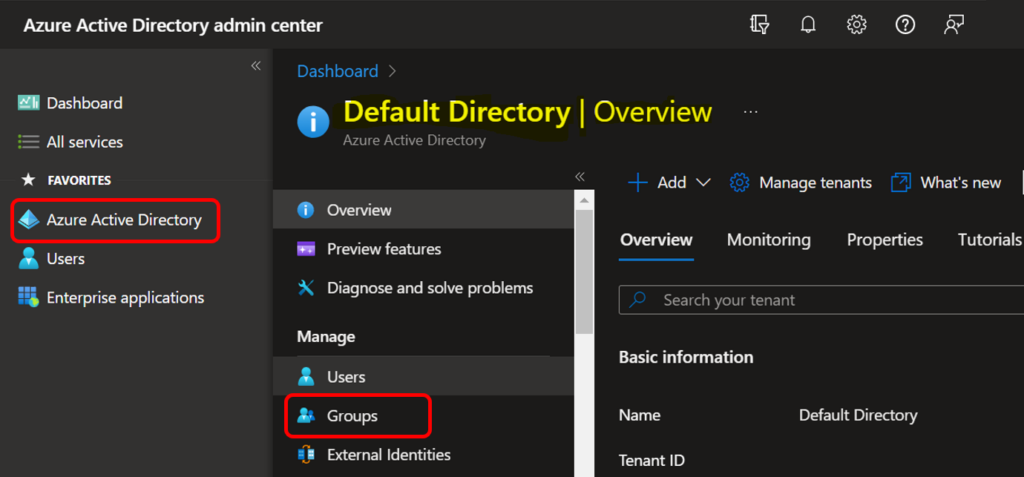
Select All groups, and select New group.
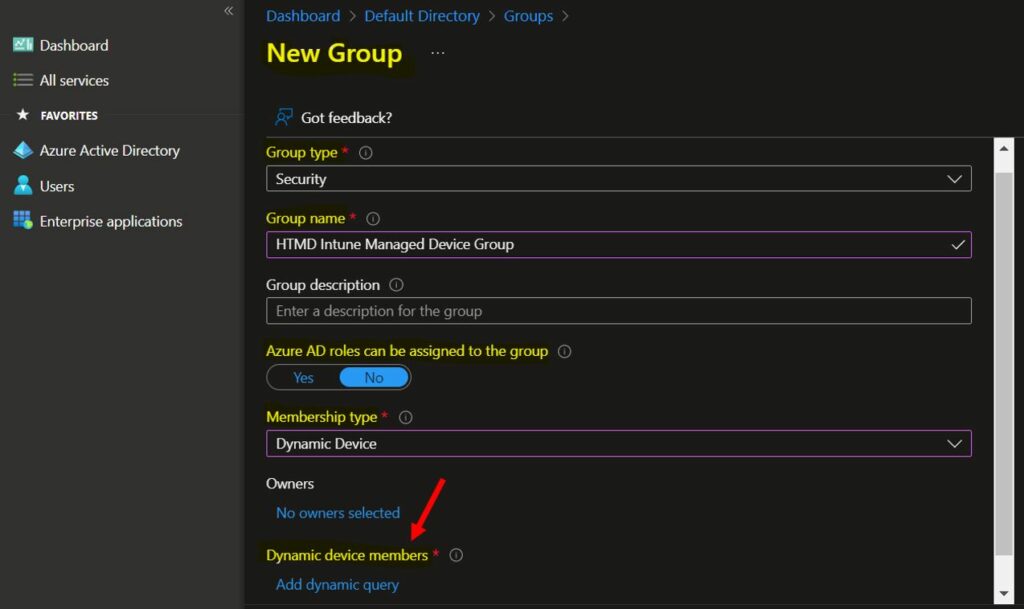
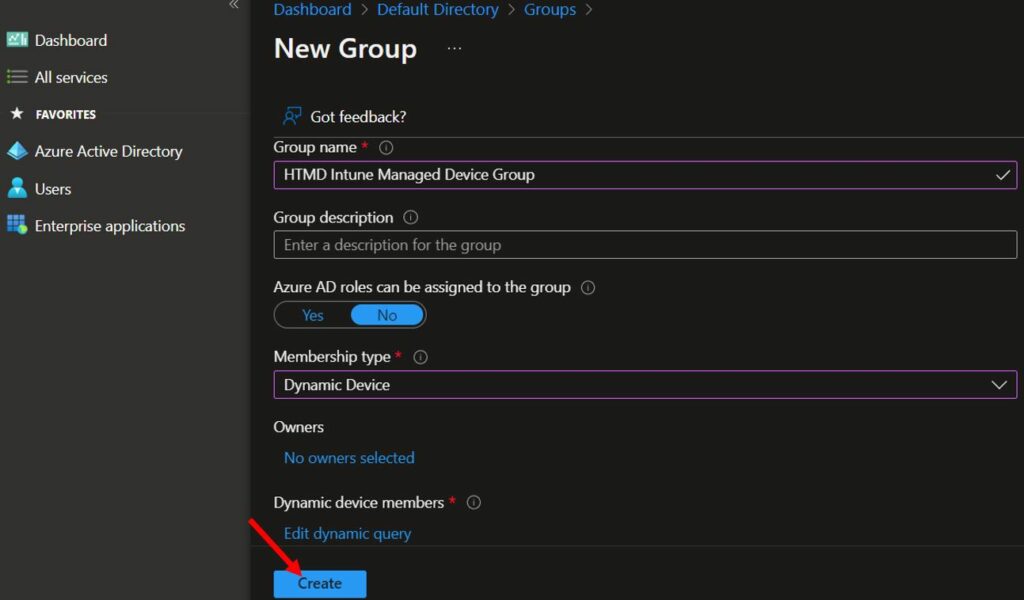
On the New Group, Add the required information to proceed for Dynamic Group.
- Select Security – Group Type from the drop-down option.
- Enter the Group Name “HTMD Intune Managed Device Group” (Provide a suitable name).
- Enter the Group Description “MDM—Microsoft Intune” (Add a description to make it clearer for everyone).
- Select Dynamic Device as the Membership type.
Click on Add Dynamic Query under Dynamic Device Members.
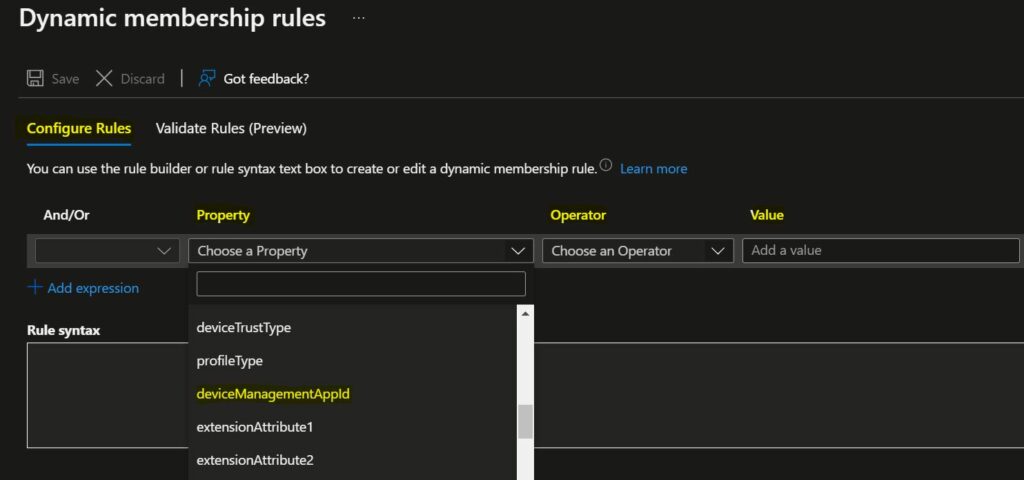
On the Dynamic Membership Rules blade, select the device.deviceManagementAppId property column drop-down options. You can select the option name “Contains” from the operator column, and the Value should be MDM (Microsoft Intune, System Center Configuration Manager, Office 365 Mobile, and None).
The following device attributes can be used –
| Device attribute | Values | Example |
|---|---|---|
| device.deviceManagementAppId | 0000000a-0000-0000-c000-000000000000 (Microsoft Intune) 54b943f8-d761-4f8d-951e-9cea1846db5a (System Center Configuration Manager) | device.deviceManagementAppId -contains 0000 (Trimmed the value up to 4 digit) |
Azure AD Dynamic Device Group for Co-Managed Devices
The following is an example of a membership rule with MDM: Co-Managed.
Property = device.deviceManagementAppId
Operator = Contains
Value = 54b943f8-d761-4f8d-951e-9cea1846db5a
(device.deviceManagementAppId -contains "54b9")Azure AD Dynamic Device Group for Intune Managed Devices
The following is an example of a membership rule with MDM: Microsoft Intune.
Property = device.deviceManagementAppId
Operator = Contains
Value = 0000000a-0000-0000-c000-000000000000
(device.deviceManagementAppId -contains "0000")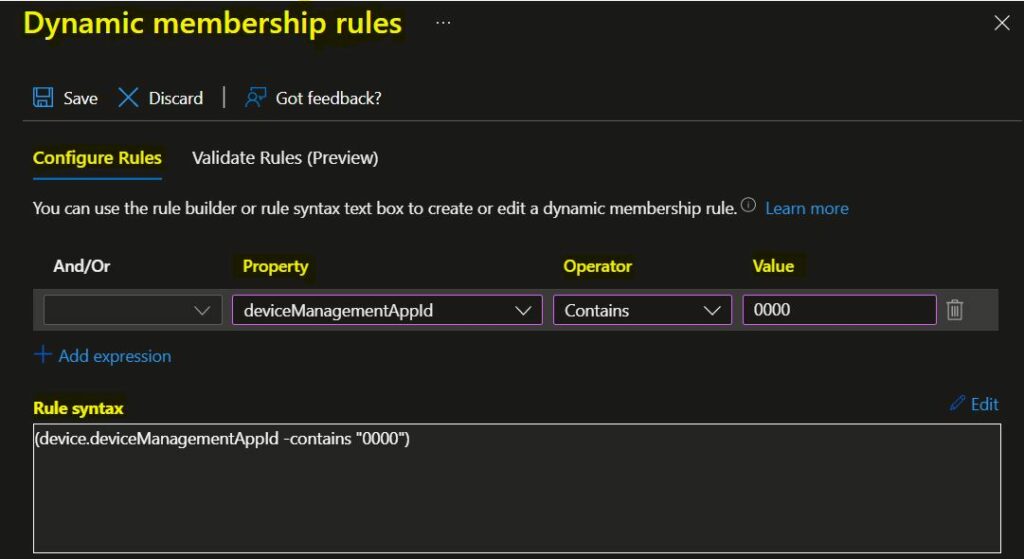
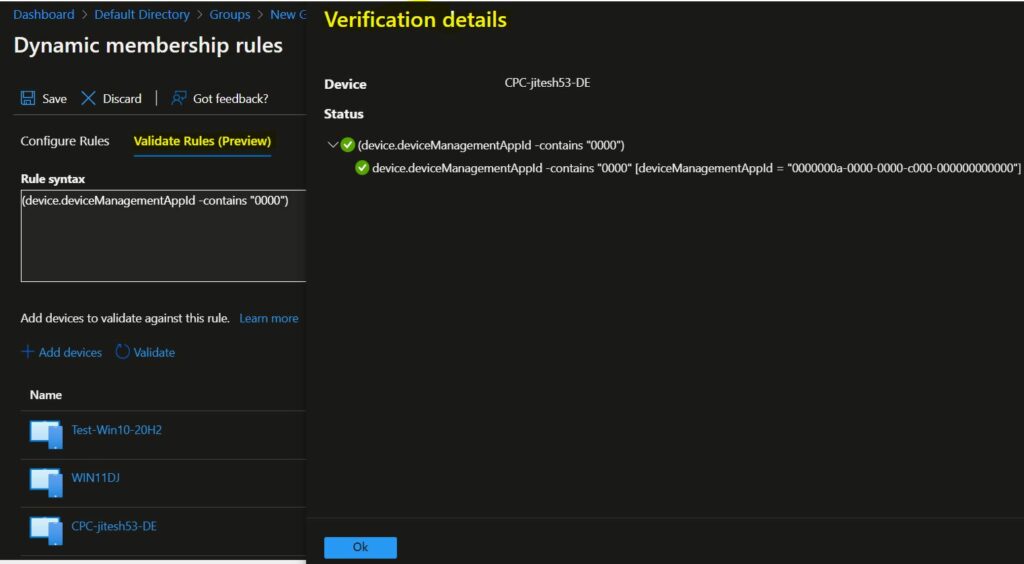
The Validate Rules tab will run your query against your selected target users or devices and confirm whether they would meet the requirements to be a group member. Let’s see how Intune Admin validates Azure AD Dynamic Group Rules.
For Example, Here you can see the selected device Management type (MDM) is Intune, which successfully validated the added rules.
Click on the SAVE and CREATE buttons to complete the process of building Azure AD dynamic device group creation.
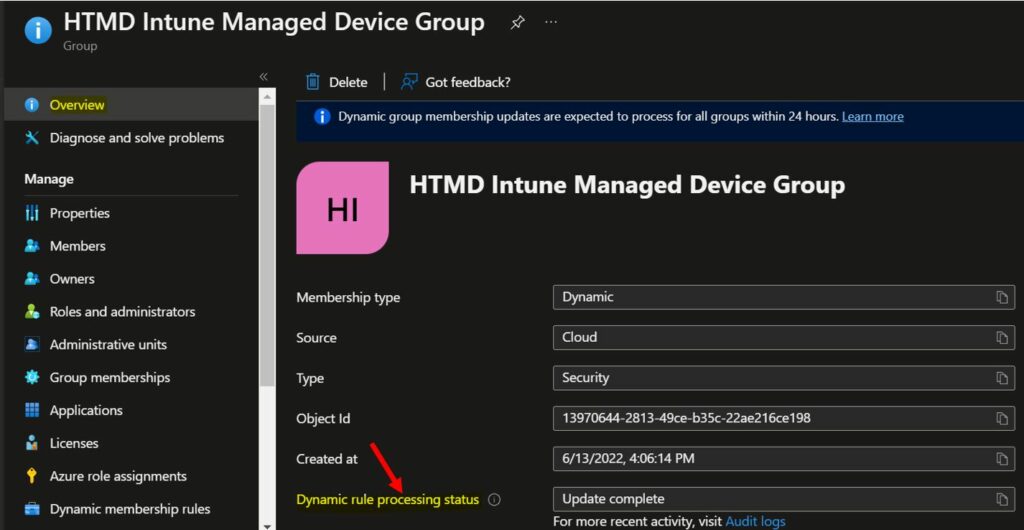
The dynamic rule processing status and the last membership change date are on the group’s Overview page.
The following status messages, Update complete, are shown for Dynamic rule processing status when processing has been completed, and all applicable updates have been made.
An alert is shown on the top if an error occurs while processing the membership rule for a specific group. If no pending dynamic membership updates can be processed for all the groups within the organization for more than 24 hours, an alert is shown on the top of All groups.
Validate Results
Let’s check the results of Azure AD dynamic device groups. The Members node from the created Dynamic AAD Intune Managed group can be checked. Click on the devices to validate their properties.
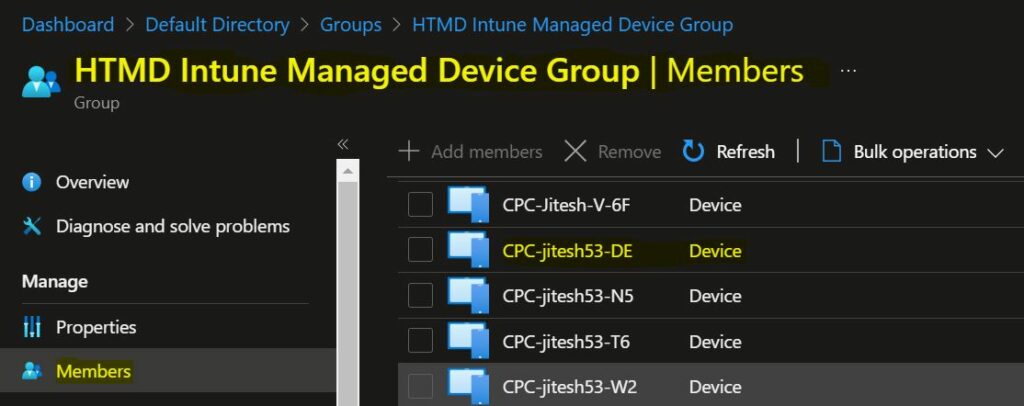
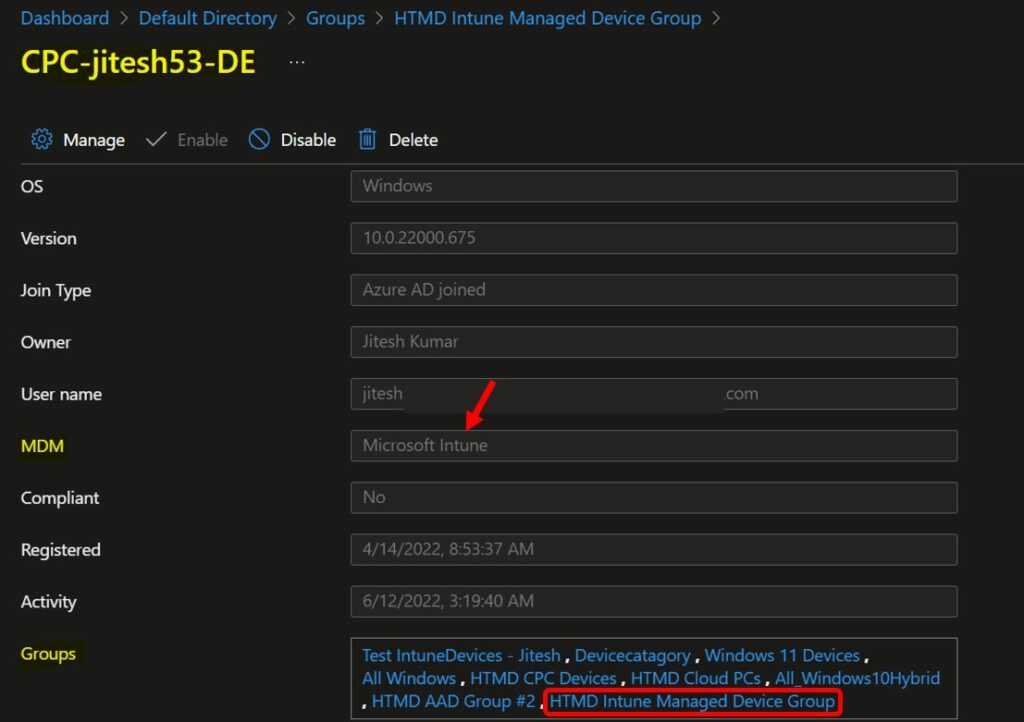
Let’s take an example of a device, CPC-Jitesh53-DE. The selected device MDM is Microsoft Intune. Hence the device is part of the “HTMD Intune Managed Device Group” AAD group based on defined rules.


Hello, I would like to create a user group that would be given access to Join devices to Azure AD, is there a rule or syntax to create that will remove users from the group, once they enroll a Windows laptop to Intune via Autopilot
I have found this work brilliant however, im having an issue where an sccm machine wont show in the dynamic query as its doesnt like the deviceID part, is there anyway to troubleshoot this on the device?
Sadly, ‘contains’ is no longer an available operator for Entra dynamic group membership rules.
You can enter the syntax manually and it still works. I just now did that myself.
Click edit on the rules syntax box and put this in:
(device.deviceManagementAppId -contains “54b943f8-d761-4f8d-951e-9cea1846db5a”)
That is now actviely blocked – so no longer works either.
using ‘equals’ works for me