






3 Methods to Find Internet Explorer Version using SCCM without Enabling Software Inventory
Let’s check 3 easy methods to find Internet Explorer version details using SCCM. I initially used Software Inventory to check the IE version on Windows 11 or Windows 10 devices. Later started using Configuration Items (CI) to check the version details.
In this post, you will learn a new way to find the Internet Explorer version for SCCM managed Windows 10/11 devices. I don’t recommend enabling software inventory for this if you are not using it already. If the software inventory is enabled, you can use the SQL query to get the IE version.
I have seen most SCCM environments use Software Inventory for many good reasons in the past, but it’s worth thinking about moving away from Software Inventory. There are different options as discussed above, but I think there are some gaps with those methods.
Microsoft retired Internet Explorer standalone browser application for certain Windows 10 versions. Microsoft recommends disabling the IE browser on all the applicable Windows 10 versions. However, the IE engine is still used for IE mode for the Edge browser.

Manual Method to Check Internet Explorer Version?
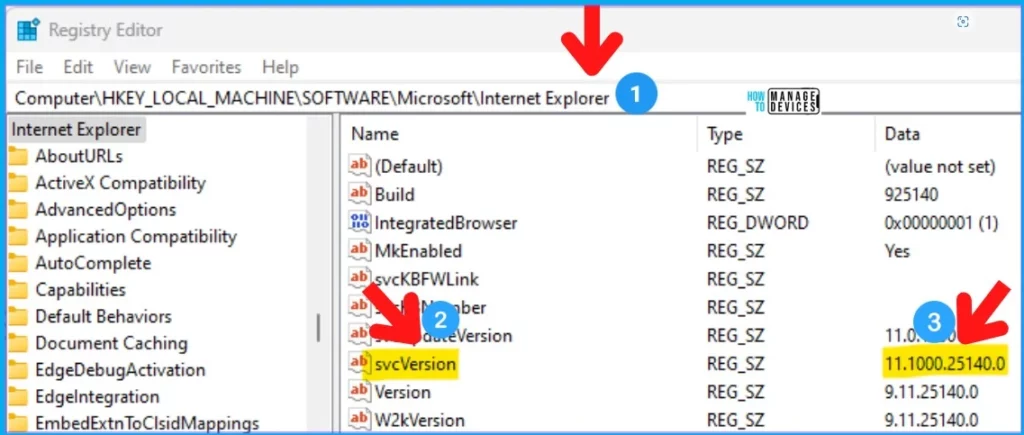
Let’s check Manual Method to Check Internet Explorer Version. The best way to check this as per Microsoft is to look into the registry value for the IE version called svcVersion.
You can launch the registry editor from Regedit.exe from the RUN menu. This is important to understand IE is a device-based install (unlike MS Edge), and the version detail is available in HKLM (HKEY_LOCAL_MACHINE). This HKLM registry hive is a good point for the SCCM method explained below.
- Launch Regedit.exe
- Navigate Computer\HKEY_LOCAL_MACHINE\SOFTWARE\Microsoft\Internet Explorer
- Check the value for the svcVersion to get the IE version from registry -> 11.1000.25140.0
Script to Check the IE Version of Windows 10 or 11 Devices
You can use the PowerShell command to get the IE version from remote devices. You can use Intune PowerShell deployment option or the SCCM PowerShell script option to get these results.
(Get-ItemProperty -Path "HKLM:\Software\Microsoft\Internet Explorer" -Name svcVersion).svcVersionYou can create a new script from the SCCM console -> \Software Library\Overview\Scripts. Enter the details as mentioned below. Copy and Paste the PS command to get the IE version details of SCCM managed Windows 10 /11 devices.
- Script Name: IE Version Details
- Script Description: IE Version PS Script
- Script Type: PowerShell
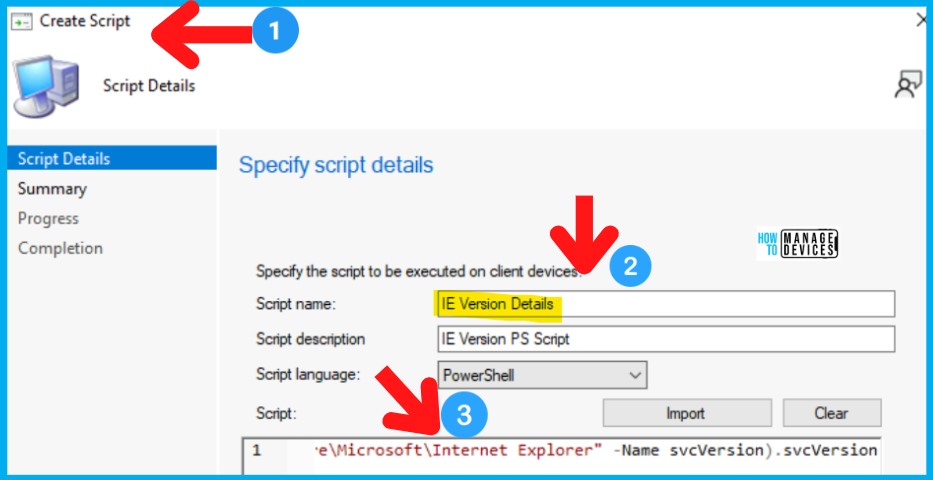
You have to approve the script before deploying it to the managed devices. The approval process is also explained in the SCCM PS script deployment process blog post.
As explained in the above post, you can run the script from any device collection using the Right-Click option. The script execution details are given below. There are 6 resources in the collection that I used to run the script. Clients that are online will be notified to run the script as soon as possible. Click Next to continue.
- Script Name: IE Version Details
- Script Type: PowerShell
- Collection ID: MEM0003A
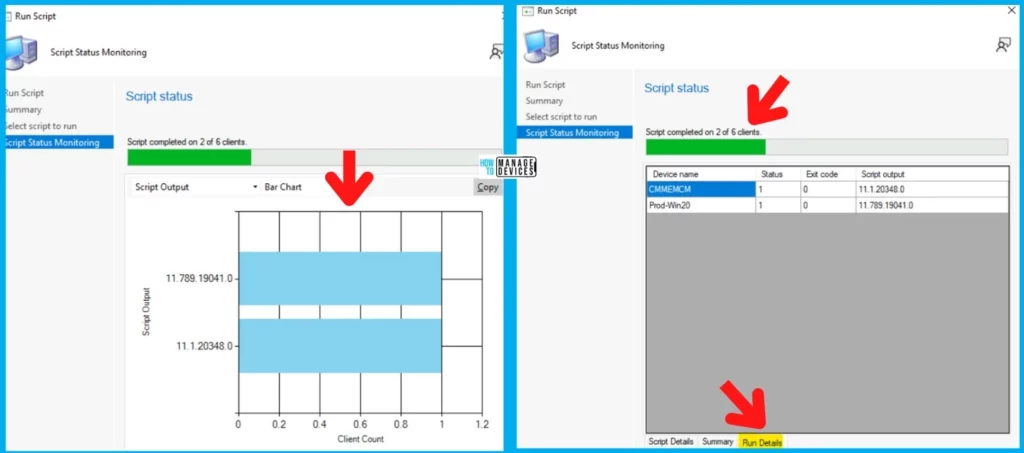
You can check the results from the Script Wizard itself. There are different types of representation available to check the results. In my scenario, only 2 out of 6 clients were online while running the script to find out the IE version details.
- Summary -> Graphical Method to check the results.
- Run Details -> Table format with Hostname, Version numbers, etc.
CMPivot to Check Internet Explorer Version of Windows 10 or 11 Devices
Let’s check the CMPivot option to check the IE Version of Windows 10 or 11 Devices. The CMPivot architecture helps SCCM admin get client device details very quickly. This is useful to get live information from the client using the CMPivot.
The CMPivot is an in-console and standalone utility in ConfigMgr that now provides access to your environment’s real-time state of devices. Let’s follow the process below.
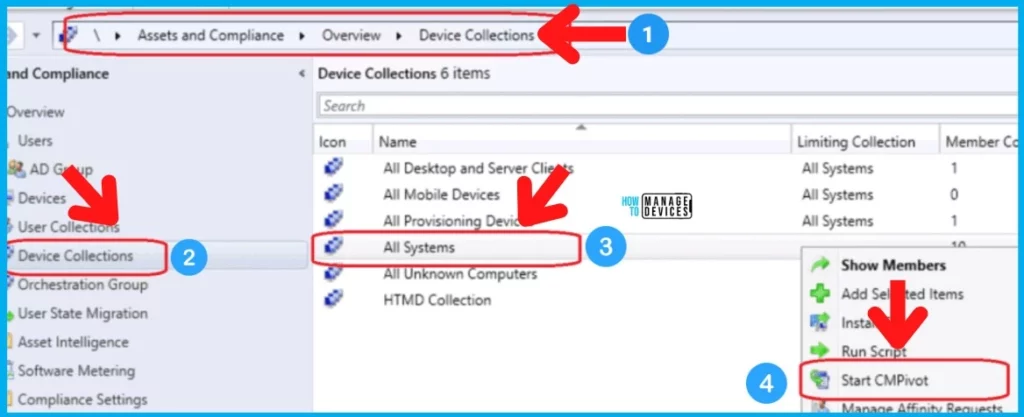
- Navigate to the Device Collection against which you want to run the CMPivot query.
- Select any device collection that you want to run the CMPivot.
- Right-click on any one of the device collections.
- Select Start CMPivot.
Once the CMPIvot tool is launched, you must navigate to the QUERY tab, as shown in the screenshot below. Use the following KQL query to check the IE version on Windows 10 devices. The SCCM, KQL format of the registry path, comes with two // in between each registry folder.
NOTE! – You can’t run the CMPivot query against -> HKCU (HKEY_CURRENT_USER). The CMPivot query against HKCU is not supported as per my latest testing.
The HKEY_LOCAL_MACHINE entry is represented as HKLM. The particular registry entry that you are looking for should come under Property. The following are the CMPivot queries that will get you the IE version details.
You can filter the results based on the version of Internet Explorer if you want to find out whether you still have devices with legacy Microsoft Edge. The second query is an example of devices with an Internet Explorer (IE) version greater than 102.0.1245.41.
1. Registry('HKLM:\\SOFTWARE\\Microsoft\\Internet Explorer') | where Property == 'svcVersion'

2. Registry('HKLM:\\SOFTWARE\\Microsoft\\Internet Explorer') | where Property == 'svcVersion' and Value >= '102.0.1245.41'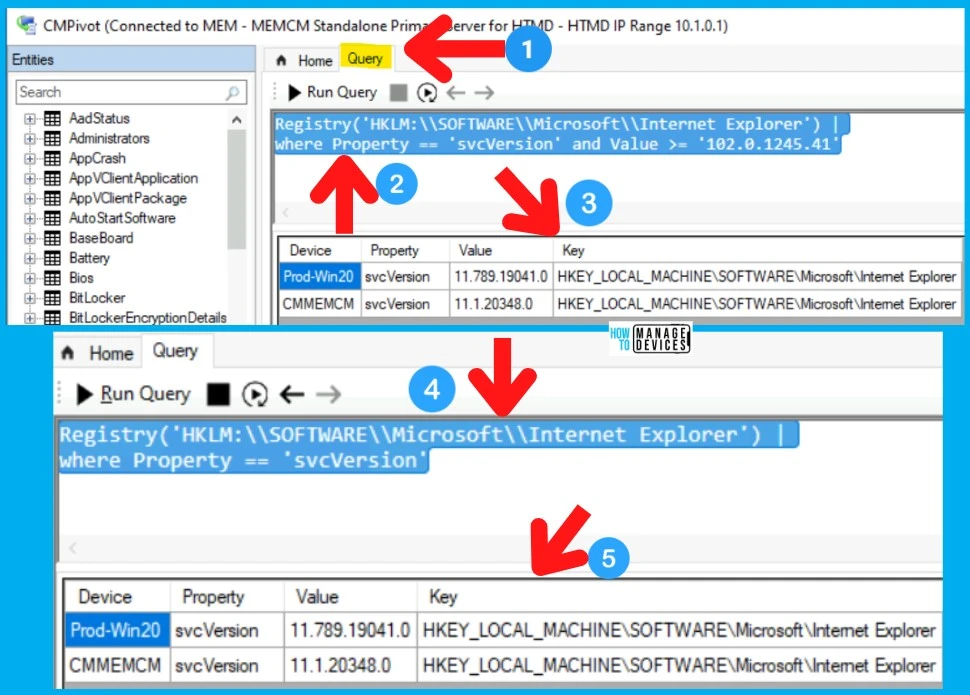
Microsoft Edge Browser Version Details
Let’s check Microsoft Edge Browser Version Details using the command line and PowerShell script option, as explained below. You can also get the SCCM custom report for the Microsoft Edge version details.
reg query HKCU\Software\Microsoft\Edge\BLBeacon /v version (Get-ItemProperty -Path HKCU:\Software\Microsoft\Edge\BLBeacon -Name version).version- ConfigMgr Microsoft Edge SQL Query | Custom Report | SCCM
- Learn how to create a device collection based on the MS Edge version -> Create MS Edge SCCM Device Collection Using WQL Query.
Resource
How to check the Internet Explorer version on computers – Browsers | Microsoft Docs
Results
Anoop is Microsoft MVP! He is a Device Management Admin with more than 20 years of experience (calculation done in 2021) in IT. He is Blogger, Speaker, and Local User Group HTMD Community leader. His main focus is on Device Management technologies like SCCM 2012, Current Branch, and Intune. He writes about ConfigMgr, Windows 11, Windows 10, Azure AD, Microsoft Intune, Windows 365, AVD, etc.




Discussion