






OneDrive Status Icon from File Explorer on Windows 11
You can now check the OneDrive Status icon from File Explorer on Windows 11. This new feature can help launch the OneDrive application settings directly from Windows 11 File Explorer.
Microsoft recently added a new OneDrive icon into the File Explorer to get the details of the Onedrive in the file explorer itself. You can navigate to different folders in the file explorer and get the details of the Onedrive accounts that those folders are synced, etc., using the new OneDrive icon.
I have been using the new OneDrive status and settings option for more than a month now in the insider build. This OneDrive feature was available well before File Explorer Tabs. The new OneDrive status icon provides much tighter integration with file explorer.
Now Microsoft Teams and other apps provide tighter integration with OneDrive. You have an option to Sync or Add Shortcut to OneDrive from Teams Channels. All these modern options need tighter integration with OneDrive and File Explorer.

The OneDrive icon status and settings from the file explorer feature make the user’s life easy with all these new ways of sharing and collaborating with MS Teams channels, etc.
What is OneDrive Status Icon from File Explorer?
Let’s understand the details of the OneDrive Status Icon from File Explorer? This is the new OneDrive status icon that Microsoft made available in Windows 11 file explorer. You must log in to your OneDrive account by clicking on the icon for the first time (this is the experience while writing this post).
NOTE! – This is the OneDrive icon that shows up in the File Explorer command bar!
You have a drop-down option near to OneDrive icon and from where you can log in to Personal or OneDrive for Business accounts. You also get the OneDrive status of a particular folder below, as you can see the “Sync Pending” status in the below screenshot.
- Personal OneDrive
- OneDrive for Business
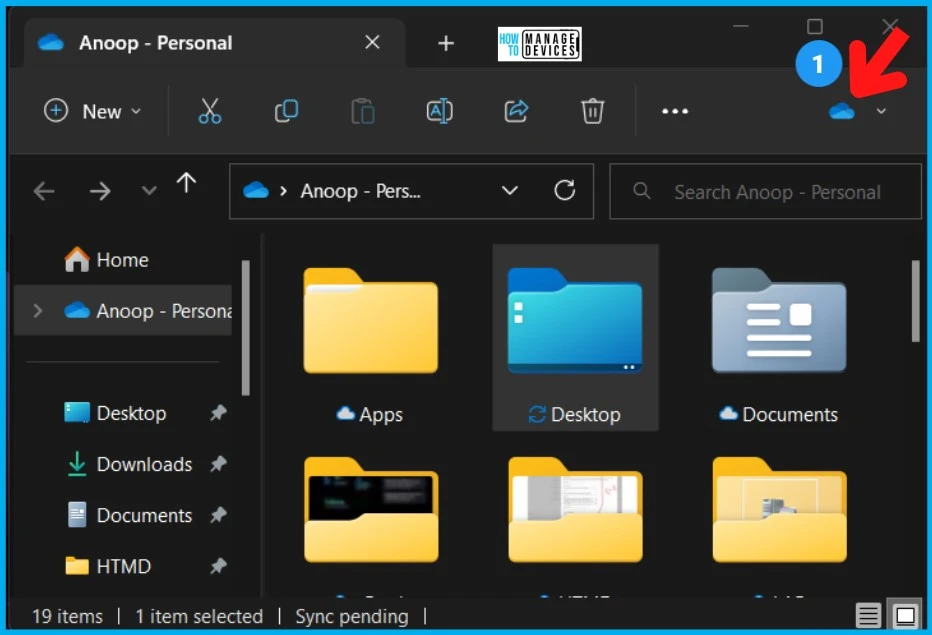
Features of New OneDrive Status Icon
You can click on the down arrow to get the option to log in and check the status of the OneDrive sync. You also get the details of other features or options available. The following is a quick list of features available with the Windows 11 insider build.
- OneDrive Settings
- View Online
- Recycle bin
- Manage Storage from the Online portal
- Used Space Details
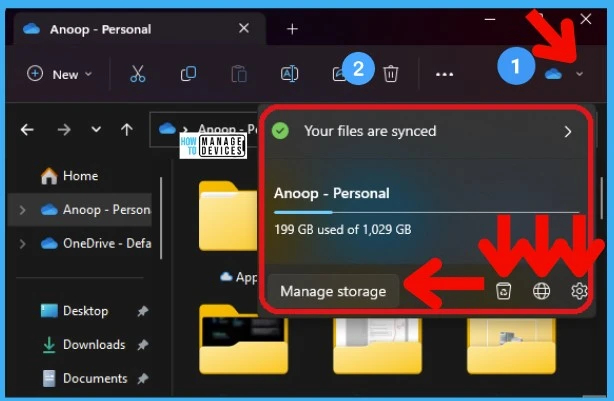
OneDrive Status Icon is Missing for Some of the Folders?
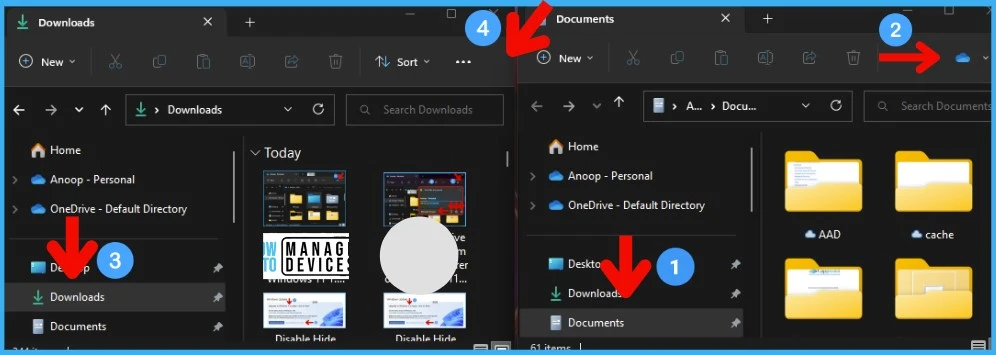
OneDrive Status Icon is Missing for Some of the Folders? Ok, that is as per the design. The OneDrive status icon is unavailable for all the folders within the Windows 11 file explorer. It’s only available for the folders that are synced with OneDrive!
In the screenshot below, the Documents folder is synced with OneDrive, which is why the OneDrive status icon is enabled for that folder. However, the Download folder is not synced with OneDrive hence there is no OneDrive Status icon available for that folder.
OneDrive Sync Error Status
Let’s check one example of the OneDrive sync error status available in the new file explorer on Windows 11. This is another helpful feature to quickly identify OneDrive sync issues from Windows 11 file explorer OneDrive status icon.
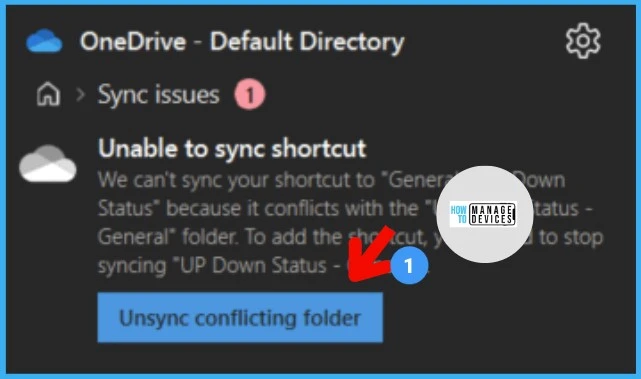
As you can see in the below screenshot, the OneDrive status icon shows an error status. You can click on the drop-down arrow to get the details, such as how many sync errors are there, etc. In this scenario, it was only 1 Sync Error because of a conflict.
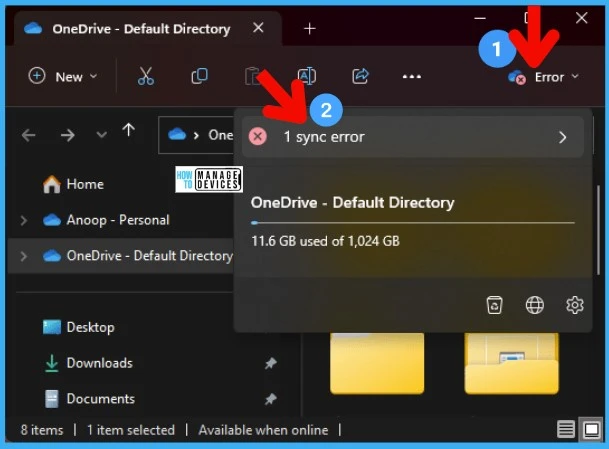
You can open the Full OneDrive Client to check more details about the sync error. You can see the details of the sync error from this window. It also allows fixing the issue by clicking on Unsync Conflicting Folder.
Author
Anoop is Microsoft MVP! He is a Device Management Admin with more than 20 years of experience (calculation done in 2021) in IT. He is Blogger, Speaker, and Local User Group HTMD Community leader. His main focus is on Device Management technologies like SCCM 2012, Current Branch, and Intune. He writes about ConfigMgr, Windows 11, Windows 10, Azure AD, Microsoft Intune, Windows 365, AVD, etc.




Discussion