






Turn Off All Windows Update Notifications using Display Options for Update Notifications
Let’s see how to turn off all Windows Update notifications using Display Options for Update Notifications group policy settings. This is the new end-user experience policy that Microsoft introduced recently.
The Display Options for Update Notification is useful for IT admins in education to turn off all the software update notifications. IT Admins can turn off all Windows Update notifications that might distract students during the school day.
While writing this post, the new group policy setting to disable all the Windows Update notifications is part of the Windows Insider build (22563). I hope you can implement this policy for Windows 10 devices once it’s available via Windows 11 ADMX templates.
Windows 11 Focus settings to help reduce distractions/notifications for the end-users. The new Windows 11 Focus settings help you minimize distractions. This enables you to stay on track and improve the end-user experience.

Read More on disabling Windows 11 Upgrade Banner Notification -> Disable Hide Upgrade to Windows 11 is Ready Notification on SCCM Managed Devices.
Windows 11 Vs. Windows 10 ADMX Templates
The structure of Windows Update policies is changed between Windows 11 and Windows 10 ADMX policies. I feel Windows 11 template gives more clearer structure to configure Windows Update policies. The list provides the folder structure of Windows 11 Windows Update ADMX policies.

- Legacy Policies
- Managed End User Experience
- Manage Updates offered from Windows Server Update Service (WSUS)
- Manage Updates offered from Windows Update
I have seen Microsoft PM recommend using Windows 11 ADMX Template instead of Windows 10 group policies, even for Windows 10 devices. But Windows 11 ADMX is missing some of the GPOs available in Windows 10 21H2 ADMX.
You can check the differences between the Windows 10 and 11 ADMX policies (for the production versions) from the GitHub repository. More Details – Diff Windows 11 21H2 – Windows 10 21H2 v2.0 (2/2) from Manel Rodero.
Turn Off All Windows Update Notifications
Let’s check how to turn off all Windows Update notifications using Windows 11 ADMX policy. Also, check the other policies you need to configure to avoid missing the security patches. You need to To configure new Windows Update notifications or experience policies.
Read More to Learn how to Download, Install, and Configure ADMX policies for both domain and local computer levels -> Download ADMX Group Policy Templates.
- Launch GPEDIT.MSC to test this for a single device.
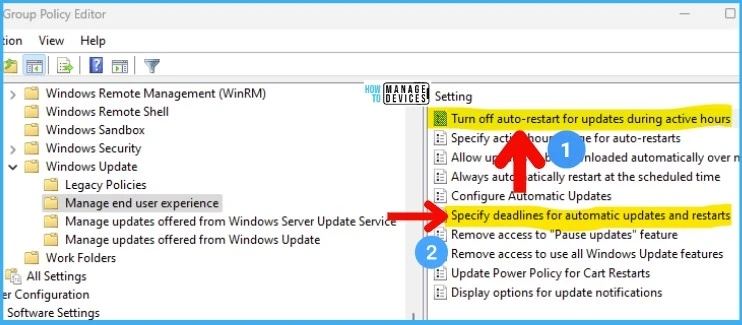
- Navigate to Computer configuration > Administrative Templates > Windows Components > Windows Update > Manage end user experience
- Double click on Display options for update notifications option.

This policy allows you to define what Windows Update notifications users see. But this policy doesn’t control how and when updates are downloaded and installed. You can configure these details using SCCM or Intune patch deployment process.
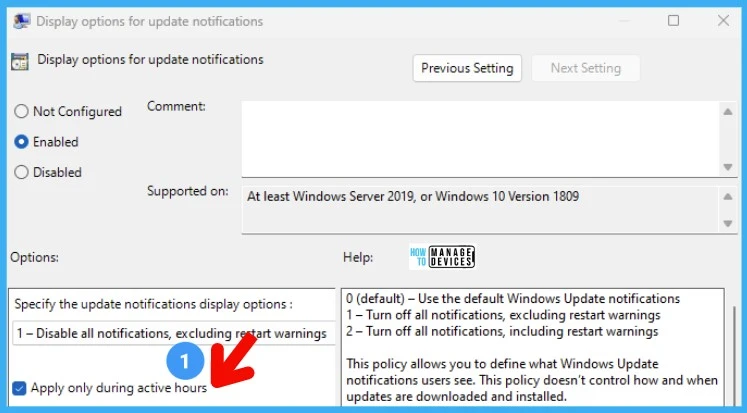
You have three drop-down options to configure the Display Options for Update Notifications group policy settings. You can select either 1st or 2nd option depending on the requirement.
- 0 (default) – Use the default Windows Update notifications
- 1 – Turn off all notifications, excluding restart warnings
- 2 – Turn off all notifications, including restart warnings
Important: if you choose not to get update notifications and also define other Group policies so that devices aren’t automatically getting updates, neither you nor device users will be aware of critical security, quality, or feature updates, and your devices may be at risk.

Apply Windows Update only during active hours GPO Setting
The other option available with the “Display Options for Update Notifications,” which is the group policy setting, is to Apply Windows Update only during active hours.
If you select the “Apply only during active hours” option in conjunction with the 1st or 2nd option discussed above, then notifications will only be disabled during active hours. This means after active hours, and it will start showing the notification.
You can set active hours by setting “Turn off auto-restart for updates during active hours” or allow the device to set active hours based on user behavior. To ensure that the Windows device stays secure, a notification will still be shown if this option is selected once the “Specify deadlines for automatic updates and restarts” deadline has been reached if configured, regardless of active hours.
Registry Entries – Turn Off All Windows Update Notifications
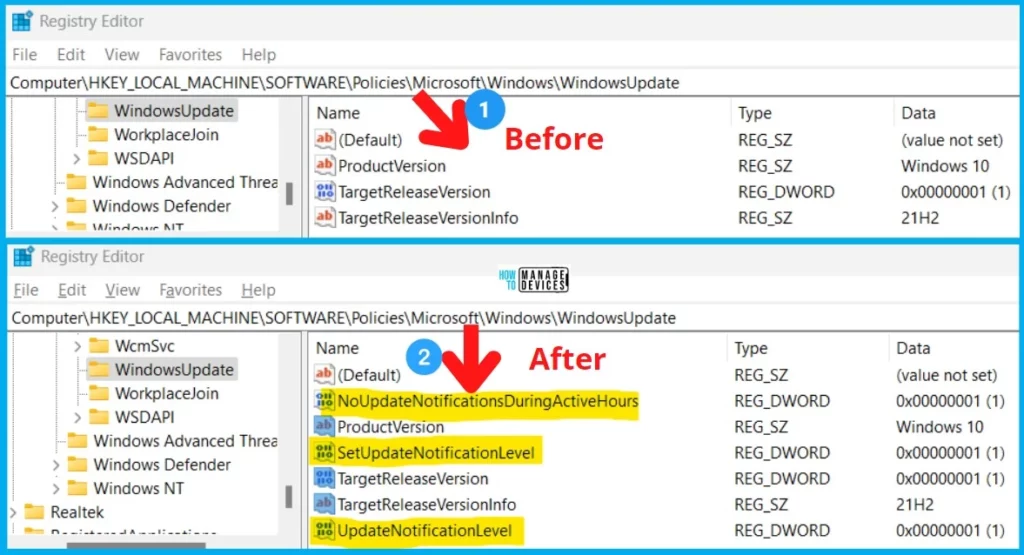
Let’s check Registry Entries to enable turning off all Windows Update notifications policy settings. You can see there are three new registry entries got created for the configurations related to Display Options for Update Notifications.
The registry path where you can find the new Disable Notification and Active Hours entries -> Computer\HKEY_LOCAL_MACHINE\SOFTWARE\Policies\Microsoft\Windows\WindowsUpdate
- NoUpdateNotificationsDuringActiveHours
- SetUpdateNotificationLevel
- UpdateNotificationLevel
MEM Intune – Windows CSP Policy Options
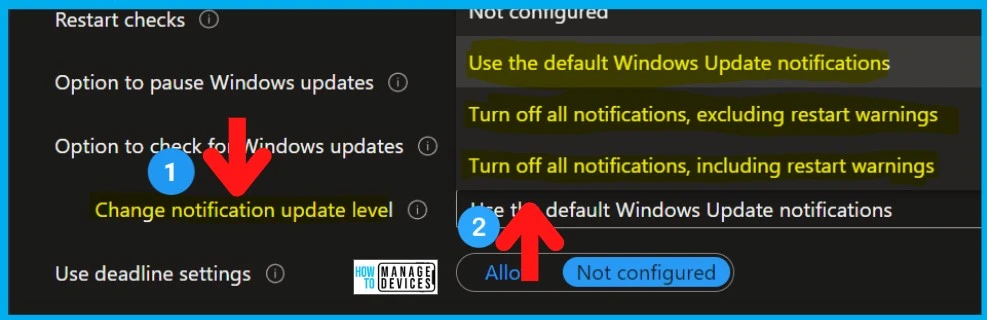
Let’s see the MEM Intune Windows CSP Policy Options available to disable the notification for WUfB policies. I’m glad to see that these (or similar) configurations are already available as Windows CSP and in Intune.
- Windows CSP Policy for disabling all the Windows Update notifications -> ./Device/Vendor/MSFT/Policy/Config/Update/UpdateNotificationLevel
You also have similar notification options available as part of the MEM Intune monthly patching process. The configuration of the notification policies looks identical to the Group Policy Settings that got introduced with the latest Windows Insider build (22563). More details -> Software Update Patching options with Intune Setup Guide.
NOTE! – Apply Windows Update only during active hours setting with Update Notification Level is missing in the existing policies (I think?)
Resource
Anoop is Microsoft MVP! He is a Device Management Admin with more than 20 years of experience (calculation done in 2021) in IT. He is Blogger, Speaker, and Local User Group HTMD Community leader. His main focus is on Device Management technologies like SCCM 2012, Current Branch, and Intune. He writes about ConfigMgr, Windows 11, Windows 10, Azure AD, Microsoft Intune, Windows 365, AVD, etc.




thx very much
Hi,
Do you have any guide on the notification flow? Currently, users are not receiving the pending restart notifications after the initial alert, including the final 15-minute reminder notifications.