






Quickly Get Condition On SCCM Task Sequence Step
Let’s learn how to get condition on sccm task sequence step. This post shows how to get the condition on the steps or group of the task sequences. Conditions are options on each step that can be set to determine if a step will run or not during the task sequence.
The task sequence evaluates the conditions before running the step on the device. Conditions can be simple or very complex, depending on your requirements. It only runs the step if the conditions evaluate true. If a condition evaluates false, then the task sequence skips the group or step.
There are several conditions are available to evaluate the added steps, The conditions are the same as for step conditions. The rule evaluates to true when the value set for the variable meets the specified condition. Specify one or more variables to set for a rule that evaluates to true, or set variables without using a rule.
You can also use the Get-CMTaskSequenceStepCondition PowerShell cmdlet to get a condition on a task sequence step. The task sequence evaluates the condition before it runs the step or group.

Suppose you use groups to combine multiple steps that share a common condition. A task sequence group default fails when any step or embedded group within the group fails. If you want the task sequence to continue when a step or embedded group fails, set the Continue on error option on the step or group.
- Find SCCM Task Sequences Reference Application
- Easily Find SCCM Applications Without Deployments
- Steps to Extend Task Sequence Error Prompt Duration
How to Get Condition On SCCM Task Sequence Step
Let’s see the following steps to find the task sequence step has conditions in SCCM –
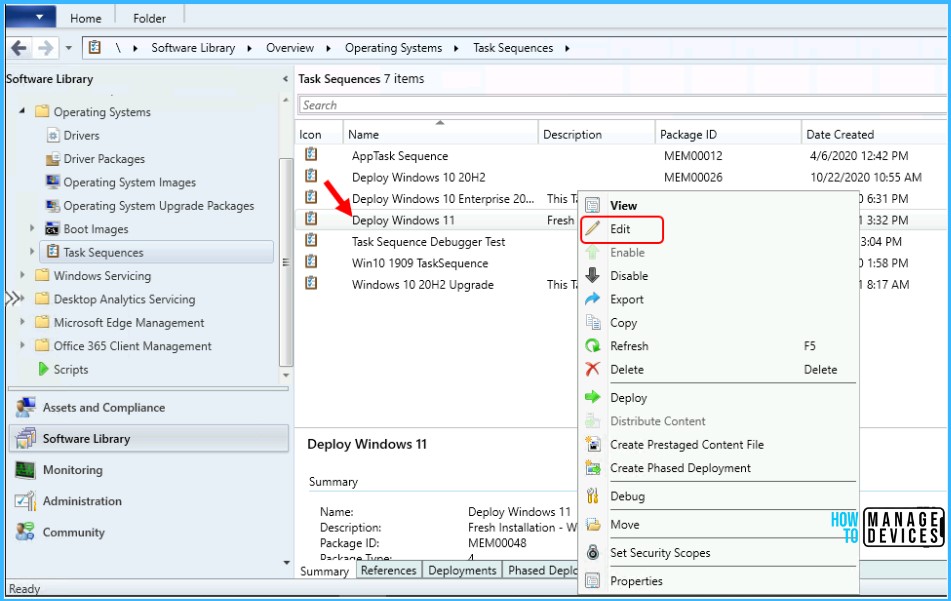
- Launch Configuration Manager console, go to the Software Library workspace, expand Operating Systems, and select the Task Sequences node.
- In the Task Sequence list, select the task sequence you want to edit. Select Edit to modify.
Search the task sequence editor: It is not easy to find specific steps if you have a large task sequence with many groups and steps. This action lets you more quickly locate steps in the task sequence.
Click on the Scope drop-down button. Here you can scope your search using the following types, and It enables all scopes by default:
- Step Name
- Step Description
- Step Type
- Group Name
- Group Description
- Variable Name
- Conditions
- Other content, for example, strings like variable values or command lines
You can also filter for all steps with the following configured options, and It doesn’t enable either filter by default.
- Continue On Error
- Has Conditions (I selected this option to get a condition on a task sequence step)
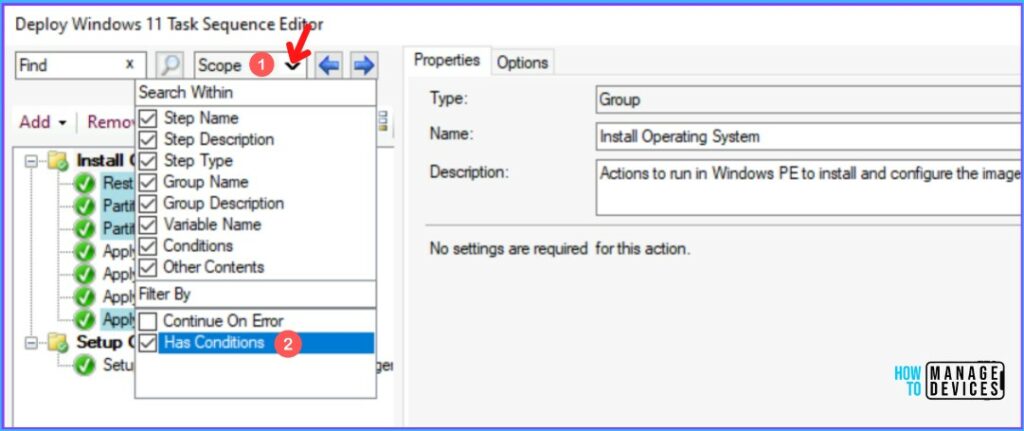
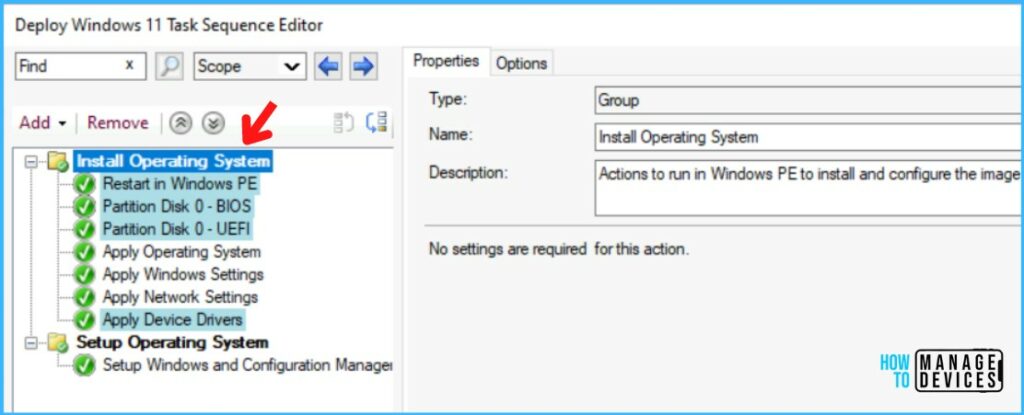
The task sequence editor window highlights the steps matching your search criteria when selecting the scope. Here you can see that the steps are highlighted that have conditions.
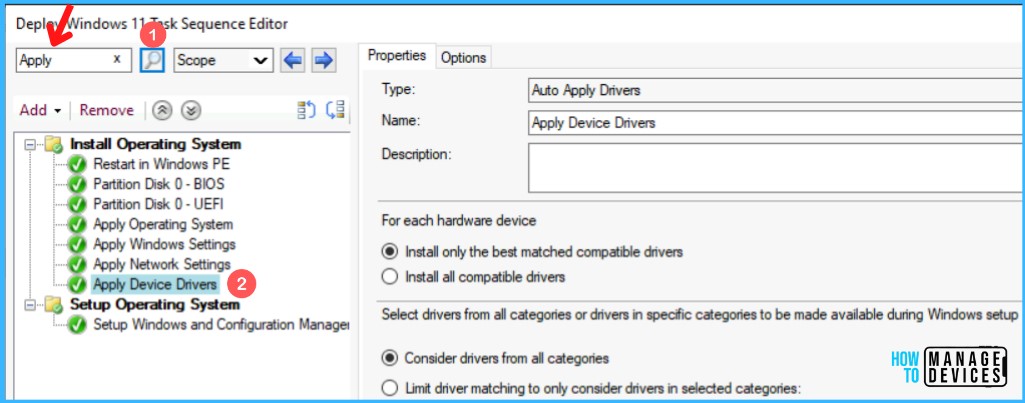
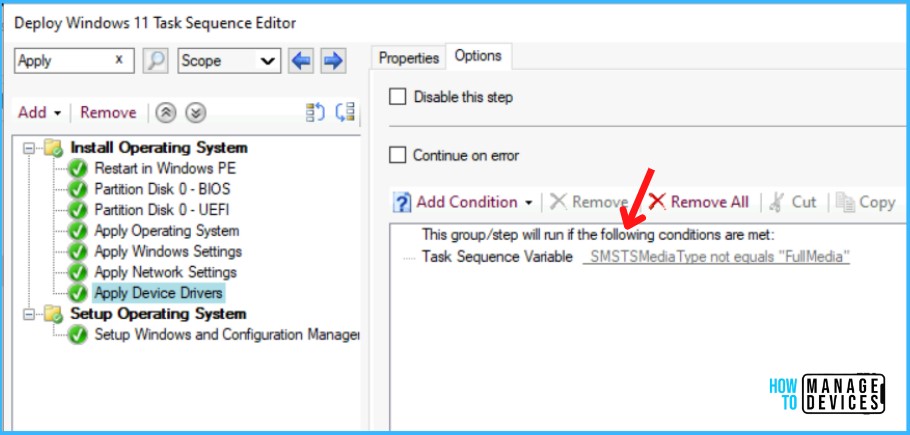
Enter a search term to start. The editor window highlights the steps that match your search criteria when you search. For Example: Here I searched for Apply, and you were able to see multiple task sequence steps starting with the name “Apply.”
The Task Sequence editor highlighted the step has conditions based on the selection you have made to filter.
You can click on the step to validate the options. Here’s how you can see the settings on the Options tab of this task sequence step has conditions that must be met to run the step.
Note: When you add conditions on the Options tab of this step, the task sequence step or group will only run if the specified conditions are met otherwise, task sequence execution skips the step or group and jumps to the next step.
PowerShell Command – Get SCCM Task Sequence Step Condition
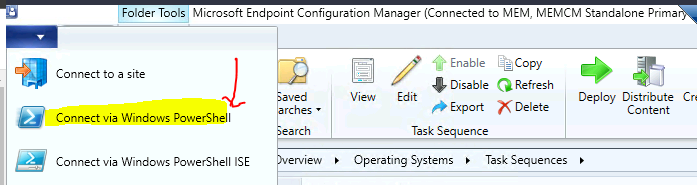
Now, let’s quickly look at options to check to task sequence step condition with the PowerShell Commands or SCCM PowerShell cmdlets. You can Launch the SCCM PowerShell Commandlets from the console itself.
Click on the Drop-Down option on the top left side corner of the console and click on Connect via Windows PowerShell option.
Get-CMTaskSequenceStepCondition : Use this cmdlet to get a condition on a task sequence step. The task sequence evaluates the condition before it runs the step or group.
For example, To get the default condition on the Post-Processing group of an in-place upgrade task sequence –
$tsname = "Default IPU"
$tsgroup = "Post-Processing"
$ts = Get-CMTaskSequence -Name $tsname

$ts | Get-CMTaskSequenceGroup -StepName $tsgroup | Get-CMTaskSequenceStepCondition



Discussion