






Create Windows 11 22H2 Azure AD Device Group Step by Step Guide
Create Windows 11 22H2 Azure AD Device Group step by step process is explained in this post. I have azure AD device Windows 10 and Windows 11 21H2 groups for Intune application or policy deployment.
The Windows 11 22H2 dynamic AAD dynamic device groups are a must to target applications and policies only to the latest version of Windows 11. I have also seen the requirements of the 22H2 group creation for some of the reporting scenarios.
Azure AD group-based deployments are the primary use case for Intune Settings Catalog policies and apps. We have options such as Intune filters to target specific devices/users and avoid using AAD dynamic groups.
I would love to use Filters instead of AAD groups wherever possible. Microsoft’s SLA for Azure AD dynamic group SLA is 24 hours even though the update happens within a few minutes for 99.99% in my experience. There could be exceptions if there is some Azure AD or other incidents.

- Intune Assignment Filter for Windows 11 22H2 Devices
- How To Create Nested Azure AD Dynamic, Groups
- Create AAD Dynamic Groups Based On Domain Join Type
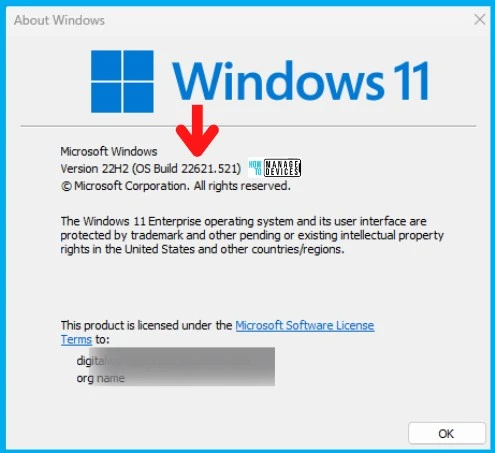
Azure AD Dynamic Device Groups for Windows 11 22H2
Intune uses Azure AD device groups for deploying apps and policies. The only assignment option supported by Intune is Azure AD user and device groups now. Intune also supports assignment filters. The assignment filters sit at Intune layer. This helps to filter out/in devices or users from deployments.
The AAD dynamic device/user groups are managed automatically. Depending on the query conditions, the devices /users will get automatically added or removed from the group. You must put the logic in the query rule.
The Azure AD dynamic query supports limited device attributes from a device management solution or Intune perspective. This makes things a bit difficult for Intune admins to create complex Azure AD dynamic groups. This is one of the reasons Microsoft created Intune Assignment filters.
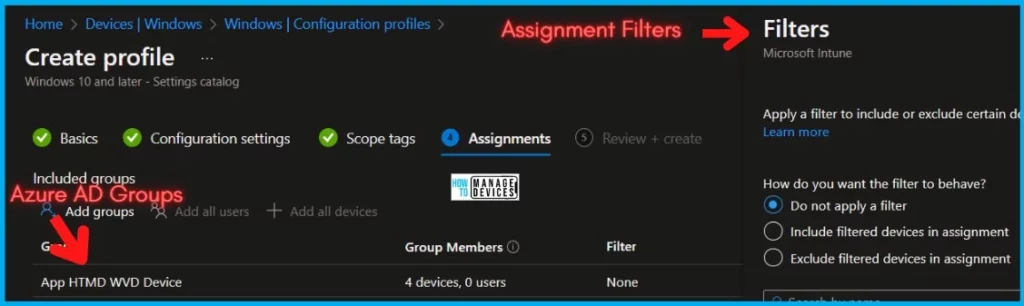
- Intune Filters For Azure Virtual Desktop (AVD) VMs
- Intune Filters for Assigning Apps Policies And Profiles In Intune Portal
Create Windows 11 22H2 Azure AD Device Group
Let’s create Windows 11 22H2 Azure AD Device Group using the following step-by-step process. The main details you need before making a Windows 22H2 AAD dynamic device group are Windows 11 22H2 version details.
You can get the version details of the Windows 11 version post, and the version details of Windows 11 22H2 is 22621.608. Let’s check the full version below table. The Azure AD device group creation is based on the OS version and requires a full version.
| Windows 11 21H2 | New! – Windows 11 22H2 |
|---|---|
| 10.0.22000 | 10.0.22621 |
Now check the steps to create the AAD dynamic group for 22H2. You must have appropriate permissions to create Azure AD groups. Follow the steps to create the Device group for 22H2.
- Login to Endpoint Manager Portal (endpoint.microsoft.com)
- Navigate to the Groups node.
- Click on “+ New Group. “
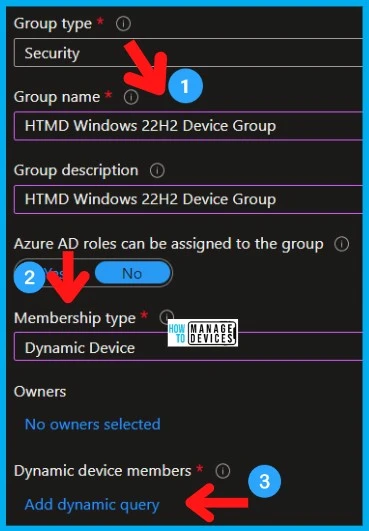
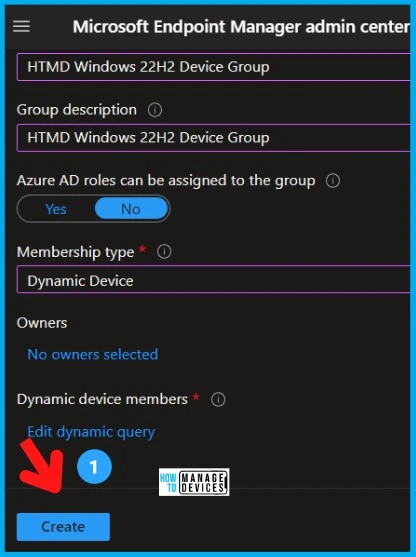
- Select Security – Group Type from the drop-down option.
- Enter Group Name “HTMD Windows 11 22H2 Device Group” (any name is fine).
- Enter Group Description “HTMD Windows 11 22H2 Device Group” (any description is fine).
- Select Dynamic Device as Membership type.
- Click on Add Dynamic Query under Dynamic Device Members.
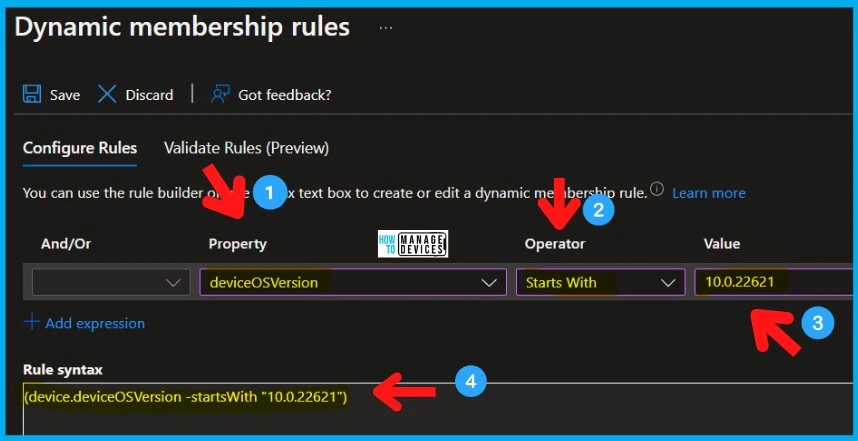
On the Dynamic membership rules page, Hover over the properties column to get an option to select Azure AD dynamic device groups based on Windows 11 22H2 OS Version. You can also copy-paste the following query to create an Azure AD dynamic device for Windows 11 22H2 Devices from the below paragraph.
You can use the below table to create the dynamic query rule for Windows 11 22H2 AAD dynamic groups. The value is the key here. If you change the value, you won’t get the appropriate results.
| Property | Operator | Value |
|---|---|---|
| osVersion | StartsWith | 10.0.22621 |
You can create or edit rules directly by editing the syntax in the box below. But I always prefer to use the UI as shown below for the 22H2 dynamic group. There are some scenarios where the device properties (e.g. nesting) are not published in the UI property list.
NOTE! – Changes made here may not be reflected in the rule builder. You can directly create or edit a dynamic membership rule by specifying the rule syntax.
(device.deviceOSVersion -startsWith "10.0.22621")- Click on the SAVE button to save the query rule.
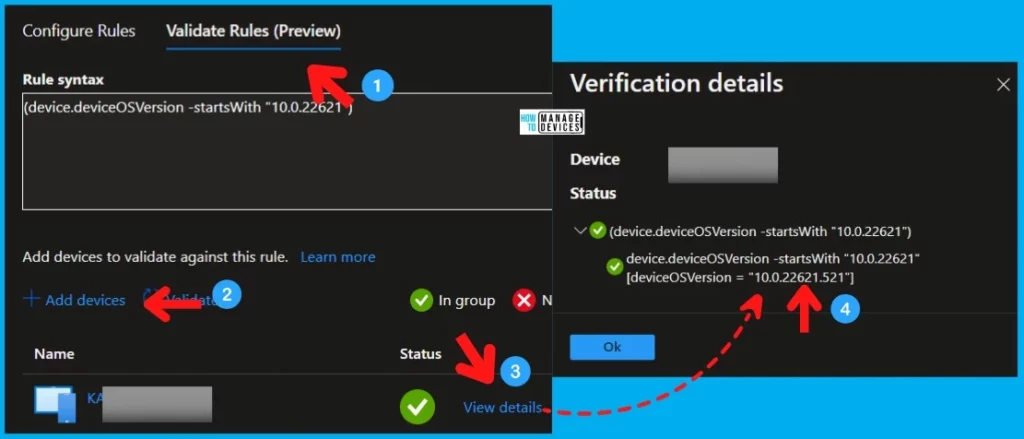
- You also have the option to validate the Azure AD query from Validate Rules tab, as shown in the picture. More details are explained in the below section.
You can now click on the CREATE button to complete the process of creating a Windows 11 22H2 Azure AD dynamic group.
- Validate Azure AD Dynamic Group Rules (howtomanagedevices.com)
- Windows 11 Versions Numbers Build Numbers
Validation of Azure AD Dynamic Query Rule for Windows 22H2 Devices
Now, let’s check the Validation of the Azure AD Dynamic Query Rule for Windows 22H2 Devices. You can Validate Rules using the Dynamic Membership Rule tab of Azure AD group property, or you can validate the query from the Dynamic membership rules page as mentioned in the above section.
More details on the Validation of the Azure AD query language process are below.
- Click on Validate Rules from the Dynamic membership rules page.
- Add Devices – Select at least two or three devices. Some of the devices you think should be part of this group and some that should not be part of it.
- Check the validation results blade to understand and confirm whether your Azure AD dynamic device group query logic is correct or not.
If the green check mark is there for the devices that must be in the group and the red cross mark against the devices that must not be part of the group, then everything is OK with the dynamic query rule.
Result
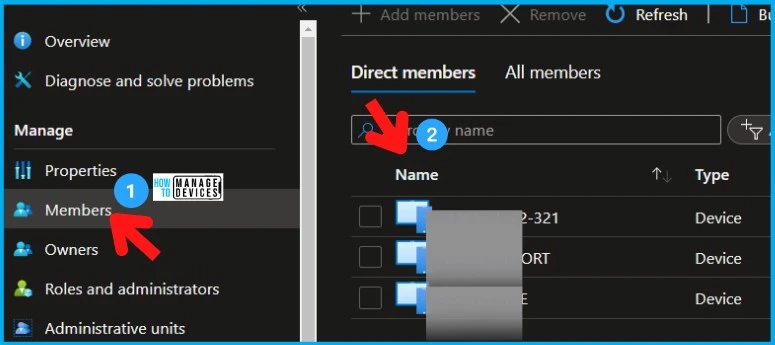
It’s time to check the results of the AAD dynamic device group created for Windows 11 22H2 devices in your Intune/Azure tenant so that you can target applications and policies specific to these devices.
- Open the Windows 11 22H2 AAD Group.
- Navigate to the Members tab.
- Check the 22H2 version devices on the right panel.
Author
Anoop C Nair is Microsoft MVP! He is a Device Management Admin with more than 20 years of experience (calculation done in 2021) in IT. He is Blogger, Speaker, and Local User Group HTMD Community leader. His main focus is on Device Management technologies like SCCM 2012, Current Branch, and Intune. He writes about ConfigMgr, Windows 11, Windows 10, Azure AD, Microsoft Intune, Windows 365, AVD, etc.


Discussion