






Latest Fixes for SCCM 2207 KB15152495 Hotfix Update Rollup
Let’s see the latest Fixes for SCCM 2207 KB15152495 Hotfix Update Rollup Update. Microsoft released the hotfix rollup update for ConfigMgr 2207 to address important issues.
This update KB15152495 is available in the Updates and Servicing node of the Configuration Manager console for environments that were installed by using an early update ring or globally available builds of version 2207.
This update applies to both those who opted in through a PowerShell script to the early update ring deployment, and who installed the globally available release.
If you are using the SCCM current branch version prior to 2103 are encouraged to update to a later supported version. The latest SCCM 2207 update is available globally; Admins can apply this update to the sites running on version 2103 or later.

Microsoft added many new features and improvements to SCCM latest version 2207 and fixed a lot of existing (known or unknown) issues with the latest version of SCCM, here, you can check the Top 10 New Features Of SCCM 2207.
Summary of Hotfix KB15152495
An Update rollup is available to fix the following issues, here is the list of issues that are fixed in this update rollup for SCCM current branch, version 2207
- The upgrade process for remote distribution points can stall, resulting in content distribution failures. When this issue occurs, messages resembling the following are recorded in the distmgr.log file.
DP Thread: Attempting to add or update package {Package_ID} on DP ["Display=\\{distribution_point}\"]MSWNET:["SMS_SITE=PR1"]\\{distribution_point}\ The distribution point ["Display=\\{distribution_point}\"]MSWNET:["SMS_SITE=PR1"]\\{distribution_point}\ is not installed or upgraded yet.The last entries in the smsdpprov.log on affected distribution points resemble the following.
DoUpdatePortsInIIS::update poot command:  set site /site.name...
Successfully updated the  port list in IIS.
DoUpdatePortsInIIS:: start site command: start site ""- The Configuration Manager OneTrace log viewing tool is revised to include multiple improvements. Changes include improvements to log file group handling, status message viewing, and general error handling.
- Azure Application Insights data can still be uploaded from sites that aren’t using any cloud or tenant attach features. Additional information on data that was previously collected is available in the Tenant attach data collection document.
- Administrators are unable to perform offline servicing of Windows 11 22H2-based images as no updates show as available.
- The New-CMOperatingSystemImageUpdateSchedule PowerShell cmdlet is unable to apply relevant updates to Microsoft Windows Server 2022-based images.
- A small handle leak in the CCMExec.exe process on a management point is corrected. This leak occurred during the client registration process.
- The Configuration Manager console may terminate unexpectedly under any of the following conditions:
- When the computer resumes from a sleep or standby state.
- After entering sign-in credentials during creation of a new cloud management gateway. The SMSAdminUI.log file contains a reference to a “Microsoft.Identity.Client.MsalUiRequiredException” error condition.
- After selecting a folder with a non-default security scope that was created by another administrator.
Install KB15152495 Hotfix Update Rollup for ConfigMgr 2207
Let’s follow the steps below to Install SCCM 2207 Hotfix KB15152495. The installation process is straightforward. The summary of the hotfix KB15152495 installation is given below.
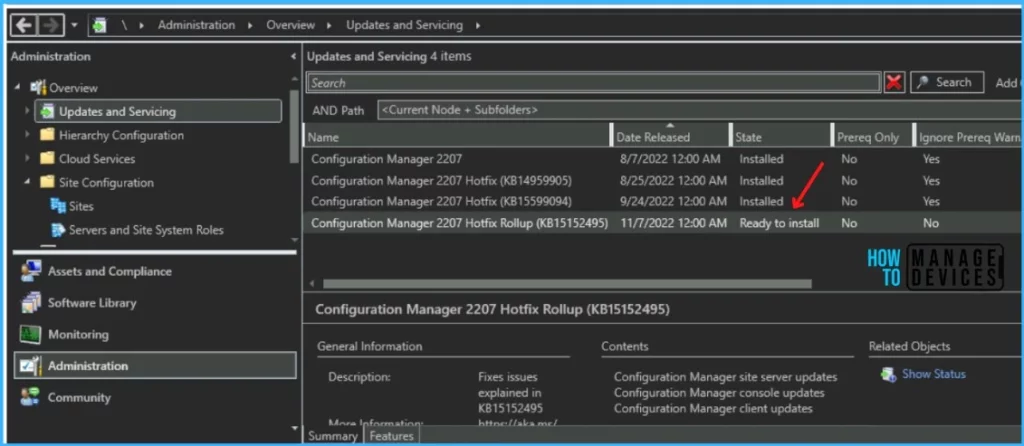
- Launch the SCCM console. Navigate to Administration > Updates and Servicing.
- The update Configuration Manager 2207 Hotfix (KB15152495) is Ready to install stage.
- Right-click Configuration Manager 2207 Hotfix KB15152495 and click Install Update Pack.
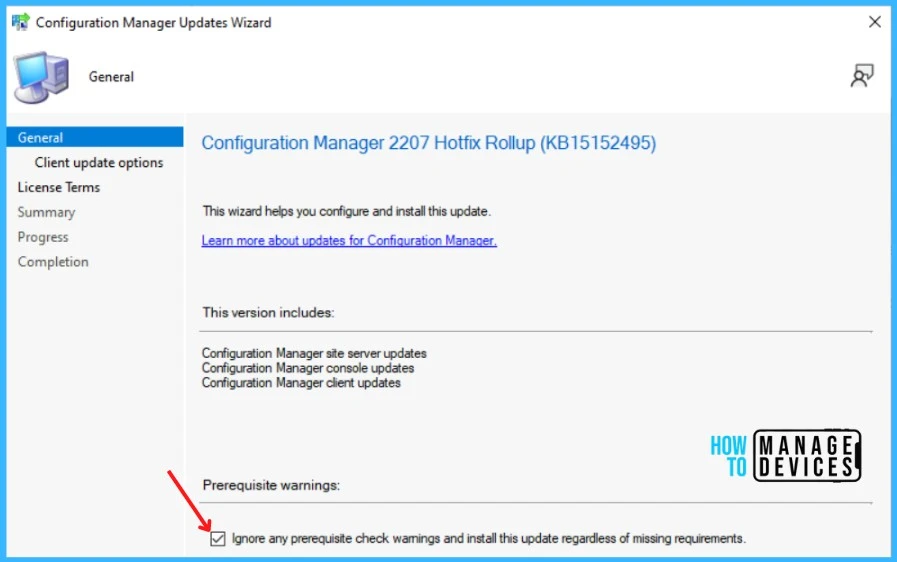
The Configuration Manager 2207 Hotfix (KB15152495) includes Configuration Manager site server updates. You can check the option “Ignore any prerequisite check warnings and install the update” for prerequisite warnings. Click Next.
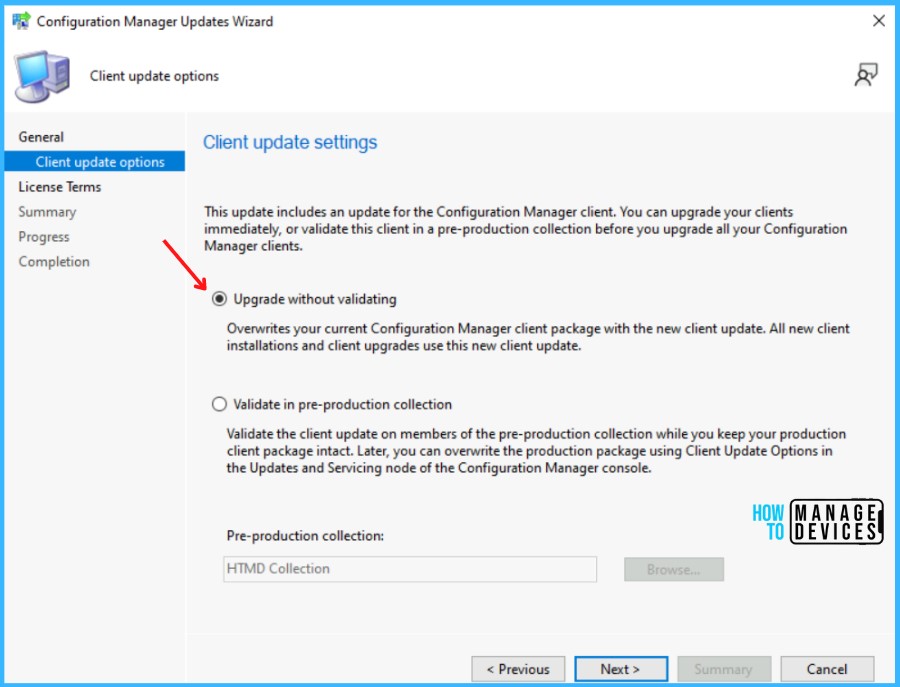
Select Client Update Settings. More details about the pre-prod client testing option are given in the following post – SCCM Client Upgrade – Promote Pre-Production Client To Production
I selected this option for LAB Upgrade without validating and Clicking on Next.
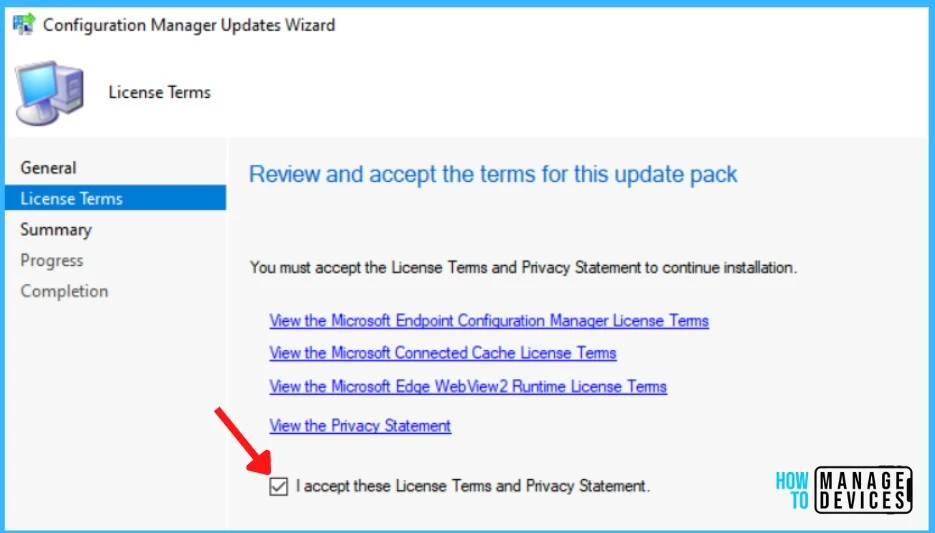
The next step is to Review and Accept the license for this update pack and click Next to continue.
Here you can check the Summary of the updated package installation and Click on Close to complete Configuration Manager Updates Wizard.
Success: Install Update Package Configuration Manager 2207 Hotfix Rollup (KB15152495)
Prerequisite warnings will be ignored
Test new version of the client in production
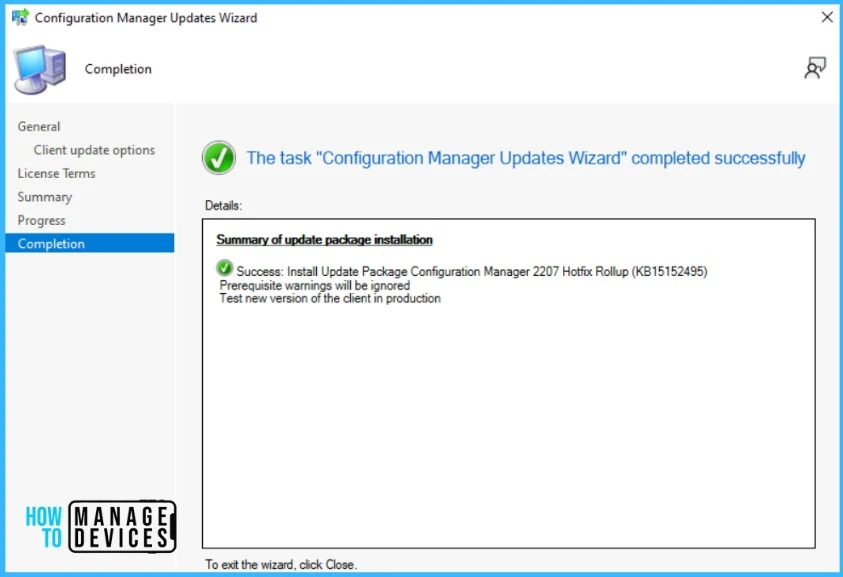
Verification of Successful Installation of KB15152495 Hotfix
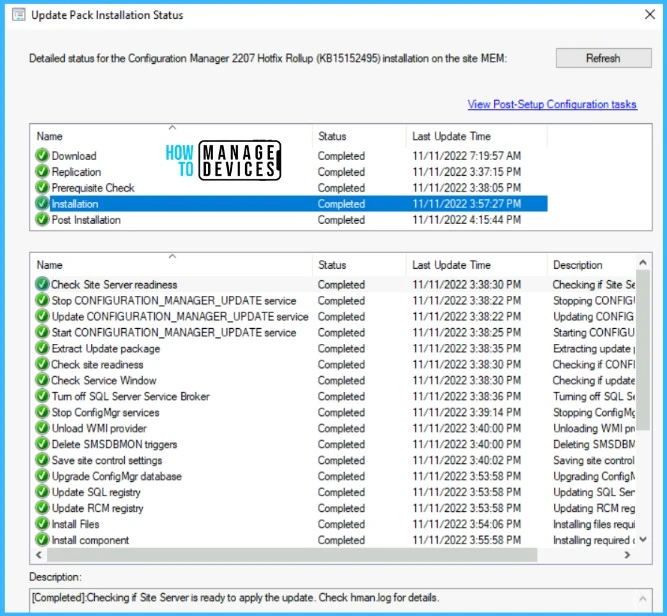
Let’s check the detailed status for the Hotfix Installation, following are the verification steps for SCCM 2207 Hotfix KB15152495.
- In Configuration Manager Console, Navigate to the Monitoring workspace.
- \Monitoring\Overview\Updates and Servicing Status\Configuration Manager 2207 Hotfix (KB15152495).
You can also review the cmupdate.log to know the hotfix installation progress.
You can confirm the successful installation of Configuration Manager 2207 Hotfix (KB15152495) from the console, \Administration\Overview\Updates and Servicing.
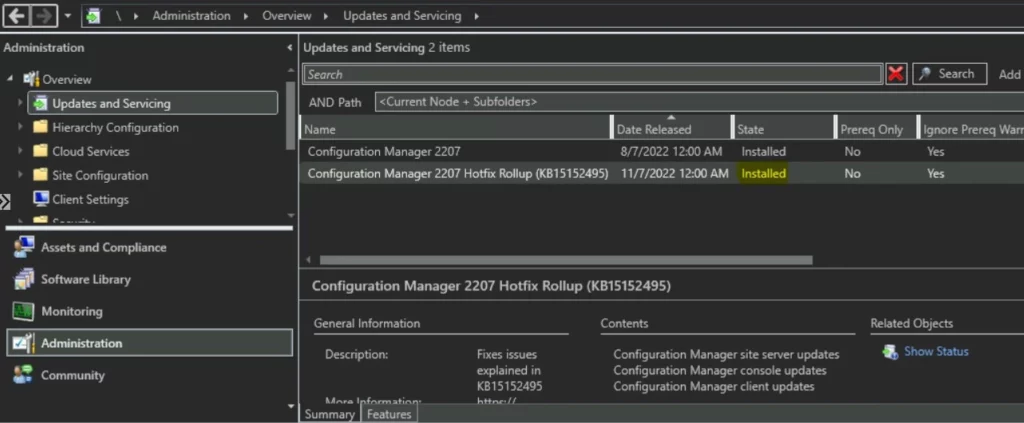
NOTE! SCCM versions 2107 and later, this update does not require a computer restart or a site reset after installation. Configuration Manager version 2103 will require a site reset after the update installation.
Console Upgrade to 5.2207.1048.2600 Version
Let’s see how to upgrade the SCCM console to the 5.2207.1048.2600 Version. After successfully installing the Hotfix Rollup (KB15152495), the console presents you with a pop-up on the upgrade.
Click on the OK button to continue with the SCCM admin console upgrade.
Read More on SCCM Versions – SCCM Versions Build Numbers Client Console Site
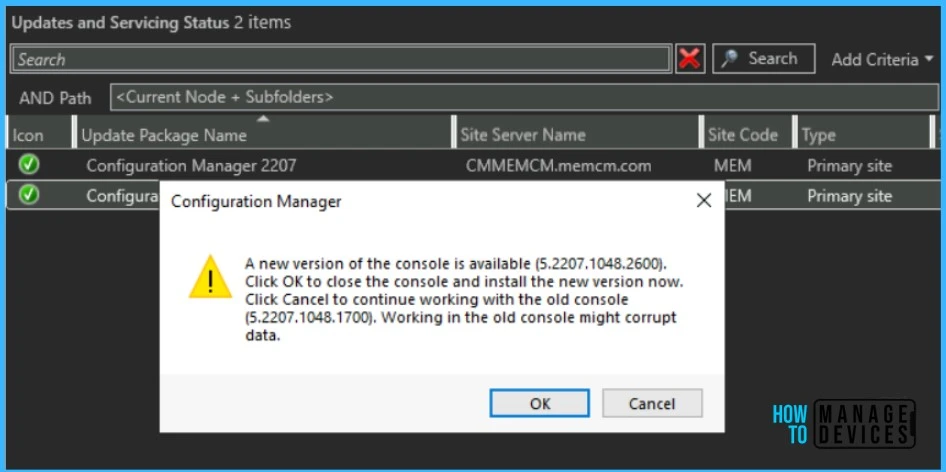
A UAC prompt might appear to allow start downloading the required files. Click on Yes and wait for some time to finish the console upgrade.
SCCM Client Version
The ConfigMgr Hotfix Rollup (KB15152495) updates the production client version to 5.0.9088.1025. You can also check more details on SCCM Client Upgrade Promote Pre-Production Client to Production.
The following major components are updated to the versions specified:
| Component | Version |
|---|---|
| Configuration Manager console | 5.2207.1048.2600 |
| Client | 5.0.9088.1025 |
Install Hotfix Rollup KB15152495 on Secondary Server
You can follow the steps to install 2207 Hotfix Rollup (KB15152495) on ConfigMgr (a.k.a SCCM) secondary servers. The following blog posts provide more details about the secondary server installation, troubleshooting, and update installation.
Recommended Post
- SCCM Secondary Server Hotfix Installation Guide | ConfigMgr
- Check SCCM Secondary Server Hotfix Installation Status
- SCCM Secondary Server Installation Guide | Step by Step | ConfigMgr
After installing this update on a primary site, pre-existing secondary sites must be manually updated.
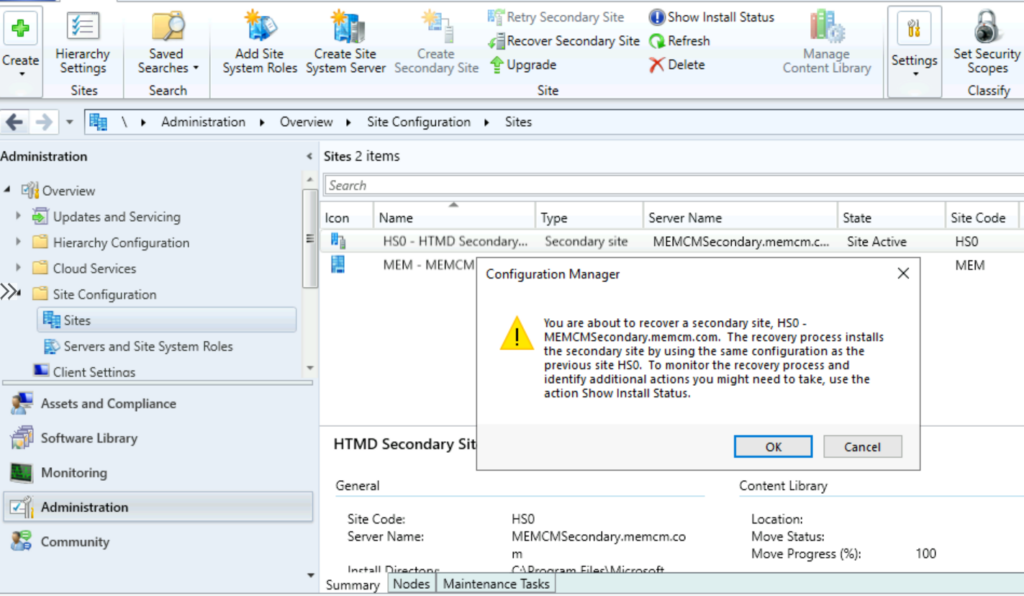
To update a secondary site in the Configuration Manager console, select Administration > Site Configuration > Sites > Recover Secondary Site, and then select the secondary site. The primary site then reinstalls that secondary site by using the updated files.
Configurations and settings for the secondary site aren’t affected by this reinstallation. The new, upgraded, and reinstalled secondary sites under that primary site automatically receive this update.
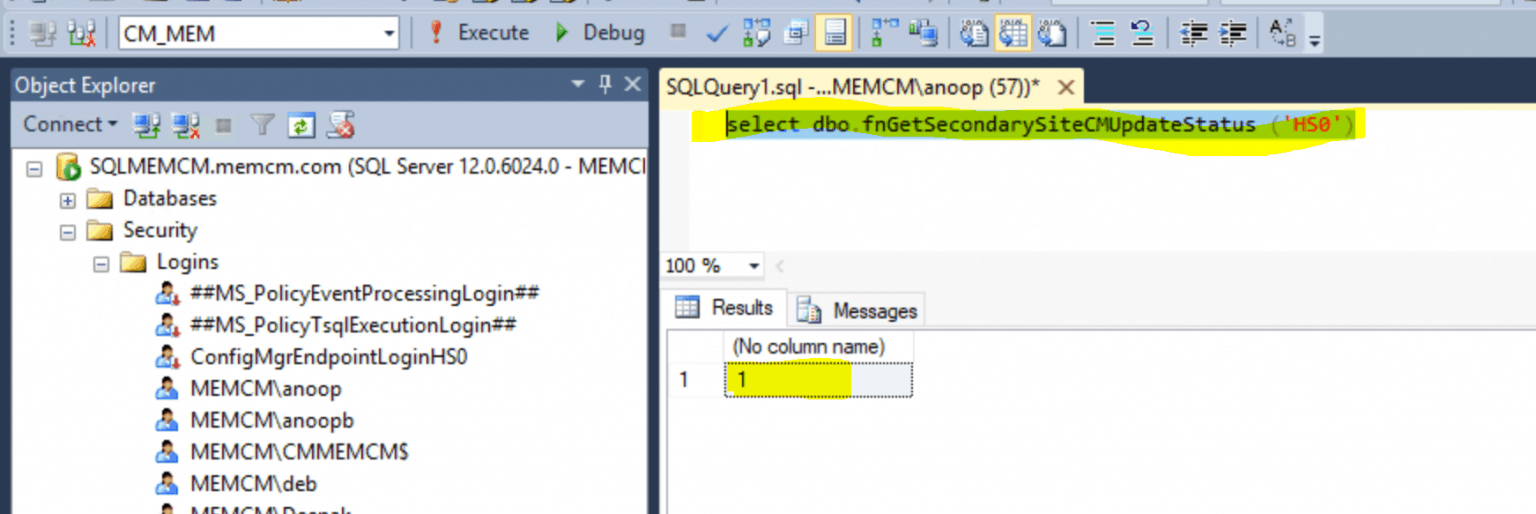
Run the following SQL Server command on the site database to check whether the updated version of a secondary site matches that of its parent primary site:
select dbo.fnGetSecondarySiteCMUpdateStatus ('SiteCode_of_secondary_site')If the value 1 is returned, the site is up to date, with all the hotfixes applied on its parent primary site.
If the value 0 is returned, the site has not installed all the fixes that are applied to the primary site, and you should use the Recover Secondary Site option to update the secondary site.




I got a problem with the console update. After downloading the Installer beginns, but closes after one second. The log under C:\ConfigMgrAdminUISetupVerbose.log says: Produkt: Microsoft Endpoint Configuration Manager-Konsole – Update “ALP1031” couldnt be installed. Error code 1638.
Error code 1638 means that its allready installed.
The File “C:\Program Files (x86)\Microsoft Configuration Manager\AdminConsole\bin\AdminUI.ExtensionInstaller.exe” thats executed for this update is from August this year.
I think there is something wrong.
Can i download the Console installer anywhere else, or any suggestions how to fix?
ROLS
any suggestions what i can do?
I have the exact same problem. Error 1638 ‘already installed’.
StaffIs this happening in all the devices installed with remote consoles irrespective of operating systems such as Server 2022, Windows 11, etc?
If so, I recommend raising a ticket with Microsoft.
Hi everybody, I had the same issue so the workaround was uninstall sccm console and manually install sccm console again. You can fin the sccm console installer C:Program Files (x86)Microsoft Configuration ManagerAdminConsole—– . 1638 error is another version program is already installed. I am sorry for my bad English.
For us the CM 2207 Hotfix (KB15599094) is not visible in the console under \Administration\Overview\Updates and Servicing. However under \Monitoring\Overview\Updates and Servicing Status. I see that the hotfix KB15599094 is stuck in Checking Applicability.
Even after I run the CMUpdateReset tool, it goes away but again reappears in the monitoring node only after I check for updates. It does not appear in \Administration\Overview\Updates and Servicing.
Checking the hman.log file it shows me the error “Failed to open file “\\?\C:\Program Files\Microsoft Configuration Manager\CMUStaging\ApplicabilityChecks\CM2207_KB15152495_AppCheck.sql” for reading. Code 0x80070002″. Looking at the specified location I find that the file is missing.
How do I resolve this issue. Please help
We’re having the same issue as Javed S.
Have you been able to fix this yet?
Hi,
We have the same problem on a freshly installed server, so we are early adopting 2211.
Same problem as Javed S.
CM2207_KB15152495_AppCheck.sql
Update not visible
any news ?
I had the same issue listed in hman.log as above; I managed to find the sql file from a different lab environment and copy it over, then restarted hman and checked for updates, and it popped up. I created a gist of the applicability check sql file here: https://gist.github.com/ajf8729/9be227f4da8c495cf0abc53850e67235