






OneDrive in Windows 11 Control Policies | 77 Intune Policy Settings | 5 Group Policy Settings
Let’s learn OneDrive in Windows 11 – Control policies, 77 Intune policy, and 5 Group policy settings. Everybody can use OneDrive, and you only need a Microsoft account to start using it. If you have a Windows 11 PC, you can easily set up your Microsoft account and OneDrive during the setup process.
OneDrive is cloud storage. You can easily use 5GB of free cloud storage for you to use on any device that you use your Microsoft account on. If you have a Microsoft 365 subscription, the cloud storage will extend to 1TB. If you have a Microsoft 365 family subscription, You can use 1TB of OneDrive cloud storage per person for up to 6 people.
The OneDrive app is installed on every Windows 11 computer by default, but you can install it for free if you don’t have it. If you don’t have a OneDrive account to sign IN, you can create a free account with 5GB of storage space or subscribe to Microsoft 365.
OneDrive is the Microsoft cloud service that helps you to store and protect your files and documents, share them with others, and get to them from anywhere on all your devices. You can easily use OneDrive with an account provided by your company or school, known as “OneDrive for work or school.”

- Snipping Tool in Windows 11 Latest Features | Settings | Uninstall
- 4 Best Methods Enable Windows Sandbox | Configure Policies for Windows 11
What are the Advantages of OneDrive in Windows 11?
OneDrive lets help you to store your files in one place, easily share them with others, and get to them from any device connected to the Internet. The following are the Advantages of OneDrive in Windows 11.
1. It helps to store your work or school documents and files
2. Easily sync OneDrive to your Computer
3. It helps to store all files in one place
4. Easily share and collaborate with others
5. Helps to work together and easily see comments
6. Securely store, share, and get your files from anywhere
7. It helps to access and edit your files on all your devices
8. Helps to Keep your files protected in the cloud
9. Helps to Share documents or photos and collaborate in Office
10. Quickly organize and find things
How to Sign In OneDrive on Windows 11 PC
You can easily sign IN and use OneDrive in Windows 11. Signing into OneDrive by opening the OneDrive app on your PC is easy. Before using OneDrive, you must sign into your account and link it to your Windows 11 computer.
NOTE! – All Windows PCs/Laptops come with OneDrive as default. So you don’t need to install the app from the Microsoft store most of the time.
After signing IN, all files stored in your PC’s OneDrive folder will be synchronized with the cloud. The below steps and screenshot show how to sign in and use OneDrive in Windows 11.
- Select Start menu
- Search OneDrive in the search box
- Select OneDrive from the below screenshot
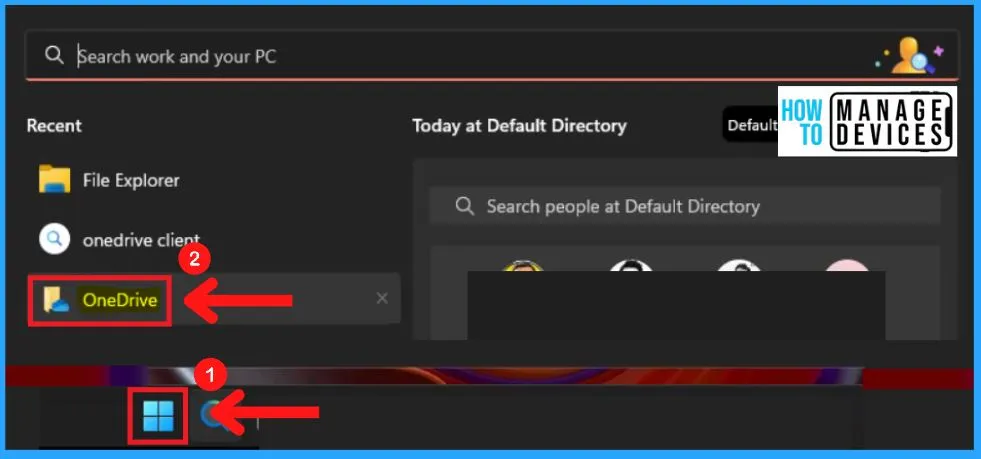
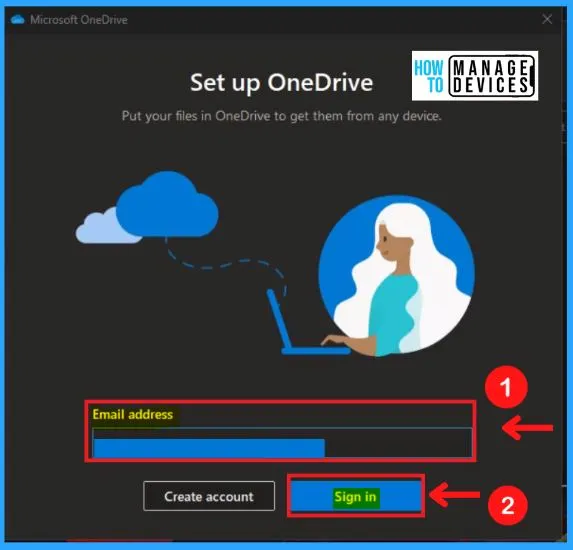
You can easily put your files in OneDrive to get them from any device. The screenshot below shows how to set up OneDrive in Windows 11.
- Enter your Email address in the below screenshot
- Click Sign IN
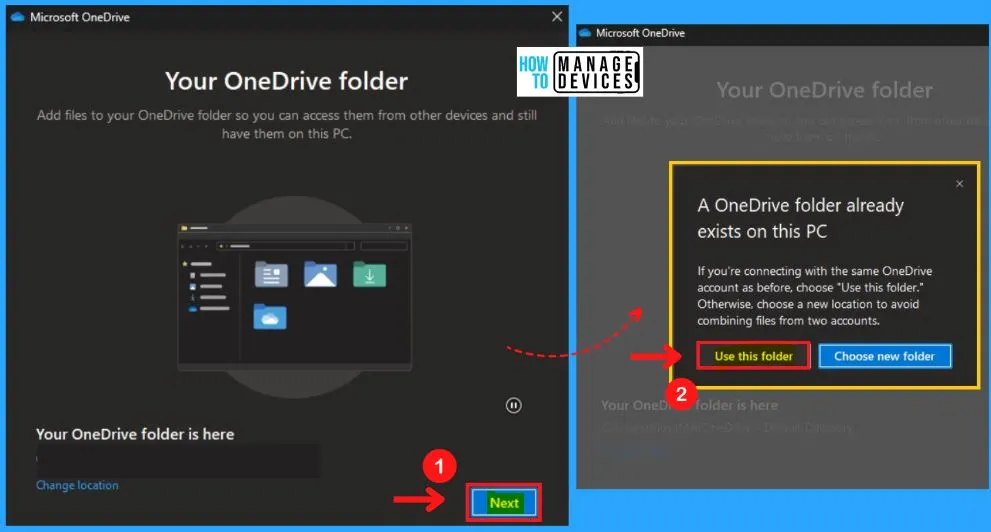
You can add files to your OneDrive folder to access them from other devices and still have them on this PC. A OneDrive folder already exists on your PC; if you are connecting with the same OneDrive account as before, choose “Use this folder.”
Otherwise, choose a new location to avoid combining files from two accounts. Select the “Choose new folder” option to select a new location.
- Select the Next option from the below screenshot
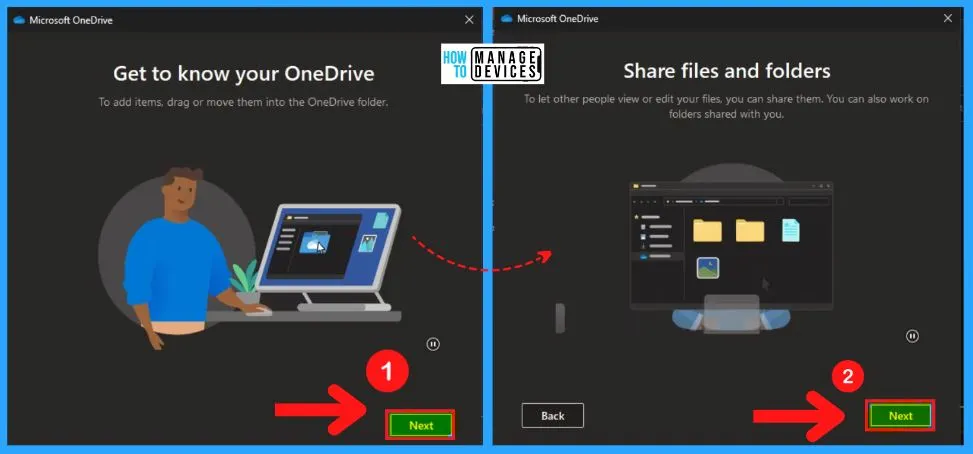
To add items, drag or move them into the OneDrive folder. You can share your files to let other people view or edit them. You can also work on folders shared with you.
- Select the Next option from the below screenshot
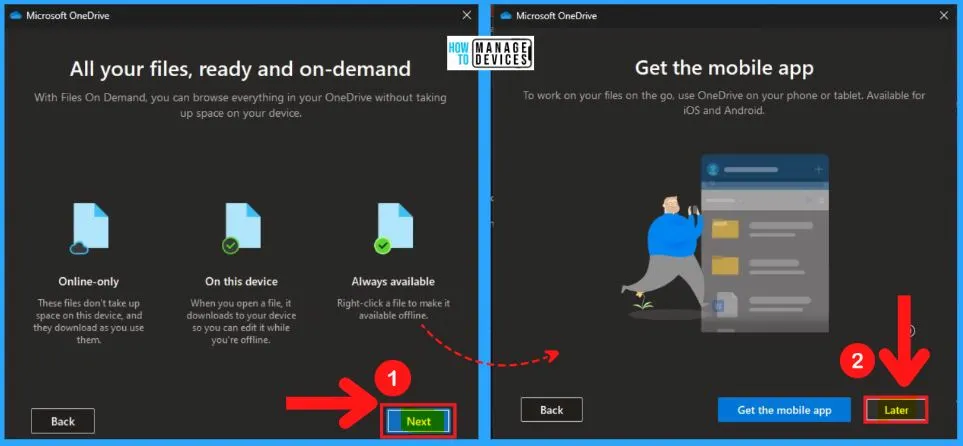
The below screenshot shows all your files ready and on demand. With files on demand, you can browse everything in your OneDrive without taking up space on your device.
- Online-only – These files don’t take up space on this device and download as you use them.
- On this device – When you open a file, it downloads to your device so you can edit it while you are offline.
- Always available – Right-click a file to make it available offline
- Click Next from the below window
To work on your files on the go, use OneDrive on your phone or tablet. Available for IOS and Android. If you get the OneDrive on your mobile app, select the “Get the mobile app” option from the below screenshot; otherwise, click the “Later” option.
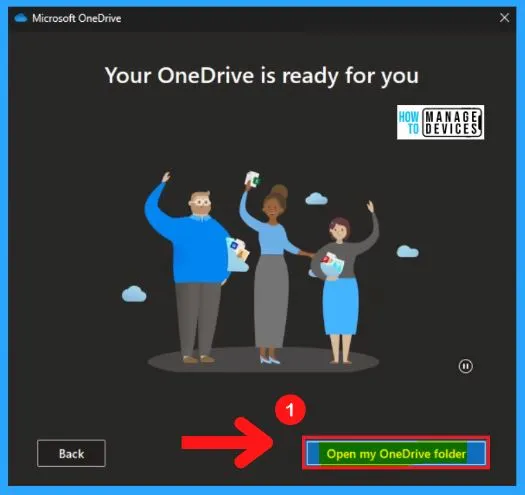
The OneDrive app for mobile devices helps you set it to back up all of your photos on your phone automatically. So OneDrive is solving the storage problem of your mobile device. The below screenshot shows that your OneDrve is ready for you.
- Select “Open my OneDrive folder” from the below window
- Microsoft Pluton Security Processor for Windows 11 and Enhancements
- Microsoft PC Manager Best Optimizer PC Cleaner for Windows 11 | Features
OneDrive in Windows 11 or OneDrive Default Directory
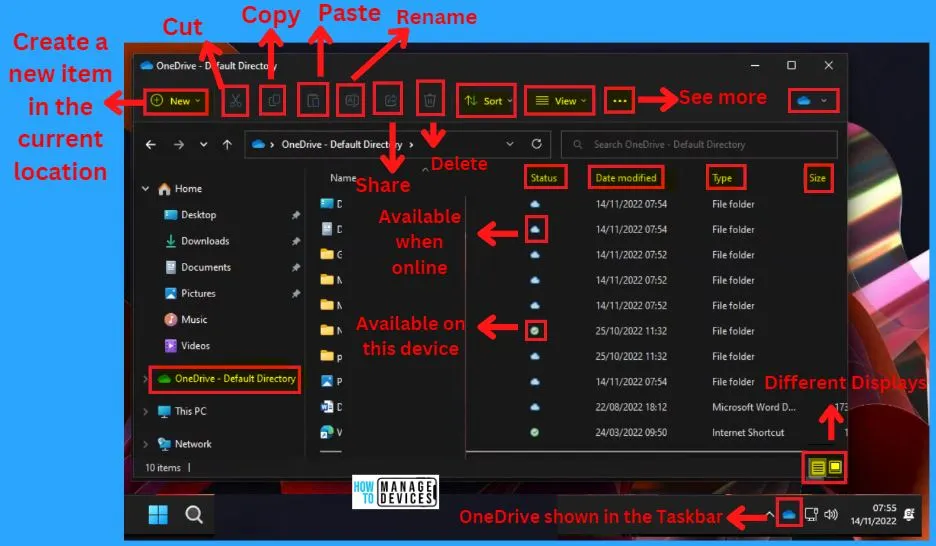
After signing IN to the OneDrive default directory, The OneDrive cloud storage icon is shown in the Windows 11 taskbar (see screenshot below). The OneDrive default directory includes the Name, Status, Date modified, Type, and Size.
| OneDrive Default Directory Settings | Uses |
|---|---|
| New | Helps to create a New item in the current location |
| Cut | Removes the selected data from its original place |
| Copy | It helps to move the file or data from one place to another |
| Paste | It helps to insert the current file into the new location |
| Rename | Allows to change the name of the file |
| Share | It enables sharing the file |
| Delete | It helps to delete the file |
| Sort | It helps to put a set of files in order or to separate them into groups |
| View | It helps to view the files in the OneDrive in different ways |
| See more | It helps to show more options in OneDrive |
| Different displays | It helps to show all files in different display mode |
| Blue Cloud | This means that the file is ready to download to your desired device |
| A green tick | This means that the file is already downloaded to your desired device |
| Two blue arrows | This Means OneDrive is currently syncing the file up to that server in the sky |
| A person may be standing next to one of these status icons | indicating that you have shared this document with somebody else |
File Explorer Integration with OneDrive
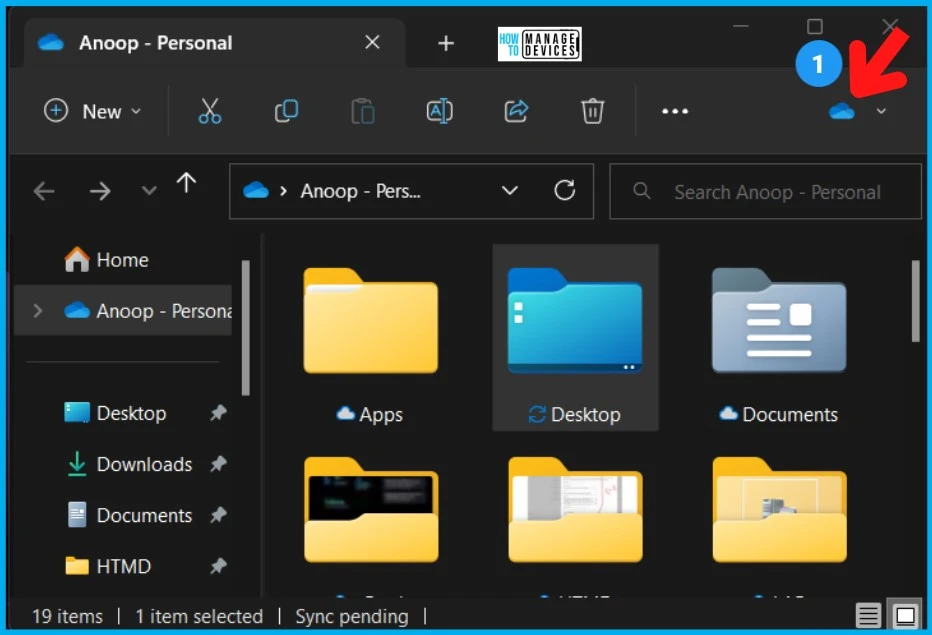
The new Windows 11 multi-tab file explorer has been released with an option to sign in and control OneDrive settings from the explorer itself. This is helpful to stay with the Windows 11 file explorer to check the available free space of OneDrive (just as an example).
You can now check the OneDrive Status icon from File Explorer on Windows 11. This is the OneDrive icon that shows up in the File Explorer command bar! You also get the OneDrive status of a particular folder below, as you can see the “Sync Pending” status in the below screenshot. OneDrive Status Icon From File Explorer On Windows 11.
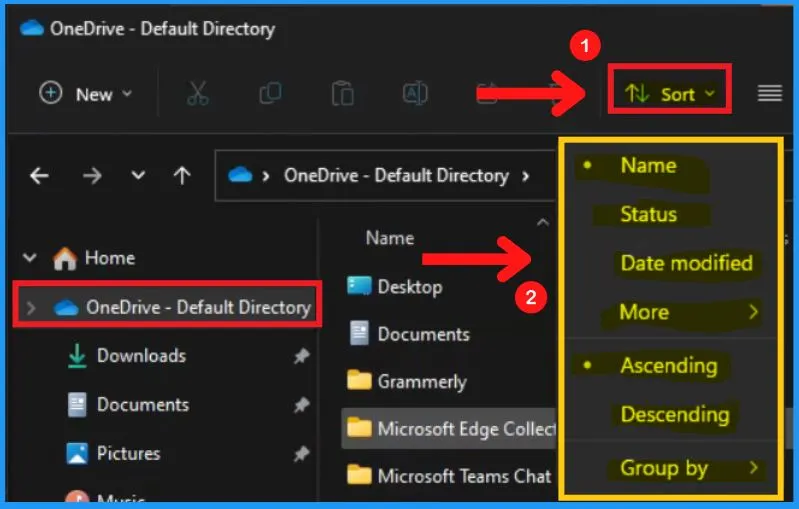
Sort Option in OneDrive
You can easily sort your files and documents in OneDrive. Sorting in OneDrive helps you to arrange the Files in different orders. The sorting in OneDrive includes Name, Status, Ascending, Descending, etc.
View Option in OneDrive
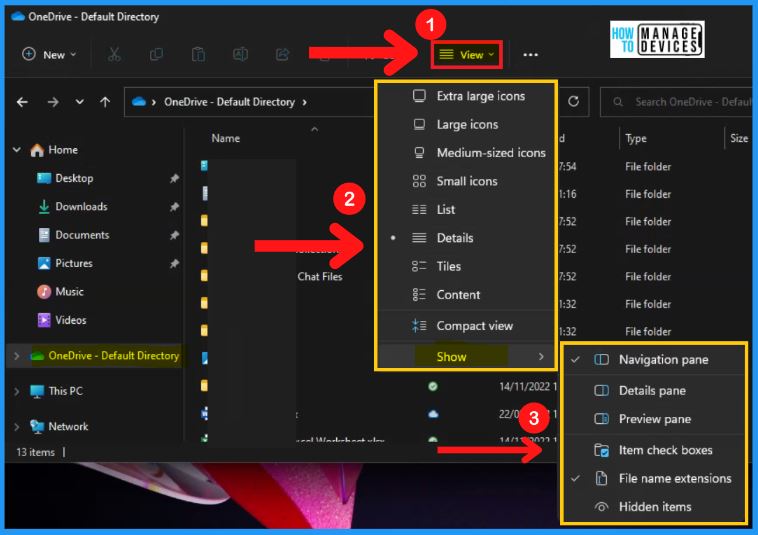
The View option in OneDrive helps you view the icons differently. The View options include extra large icons, large icons, medium-sized icons, small icons, lists, details, titles, content, compact view, etc. The show option in view ( see the below screenshot) shows the following.
- Navigation pane
- Details pane
- Preview pane
- Item check boxes
- Files name extensions
- Hidden items
See More Options in OneDrive
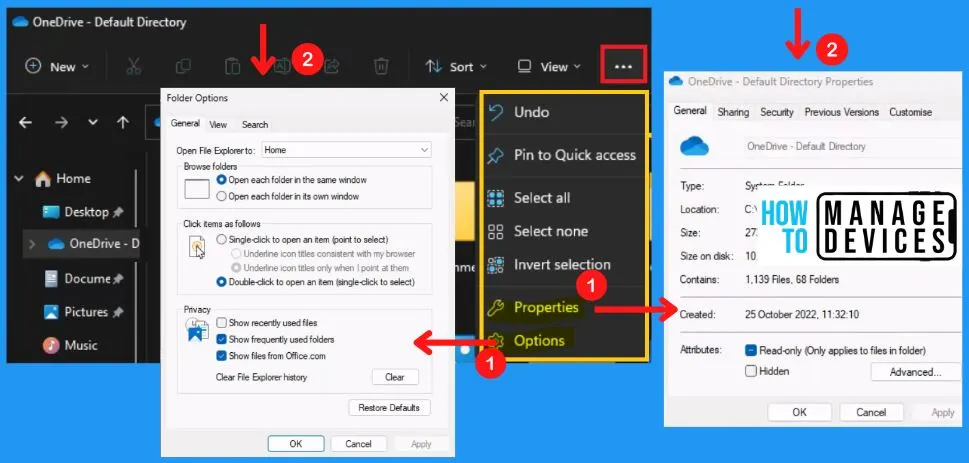
The “see more” in OneDrive helps you to show a set of options such as undo, Pin to quick access, select all, select none, invert selection, properties and options. The properties in OneDrive help you to show the sharing, security, previous versions, and customized options.
The Options in OneDrive help you to show the folder options such as general, view, and search. You can select all the files by clicking the “Select all” option in OneDrive.
Cloud Storage Informations
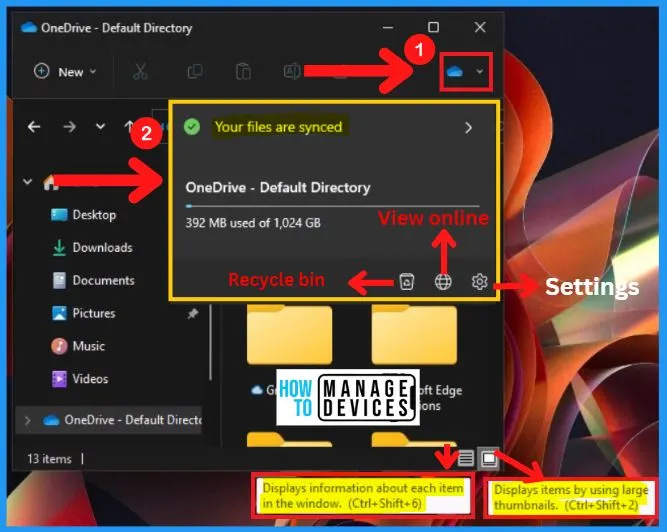
The Cloud storage information helps you to show how much space you have used and free up space. The cloud storage information is located at the top right corner of the OneDrive default window (see the below screenshot) (the blue cloud with a dropdown arrow).
The cloud storage information also shows options such as recycle bin, view online, and settings.
Right-click the OneDrive Tab
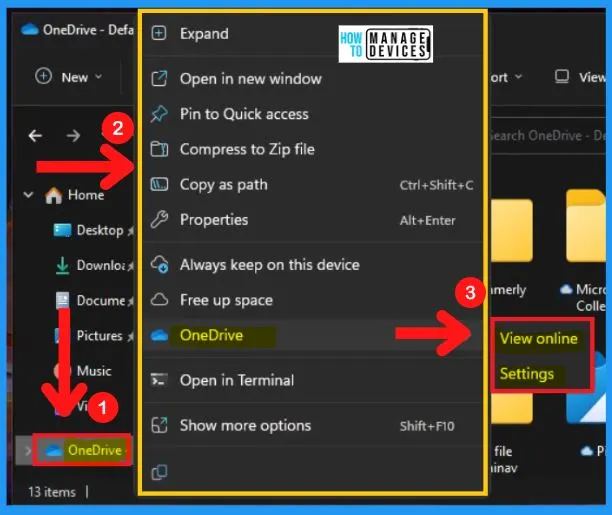
While right-clicking the OneDrive tab will open a context menu showing the options such as Expand, Open in a new window, Pin to quick access, Compress to zip file, Copy as a path, Properties, Always keep on this device, Free up space, OneDrive, Open in Terminal and show more options.
The OneDrive settings in the below context menu will show the view online and settings options.
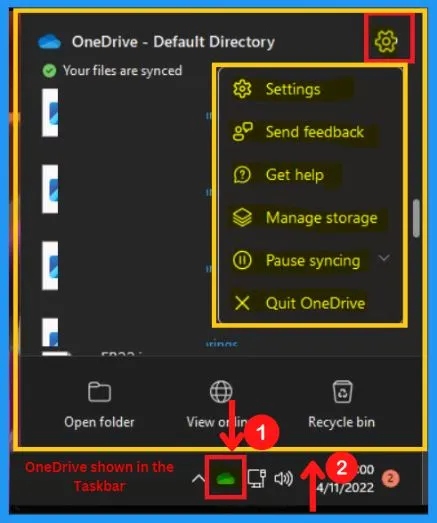
OneDrive Shown in the Taskbar
While clicking the OneDrive from the Taskbar, the below window will appear and shows all synced files, the settings icon, Open folder, view online, and recycle bin. The settings icon is located at the top right corner of the OneDrive window and shows the following.
- Settings
- Send feedback
- Get help
- Manage storage
- Pause syncing
- Quit OneDrive
- 32 Privacy Settings for Windows 11 | 99 Intune Privacy Settings Policies
- Create Rufus Bootable USB Drive for Windows 11
3 Different ways to open the OneDrive Settings menu
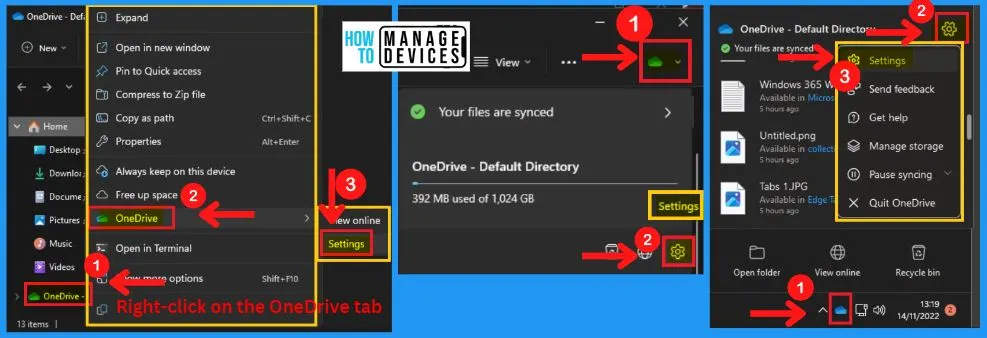
There are 3 different ways to open OneDrive settings in Windows 11. First, open OneDrive from the start menu, right-click the OneDrive tab, click OneDrive, and select settings.
The Second method is to click the cloud storage information from the OneDrive window and the settings icon at the bottom right of the cloud storage information window (see the second screenshot below). The 3rd method is shown in the below list.
- Select OneDrive from Taskbar
- Click the settings icon at the top right of the 3rd window
- Select Settings options from the set of options
How to Sign Out from OneDrive in Windows 11
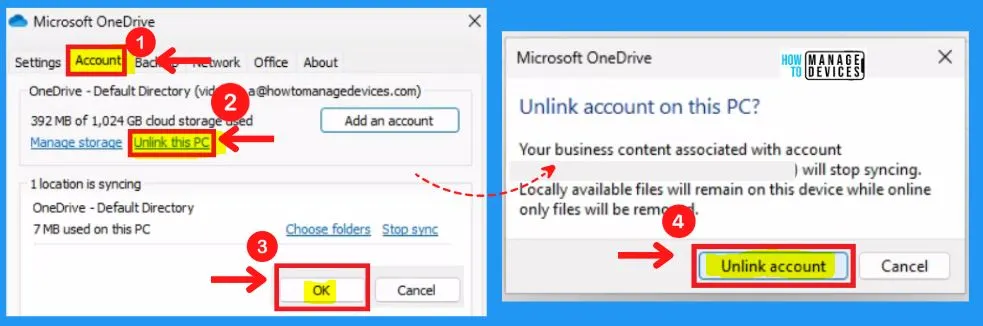
You can easily Sign OUT from OneDrive in Windows 11. The below steps and the screenshot shows how to sign out from OneDrive in Windows 11.
- Select OneDrive Settings (above screenshot)
- Select the Account menu from the settings
- Select “Unlink this PC” from the Account menu
- Click Ok
- After clicking Ok, the 2nd window appears and shows a warning message
- Click “Unlink account” from the 2nd screenshot
How to Uninstall OneDrive from Windows 11
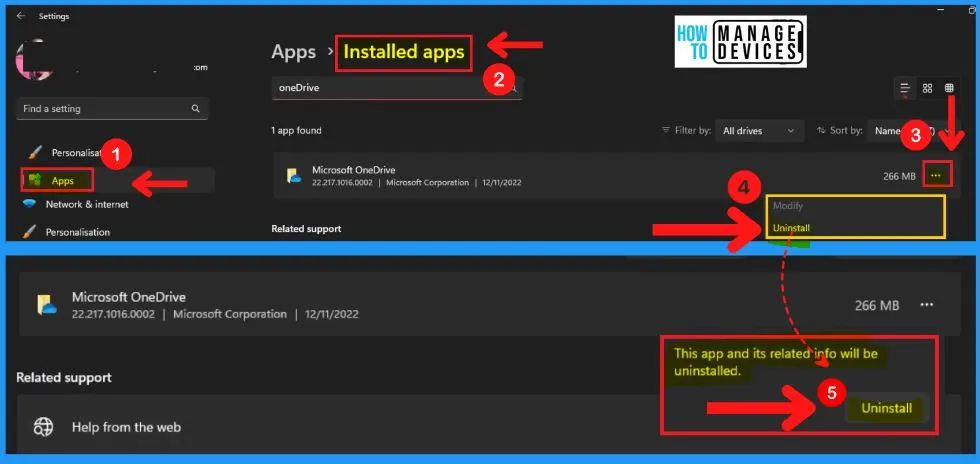
You can easily uninstall OneDrive from Windows 11. The below steps and screenshot show how to uninstall OneDrive from Windows 11.
- Select Settings from the Start menu
- Select the App tab in the Settings page
- Select “Installed Apps” from the App tab
- Select the 3 horizontal dots on the right side of OneDrive
- Select Uninstall
- A window will appear and show a warning that “This app and its related info will be uninstalled”
- Select Uninstall from the below 2nd screenshot
- Security Settings for Windows 11 Hardening options
- Best Ways to Change Keyboard Layouts in Windows 11
Group Policy Settings for OneDrive in Windows 11
Let’s check the Group Policy settings options for OneDrive. You can easily sync files and folders between your computer and the cloud. It helps you to get your files from anywhere. You can use GPEIDIT.MSC from the Run box to manage group policy settings.
Important to note that there are two types of OneDrive applications (OneDrive Personal and OneDrive for Business). In this group policy section, I’m covering only the OneDrive policies. The MS Office 365 group policies are part of the Office 365 ADMX template.
More details on OneDrive for business and Office 365 ADMX template are explained in the following blog post. OneDrive in Windows 11 is free cloud storage. The below screenshot and steps show how to choose OneDrive from Group policy settings.
- Right-click the Start menu
- Select Run from the context menu
- Type GPEIDIT.MSC in the run box
- Select Computer Configuration from the Group policy editor
- Computer Configuration > Administrative Templates > Windows Components > OneDrive
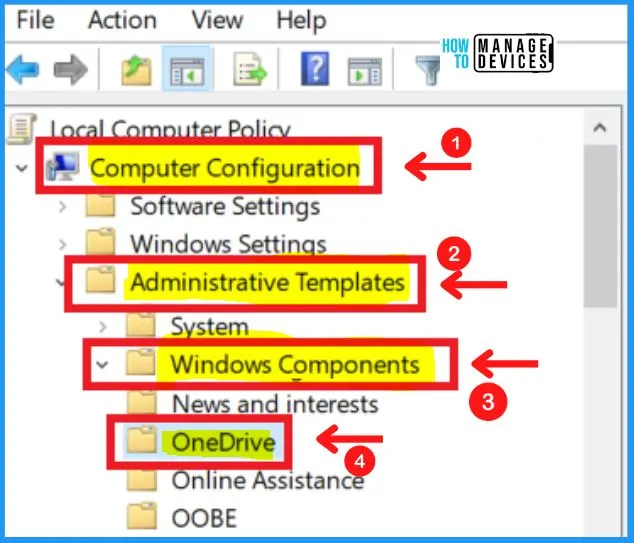
OneDrive Settings Options in Group Policy Editor
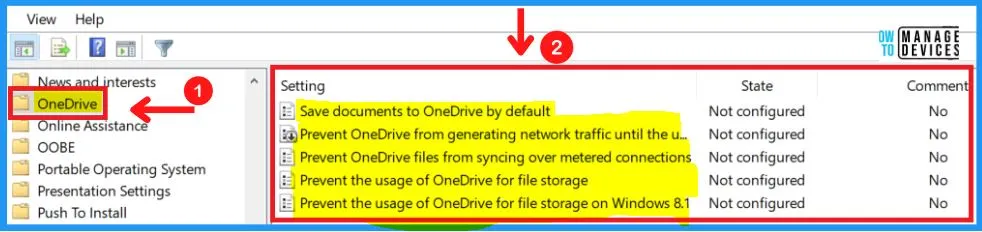
The OneDrive in Group Policy settings shows a set of settings options. The screenshot and steps below offer all OneDrive settings options in Group Policy Editor.
- Save documents to OneDrive by default.
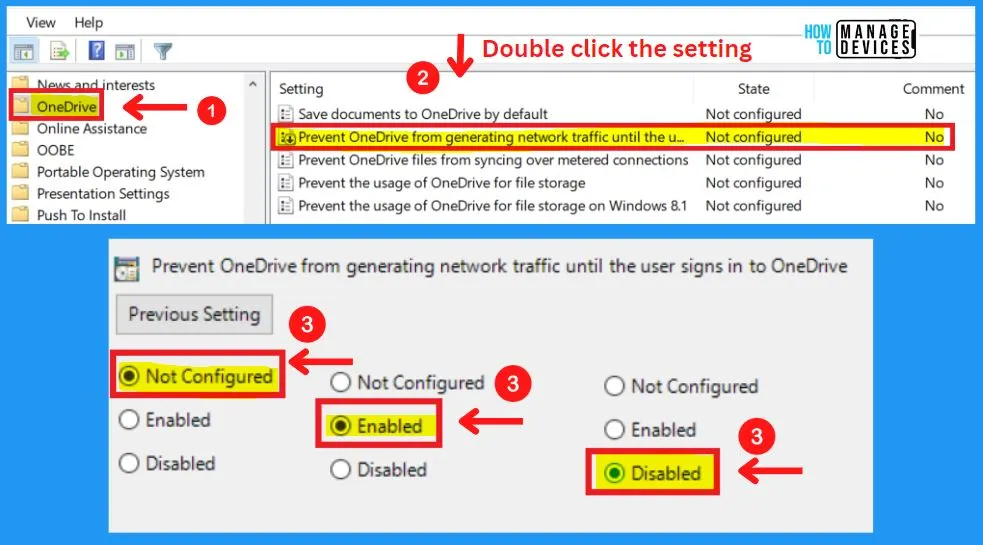
- Prevent OneDrive from generating network traffic until the user signs in to OneDrive
- Prevent OneDrive files from syncing over metered connections
- Prevent the usage of OneDrive for file storage
- Prevent the usage of OneDrive for file storage on Windows 8.1
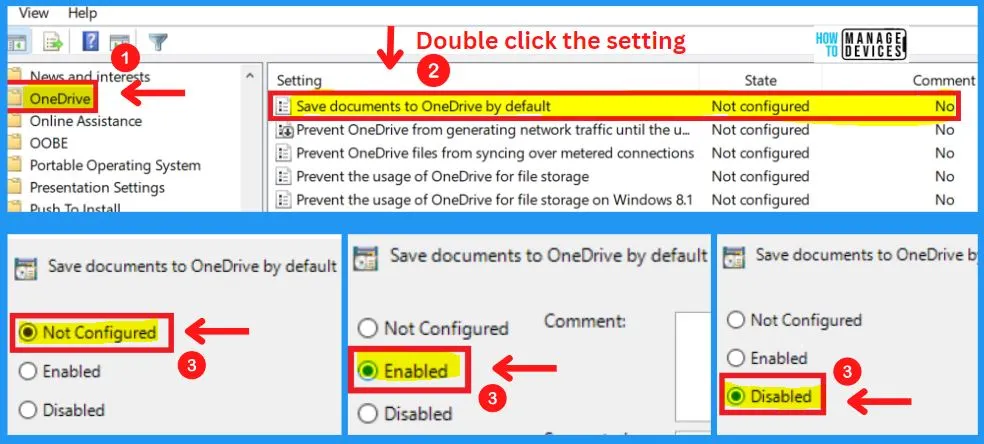
Save Documents to OneDrive by Default
This policy setting lets you disable OneDrive as the default save location. It does not prevent apps and users from saving files on OneDrive. Files will be saved locally by default if you disable this policy setting. Users will still be able to change the value of this setting to save to OneDrive by default.
They will also be able to open and save files on OneDrive using the OneDrive app and file picker, and Windows Store apps will still be able to access OneDrive using the WinRT API. If you enable or do not configure this policy setting, users with a connected account will save documents to OneDrive by default.
Prevent OneDrive from Generating Network Traffic Until the User Signs in to OneDrive
Enable this setting to prevent the OneDrive sync client (OneDrive.exe) from generating network traffic (checking for updates, etc.) until the user signs in to OneDrive or starts syncing files to the local computer.
- If you enable this setting, users must sign in to the OneDrive sync client on the local computer or select to sync OneDrive or SharePoint files on the computer for the sync client to start automatically.
- If this setting is not enabled, the OneDrive sync client will start automatically when users sign in to Windows.
- If you enable or disable this setting, do not return the setting to Not Configured. Doing so will not change the configuration, and the last configured setting will remain in effect.
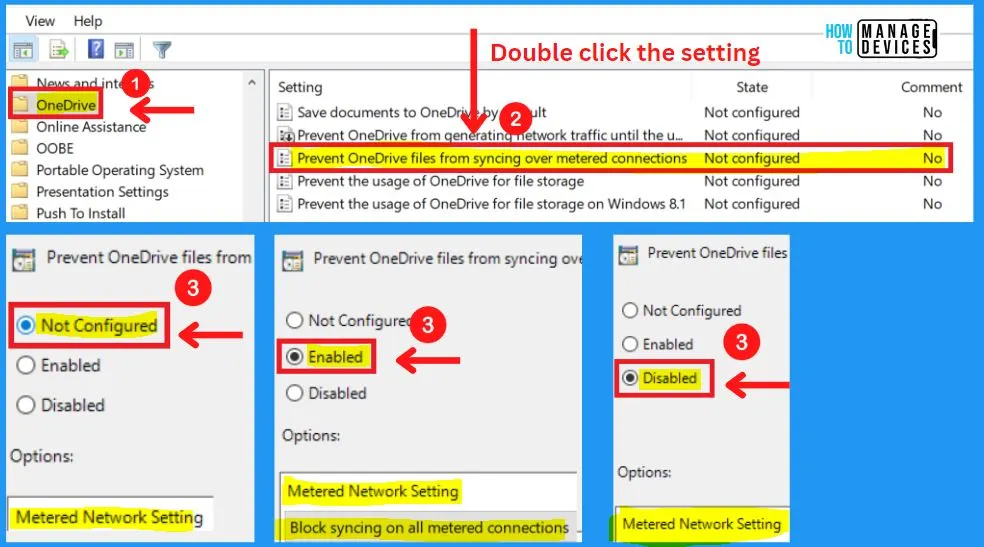
Prevent OneDrive Files from Syncing Over Metered Connections
This policy setting allows the configuration of OneDrive file sync behavior on metered connections. If you have “Not configured” the Prevent OneDrive files from syncing over metered connections, it will show the Metered Network settings option.
- Enabling the Prevent OneDrive files from syncing over metered connections will show the Metered Network settings and Block syncing on all metered connection settings options.
- Disable the Prevent OneDrive files from syncing over metered connections; it will show the Metered Network settings option.
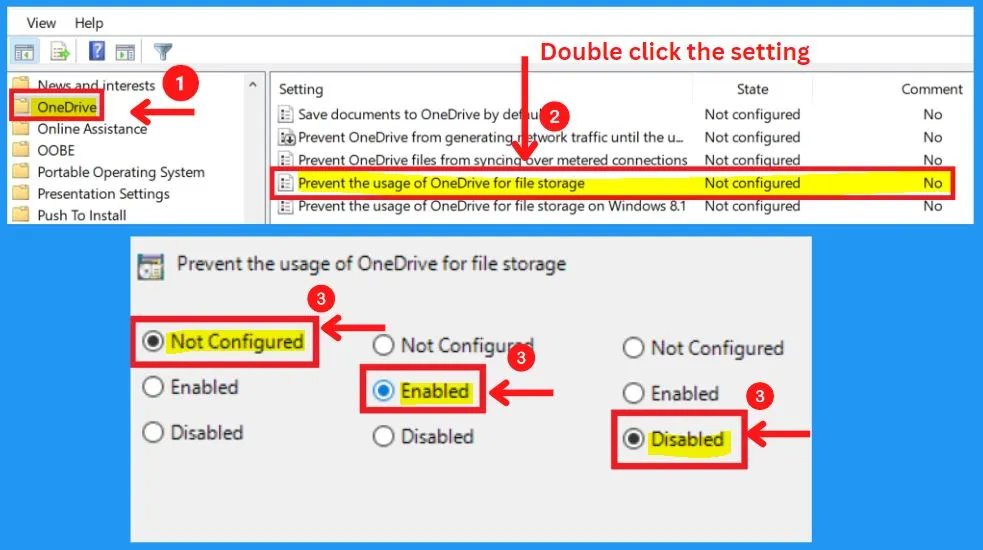
Prevent the Usage of OneDrive for File Storage – OneDrive Control Policies
This policy setting lets you prevent apps and features from working with files on OneDrive. If you enable this policy setting:
- Users can’t access OneDrive from the OneDrive app and file picker.
- Windows Store apps can’t access OneDrive using the WinRT API.
- OneDrive doesn’t appear in the navigation pane in File Explorer.
- OneDrive files aren’t kept in sync with the cloud.
- Users can’t automatically upload photos and videos from the camera roll folder.
If you disable or do not configure this policy setting, apps and features can work with OneDrive file storage.
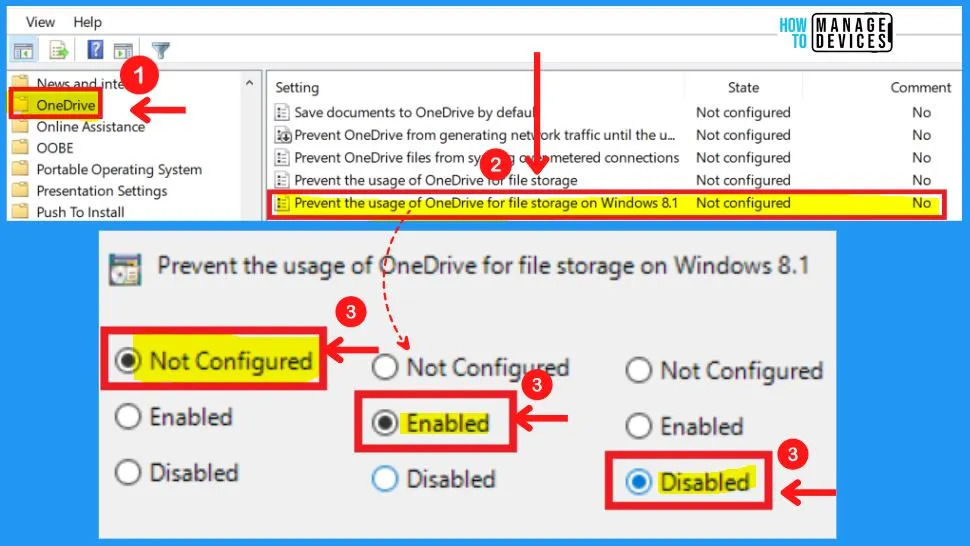
[Not relevant?] Prevent the Usage of OneDrive for File Storage on Windows 8.1
This policy setting lets you prevent apps and features from working with files on OneDrive for Windows 8.1. If you enable this policy setting:
- Users can’t access OneDrive from the OneDrive app and file picker.
- Windows Store apps can’t access OneDrive using the WinRT API.
- OneDrive doesn’t appear in the navigation pane in File Explorer.
- OneDrive files aren’t kept in sync with the cloud.
- Users can’t automatically upload photos and videos from the camera roll folder.
If you disable or do not configure this policy setting, apps and features can work with OneDrive file storage.
- How to Install Additional Language in Windows 11| Keyboard Layout
- Windows 11 Photos App Features and User Guide
Intune Policy for OneDrive – Control Policies
Check the Intune Policy for OneDrive. It would be best if you used the Settings Picker menu to find and select the settings for OneDrive. The following are the steps to schooseOneDrive using Intune policy.
- Search with “OneDrive” in the Settings picker search box
- Select OneDrive
- There are different options available, as explained below, to select the different settings
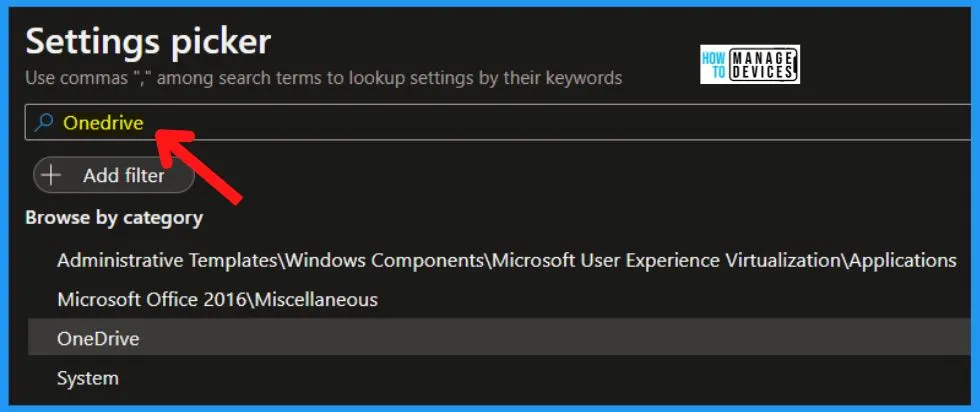
77 OneDrive Settings in Intune Policy
In the Settings catalog, you can get the lists of all the settings and configure them all in one place. This feature helps simplify how you create a policy and see all the available settings.
After you add your settings, close the settings picker. All the settings are shown and configured with a default value, such as Enable or Disable. The below list and screenshot show the 77 OneDrive settings category in intune policy settings.
- Allow OneDrive to disable Windows permission inheritance in folders synced read-only
- Allow syncing OneDrive accounts for only specific organizations
- Tenant ID: (Device)
- Allow users to choose how to handle Office file sync conflicts (User)
- Always use the user’s Windows display language when provisioning known folders in OneDrive
- Always use the user’s Windows display language when provisioning known folders in OneDrive (User)
- Block file downloads when users are low on disk space
- Minimum available disk space: (Device)
- Block syncing OneDrive accounts for specific organizations
- Tenant ID: (Device)
- Cause sync client to ignore normal web proxy detection logic
- Coauthor and share in Office desktop apps (User)
- Configure team site libraries to sync automatically
- Libraries: (Device)
- Configure team site libraries to sync automatically (User)
- Libraries: (User)
- Libraries: (User)
- Name
- Value
- Continue syncing on metered networks (User)
- Continue syncing when devices have battery saver mode turned on (User)
- Convert synced team site files to online-only files
- Disable the tutorial that appears at the end of OneDrive Setup (User)
- Enable automatic upload bandwidth management for OneDrive
- Exclude specific kinds of files from being uploaded
- Keywords: (Device)
- Hide the “Deleted files are removed everywhere” reminder
- Limit the sync app download speed to a fixed rate (User)
- Bandwidth: (User)
- Limit the sync app upload rate to a percentage of the throughput
- Bandwidth: (Device)
- Limit the sync app upload speed to a fixed rate (User)
- Bandwidth: (User)
- Prevent the sync app from generating network traffic until users sign in
- Prevent users from changing the location of their OneDrive folder (User)
- Change location setting: (User)
- Change location setting: (User)
- Name
- Value
- Prevent users from moving their Windows known folders to OneDrive
- Prevent users from redirecting their Windows known folders to their PC
- Prevent users from syncing libraries and folders shared from other organizations
- Prevent users from syncing personal OneDrive accounts (User)
- Prompt users to move Windows known folders to OneDrive
- Tenant ID: (Device)
- Prompt users when they delete multiple OneDrive files on their local computer
- Number of files: (Device)
- Require users to confirm large delete operations
- Set the default location for the OneDrive folder (User)
- Path: (User)
- Path: (User)
- Name
- Value
- Set the default location for the OneDrive folder (User)
- Path: (User)
- Path: (User)
- Name
- Value
- Set the sync app update ring
- Update ring: (Device)
- Silently move Windows known folders to OneDrive
- Show notification to users after folders have been redirected: (Device)
- Tenant ID: (Device)
- Silently sign in users to the OneDrive sync app with their Windows credentials
- Specify SharePoint Server URL and organization name
- Organization name: (Device)
- SharePoint Server 2019 URL: (Device)
- Specify the OneDrive location in a hybrid environment
- Authenticate first against: (Device)
- Sync Admin Reports
- Tenant Association Key: (Device)
- Use OneDrive Files On-Demand
- Warn users who are low on disk space
- Minimum available disk space: (Device)
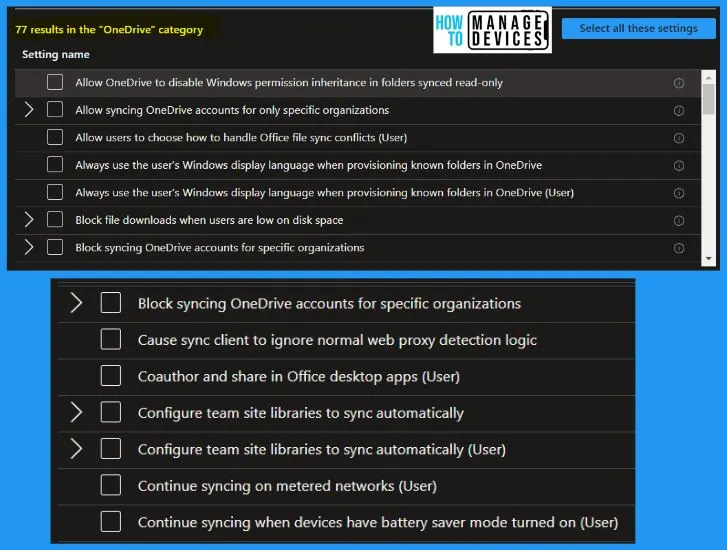
Continue syncing when devices have battery saver mode turned on (User). Convert synced team site files to online-only files. Disable the tutorial at the end of the OneDrive Setup (User). Enable automatic upload bandwidth management for OneDrive.
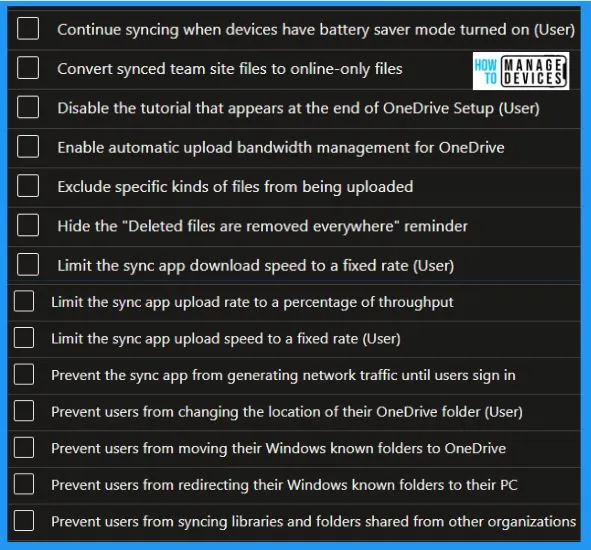
Prevent users from syncing personal OneDrive accounts (User). Prompt users to move Windows-known folders to OneDrive. Tenant ID: (Device). Prompt users when they delete multiple OneDrive files on their local computer. Require users to confirm large delete operations.
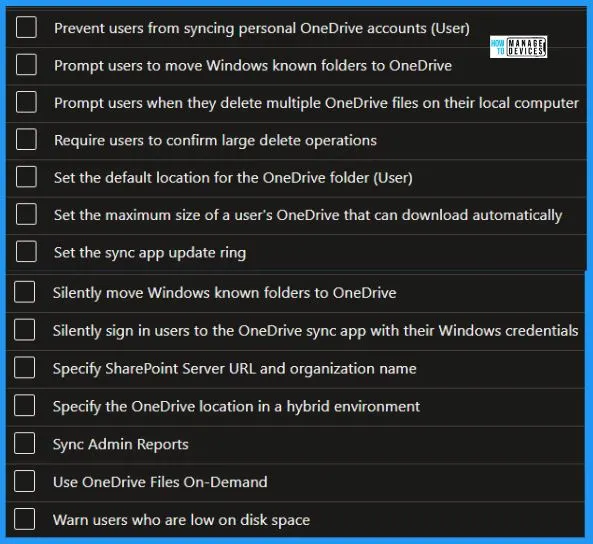
Allow OneDrive to Disable Windows Permission in Folders Synced Read-Only
This setting lets the OneDrive sync app remove all inherited permissions within read-only folders syncing on a user’s PC. If you enable this setting, the OneDrive sync app can disable permission inheritance in read-only folders to improve sync speed.
- If you disable or do not configure this setting, the OneDrive sync app will preserve permission inheritance in read-only folders. Sync speed may be significantly slower.
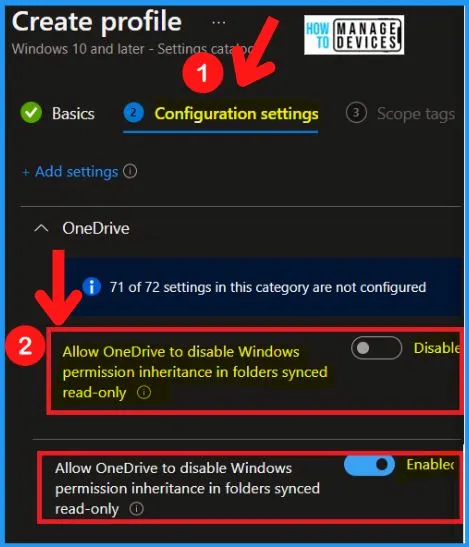
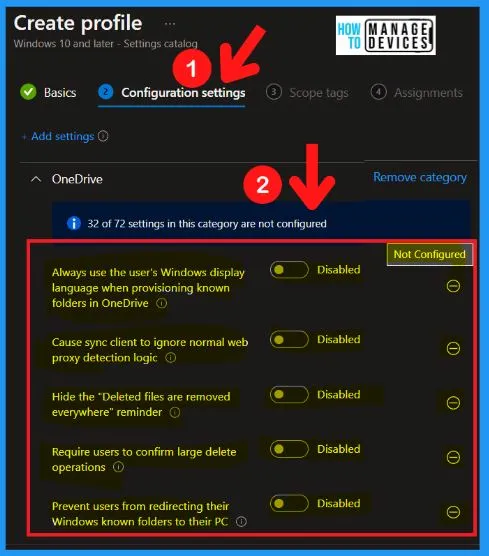
After you add or select your settings, you can easily close the settings picker. All the settings are shown and configured with a default value, such as Enable or Disable. If you don’t want to configure settings, you should select the minus on the right side of the settings.
The minus is the same as Not configured. When set to Not configured, the setting is no longer managed, and Intune doesn’t change or update this setting.
- Enable – If you want to Enable this setting, Toggle the circle to the right side
- Disable – Default; if you want to Disable this setting, Toggle the circle to the left side
Author
About Author – Vidya is a computer enthusiast. She is here to share quick tips and tricks with Windows 11 or Windows 10 users. She is also keen to find solutions to day-to-day tech problems and write about them.




Discussion