






Manage Zoom Settings using Intune Administrative Templates
Let’s check how you can manage Zoom Settings using Intune Administrative Templates. In this post, you will find the steps to import Zoom ADMX in Intune, and use it to configure Zoom settings and features with imported ADMX Templates.
Zoom Meetings is a cloud-based video conferencing software solution that allows organizations in various sectors to conduct virtual meetings and collaborate in real time using integrated communication tools.
Zoom Meetings for desktop and mobile provide virtual meeting tools to make every meeting a great one, Focus on your virtual meeting and click record to leave the note-taking to Zoom’s auto-generated, searchable transcripts.
Zoom helps consolidate communications, connect people, and collaborate better together in the boardroom, classroom, operating room, and everywhere in between.

Follow the steps to upload the MSI file for deploying Zoom using Intune. To start with the Intune line-of-business app package creation, keep the downloaded ZoomInstallerFull.msi setup installation file in the appropriate location to deploy Zoom using Intune Step by Step Guide.
- Import Custom ADMX Administrative Templates In Intune MEM Portal
- List of Intune Administrative Template Settings| User | Device
Download Zoom ADMX Templates
The first step is to download the Zoom ADMX template file, In the link look for the Available Templates and select the latest version available for the policy.
Each download includes .ADM and .ADMX files. Once you extract the downloaded zipped file. You will find Machine, User based Zoom Meeting ADMX files available which you can choose based on requirements.
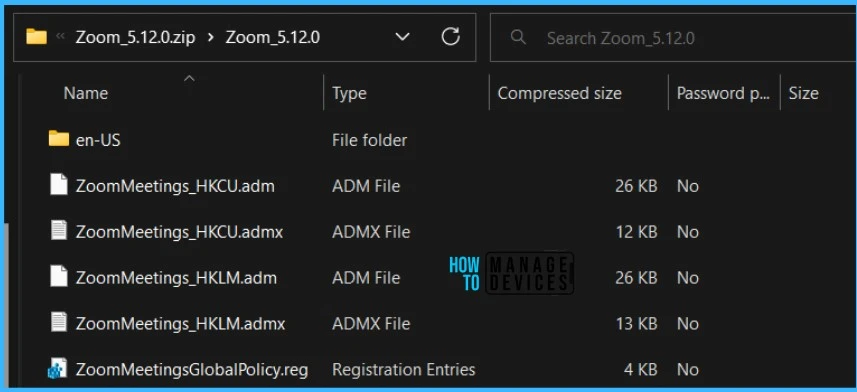
Manage Zoom Settings using Intune Administrative Templates
Once you have the downloaded Zoom ADMX and ADML files, you can proceed to import the Admx Templates in Intune.
By importing Zoom Administrative Template or registry keys, administrators can lock certain features and settings upon deployment. Let’s follow the step-by-step process explained here to import Zoom ADMX in Intune.
- Sign in to the Microsoft Intune admin center https://endpoint.microsoft.com.
- Select Devices > Configuration profiles > Import ADMX > click on Import.
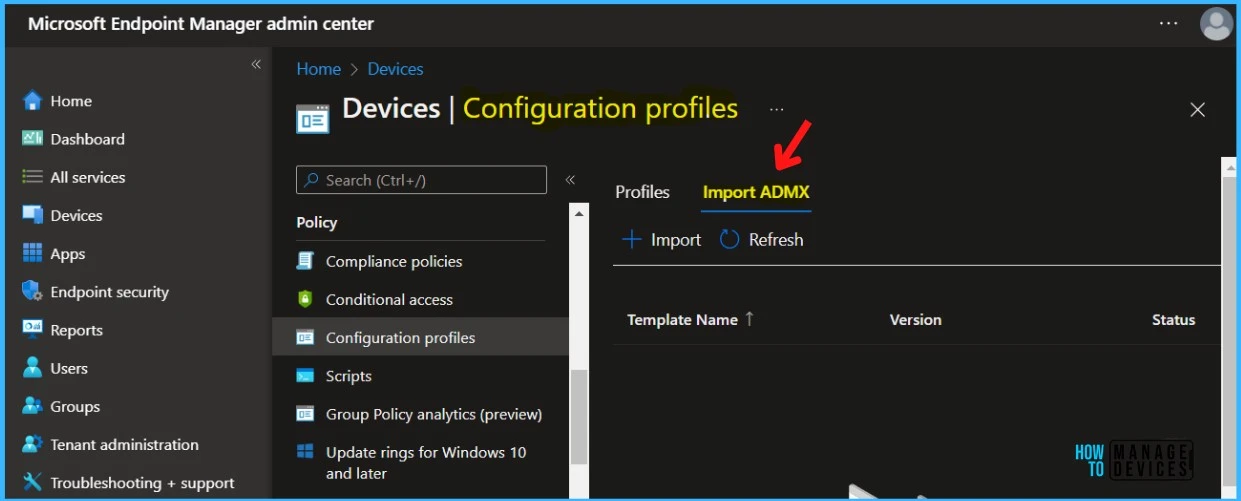
In the ADMX file upload, Upload your files.
- ADMX file: Select the ADMX file you want to upload.
- ADML file for the default language: Select the ADML file you want to upload. You can add only one language file for each ADMX file you upload.
- Specify the language of the ADML file: This shows the ADML language of the file you uploaded.
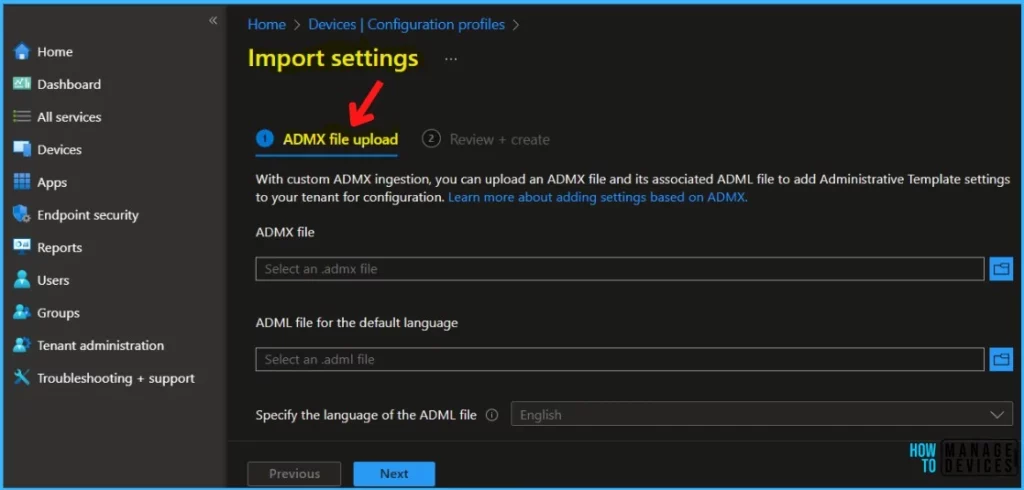
Some ADMX files may have dependency prerequisites. Import any dependency ADMX files first. Once you have selected the specified file, Click on Next.
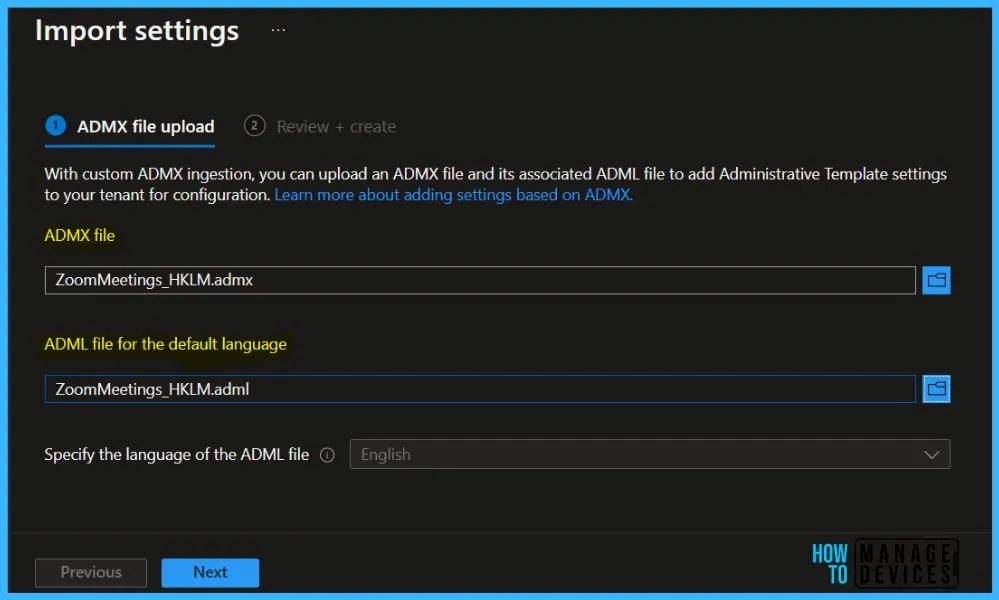
In summary, Review the uploaded ADMX or ADML files and click on Create to import the files.
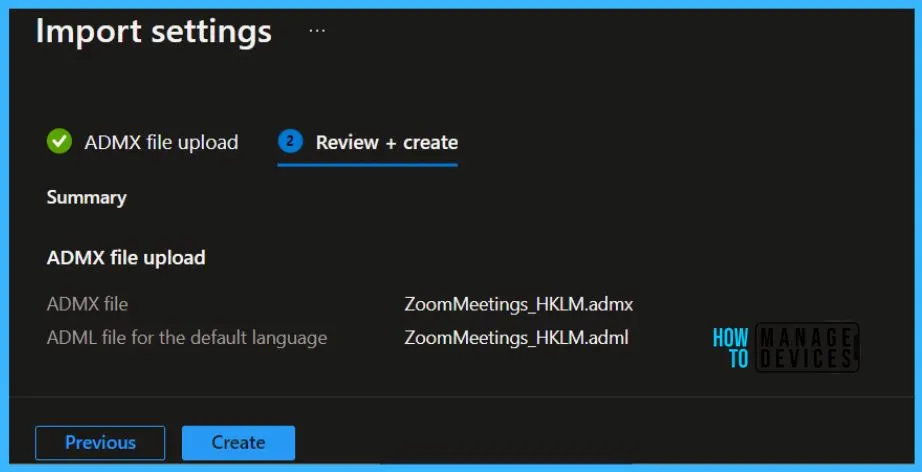
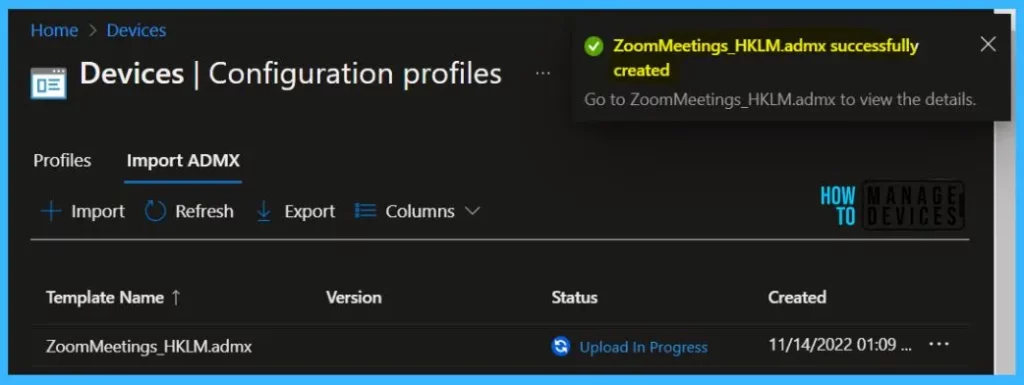
A notification will automatically appear, Once the files are created. When the import completes, your ADMX templates are shown in the list. The file upload process may take a few minutes, and you can track the details in the Status showing Upload in Progress.
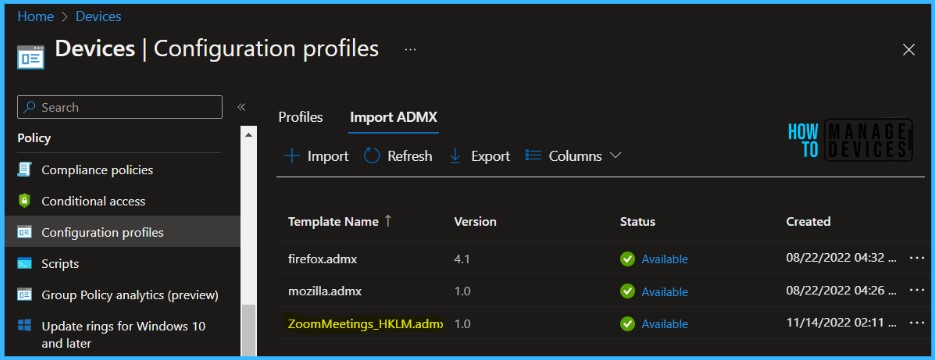
Once the file upload is completed, The status will change from Upload in Progress to Available.
NOTE! If you upload an ADMX file without the dependency, an error message will list the missing namespace. To see any namespace dependencies, open the ADMX file and search for using prefix. Any dependencies will be listed.
- FIX Intune Admx File Upload Error Referenced Not Found NamespaceMissing
- Managing Network Drive Mappings With Intune
Create a profile using Imported ADMX Templates Files
Let’s follow the steps to create a profile using the ADMX Administrative Templates. In the Intune Admin Center, Select Devices > Configuration profiles > Create profile.
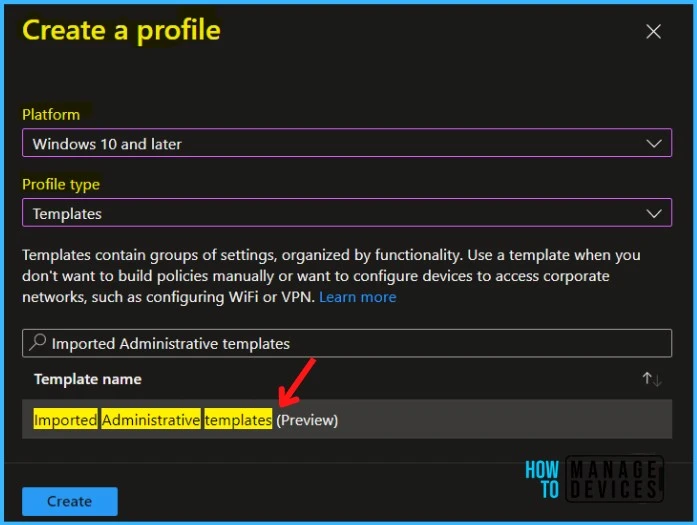
In Create Profile, Select Platform, Windows 10, and later and Profile, Select Profile Type as Templates, and choose Imported Administrative templates (Preview) from the list. Click on Create button.
On the Basics tab, enter a descriptive name for your profile, Optionally, enter a Description for the policy, then select Next.
In Configuration settings, select All settings to see an alphabetical list of all the settings. Or configure settings that apply to devices (Computer configuration) and settings that apply to users (User configuration).
Here you see the Zoom Policy available for both Computer and User Configuration. For example, I selected Zoom Meetings Computer configuration to see the list of settings names. Here you can configure any of the settings based on your requirements.
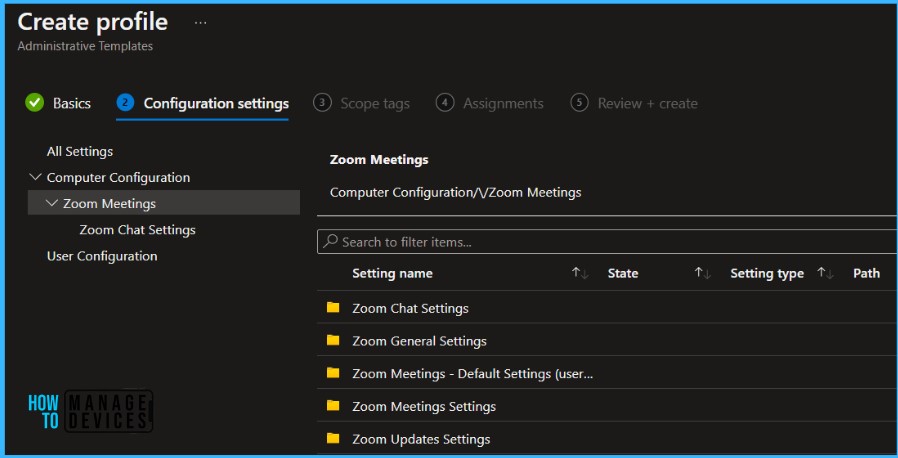
In Scope tags, you can assign a tag to filter the profile to specific IT groups. Add scope tags (if required) and click Next.
Under Assignments, In Included groups, click Add groups and then choose Select groups to include one or more groups. Click Next to continue.
In Review + create, review your settings. When you select Create, your changes are saved, and the profile is assigned.
Intune Reporting – Zoom Policy Deployment
You can check Intune settings catalog profile report from Intune Portal, which provides an overall view of device configuration policies and deployment status.
To monitor the policy assignment, from the list of Configuration Profiles, select the policy, and here you can check the device and user check-in status. If you click View Report, additional details are displayed.
Additionally, you can quickly check the update as devices/users check in status reports –
Intune Tools – Convert Registry Values to ADMX
If you are looking to create or import custom ADMX templates, Mark Thomas highlighted a tool to convert reg values to ADMX in Intune tools, created by Micke Karlsson. This tool makes a custom ADMX file based on the specified registry keys.
Additional Intune Tools are included in the script, and you can access the tool directly from the Micke GitHub repository, Import ADMX files, and registry settings with ADMX ingestion.
Author
About Author – Jitesh, Microsoft MVP, has over five years of working experience in the IT Industry. He writes and shares his experiences related to Microsoft device management technologies and IT Infrastructure management. His primary focus is Windows 10 Deployment solution with Configuration Manager, Microsoft Deployment Toolkit (MDT), and Microsoft Intune.


Jitesh,
Thanks a lot for this doc. Actually I am not able to upload the ADMX file because for some reason windows.admx file is stuck at “Removal Failed” in my Endpoint Manager. Would you have any advice to remove this windows.admx file ?
StaffHi Dilbagh, Have you tried to sign-in again to Portal and check the status?
How long is the delay between upload and actually seeing the settings available? I uploaded successfully but the settings aren’t populating in the admin template as an option. Frustrating…