






There are Not Applicable Status Issues with the Offline Company Portal App. This is a Known Issue confirmed by the Microsoft Intune support team. Microsoft is actively working to fix the issue. There are many reports in forums on this topic, such as this is working OK for Windows 11 but not for Windows 10. More details are below.
Company portal app installation is always tricky in the modern management world. Some enterprise customers use the offline version because that is more stable than the online Company Portal application. But both offline and online ways of deployments are not error-free!
There is a post where we shared the issues with Microsoft for Business (MSfB) Company Portal Online method deployment issue. It also provides detailed options to install the Company Portal using the Offline option from MSfB.
The Microsoft Intune company portal helps you to enroll your device to access corporate resources, and it also allows you to Reduce the number of times you need to sign in to corporate resources with single sign-on. More detailed analysis of the Company Portal available – Intune Company Portal App For Windows 11 Android | Install And Uninstall.

Issue – Offline Company Portal Shows Not Applicable Status
Social media forums such as Twitter and Reddit highlight the offline Company Portal issue. Many admins are reporting that they cannot deploy the company portal application to Windows 10 devices using an offline method.
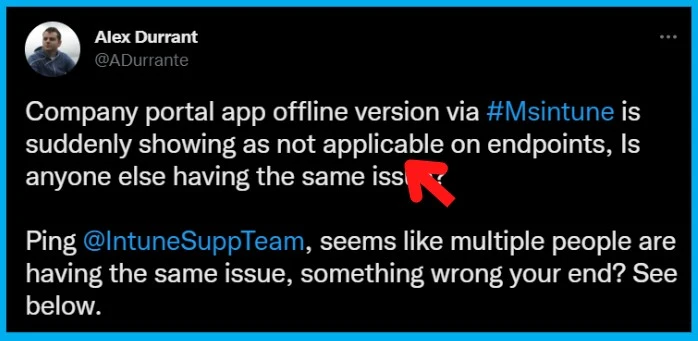
The Reddit user denstorepingvin reported the issue, and then it’s been reported on Twitter also by Alex Durrant. He reported that the “Company portal app offline version via Msintune is suddenly showing as not applicable on endpoints. Is anyone else having the same issue?”
Offline App Installation using Intune
There are also reports that this issue (not applicable status) exists for other offline applications. So, the problem is not limited to Company Portal Offline apps but all the other offline apps from the “Old MSfB.”
Microsoft is changing how the Microsoft Store integration works with Intune and device management solutions. The new Microsoft Store integration works with the Windows Package Manager utility WInGet and all these are tightly integrated into Intune admin center portal to give a first-class experience.
More details on Deploy New Microsoft Store Apps from Intune with Winget is available in the blog post linked.
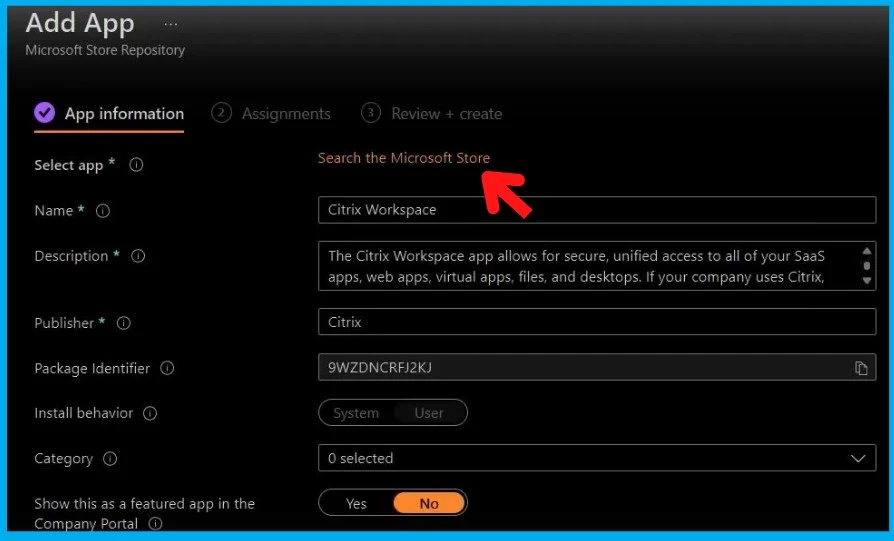
We don’t know whether the changes introduced to add New Microsoft Store into Intune have something to do with this known issue of breaking the existing Offline feature with the “old” MSfB integration. A sample screenshot of the new Microsoft Store integration is given below.
| Offline Version | Online Version |
|---|---|
| “Not Applicable” status Issues with all Offline Version of Apps, not only the Company Portal | The online version of apps works fine, and there are no reports of “Not Applicable” status |
FIX or Workaround – Offline Company Portal App shows Not Applicable Status
Microsoft has not shared any workaround or fix for the known issue with offline deployments of the company portal app from Microsoft Store for Business which is supposed to be retired soon.
Microsoft Intune Support team acknowledge on Twitter that they can reproduce the issue and actively working to fix the Intune Known issue. They have not provided details about why the offline company portal and other offline apps are showing “not application” status on Windows 11 and Windows 10 devices.
Intune Support Team commended on Twitter – the team is actively investigating the issue, and as soon as we have more info to share, we’ll reach out. Thanks for the report.
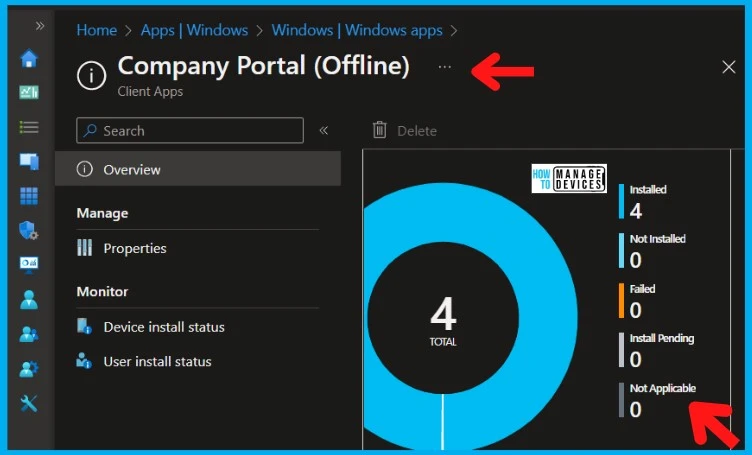
In an ideal scenario, there shouldn’t be any not applicable devices, as seen in the screenshot below from HTMD Lab. It seems this issue is with new devices that are getting enrolled, which is not impacting the existing devices with Intune Company Portal app.
Author
About Author – Vidya is a computer enthusiast. She is here to share quick tips and tricks with Windows 11 or Windows 10 users. She is also keen to find solutions to day-to-day tech problems and write about them.


Support is still on the issue, at least they confirmed it now via a support ticket also.
Really sad that no Intune health issue or advisory was published.
Incident ID IT481759
Users can’t install offline licensed Microsoft Store for Business applications to their Microsoft Intune devices
09/12/2022, 01:29:39
Current status: The fix has been validated and we’re deploying it to the affected environments. We anticipate the fix will be fully saturated by our next scheduled communication update.
Next update by: Friday, December 9, 2022, at 3:30 PM UTC