






How to Collect Intune Company Portal Logs from Android Device
Key Takeaways
- Company Portal logs are essential for troubleshooting enrollment, compliance, sync, and app deployment issues on Android.
- The Microsoft Intune Company Portal app remains required for Android Enterprise enrollment (Work Profile, Fully Managed, Corporate-Owned Work Profile).
- Diagnostic logs include error codes, timestamps, sync status, service communication details, and policy processing information.
- Users/admins can upload logs directly to Microsoft from within the Company Portal app (Help → Report a problem).
Collecting logs from the Microsoft Intune Company Portal on Android devices is one of the most effective ways to troubleshoot enrollment and management issues. The diagnostic capability built into the Company Portal helps IT admins and support teams investigate problems related to device registration, compliance, app deployment, and policy application. These logs capture detailed client-side activity, making them essential when analyzing unexpected behavior on managed Android devices.
Table of Content
Table of Contents
How to Collect Intune Company Portal Logs from Android Device
Intune Company Portal logs store information about how the app is working on your device. These logs help identify problems like app crashes, enrollment failures, sync issues, or app installation errors. To collect the logs.
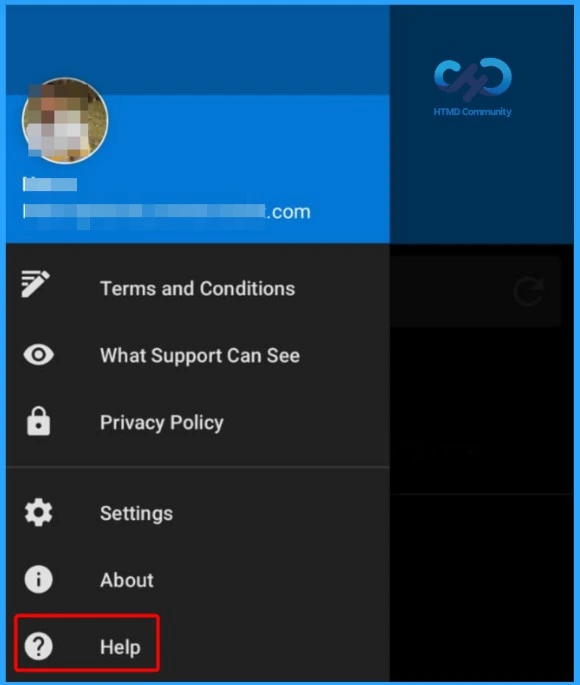
- Open the Company Portal app on your Android phone.
- Tap the three-line menu in the top-left corner.
- From the below scressnshot select the Help option.
| Two Features for Android devices |
|---|
| Ability to upload diagnostic logs for troubleshooting and/or email the Incident ID to support personnel. |
| Ability to view Intune App Protection Policy settings for apps. |
- Block Android Device Manufacturer Enrollment In Intune
- Not Applicable Status Issues with Offline Company Portal App | Intune Known Issue
- How to Collect Intune Company Portal Logs from Android Device
Send Intune Company Portal Logs from Android using the Help Menu
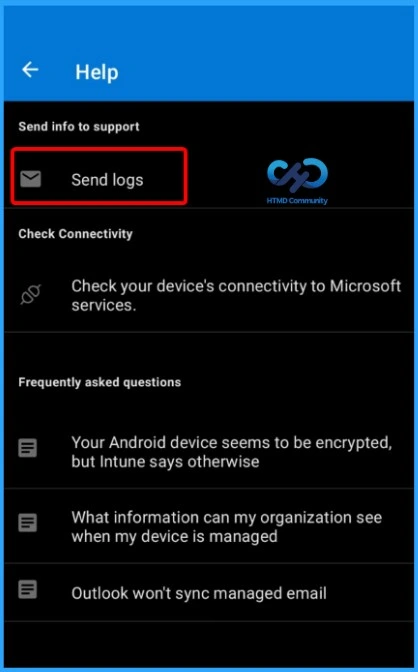
The screenshot shows the Help section inside the Microsoft Intune Company Portal app on an Android device. To send diagnostic logs, open the Company Portal app, go to Help, and select Send logs under the “Send info to support” section. These logs help troubleshoot issues such as enrollment failures, sync problems, compliance errors, or app crashes by sharing detailed activity and error information from the device.
Confirm and Send Intune Company Portal Logs from Android
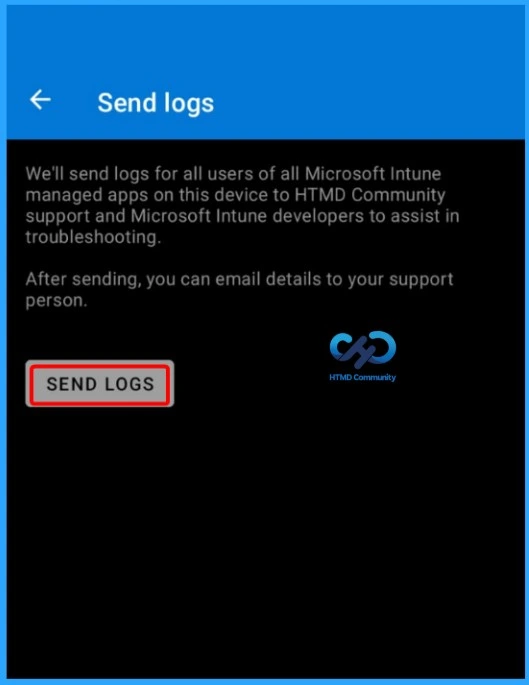
This is the Send Logs confirmation screen in the Microsoft Intune Company Portal app. After selecting the option to send logs, you will see this page explaining that diagnostic logs from all Intune-managed apps on the device will be shared with support teams to help troubleshoot issues. To proceed, tap the SEND LOGS button.

- Once submitted, you may also have the option to share additional details with your IT support team via email for further investigation.
Log Submission Completed – Note the Incident ID
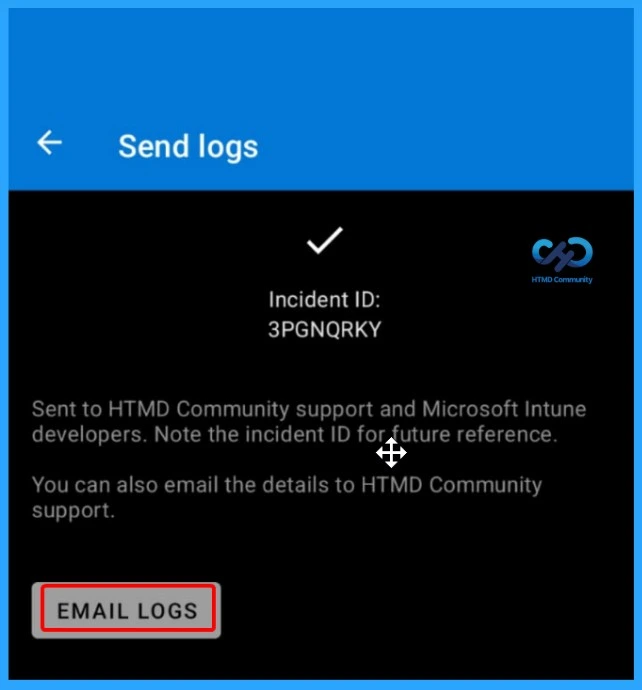
This is the confirmation window that the Company Portal logs have been successfully sent to support. An Incident ID is generated after submission, which you should save for future reference. This ID helps the support team quickly locate your uploaded logs when troubleshooting enrollment, sync, or compliance issues. You can also tap EMAIL LOGS to share the log details directly with your IT support team for faster investigation.
Send Logs by Email from Company Portal
After you tap SEND LOGS, choose the EMAIL option. The Company Portal app will automatically prepare an email with the Incident ID already added in the subject line. When prompted, open your email app to continue.
Enter your IT support team’s email address, clearly describe the issue you experienced (such as enrollment failure, sync error, or app issue), and then send the email. After sending it, you can follow up with your organization’s support team if additional information is needed.
Need Further Assistance or Have Technical Questions?
Join the LinkedIn Page and Telegram group to get the latest step-by-step guides and news updates. Join our Meetup Page to participate in User group meetings. Also, join the WhatsApp Community and the Whatsapp channel to get the latest news on Microsoft Technologies. We are there on Reddit as well.
Author
About Author – Jitesh, Microsoft MVP, has over five years of working experience in the IT Industry. He writes and shares his experiences related to Microsoft device management technologies and IT Infrastructure management. His primary focus is Windows 10 Deployment solution with Configuration Manager, Microsoft Deployment Toolkit (MDT), and Microsoft Intune.
Hi Jitesh.
One Doubt, after collecting the logs what is the next steps to troubleshoot the issue.
Do we need to send the logs to Microsoft team