






Organize Intune Managed Google Play Store Apps in Collections
Let’s see how you can organize Intune Managed Google Play Store Apps in Collections. Managed Google Play Organize apps feature lets you group work apps into collections and help you to display store apps.
Collections are displayed on the front page of the managed Play Store app, giving your users quick and easy access to the apps they need for work. You can use collections to organize apps into different categories.
Starting with Intune Service Release 2211 November Update, you can control the display of Managed Google Play apps by grouping Managed Google Play apps into collections and controlling the order that collections are displayed when selecting apps in Intune.
In the managed Play Store app, each collection is displayed as a row of apps on the homepage. Users can identify collections by their title and view all the apps in a collection.

Only approved apps can be added to a collection. Before you can create a collection, you need to approve apps for your organization. The managed Play Store app automatically displays a collection if it contains at least one app made available to the user.
- Deploy New Microsoft Store Apps Type From Intune With Winget
- How To Add Android Managed Google Play App In Intune
Organize Intune Managed Google Play Store Apps in Collections
Collections are a way to group your Managed Google Play apps and determine the order they appear in the end users Play Store. To create, use collections in Managed Google Play collection follow the steps below:
- Sign in to the Microsoft Intune admin center https://endpoint.microsoft.com/.
- Select Apps > All apps > Add.
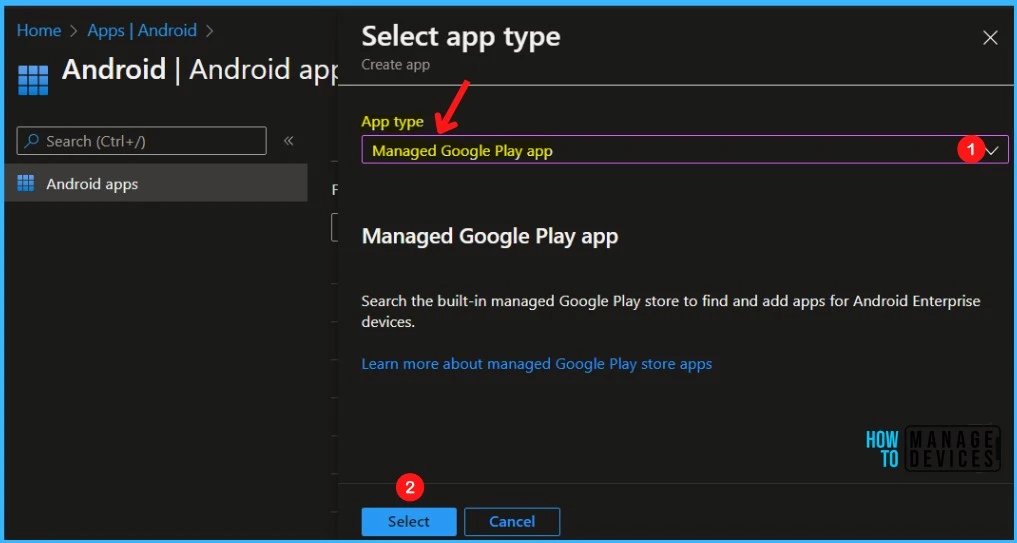
- In the Select app type pane, under the available Store app types, select Managed Google Play app. Click Select. The Managed Google Play app store is displayed within Intune.
Only approved apps can be added to a collection. Before you can create a collection, you need to approve apps for your organization. The managed Play Store app automatically displays a collection if it contains at least one app made available to the user.
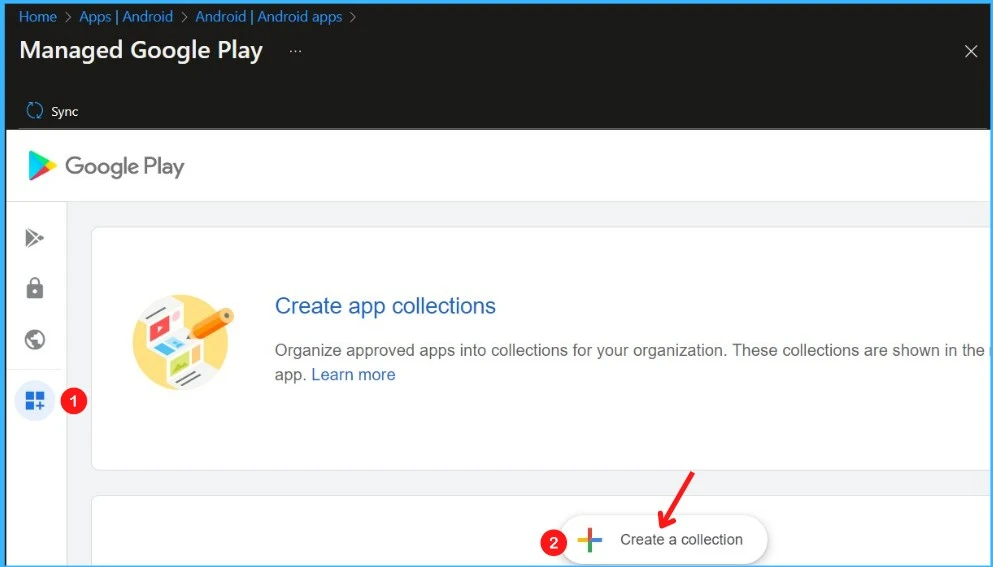
In Managed Google Play, Select Organize Apps and Select Create a collection. A text box will appear to name the collection.
Note! Your Intune tenant account must be connected to your Android Enterprise account to browse Managed Google Play store apps.
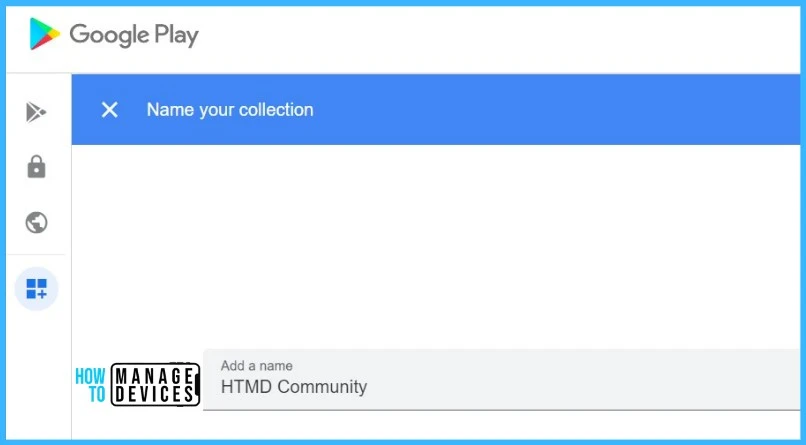
Here you have to enter a collection name and click Next. The name of your collection will appear in the Intune Company portal for the users.
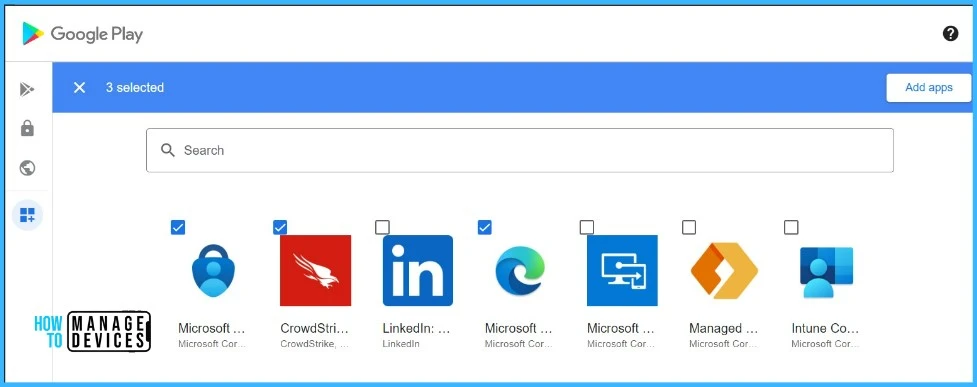
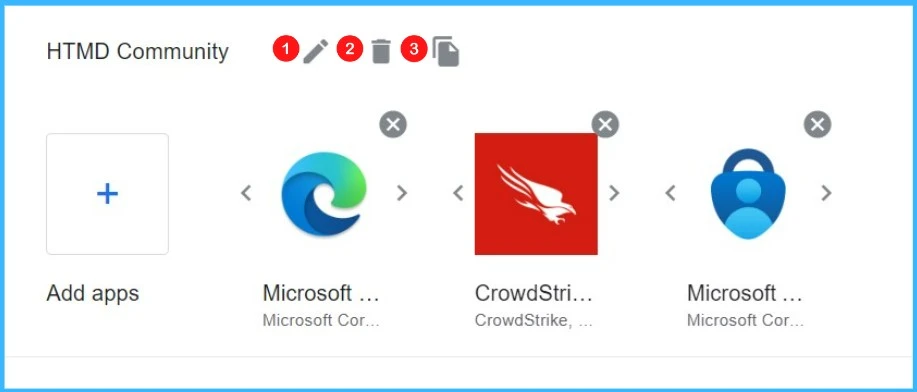
Check the approved apps to add to the collection. If you need to approve additional apps for the collection, clicking the Add apps button will take you back to the Managed Google Play app store.
Any app in a collection that hasn’t been made available to a user will be automatically hidden in the user’s managed Play store app.
Also, you can edit the order apps appear in the collection by clicking the arrows next to each app. You can also edit the order of the collections you’ve created by using the side arrow buttons. A collection can include a maximum of 100 apps.
Note! The order you set apps and collections is the order the end user will see in their Play Store app.
Before you save your changes, you can cancel any edits you make by clicking Cancel at the bottom of the window. When you’re done editing, click save. A popup box will appear, asking you to confirm. Click save on the popup box.
- Intune Company Portal App For Windows 11 Android | Install And Uninstall
- Block Android Device Manufacturer Enrollment In Intune
Install Company Portal App On Your Android Phone
You can easily install the Company Portal app on your Android phone to start the enrollment process. For this, first, you should have to enable the secure start-up on your phone, and You should enable the Software update. The following are the steps to install the Company Portal App In Your Android Phone.
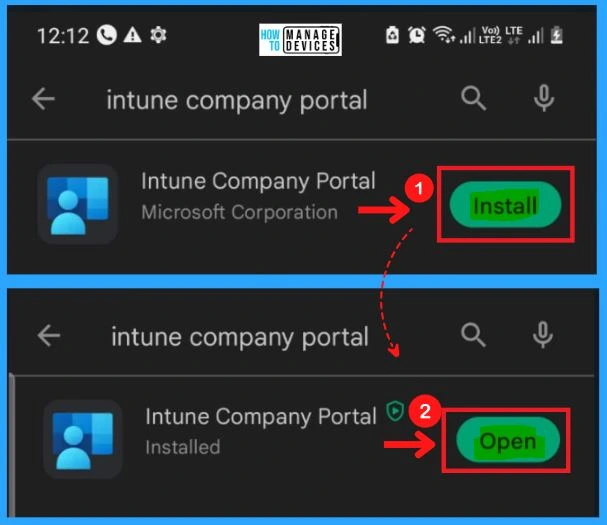
- Go to Google Play and Download the Intune Company Portal app.
- Click the Install and Open buttons to open the Company Portal app on your Mobile.
After clicking the Open, you should sign in to your Company portal. The Company portal helps you access company resources and keep them secure. Select SIGN IN from the Company portal Window.
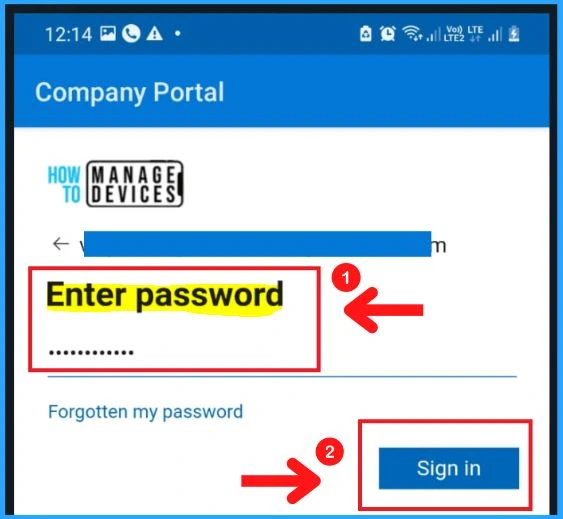
Enter your Email address and password to Sign in to the Company Portal app on your Mobile.
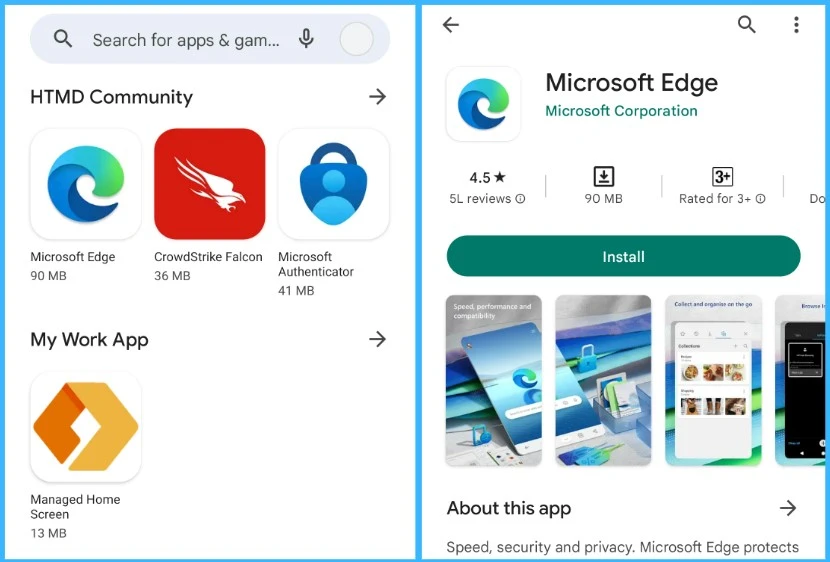
Once you sign in successfully to Intune Company portal, Here’s how your user experience will be. You can see the created collection containing the available application for the users.
It may take some time after editing for the end user to see the changes made to their collections. If the changes haven’t finished syncing yet, the end user may see an empty screen with no results text if they open the Play Store app. End users can still use the search bar to search for and download apps, even if the screen appears.
Author
About Author – Jitesh, Microsoft MVP, has over five years of working experience in the IT Industry. He writes and shares his experiences related to Microsoft device management technologies and IT Infrastructure management. His primary focus is Windows 10/11 Deployment solution with Configuration Manager, Microsoft Deployment Toolkit (MDT), and Microsoft Intune.


Great Article