






How to Add Remove Top Sites in Edge Browser
Let’s learn how to add remove top sites in edge browser. Top sites mean the most visited sites are saved as suggestions or site suggestions in your browser. This suggestion many times helps us to find required sites easily.
In Microsoft Edge, the websites we visit frequently are stored as top sites in the browser; often, when you open the browser, your regular visit sites are already suggested in the top sites lists.
This post will show the Microsoft Dev Channel in Windows 11. You can manually change the top site using the DEV channel by adding and removing the option from the browser’s settings. You can download and install by clicking on the Microsoft Dev Channel link.
Though Microsoft Edge is developed using a Chromium (based) user interface, all the options are by default enabled; if not, you can allow them. According to the user’s requirement, they can change/modify the settings from the menu.

- Microsoft Edge Application Management with Intune
- MS Edge Browser Password Monitor Features to Safeguard the Passwords
How the Top Sites in Edge Browser Looks
In the edge browser, the top sites are stored in a sequence. Also, the news feeds are shown in the browser, which you can see in the image below; it holds top sites, news feeds, and Bing suggestions.
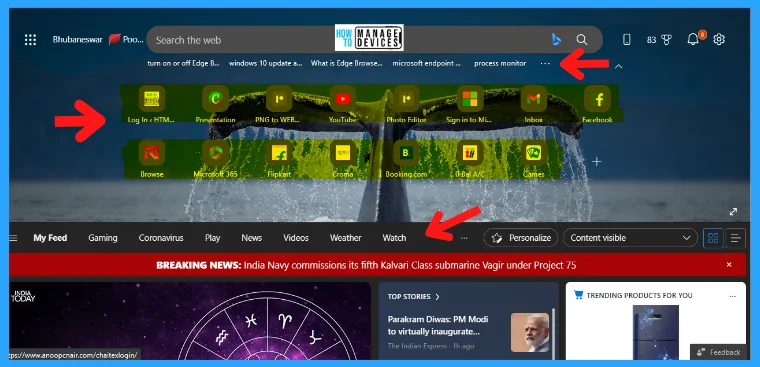
How to Add Remove Top Sites in Edge Browser
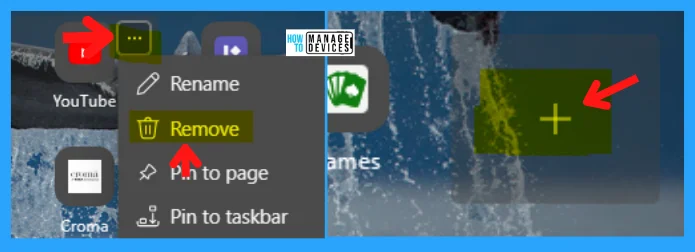
You can see many sites shown in the browser listed, but you can remove them by hovering on any site. A three-dot menu appears; click on it and select the remove option to remove the current suggested location.`
Another option is there; you can find a (+) plus sign where you click to add your favorite sites to the list. Clicking the plus sign asks you to add the sites you want. Both are adding and removing options are shown in the figure below.
| Context Menu Options of Top Sites in Edge Browser | Used to |
|---|---|
| Rename | It helps you to Rename your site |
| Remove | It allows you to Remove your site |
| Pin to Page | It helps to pin to the page |
| Pin to Taskbar | It helps you to Pin to the Taskbar |
Add Remove Top Sites in Edge Browser Using Settings
From the edge browser, a Setting button is available; click on that button and scroll down to find one option named Quick links. Below the Quick links, click the drop-down menu and select the Off option to remove the top sites from the browser.
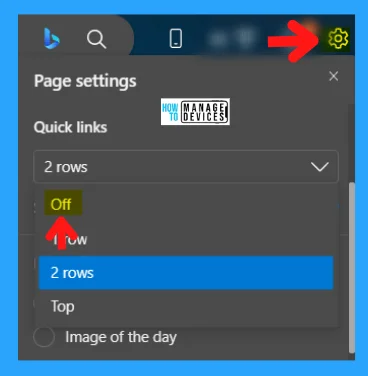
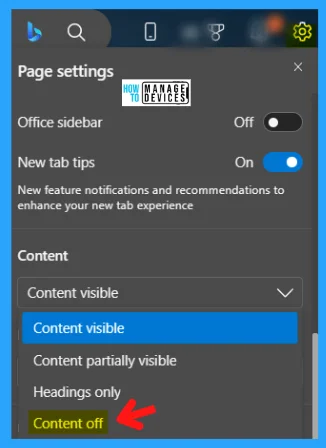
You can also remove the contents from the edge browser. To do that, click on the setting again and scroll down to reach to Content option. Click the drop-down menu and select the Content off the option to remove all the content shown in the edge browser.
| Content Settings | Used to |
|---|---|
| Content Visible | It helps to visible the Content |
| Content partially Visible | It helps to partially visible the Content |
| Headings Only | It helps to show the heading |
| Content Off | It helps to Remove the Content |
Add Remove Top Sites in Edge Browser Recent Searches
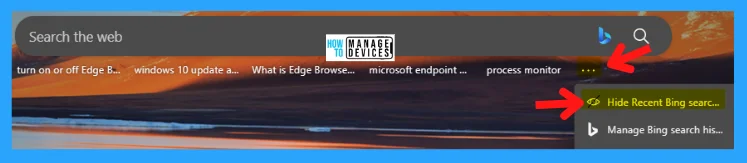
There is another list of top sites or recent sites. To remove them, click on the three-dot menu shown in the figure below. Then click on Hide Recent Searches that remove the current searches list.
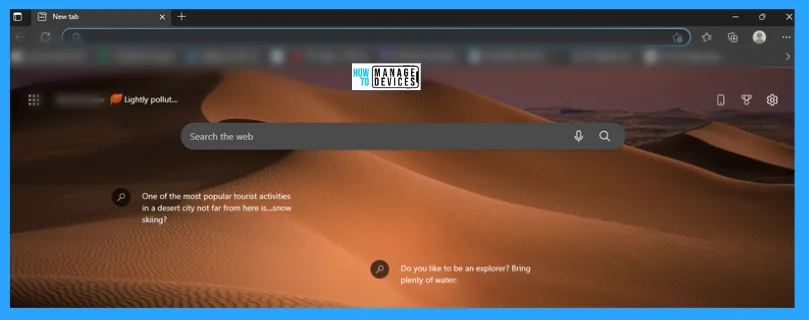
After removing all the top sites in the edge browser, the browser is now free from containing the top site lists, as shown in the figure below.
The information shared above regarding How to Add Remove Top Sites in Edge Browser is helpful. Please follow us on HTMD Community and visit our website HTMD Forum if you like our content.
Author
Alok is a Master of Computer Applications (MCA) graduate. He loves writing on Windows 11 and related technologies. He likes to share his knowledge, quick tips, and tricks with Windows 11 or Windows 10 with the community.




Discussion