






Manage macOS Login Background App Experience Using Intune
In this post, let’s discuss the new feature of how to manage macOS Login Background App using Intune. We will discuss what is login and background item and how to configure a policy with help of Intune for macOS.
In macOS devices, You can use apps that continue to perform actions even when you are not actively in the app’s window. These are commonly called background apps. These apps will continue to run in the background, which can receive additional info, send notifications, and stay up-to-date, even when you’re not using them.
Microsoft Intune includes many built-in settings to control different features on devices. We can create custom profiles, created similar to built-in profiles. These profiles include features and settings for organizations to control on company-enrolled devices.
This feature of setting login and background items has been added recently by Microsoft on the latest Intune Service release 2301. Using this feature, we can create a policy that automatically opens items when users log in to their macOS devices. Same way, we can prevent apps from running in the background while the user is logged on.

The Intune Settings Catalog is the best place to go for all the policy settings in Intune. In the settings catalog profile, you will also get an option Duplicate to create a copy of an existing setting catalog profile.
- Should you upgrade to Mac OS Ventura v13 managed using Intune
- New System Settings in macOS Ventura v13 and Intune Software Update Configs
Login and Background Item Management in macOS
Firstly, let’s understand what exactly means by login item or background and foreground item. So these “item” keyword denotes the apps or processes that run inside the Operating System after we logged in to the system.
The login item denotes the apps or processes that automatically get started once the user logs in to their device, and it keeps running till we manually kill the process ourselves or automatically process kill run by the system or in case of Device shutdown or sleep.
Background item denotes the apps or processes that get permission to process services or perform tasks in the backend, even while the app is not really open on the screen. A good example can be a syncing process or application backup.
The foreground item denotes the apps or processes that only process services or perform tasks when we launch the on the screen. A good example can be running an app like a music or video player.
Manage macOS Login Background App Experience using Intune Settings Catalog
To create a configuration profile, we must ensure the required access to the Intune Portal. Follow the steps mentioned below to create a configuration profile in Intune portal for macOS devices.
- Sign in to the Microsoft Intune admin center https://endpoint.microsoft.com/.
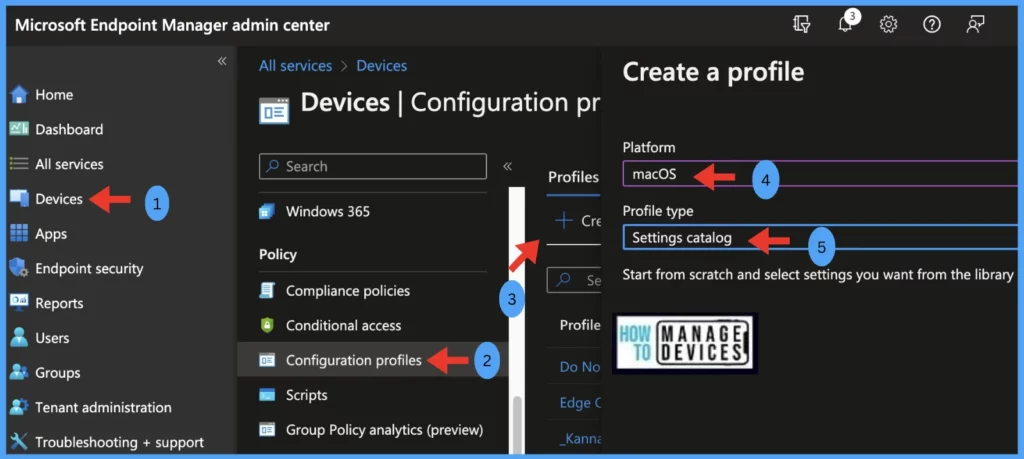
- Select Devices > under Policy, select Configuration profiles.
- The list of existing configuration profiles will be reflected on the right side. To create a new profile, click on Create Profile.
- Select the correct categories for Profile creation,
- Platform – macOS
- Profile type – Settings Catalog
- Click on Create.
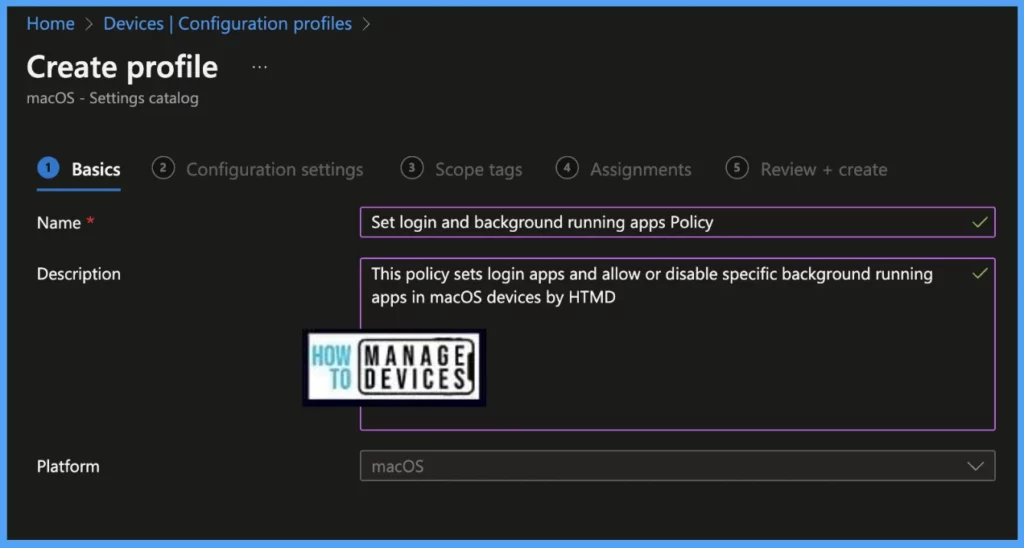
Once you click on Create button from the above page, Provide the Name and Description and click on Next.
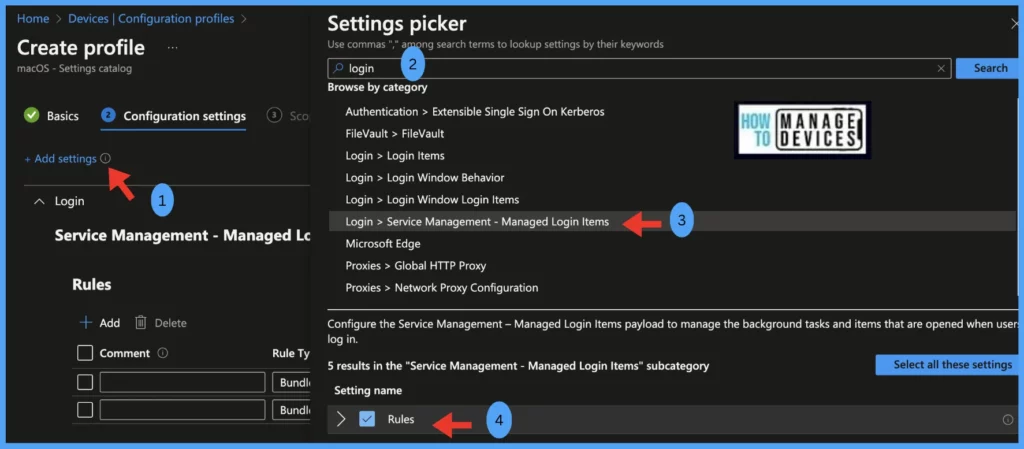
Under the Configuration settings tab, click on Add settings to select the required settings to be applied on the enrolled mac devices.
For Example, we searched with the Login keyword, selected Login > Service management – Managed Login items, and selected Rules checkbox to customize the rule in the configuration setting. Once the customizations are completed, click on Next.
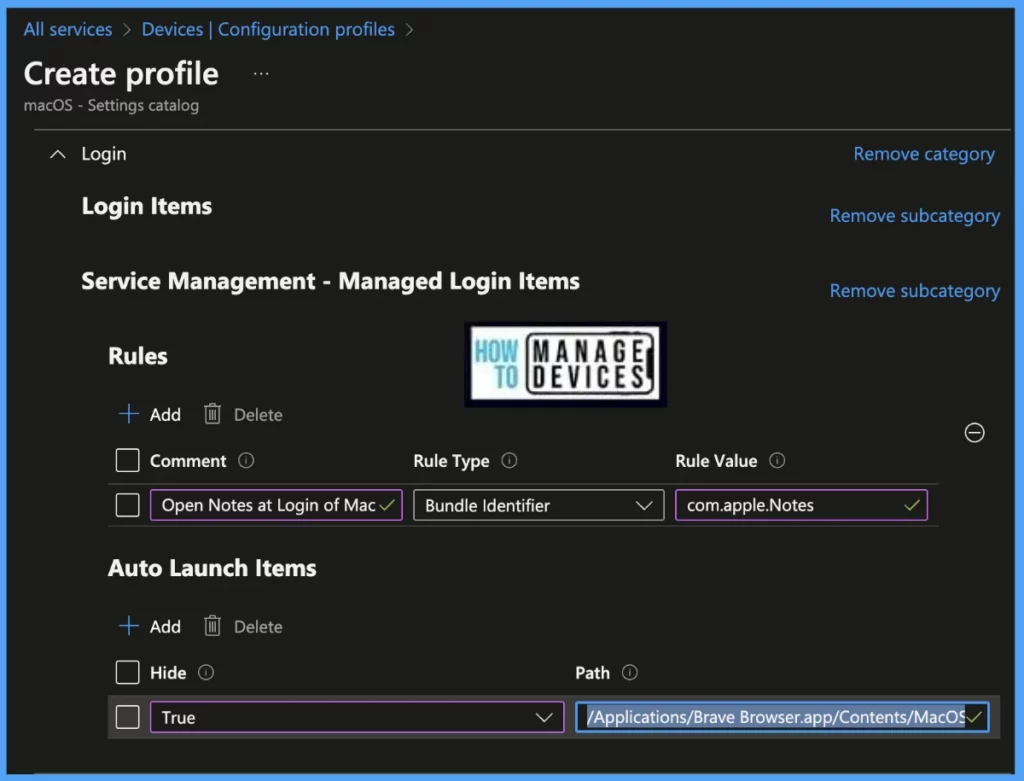
For this profile, we are adding Brave browser to open at the login of the device and specifying Value: True
Path: /Applications/Brave Browser.app/Contents/MacOS/Brave Browser.
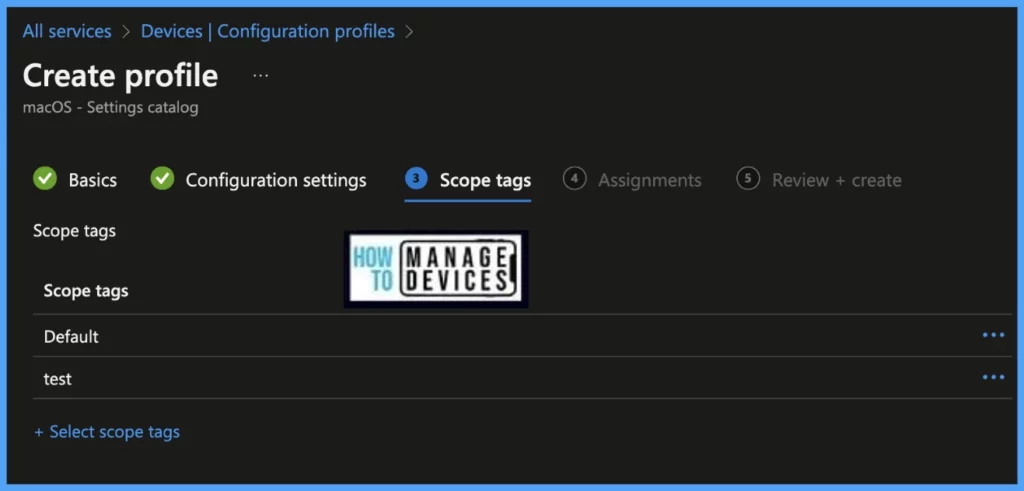
Scope tags are filtering options provided in Intune to ease the admin jobs. In the scope tag section, you will get an option to configure scope tags for the policy. Click on Next.
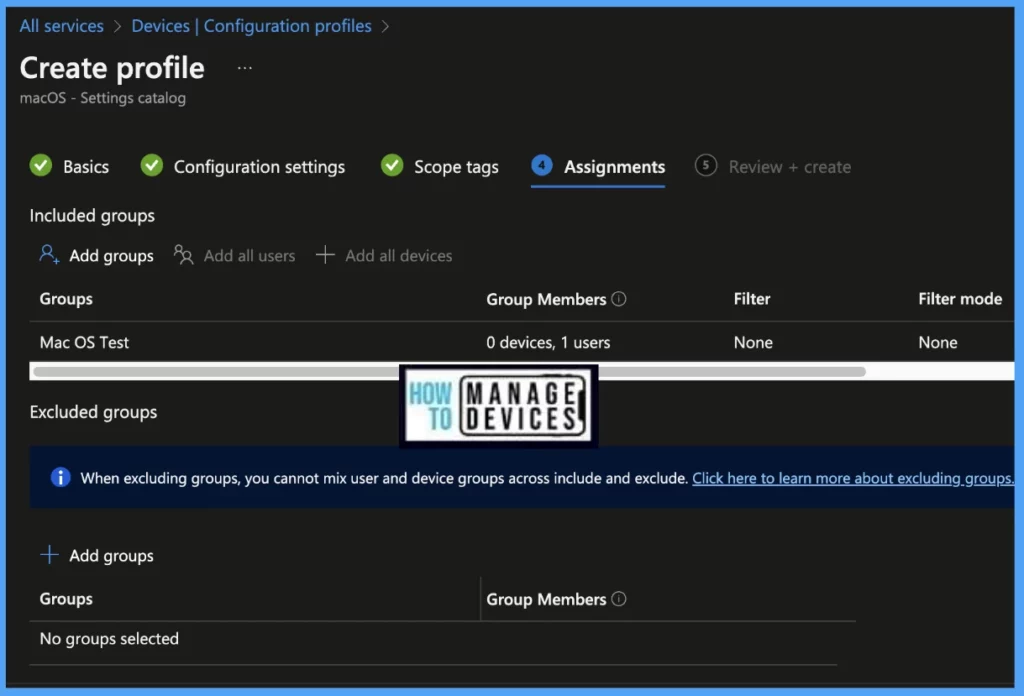
The assignment Group determines who has access to any app, policy, or configuration profile by assigning groups of users to include and exclude. Select Assignments group (Included groups and Excluded groups) and click Next.
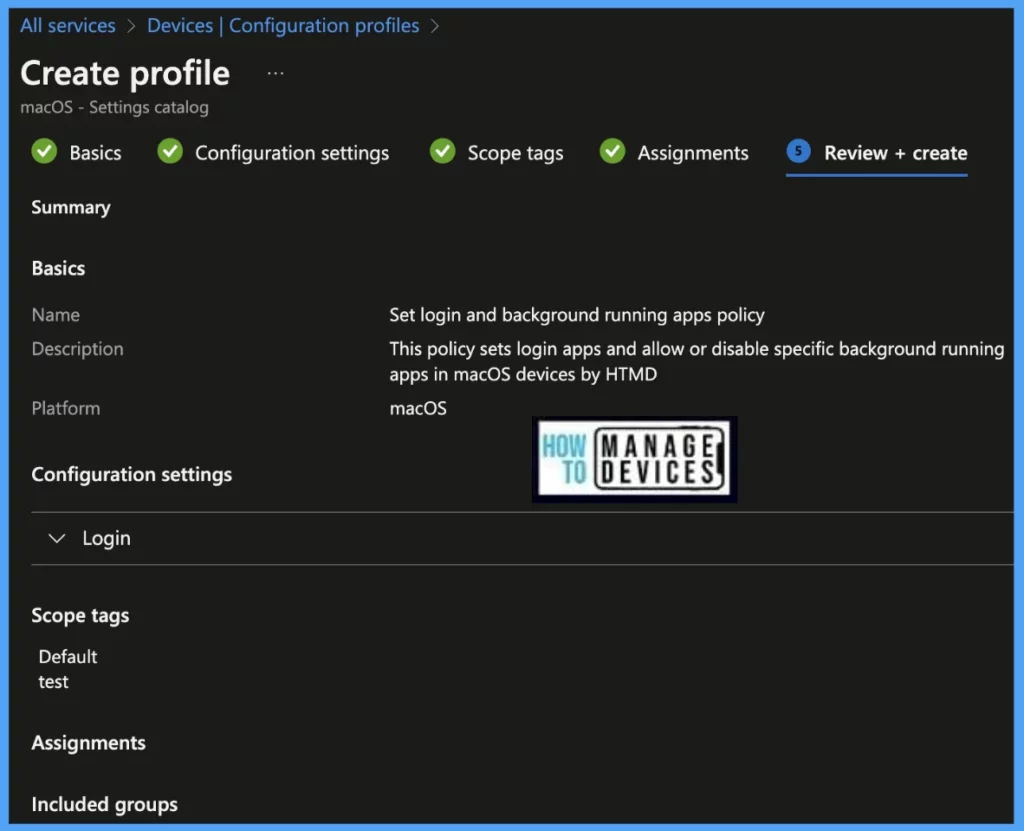
On the Review+create page, please review if any settings need to be changed, or else go ahead and click on create button.
Once the Login management configuration Profile is created, it will take a few minutes to get pushed to the targeted devices in the selected group; also, to view the deployment status on the list of targeted devices, we can check by the below ways.
The report reflects the successful deployment of the configuration profile while applying it to macOS devices. To see all the device statuses, Navigate to Devices > Configuration Profiles > Select the Profile, and you can find the list of devices under categories such as below.
- Succeeded
- Error
- Conflict
- Not Applicable
- In Progress
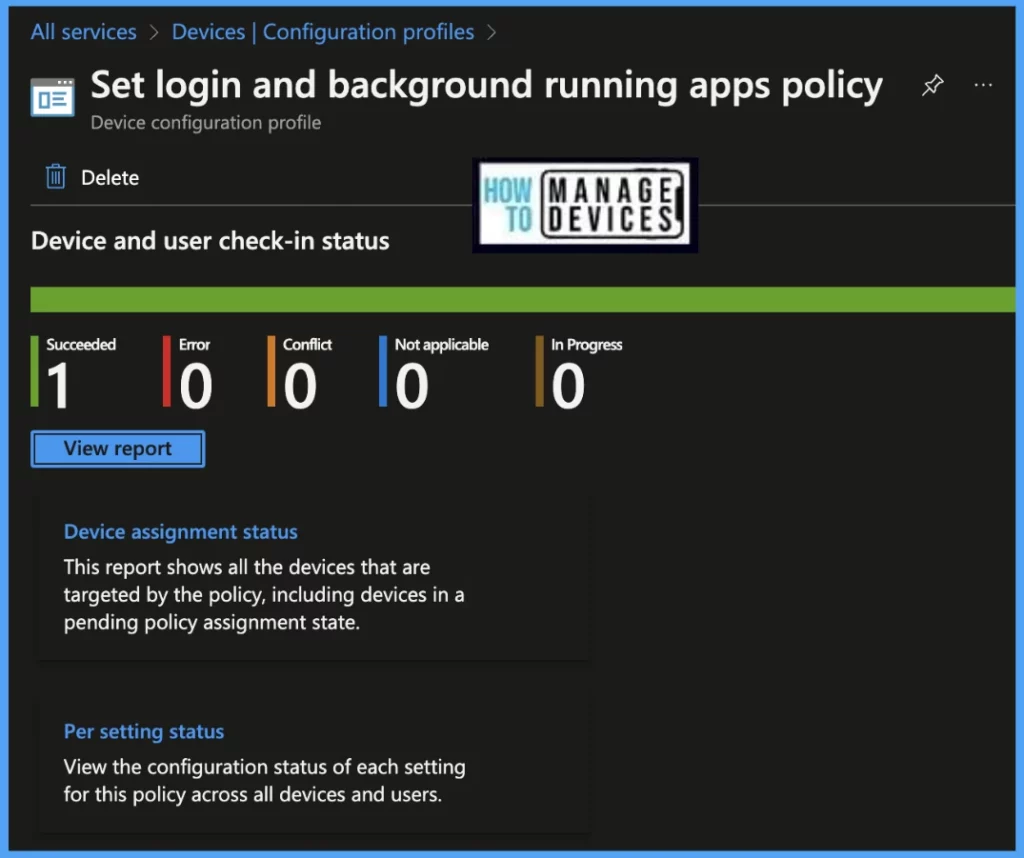
Once you click on the view report button, you can see the list of devices along with their details below :
- Device name
- Logged in User
- Check-in Status
- Last check-in time
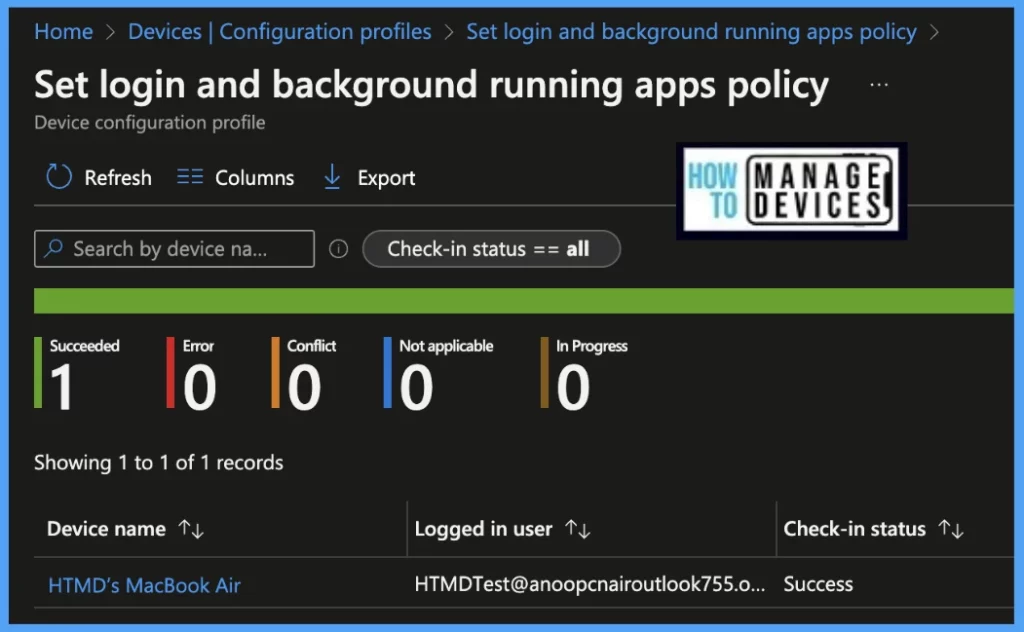
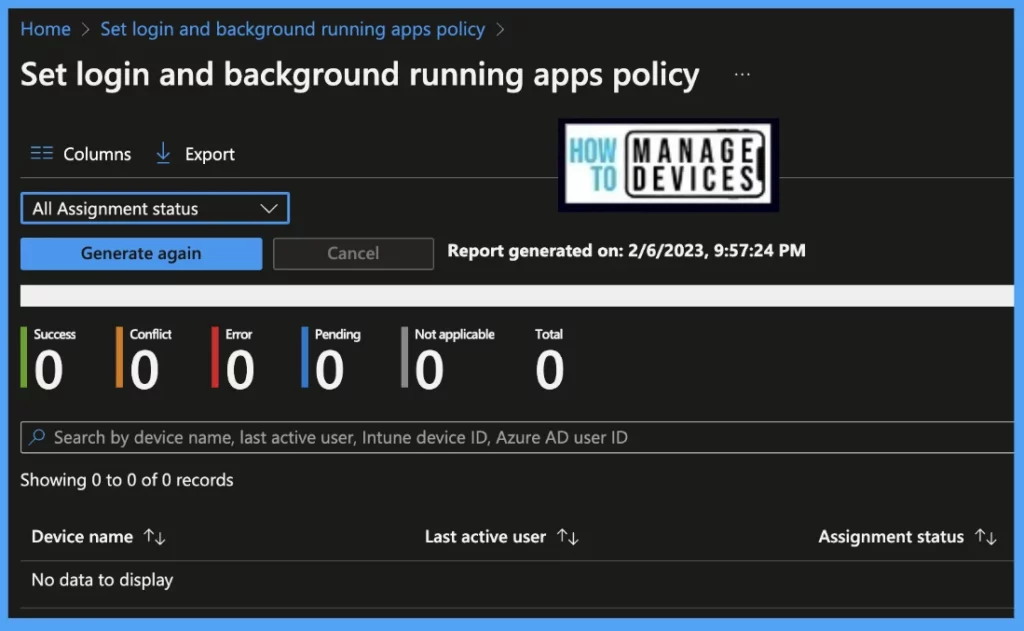
Also, we can view the two different types of reports, you can quickly check the update as devices/users check-in status reports.
Device assignment status, This report will show the list of targeted devices under the configuration profile, including devices in pending policy assignment status.
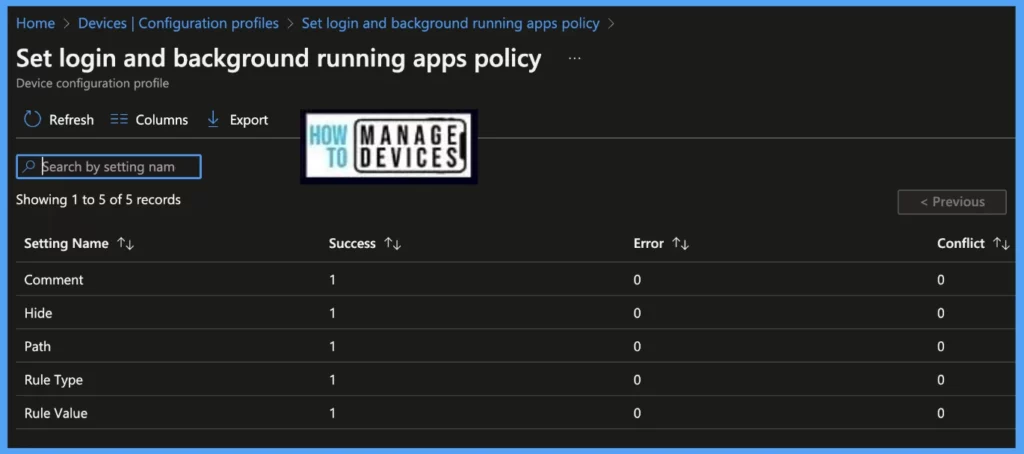
Per settings status, This report will show the configuration status of each set for this policy across all devices and users.
Here’s how you can export Intune setting catalog Profile report from Intune portal. You have two options to navigate to the compliance policies node either you can navigate to the Devices node or Endpoint Security, Intune Settings Catalog Profile Report.
- Enroll macOS in Intune with Step by Step Guide
- Configure macOS Compliance Policy in Intune for Devices
Results – Profile Deployed on macOS
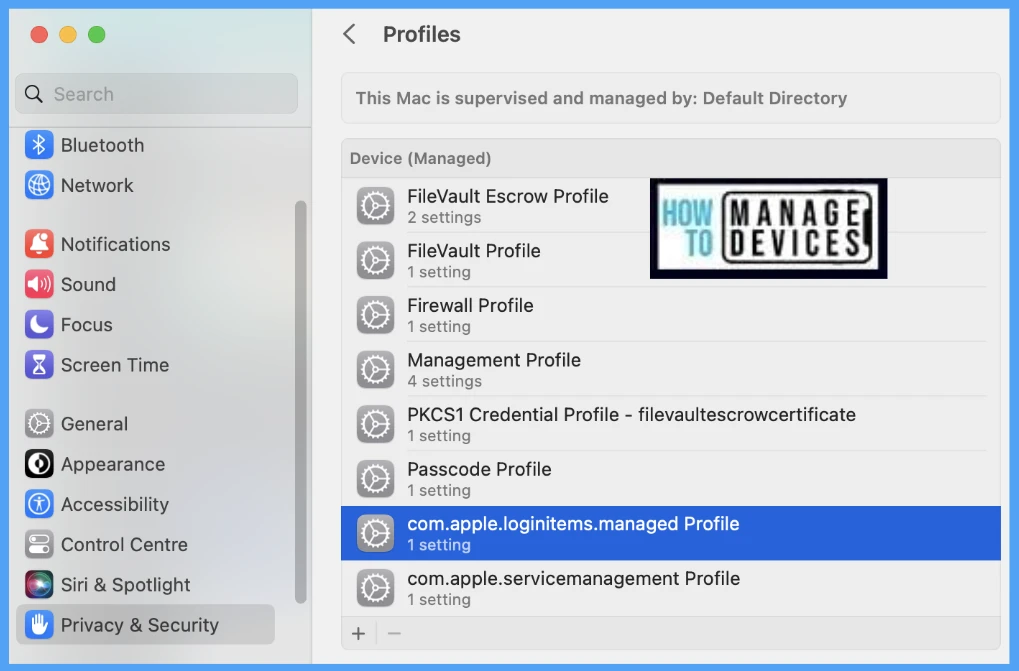
Once the Profile gets pushed to the list of client macOS devices as part of the assignment group, it may take a few minutes to reflect on the end user’s device. To check the profile status on the client device, we can follow the below steps.
- Click on the Apple icon at the top-left corner.
- Select System Settings from the list of options.
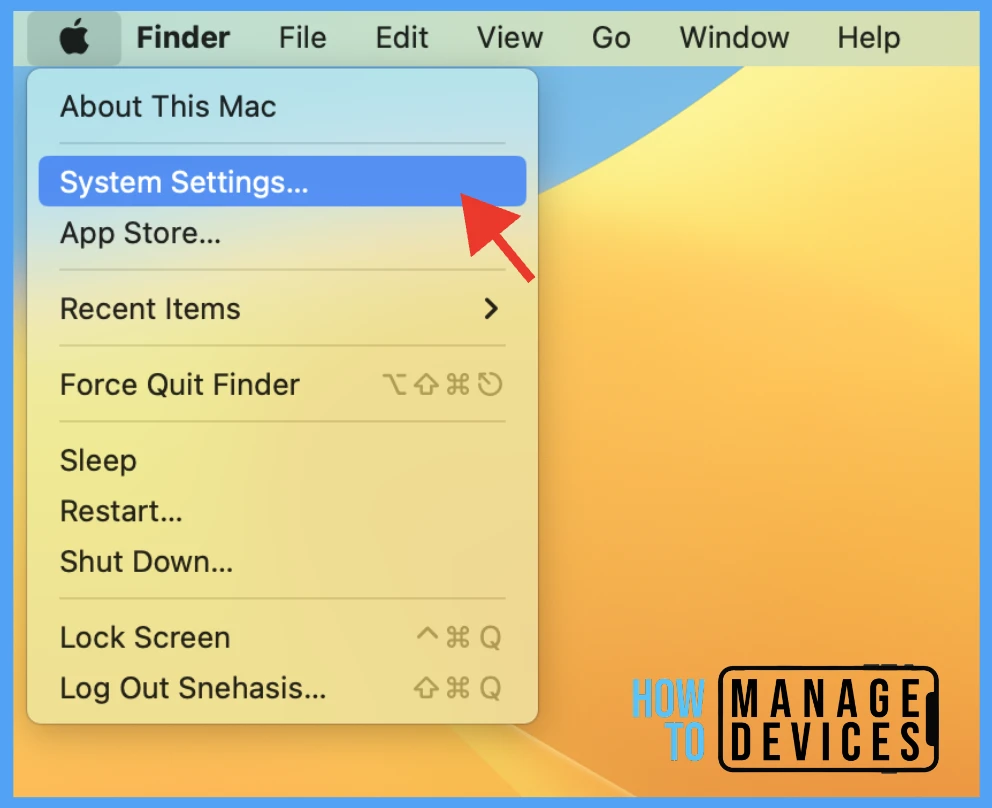
Go to Privacy & Security > Profiles > you can see the number of profiles deployed to the device.
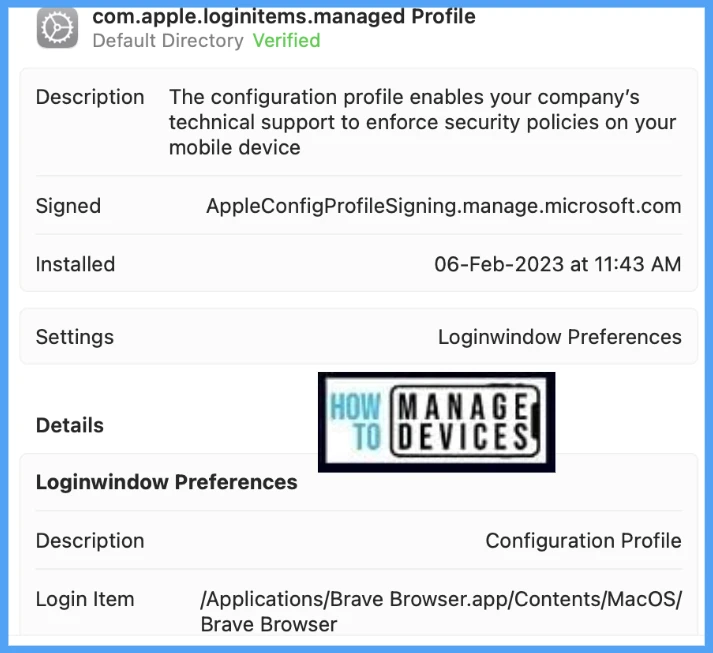
Also, to view the settings/restrictions in a profile, double-click on the Profile and open it to view the details.
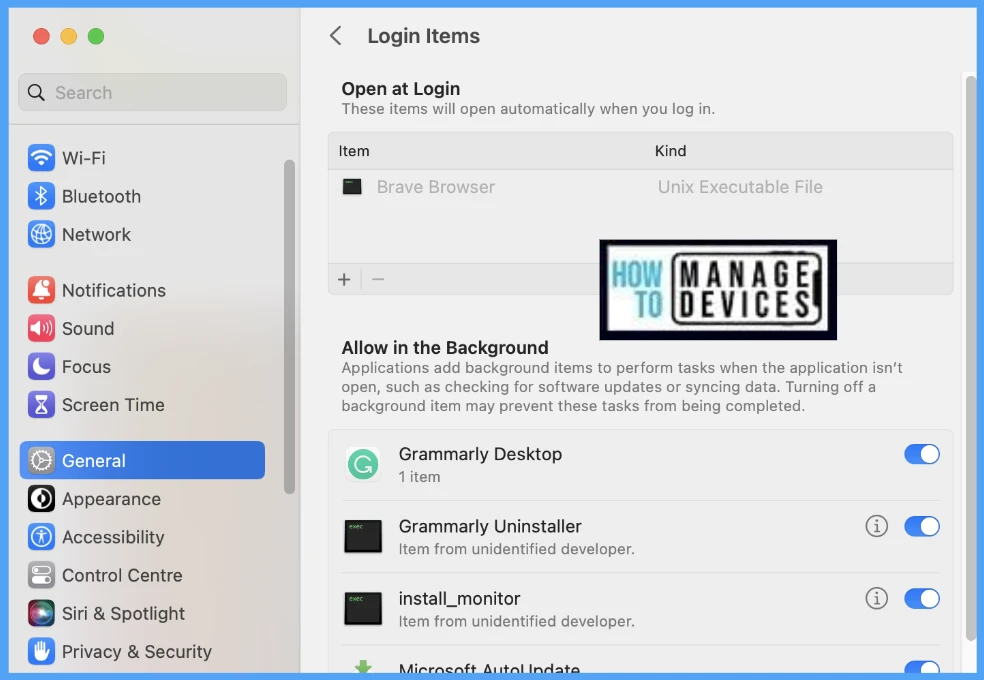
Go to General > Login items > you can see the apps added under the Open at Login tab in the app.
Conclusion
As we know, organizations can set up apps to open at Login ( e.g., Microsoft Teams, Outlook, Edge) and also able to allow or disable apps to run in the background which can help in managing the device with good performance.
Author
Snehasis Pani is currently working as a JAMF Admin. He loves to help the community by sharing his knowledge on Apple Mac Devices Support. He is an M.Tech graduate in System Engineering.


Does this also support background items notifications?