






FIX Windows Autopilot Enrollment with Error 0x801C03ED
In this post, you will learn how to fix Autopilot device enrollment failures during stage AADEnroll with error 0x801C03ED. The error may appear when you attempt to provision a device using Windows Autopilot.
When the out-of-box experience (OOBE) includes unexpected Autopilot behavior, it’s useful to check if the device received an Autopilot profile. If so, check the settings that the profile contains. Different mechanisms are available to do that, depending on the Windows client release.
With the help of Intune and AutoPilot, you can pre-configure, reset, re-purpose, and recover your devices. You can do the customization, and deploy the setting without re-imaging, which saves you a lot of time.
There are different methods to enroll Windows 11 PCs in Intune. You can use MDM auto-enrollment option from Azure AD to automatically register Azure AD joined Windows 10/11 PCs. You can also use Intune Group policy to enroll Hybrid Azure AD joined devices to Intune automatically.

If you receive an error during OOBE that Something went wrong and Can’t connect to the URL of your organization’s MDM terms of use. Try again, or contact your system administrator with the problem information from this page. This is often due to a licensing issue.
- FIX Windows Autopilot Device Import Error 806 808
- Windows Autopilot Hybrid Azure AD Join Troubleshooting Tips
Windows Autopilot AAD Enrollment with Error 0x801C03ED
When attempting to authenticate when setting up a device in OOBE or joining the device from settings options, you might get the Something went wrong prompt also when a user tries to enroll a Windows device, they see one of the following error messages:
Error 0x801C03ED: Something went wrong confirm you are using the correct sign-in information and that your organization users this feature. You can try to do this again or contact your system administrator with the error code (0x801c0003).
You may also notice the server message, Administrator policy does not allow user to device join, along with the URLs to get more information.
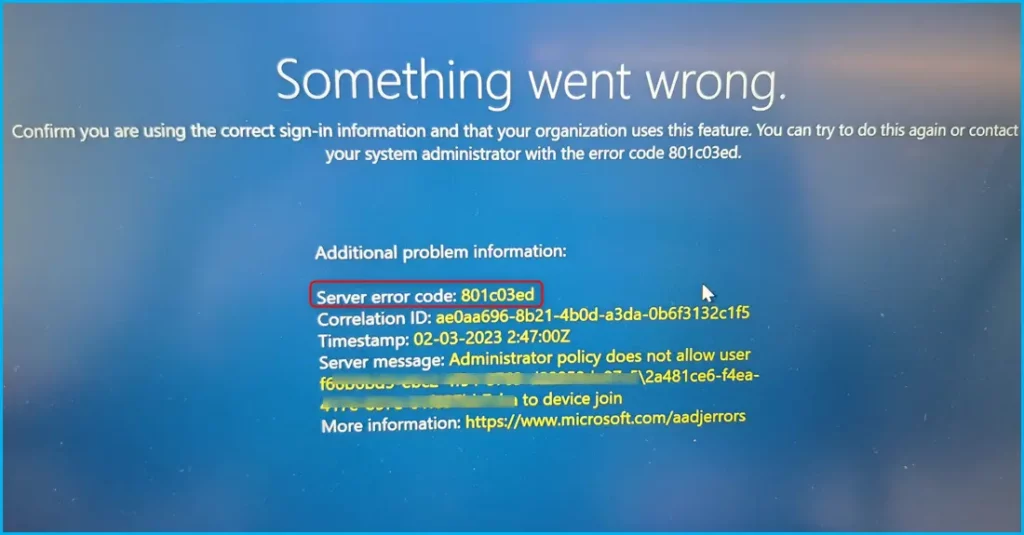
What are the meaning of the error you are experiencing and the possible reason? You can use the log entries to see details related to the Autopilot profile settings and OOBE flow.
These entries can be viewed using Event Viewer inside Application and Services Logs -> Microsoft -> Windows -> ModernDeployment-Diagnostics-Provider -> Autopilot. The following events may be recorded, depending on the error you are experiencing:
AutoPilotManager failed during device enrollment phase AADEnroll. HRESULT = 0x801C03EDFIX Windows Autopilot AADEnroll Error 0x801C03ED
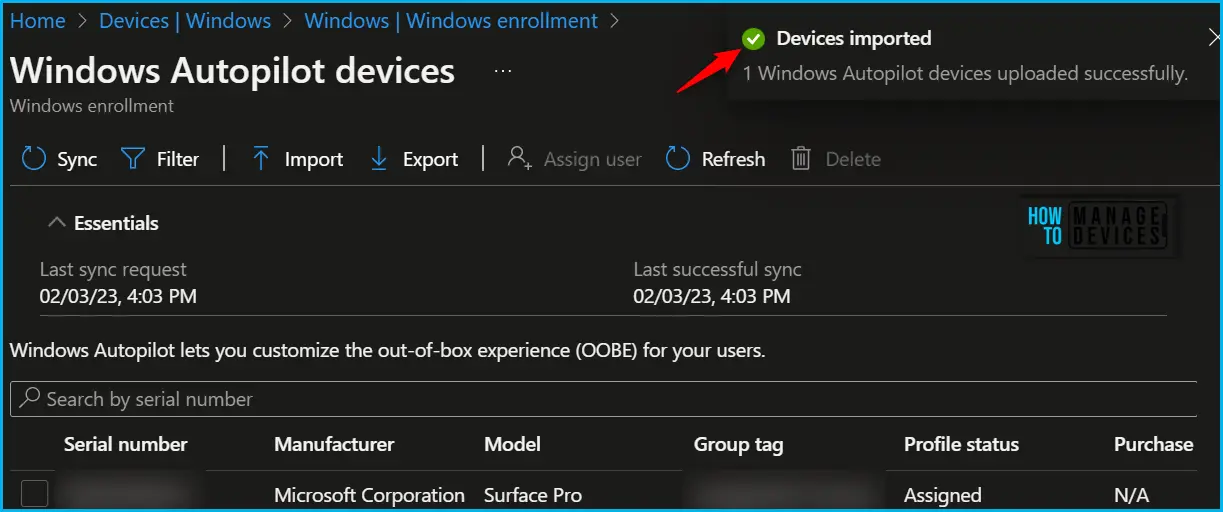
These errors can result from any of the conditions, Let’s check how to Fix Intune Windows Autopilot AAD Enrollment with Error 0x801C03ED. You can educate the admins that they might get this error if they try to enroll. The fix is nothing but asking them to reimport the device hardware hash.
Import Windows AutoPilot Devices to Intune
An Azure AD device is created upon import. It’s important this object isn’t deleted. The object acts as Autopilot’s anchor in Azure AD for group membership and targeting (including the profile). Deleting it may lead to joining errors.
If this object is deleted, you can fix the issue by deleting and reimporting this autopilot hash so it can recreate the associated object. Here you can learn how to delete windows autopilot device from Intune, and review the steps to clean up your Intune Windows Autopilot devices more quickly.
- Sign in to the Microsoft Intune admin center https://endpoint.microsoft.com/.
- To delete or reimport the Windows Autopilot devices, Navigate to Devices>Windows> Windows enrollment. Click on Devices to see managed windows autopilot devices.
Once you are able to delete the device hardware hash successfully and reimport it. You can be able to provision the device without any issues successfully.
Validate User Scope in Azure AD Device Settings
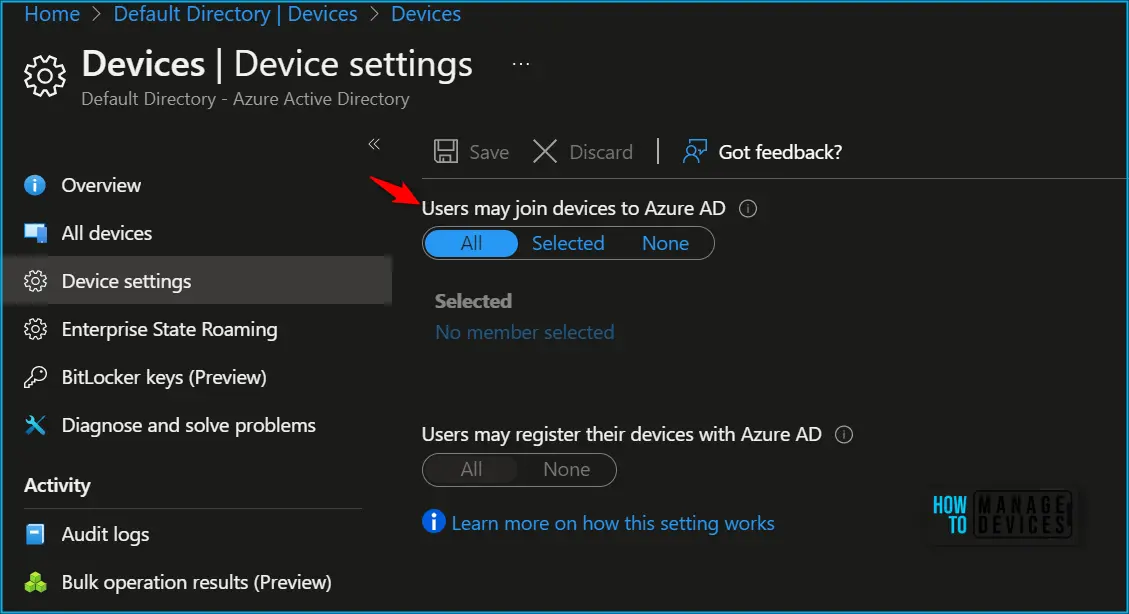
The Azure AD setting Users may join devices to Azure AD is set to None, which prevents new users from joining their devices to Azure AD. Therefore Intune enrollment fails.
Here check or update your Azure AD settings to allow users to join devices.
- Sign in to the Azure portal https://portal.azure.com/ as an administrator.
- Navigate to Azure Active Directory > Devices > Device Settings.
- Set Users may join devices to Azure AD to All. Enroll the device again.
Once you have reviewed the above steps, Let’s reinitiate the Autopilot deployment. You will be able to perform the deployment without any issues.
If you have a different experience with Error 0x801C03ED, Follow the Windows Autopilot Hybrid Azure AD Join Troubleshooting Tips to get more details! Would you please share your input in the comment section?
Author
About Author – Jitesh, Microsoft MVP, has over six years of working experience in the IT Industry. He writes and shares his experiences related to Microsoft device management technologies and IT Infrastructure management. His primary focus is Windows 10/11 Deployment solution with Configuration Manager, Microsoft Deployment Toolkit (MDT), and Microsoft Intune.


Discussion