






How to Enable New Software Center in SCCM ConfigMgr Configuration Manager
How do I enable the New Software Center in SCCM ConfigMgr Configuration Manager? The New Software Center is available in ConfigMgr/SCCM 1511 vNext TP4.
However, this is not enabled by default. When you install the SCCM/ConfigMgr client, the software centre is the same one that you can see in the SCCM 2012 version.
So, how do we enable the new Software Center in the next version of SCCM/ConfigMgr 1511? Yes, we will cover the details in this post. Let’s see what the changes are in the new SCCM Software Center.
This post provides all the details on how to Enable the New Software Center in SCCM ConfigMgr Configuration Manager.

Table of Contents
- SCCM How to Hide Tabs in New Software Center Customization
- List of Issues Fixed with SCCM 2403 KB26186448
- New Features in SCCM Technical Preview 2401
- New Key Features of SCCM 2309 | Top Improvements
- Download SCCM 2309 Early Ring Version using PowerShell Script
- SCCM Versions Build Numbers Client Console Site
- End of Support Dates for SCCM CB Current Branch | ConfigMgr | SCCM End of Life
- SCCM Unsupported Deprecated or Removed Features
How to Enable New Software Center in SCCM
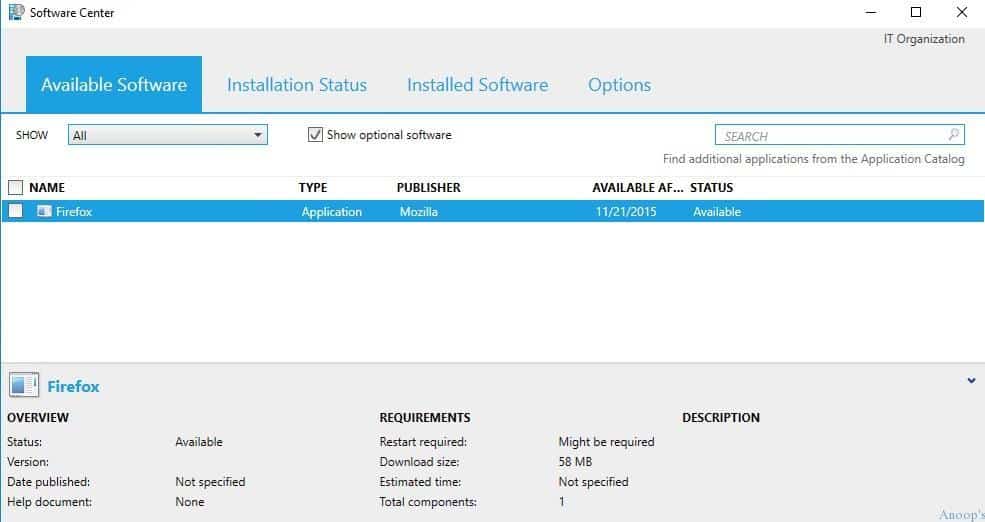
The new software center is still powered by silver light. The following is the existing version of SCCM Software Center. User-based deployment will again go via the Application catalog.
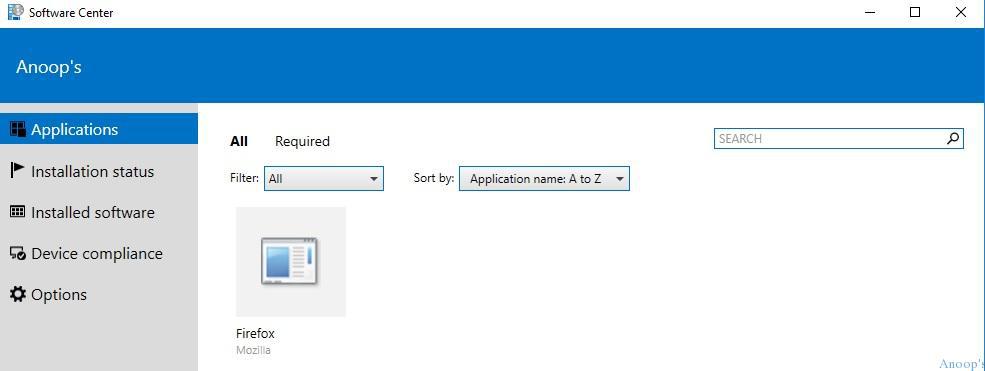
The New Software Center has a modern look. The Software Center applications page has smart filters, sort, search, and more options.
| Software Center |
|---|
| Applications |
| Installation status |
| Installed Software |
| Device Compliance |
| Options |
How do we enable the newest version of Software Center in SCCM 1511? This option is in the client settings policy “\Administration\Overview\Client Settings” – default client settings.
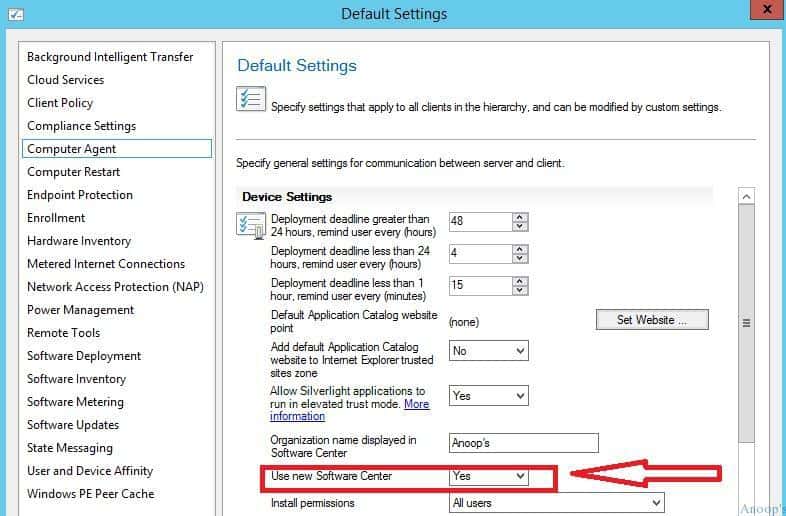
Click on Computer Agent and change the device settings option to “use new software center” to YES (as shown in the following pic). By default, this policy option is set to NO.
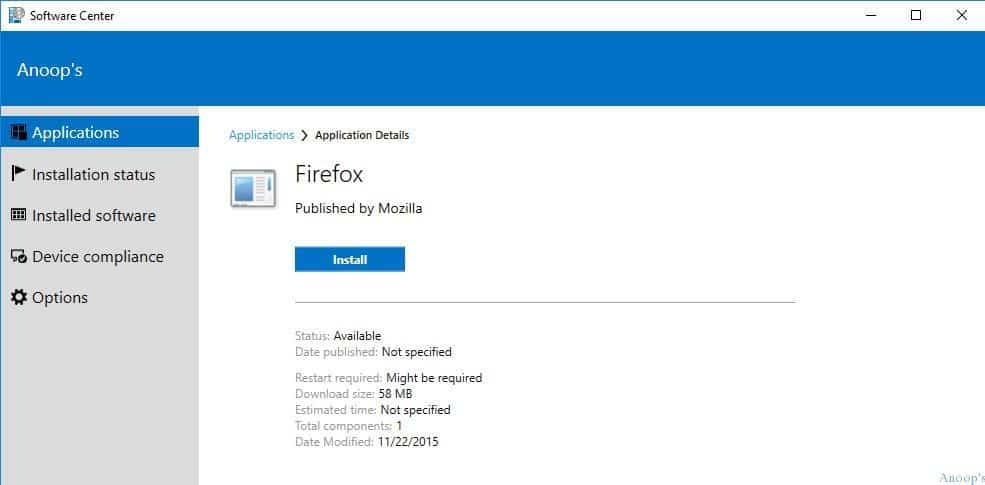
Once the above client setting policy has been deployed to a device collection, the old software center will be replaced with a new one.
Once you click on an application you want to install from the SCCM software center, it will give you more details about the application, such as the Install, download size, Restart requirement, etc. The New Software Center has a left-side-driven menu.
Installation status and Installed Software were excellent options in the previous version of the SCCM software Center. The installation status shows the details of the software/application’s installation. When the installation fails, the application will stay on this page (InstallationStatus).
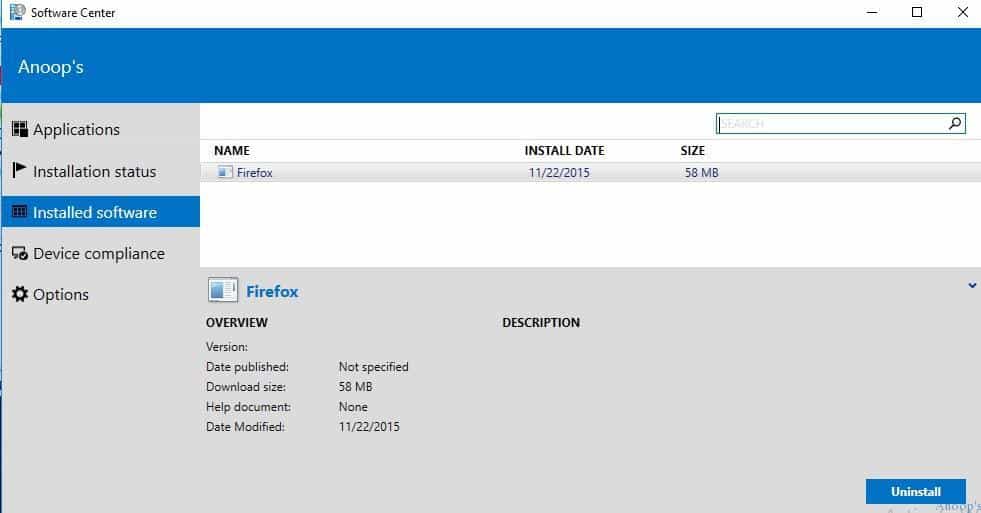
If the application installation is successful, it will be listed on both the pages: Installation status and Installed Software. How do I enable the New Software Center in SCCM ConfigMgr Configuration Manager?
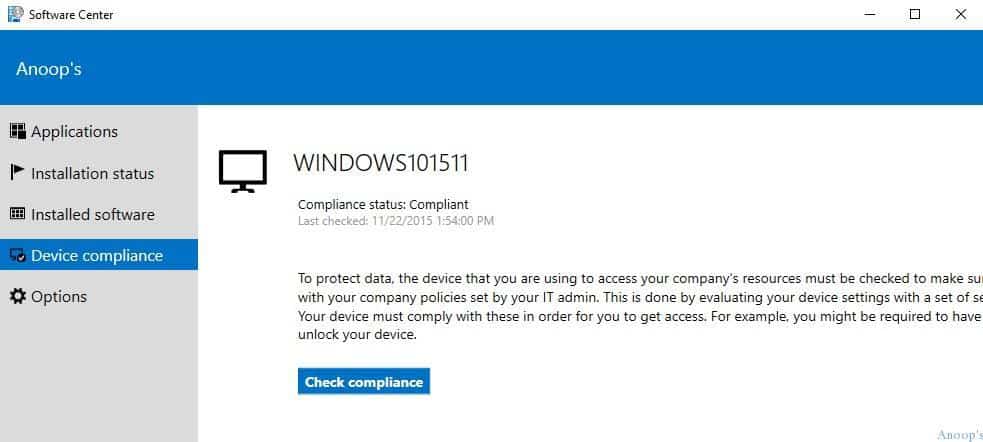
Another option is the Device Compliance page in the new Software Center, which allows checking a device’s compliance status only for Conditional Access scenarios. This is very helpful in terms of protecting corporate data. The device should comply with corporate policies to access corporate resources/data.
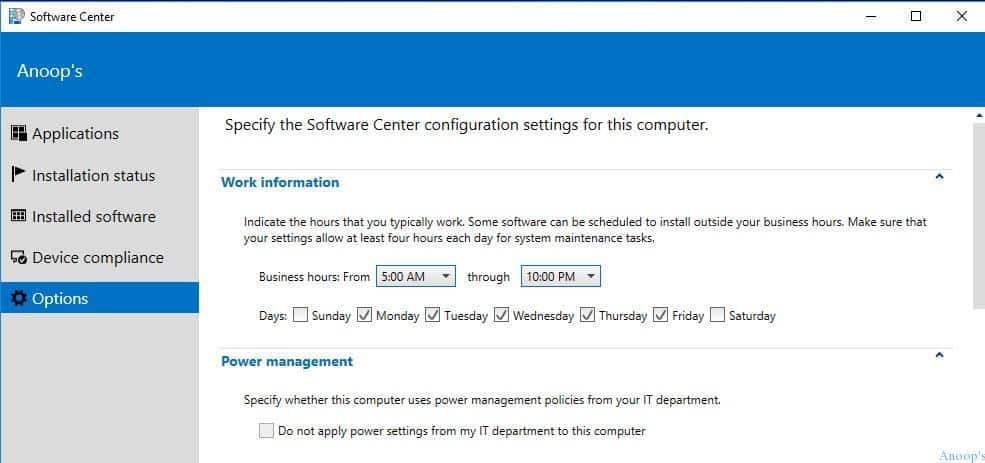
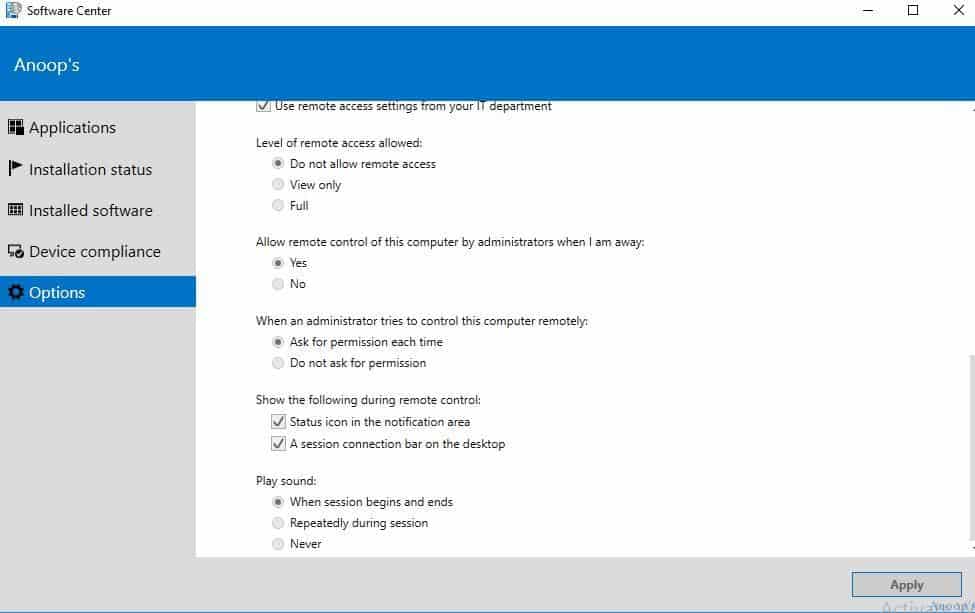
The new Software Center in SCCM/ConfigMgr 1511 has an options page with loads of exciting options. This is part of empowering computer users. Work Information, Power Management, Computer Maintenance, and Remote Control are possibilities.
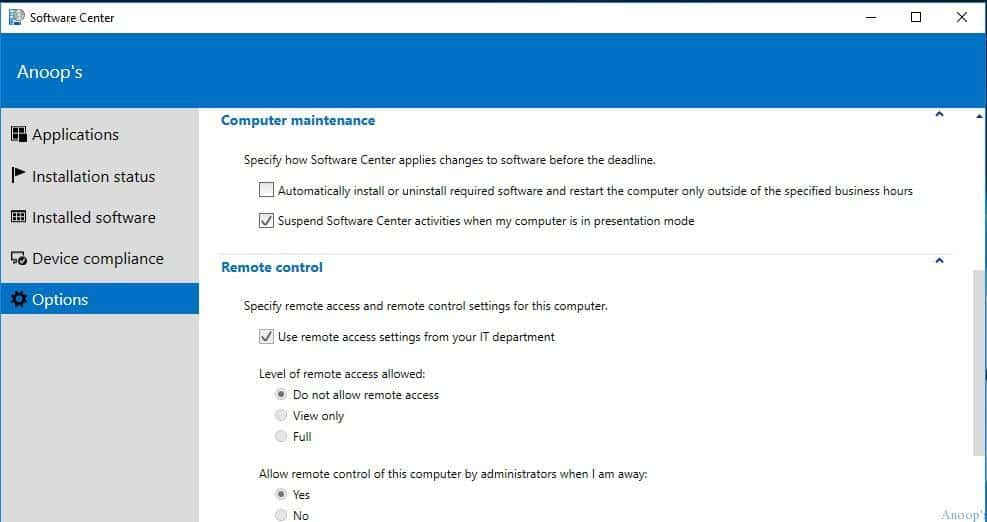
The options are in the Software Center here. The level of remote access allowed is Do not allow remote access.
Resources
SCCM Related Posts Real World Experiences Of SCCM Admins (anoopcnair.com)
We are on WhatsApp now. To get the latest step-by-step guides, news, and updates, Join our Channel. Click here. HTMD WhatsApp.
Author
Anoop C Nair is Microsoft MVP! He is a Device Management Admin with more than 20 years of experience (calculation done in 2021) in IT. He is a Blogger, Speaker, and Local User Group HTMD Community leader. His main focus is on Device Management technologies like SCCM 2012, Current Branch, and Intune. He writes about ConfigMgr, Windows 11, Windows 10, Azure AD, Microsoft Intune, Windows 365, AVD, etc.




I’ve been fighting this issue all night and morning with our recent upgrade to v1511 RTM. I made sure the Client Settings are set properly and all of my clients are still launching the old Software Center from any of the shortcuts available (popup in the system tray and/or start menu). The ONLY way I can make it work is to call the shortcut from C:\Windows\CCM\ClientUX\SCClient.exe directly, but that doesn’t seem like a feasible solution.
I found another blog (http://www.scconfigmgr.com/2015/12/06/enable-the-new-software-center-in-configmgr-1511/) where the guy said to go to the Client Settings and set this setting to NO, save the settings, go back and change it back to YES, save it again, and upon pulling the policies, the client should then make the change to the new Software Center, but I haven’t had such luck. Even after reinstalling the SCCM client after the policies have been saved and resaved!
Any help would be appreciated.
Never mind. I found another Client Setting that was also defining the policy for “Use new Software Center” and once I changed it back to NO, then back to YES, and my machines ran a policy check, it’s working.
So it seems there may be a bug with this setting and having it commit. I had to make sure that each Client Setting that is defining the Computer Agent setting needs to be saved twice with the YES setting. Weird.
StaffAnother client setting other than the one which I mentioned in the TP4 build here in this blog 🙁
Hey,
thanks for the tipps.
Is it possible to change the disgn from the “applications” page from the new “tiles design” to the old list view, like in “installation status”?
And is it possible to “grey out” the things in the “options” tab for the users, that they cant change something?
Regards
Is there a way to have the applications view default to the list view instead of Tile view??
Software is not appearing for some users…How to Tshoot on this issue..?