






Custom Search Box on the Taskbar of Windows 11
Let’s learn Custom Search Box on the Taskbar of Windows 11. The taskbar in Windows 11 provides quick access to frequently used applications and features. The Search box is one of the most important components of the taskbar.
You can be able to quickly search for files, documents, apps, and settings on your device, or also you can even perform web searches without leaving your desktop. The taskbar search box has undergone a significant overhaul, offering new features and customization options for users.
With the customization options, you can tailor the search box to your liking, improving your productivity and making your Windows experience more personalized. Fortunately, Windows 11 also allows you to customize the search box on the taskbar to suit your preferences.
The process of customization of the search box on the taskbar in Windows 11 is explained in this post. The ways are described in detail.

- Search Options in Group Policy and Intune Cloud Policy
- Control Search Options in Windows 11 using Policies | 42 Group Policy Settings | 14 Intune Policy Settings
Custom Search Box on the Taskbar
The search box is present on the taskbar in Windows, which is used to search for anything from your device or web quickly. The search box is illustrated in the image below:

To change the search box settings or customize it, you need to follow some steps to reach Windows settings to custom. Here are the steps to customize the search box on the taskbar in Windows 11.
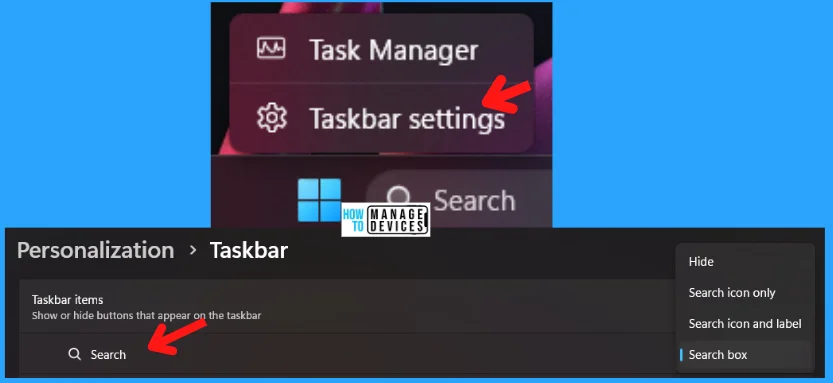
- Right-click on the taskbar and select “Taskbar Settings“.
- The taskbar settings window opens, now click on “Search“.
The search option is available in the Personalization section under the Taskbar. When you click on it, there are 4 options available Hide, Search icon only, Search icon and label, and Search box, as illustrated below in the image.
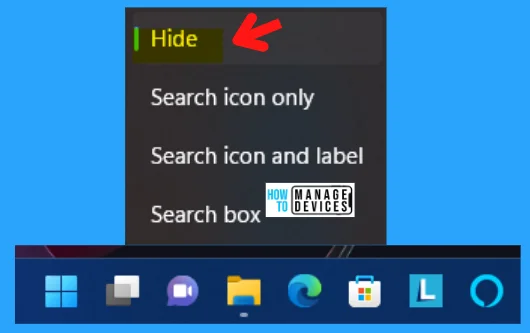
If you select Hide policy, then you enable this policy setting and set it to hide, search on the taskbar will be hidden by default. As you can see, there is no search icon in the taskbar.
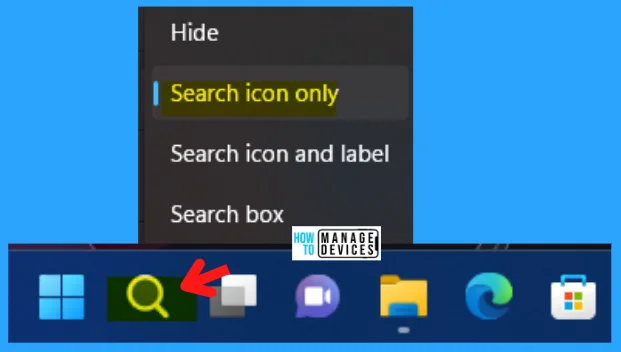
If you select the Search icon only, enabling this policy setting and setting it to “Search icon only,” the search icon will be displayed on the taskbar by default, as illustrated in the figure below.
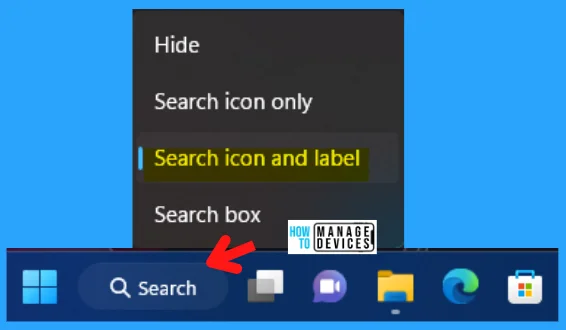
If you select the Search icon and label, enabling this policy setting and setting it to “Search icon and label,” the search icon and label will be displayed on the taskbar by default, as illustrated in the image below.
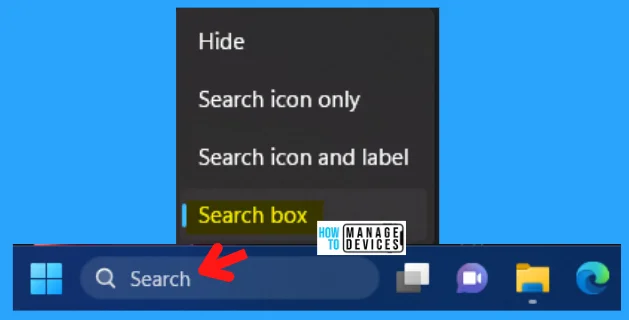
If you select the Search box option, enabling this policy setting, and set it to “Search box,” the search box will be displayed on the taskbar by default, as illustrated in the image below.
Group Policy Settings – Custom Search Box on the Taskbar
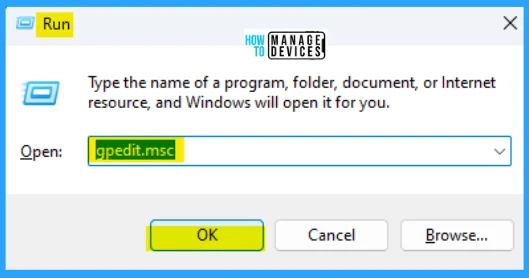
You can also Custom the search box on the Taskbar in Windows using the Group Policy Settings. Open Group Policy to allow modify the settings and follow the process.
- Open the Run command, press Win Key + R
- Type gpedit.msc
- Click Ok or press Enter
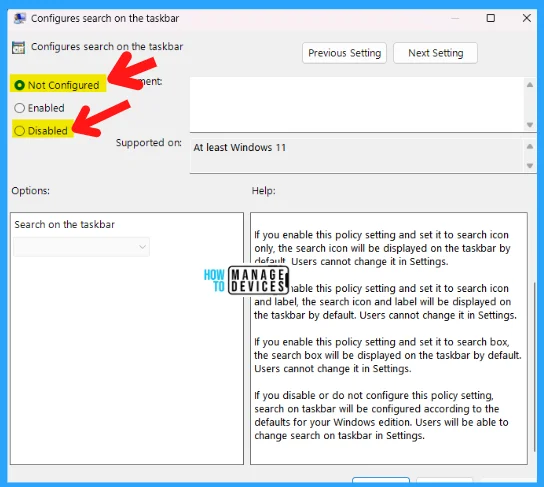
When the Group Policy Editor opens, navigate to the following path to reach the required policy settings. Select Configures to search on the taskbar to make changes in the Search settings.
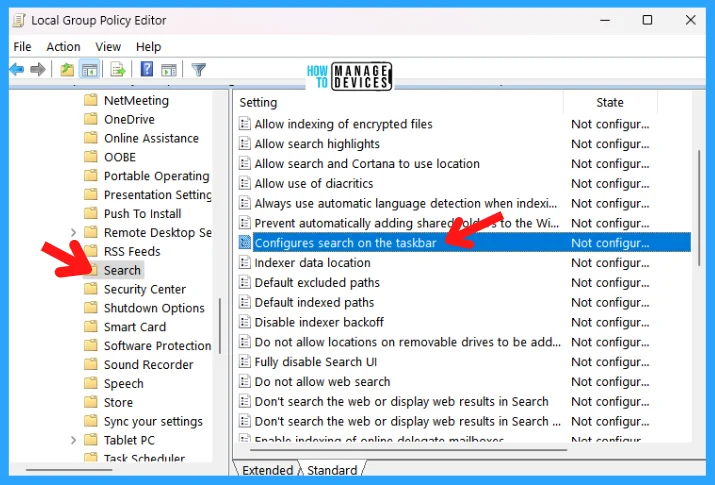
This policy allows you to configure search on the taskbar. This Not Configured and Disabled Setting are mostly the same. If you disable or do not configure this policy setting, search on the taskbar will be configured according to the defaults for your Windows edition. Users will be able to change the search on the taskbar in settings.
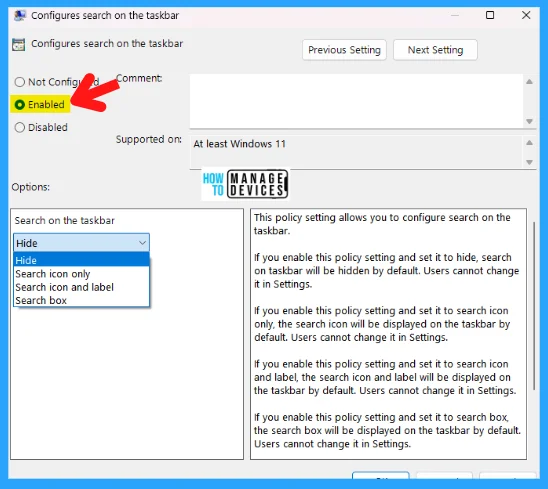
If you select the enable option. This policy setting allows you to configure search on the taskbar. This has come with 4 (four) different options such as Hide, Search Icon only, Search Icon and level, and Search box. The options are shown in the image below.
| Search Settings | Properties |
|---|---|
| Hide | If you enable this policy setting and set it to hide, the search on the taskbar will be hidden by default |
| Search Icon Only | If you enable this policy setting and set it to search icon only, the search icon will be displayed on the taskbar by default. Users cannot change it in Settings |
| Search Icon and Label | If you enable this policy setting and set it to search icon and label, the search icon and label will be displayed on the taskbar by default. Users cannot change it in Settings |
| Search box | If you enable this policy setting and set it to the search box, the search box will be displayed on the taskbar by default. Users cannot change it in Settings |
Overall, the customization options for the search box on the taskbar in Windows 11 offer greater flexibility and control to users. Whether you prefer a minimalist or more customized look, Windows 11 allows you to tailor the search box to your liking, improving your workflow and enhancing your overall Windows experience.
The information on how to Custom Search Box on the task of Windows 11 is helpful. Please follow us on HTMD Community and visit our website HTMD Forum if you like our content.
Author
Alok is a Master of Computer Applications (MCA) graduate. He loves writing on Windows 11 and related technologies. He likes to share his knowledge, quick tips, and tricks with Windows 11 or Windows 10 with the community.




Discussion