






Intune Policy Device and User Check-in Status Report
In this post, You will learn to check Intune Policy Device and User Check-in Status Report. The Device and User Check-in Status Report is a valuable within the Intune for Device configuration profiles, security policies. This report provides a comprehensive overview of the status of policy check-ins for both devices and users.
Device and user check-in status: Shows the number of all users or devices that checked-in with the profile. If one device has multiple users, this report shows the status of each user. When the user or devices check-in, they receive the settings in your profile.
The Device and user check-in status report combines information previously split into separate device status and user status reports. With the ability to track check-in status, admins can identify any potential issues or delays in policy enforcement and take necessary actions to rectify them promptly.
You can also directly check for Intune Settings Catalog Profile Report from Intune Portal, Intune settings catalog profile report provides an overall view of device configuration policies. This report offers a comprehensive overview of device configuration policies, providing admins a holistic view of the settings applied across their managed devices.

Intune portal offers access to several reporting nodes, providing server-side details for Intune. Troubleshooting basic Intune user policy deployment can be done conveniently through the Intune portal. To gather Intune logs, you can refer to the Collect Intune Logs from the Intune Portal Diagnostic Data guide.
Intune Policy Device and User Check-in Status Report
Microsoft recommends using setting catalog profiles to create and manage security policies for all Intune-managed Windows devices. To view the Device and user check-in status report:
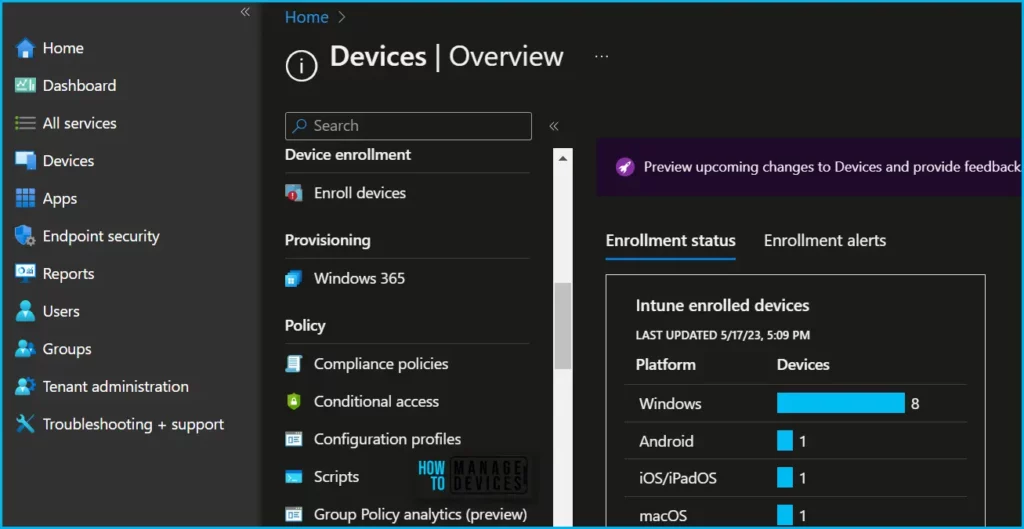
- Sign in to the Microsoft Intune admin center https://intune.microsoft.com/.
- Select Devices > Click on the configuration profiles located inside Policy.
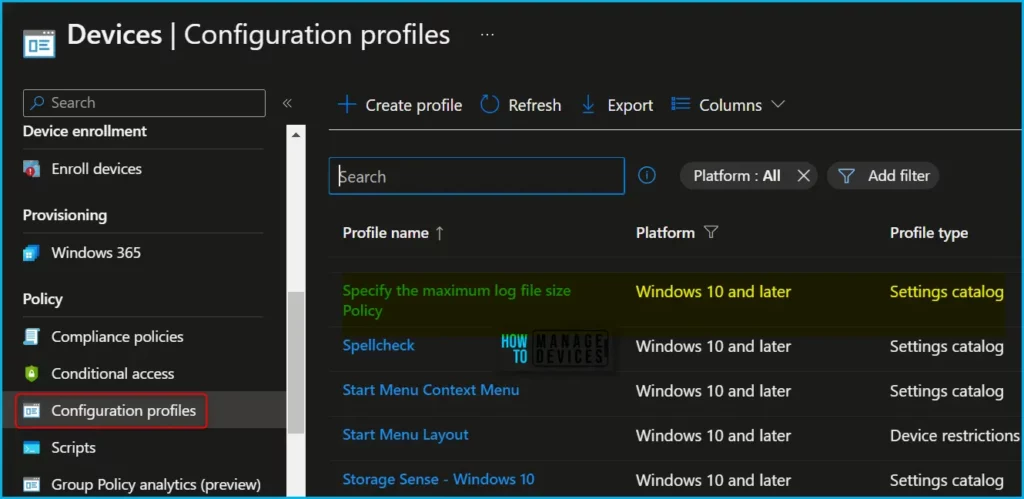
Select the configuration profile from the list for checking the Device and user check-in status. For Example, I am selecting Specify The Maximum Log File Size Policy. To make it easier to find specific settings, You can search for a keyword, such as log file size, and search for specific settings.
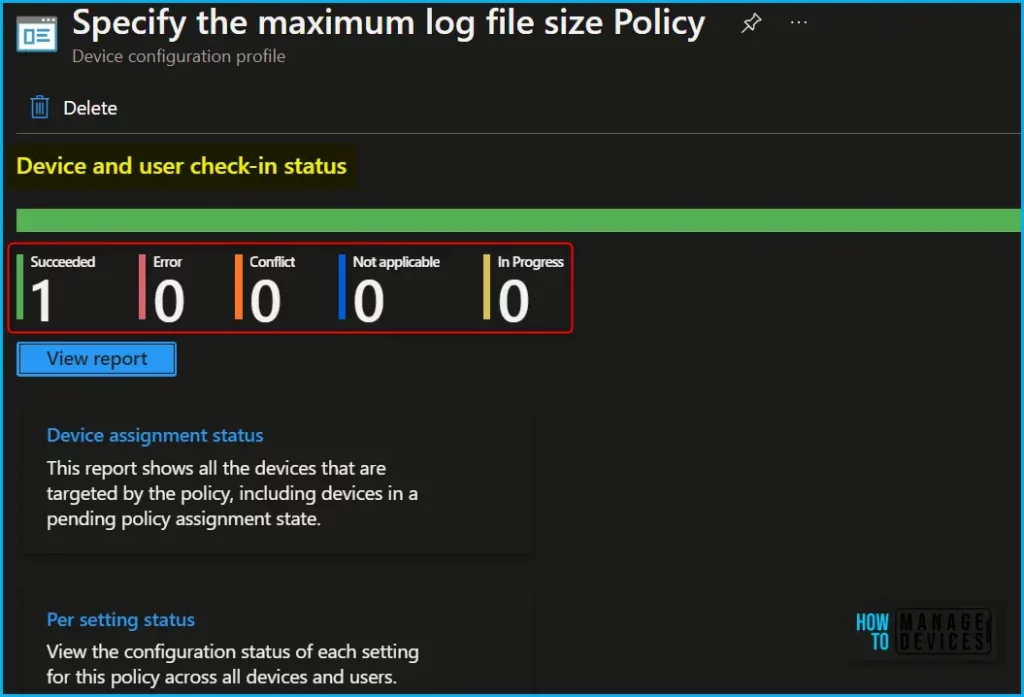
The new experience moves away from the per policy donut charts to a sleeker overview chart that quickly updates as devices/users check in. There are two reports in the per policy view:
- Intune Policy Device Assignment Status Report – shows the status of devices targeted by a policy. This report also surfaces devices in a “pending” state.
- Intune Policy Per Setting Status Report – shows the status of the device or user check-in at a setting level within the policy. The states include error, conflict, and success.
Click on the View report, This report shows the latest status for assigned devices from the policy, including devices in a pending policy assignment state.
This report shows the list of device and user check-ins for the device configuration profile, with the check-in status and last check-in time.
- The devices that received the profile
- The user names with devices that received the profile
- The check-in status and the last time the user/device checked in with the profile
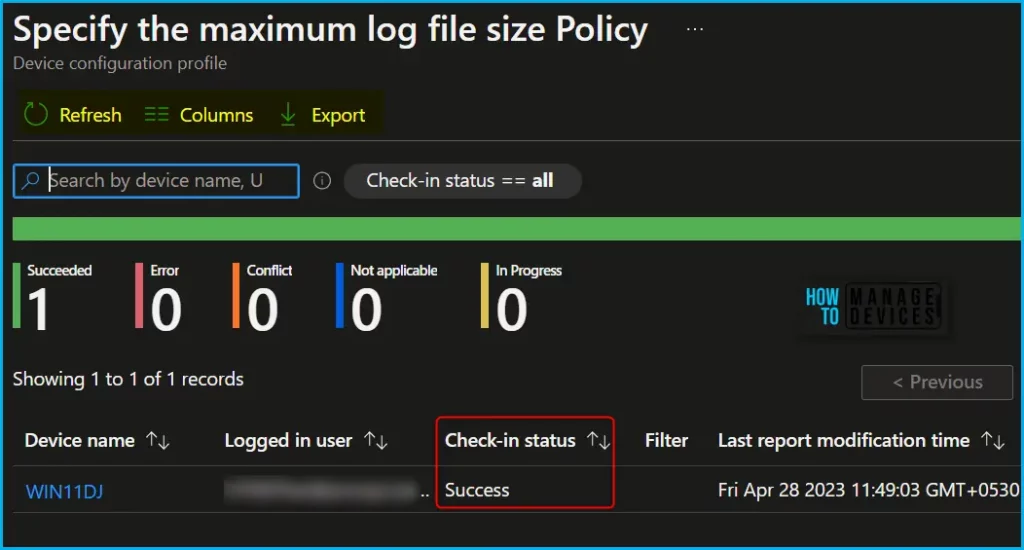
Use the Columns property to add or remove columns from the generated report. Click on the Columns, A flyout displays, here you can Check or Uncheck the columns that you want to include. Select Apply to update.
You can also view more columns for device properties in the report: Model, Manufacturer, Platform, and Intune device ID.
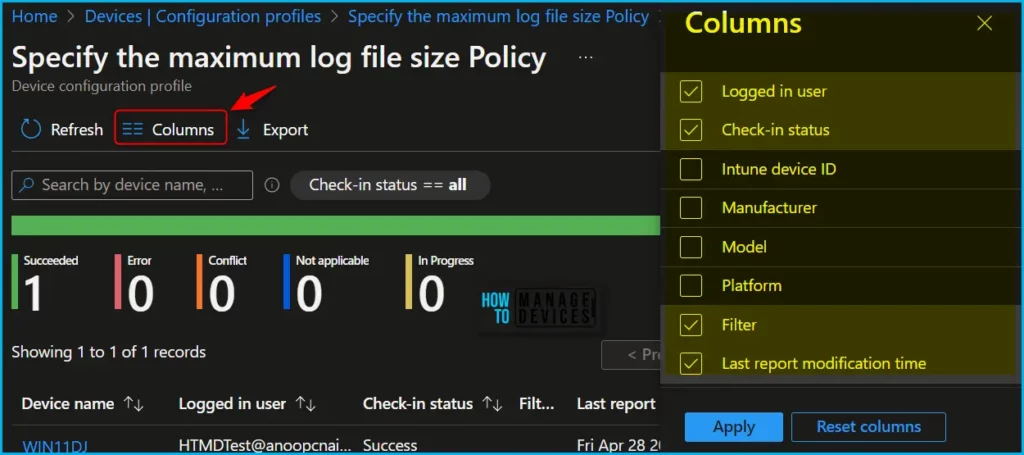
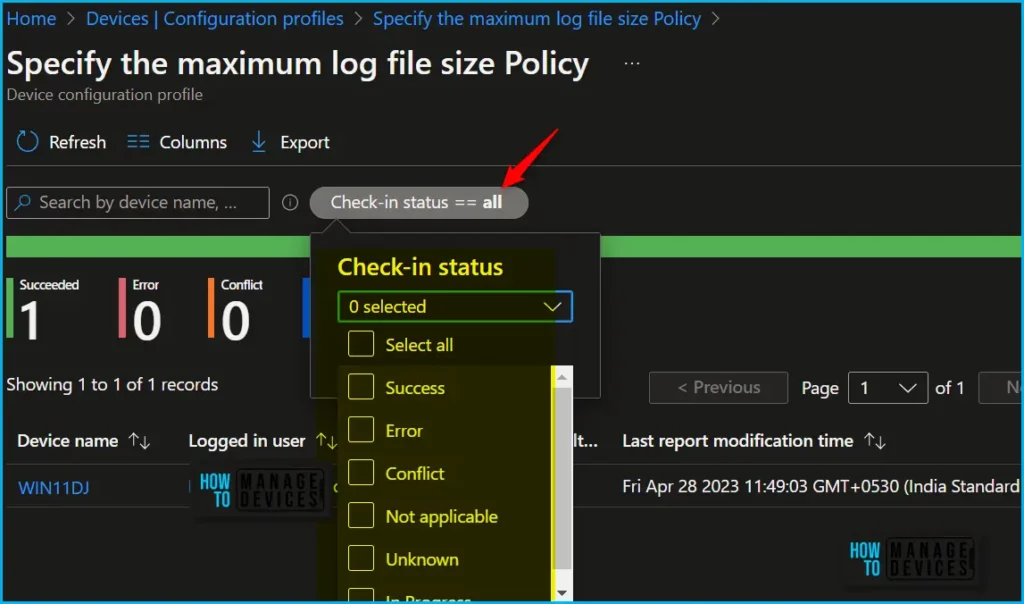
You can also select a specific device to get more details and use the filter column to see the assignment filter options. You can filter for device check-ins based on the last active user across Success, Error, Conflict, Not Applicable, Unkown, and Pending states to generate your report.
When you open the report, the aggregate chart will remain at the top of the page, and the data will be consistent with the list data. Tools are available to search across the entire dataset, sort on every column, use paging controls to navigate through data, and view number of records within the report.
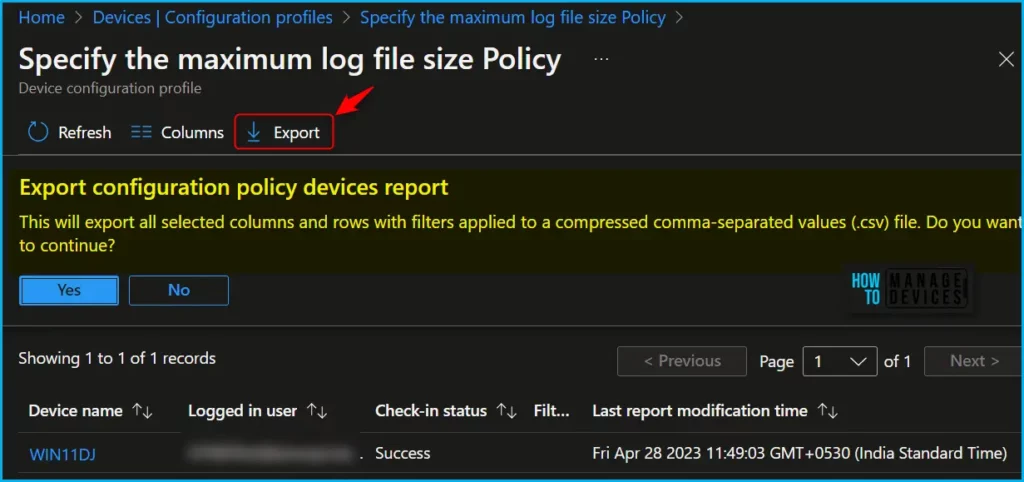
You can quickly export reporting data generated. Click on the Export. The popup will appear with the following message when exporting generated Device Assignment report, Click Yes. This will export data to a compressed comma-separated values (.csv) file. Also, you can apply filters to the exported data.
| DeviceName | UPN | ReportStatus | ReportStatus_loc | IntuneDeviceId | Manufacturer | Model | UnifiedPolicyPlatformType | UnifiedPolicyPlatformType_loc | AssignmentFilterIds | PspdpuLastModifiedTimeUtc | |
| WIN11DJ | HTMDTest@ | Succeeded | Succeeded | 7b16cbcc-ab90-420b-be26-52c9d3bc968c | HP | HP Probook 440 | Windows10 | Windows10 | 2023-04-28 6:19:03 |
Author
About Author – Jitesh, Microsoft MVP, has over six years of working experience in the IT Industry. He writes and shares his experiences related to Microsoft device management technologies and IT Infrastructure management. His primary focus is Windows 10/11 Deployment solution with Configuration Manager, Microsoft Deployment Toolkit (MDT), and Microsoft Intune.


Discussion