






Turn Off the Picture Password Sign-In Policy using Intune
Here in his post, we will help you understand how to Turn Off the Picture Password Sign-In Policy Using Intune. We are going to use Configuration Profiles of Intune to implement this policy. Our main purpose here is to help you in acquiring knowledge of how to Turn Off the Picture Password Sign-In Policy Using Intune.
Turn Off the Picture Password Sign-In Policy configuration allows you to manage whether a user within a domain is permitted to log in utilizing a picture password. Activating this policy configuration will prohibit a domain user from establishing or utilizing a picture password for signing in.
On the other hand, if you choose to deactivate or leave this policy unconfigured, a domain user can create and employ a picture password. It’s important to be aware that when employing this feature, the user’s domain password will be stored in the system vault.
It’s important to note that when users utilise the picture password feature, their domain password is cached in the system vault. The system vault is a secure storage location used by the operating system to store sensitive information like passwords and encryption keys. This is necessary to facilitate the process of authentication without repeatedly requiring the user to input their password manually.

Overall, this policy setting allows administrators to tailor the authentication methods available to domain users, promoting security and aligning with organizational preferences. The decision to enable or disable the policy should consider the balance between convenience and security and any regulatory or compliance requirements that apply to the domain’s security practices.
Windows CSP Details BlockPicturePassword
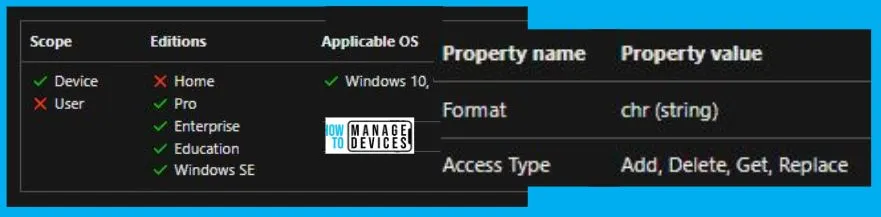
We will see Windows CSP Details for this Policy setting BlockPicturePassword. This policy setting centres around the authentication method known as a “picture password.” A picture password is a form of authentication that allows users to draw gestures, such as lines, circles, and taps, on a chosen image to log into their accounts. This method is often used in conjunction with traditional password-based authentication.
If you choose to enable this policy setting within your domain’s security configuration, users will be restricted from both establishing and using picture passwords. If you opt to disable or leave this policy setting unconfigured, domain users will retain the freedom to create and employ picture passwords for logging into their accounts.
CSP URI – ./Device/Vendor/MSFT/Policy/Config/CredentialProviders/BlockPicturePassword
- How to Block Users from Account Details on the Sign-In Policy using Intune
- Implement Password Complexity Policy using Intune
Turn Off the Picture Password Sign-In Policy using Intune
To set the Turn Off the Picture Password Sign-In Policy Using Intune, follow the steps stated below:
- Sign in to the Intune Admin Center portal https://intune.microsoft.com/.
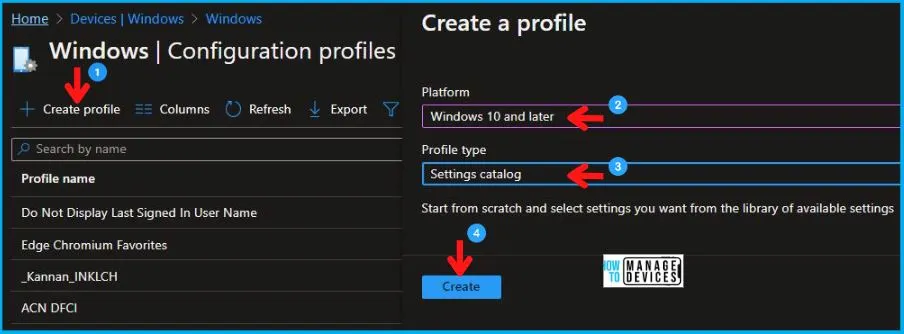
- Select Devices > Windows > Configuration profiles > Create a profile.
In Create Profile, I select Windows 10 and later in Platform and select Profile Type as Settings catalog. Click on Create button.
| Platform | Profile Type |
|---|---|
| Windows 10 and later | Settings Catalog |
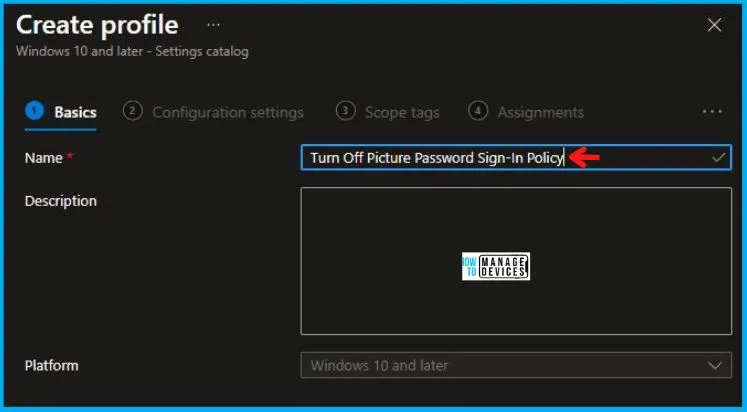
On the Basics tab pane, I provide a name for the policy as “Turn Off the Picture Password Sign-In Policy.” Optionally, if you want, you can enter a policy description and proceed by selecting “Next.”
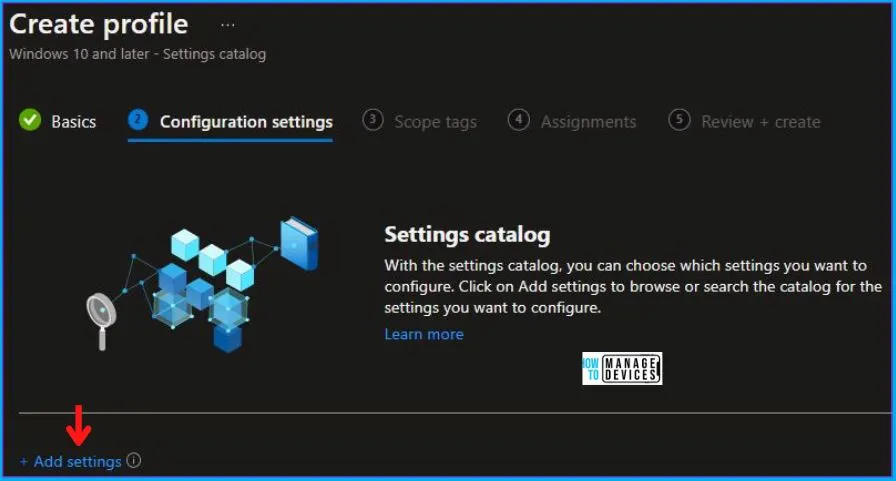
Now in Configuration Settings, click Add Settings to browse or search the catalog for the settings I want to configure.
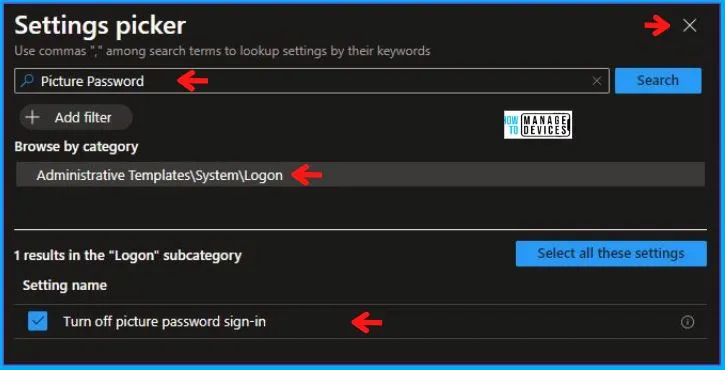
In the Settings Picker windows, I searched for the keyword Picture Password, I found the category Administrative Templates\System\Logon and selected this.
When I select that option as stated above, I see one sub-category, Turn off picture password sign-in. After selecting that, click the cross mark at the right-hand corner, as shown below.
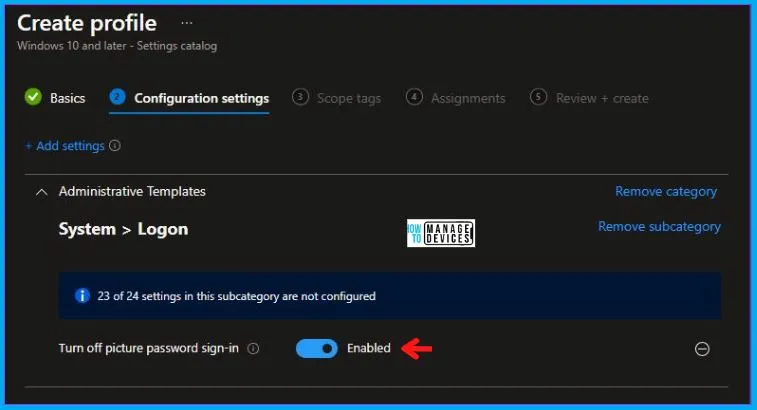
I enabled the Turn off picture password sign-in in the Administrative Templates and clicked on Next to continue.
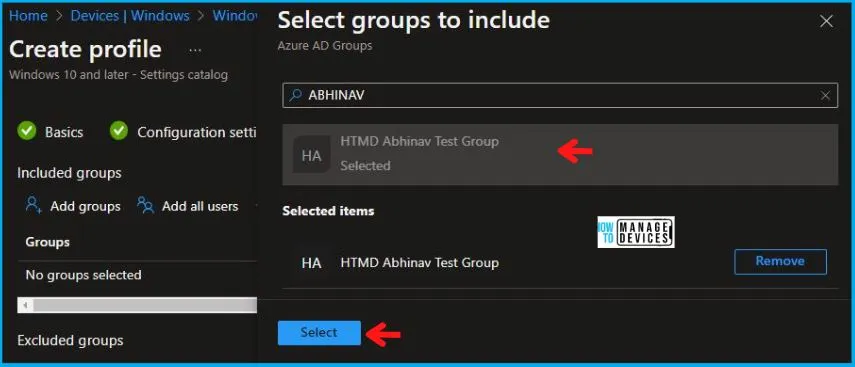
Using Scope tags, you can assign a tag to filter the profile to specific IT groups. One can add scope tags (if required) and click Next to continue. Now in Assignments, in Included Groups, you need to click on Add Groups, choose Select Groups to include one or more groups, and click Next to continue.
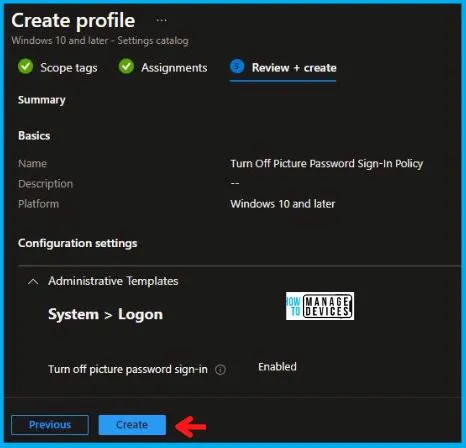
In the Review + Create tab, I review settings. After clicking on Create, changes are saved, and the profile is assigned.
Upon successfully creating the “Turn Off the Picture Password Sign-In Policy,“ notification will appear in the top right-hand corner, confirming the action. You can also verify the policy’s existence by navigating to the Configuration Profiles list, where it will be prominently displayed.
Your groups will receive your profile settings when the devices check in with the Intune service. The Policy applies to the device.
Intune Report for Turn Off the Picture Password Sign-In Policy
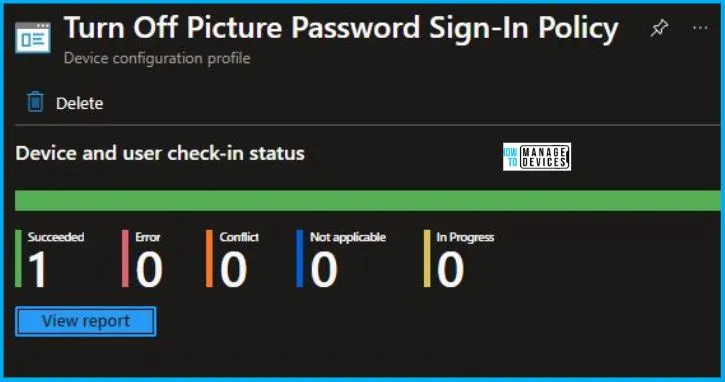
From Intune Portal, you can view the Intune settings catalog profile report, which provides an overview of device configuration policies and deployment status.
To track the assignment of the policy, you need to select the relevant policy from the Configuration Profiles list. Reviewing the device and user check-in status lets you determine if the policy has been successfully applied. If you require more detailed information, you can click on “View Report” to access additional insights.
Intune MDM Event Log
To verify the successful implementation of String or integer policies on Windows 10 or 11 devices through Intune, you can leverage event IDs 813 and 814. These event IDs provide valuable insights into the application status of the policy as well as the specific value assigned to the policy on those devices. In the case of this particular policy, the value is String and is linked to the event ID 814.
By analyzing these event IDs, you can gain a clear understanding of the policy’s application status and the corresponding value associated with it on the devices in question.
To confirm this, you can check the Event log path – Applications and Services Logs – Microsoft – Windows – Devicemanagement-Enterprise-Diagnostics-Provider – Admin.
MDM PolicyManager: Set policy string, Policy: (BlockPicurePassword), Area: (CredentialProviders), EnrollmentID requesting merge: (5B88AEF1-09E8-43BB-B144-7254ACBBDF3E), Current User: (Device), String: (<enabled/>), Enrollment Type: (0x6), Scope: (0x0).
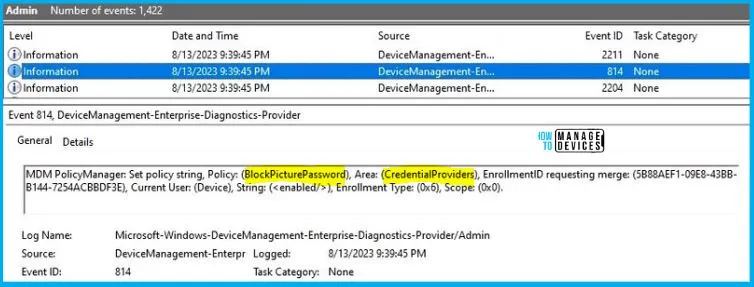
So when I open the above Event log, I found that the policy I have applied to the device is successfully implemented. By reviewing the log entry shown in the above image, the Event Viewer, I came across essential information, including the Area and Enrollment ID. These details play a significant role in identifying the corresponding registry path. To locate the specific information, please consult the table provided below:
| Area | Policy | String | Scoped | Event ID |
|---|---|---|---|---|
| CredentialProviders | BlockPicurePassword | Enabled | Device | 814 |
The details presented in the table above for the Turn Off the Picture Password Sign-In Policy Using Intune can be employed to access the registry settings that hold the group policy configurations on a specific computer. To accomplish this, you can execute “REGEDIT.exe” on the target computer and navigate to the precise registry path where these settings are stored.
- Computer\HKEY_LOCAL_MACHINE\SOFTWARE\Microsoft\PolicyManager\providers\5B88AEF1-09E8-43BB-B144-7254ACBBDF3E\default\Device\CredentialProviders
When you navigate the above path in the Registry Editor, you will find the registry key named BlockPicurePassword. Also, when I navigated to the above path, I saw that the Registry Key was created.
| Registry Name | Value |
|---|---|
| BlockPicurePassword | Enabled |

Author
Abhinav Rana is working as an SCCM Admin. He loves to help the community by sharing his knowledge. He is a B.Tech graduate in Information Technology.


Discussion