






How to Recover Restore SCCM Primary Site Server Database Part 1 ConfigMgr
How to Recover Restore SCCM Primary Site Server Database Part 1 ConfigMgr Endpoint Manager. System Center Configuration Manager SCCM Recovery options are changed.
In this post, we will recover a primary site with GOOD backup (More details about the Backup Site Server maintenance task).
“Site Server recovery” and “Site Database recovery” are the two key parts of the recovery process in CM2012. TechNet documentation provides more details about recovery.
Remember, we have to run the Site Repair Wizard (after completing the installation wizard) in ConfigMgr 2007, but this is changed for good in ConfigMgr 2012. More details about ConfigMgr 2007 Site Repair Wizard – Site Repair Wizard Step by Step Guide.

- What’s New In SCCM Windows 10 Servicing Dashboard | ConfigMgr HTMD Blog (anoopcnair.com)
- SCCM Architecture Decision Making Guide for 2023 or Later | Best Practices
- SCCM ConfigMgr CB How to Plan Backup Recovery Configuration Manager Best Options

Recover Restore SCCM Primary Site Server Database
In ConfigMgr 2012, the Recovery a Site option is part of the Installation Wizard.
Site Database recovery behavior varies with SQL Server Change Tracking Retention Period and Site Database recovery scenarios. More details about SQL Server Change Tracking Retention Period and Site Database Recovery Scenarios.

We can make sure that from Smsbkup.log. Look for message ID “5035”, indicating that the site backup was completed without errors. I’m able to successfully recover the primary site, which has a secondary server, using the following process:
If you DON’T have a GOOD backup of the primary site and your primary server is NOT a stand-alone one, then refer to the following post to make the recovery- Part 2.
I’ve already completed rebuilding the server with the same name, path, Drive letters, and Patch level. Before starting the recovery process, I also installed and configured IIS, DotNet 4, SQL, and WSUS.
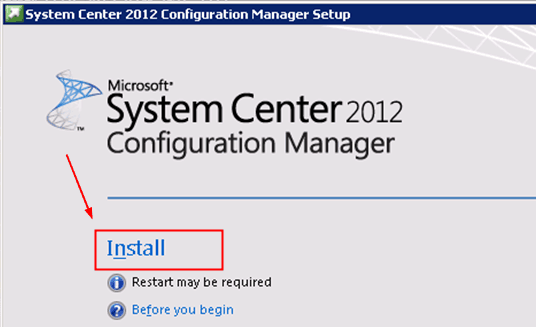
1. Start the ConfigMgr/SCCM 2012 Setup from the System Center 2012 Configuration Manager installation media. We’ll need to run this setup from the server you want to recover.
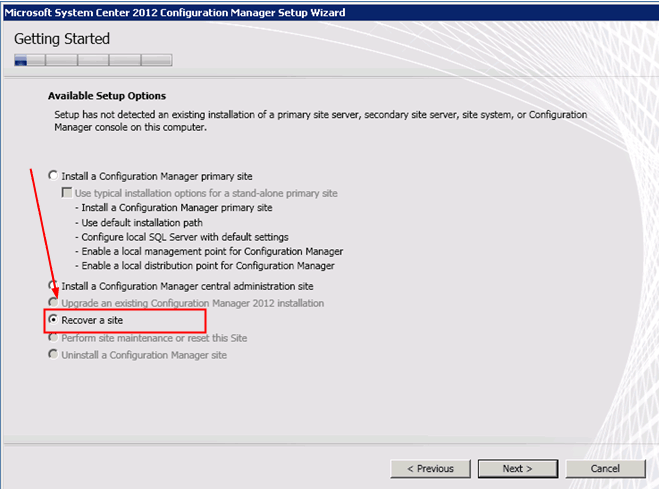
2. Select the option Recover a Site to recover the primary site you lost.
Note from TechNet: When Setup detects an existing Configuration Manager site on the server, you can start a site recovery, but the recovery options for the site server are limited. For example, if you run Setup on an existing site server when you choose recovery, you can recover the site database server. Still, the option to recover the site server is disabled.
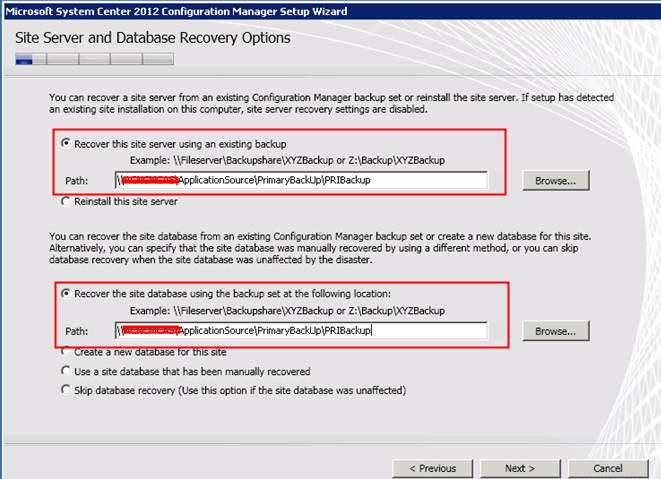
3. Site Server and Database Recovery: options are available in the following wizard.
As mentioned above, the recovery scenario has two parts: Site Server recovery and Site Database recovery.
- Site Server: Select “Recover this Site Server using an existing backup ” and browse to the backup file location.
- Site DataBase: Select “Recover the Site Database using the backup set at the following location” and browse to the backup file location.
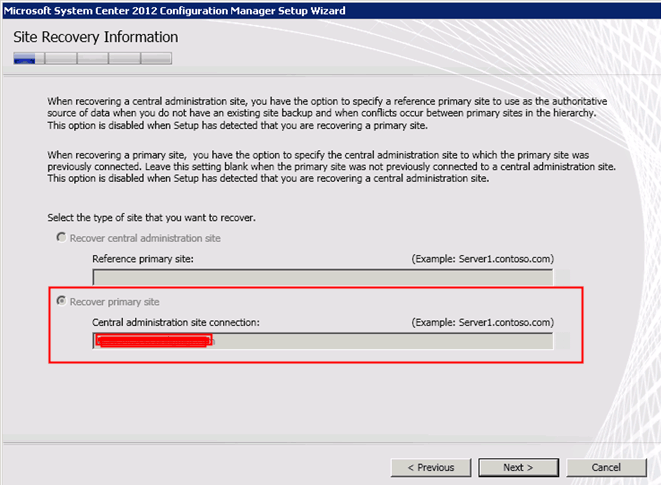
SCCM Site Recovery Information
4. Site Recovery Information: This page in the wizard has already detected our Primary site and CAS details from the backup files. Note that the CAS server details are already filled out in the wizard.
Note: When recovering a primary site, you have the option to specify the CAS to which the primary was previously connected. Leave this setting blank when the primary site was not previously connected to a central administration site. The option is DISABLED when Setup has detected that you are recovering a CAS.
Prerequisites Down during SCCM Server Restore
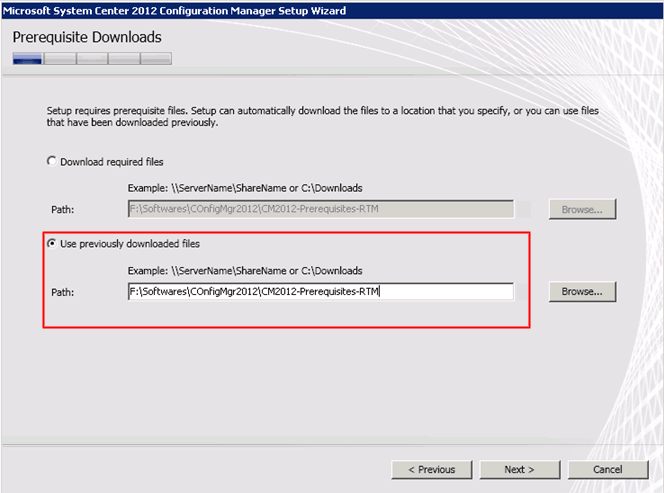
5. Prerequisites Download: Here, we must provide the prerequisite file details so that SETUP can verify the files and proceed with the recovery.
Note: We’ve skipped two pages called “Product Key”, Microsoft Software License Terms” and “Prerequisite Licenses”.
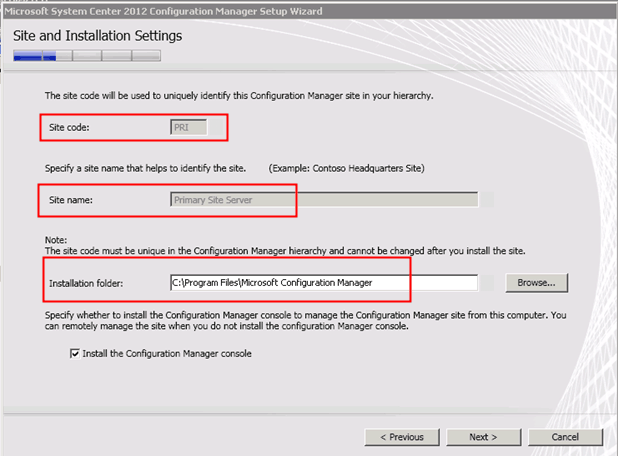
Site and Installation Settings – Recover Restore SCCM Primary Site Server Database
6. Site and Installation Settings: Note that the site code and site name details are already filled out and greyed out (this information is already taken from the backup files). We can select the installation folder. Remember, it’s always better to install the ConfigMgr in the same location.
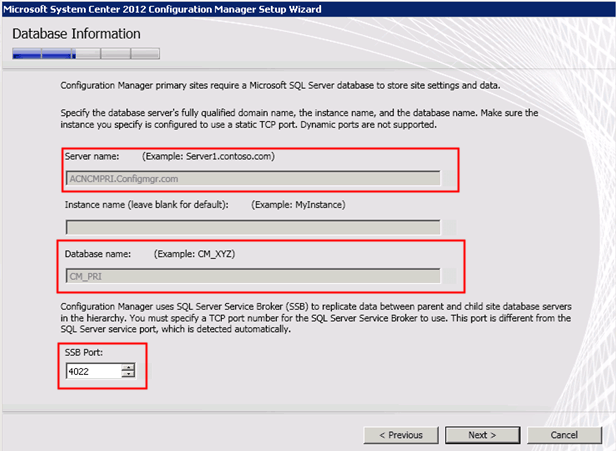
7. DataBase Information: Most of the details are already filled in and greyed out on this page. Server Name, Database Name. The only option that we can change is SSB Port 4022.
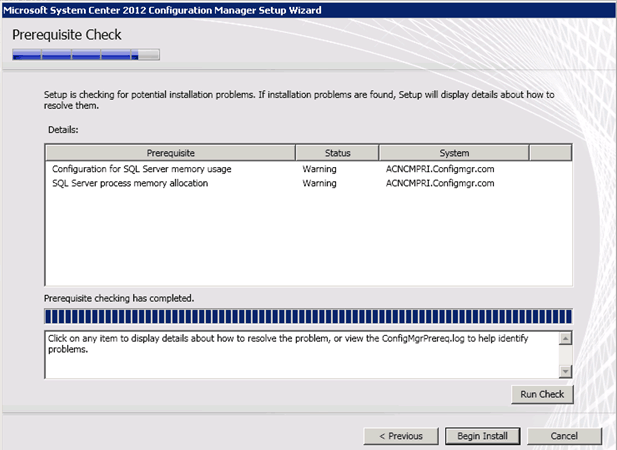
8. Prerequisites Check: This will run the check, and we can ignore the two warnings shown in the picture below (as this is a LAB environment, it’s always better to set the maximum memory allocation to the SQL server). Click on “Begin Install” to start the recovery.
Note – We have skipped two pages, “Customer Experience Improvement Program Configuration” and “Setting Summary”. Those are just default settings.
9. Install: This page shows us the progress of the installation and recovery process.
In the following pic, the process that is going on is “Data Recovery in Progress”.
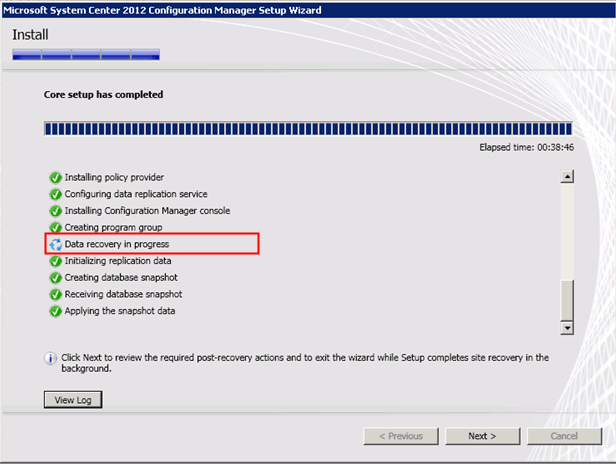
10. Verify ConfigMgrSetup.log: In ConfigMgrSetup.log, we can find detailed information about the recovery’s actions and details about the resync (BCP) from the CAS Database (the changes that happened in the hierarchy after the last good backup).
RCM received a message from “CAS Server”; BCP initialization started
RCM received a message from “CAS Server” BCP is in Progress

RCMCtrl.log – Recover Restore SCCM Primary Site Server Database
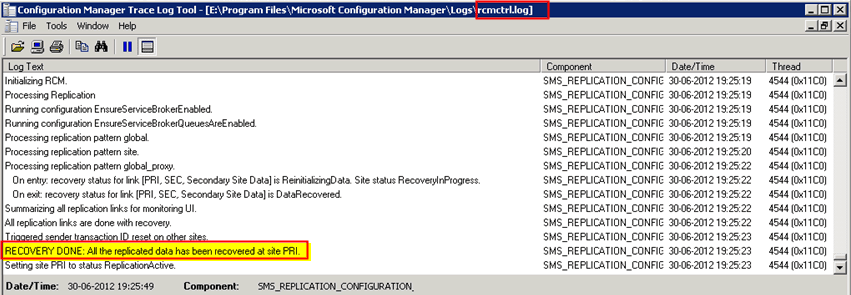
11. Verify RCMctrl.log to check whether the resync has been completed at the recovered primary site “PRI”. More details about Site-to-Site Database Replication.
RECOVERY DONE: All the replicated data has been recovered at site PRI
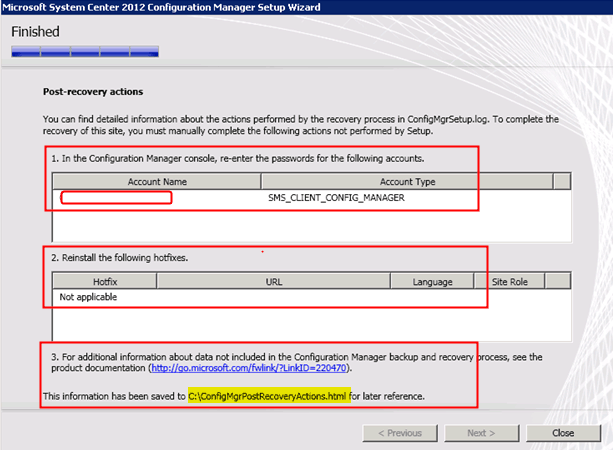
12. Post Recovery Tasks: To complete the recovery of this site, you must manually complete the following actions, which are NOT performed by setup.
- In the ConfigMgr console, re-enter the passwords for the following accounts. In our scenario, we need to re-enter the account’s password mentioned in the following pic.
- Reinstall the following hotfixes—whether any hotfix needs to be installed. In our case, there is no hotfix requirement.
- More details about post-recovery activities have been saved to a file called C: ConfigMgrPostRecoveryActions. HTML for later reference.
More details about the recovery process (IIS configuration, Recover Content Files: http://technet.microsoft.com/library/gg712697.aspx#BKMK_PostRecovery
Recover Restore SCCM Primary Site Server Database
NOTE from the comments below.
You should add in your article: Consider you have a VM with a Primary SCCM Site and a regular SCCM daily backup is done to volume E. One day, your VM failed, and you could only save volume E data (where the good SCCM backup is stored).
So, you rebuild the VM from scratch, mount volume E, install Windows roles and features, install SQL, Windows ADK, etc. Then, you decided to recover the SCCM site and database. Inserting the original SCCM installation media does not work since Recover a site is greyed out.
You must go to the SCCM backup folder and then to the CD. Check the latest folder and run the setup from there. Once you do that, the option to Recover a site is available. Please add this useful information for people facing this scenario.
We are on WhatsApp. To get the latest step-by-step guides and news updates, Join our Channel. Click here –HTMD WhatsApp.
Author
Anoop C Nair has been Microsoft MVP from 2015 onwards for 10 consecutive years! He is a Workplace Solution Architect with more than 22+ years of experience in Workplace technologies. He is also a Blogger, Speaker, and leader of the Local User Group Community. His main focus is on Device Management technologies like SCCM and Intune. He writes about technologies like Intune, SCCM, Windows, Cloud PC, Windows, Entra, Microsoft Security, Career, etc..




Thanks . Good one
Hi Anoop,
I have a standalone Primary site model with SQL Cluster database. I want to migrate it from 1 DC to another DC. Can you please suggest me how can i migrate it.
StaffHi ! If it’s plain DC to DC 1 change without changing domains then we don’t have much to do. However, if we’re planning to move from domain 1 to domain 2 then it’s NOT supported. Can you confirm which is your scenario?
Regards
Anoop
Hi Anoop,
In my current environment there are two SCCm servers – SCCM 2007 & SCCM 2012 R2. Now i have installed separate server SCCM2012 R2. Please suggest me how can i copy database backup of both the servers in new server. or what’s the easiest way to consolidate all SCCM in one.
StaffHi ! – It’s not very easy task. you need to use migration task. Restoring SCCM DB on a different SCCM server is not supported.
Regards
Anoop
Can i use different site code for all primary site rather than using an unique site code in SCCM 2012.
Hi Anoop ,
I have Scenario here , We have one Stand alone Primary SCCM 2012 site XXX and SQL server is installed on diff server yyy .
Now , We are planning to move SCCM and SQL server to diff data center and request to let me which recovery option is better to perform as we are coping all data from the servers and Sql database will be restore as it is.
Hi Anoop,
In my environment, I have primary site server, distribution point server and SQL server (Client was also installed in all 3 server). I have a good back up of primary site server. I deployed two applications and it was installed in all the three server. After this my primary site server crashed and other two servers are still fully functional.
Is there the way to recover that state of Primary site server where my two application was installed? or I have to deploy those two application again after doing my recovery?
Any suggestion or help will be beneficial.
Thank you
Interesting article – I was enlightened by the facts – Does anyone know if I might be able to get access to a template DD 250 document to complete ?
Hello, and thanks for the post. There is an scenario you should add in your article: consider you have a VM with a Primary SCCM Site and a regular SCCM daily backup is done to volume E. One day, your VM failed and you could only save volume E data (where the good SCCM backup is stored). So, you rebuild the VM from scratch, mounted volume E, install Windows roles and features, install SQL, Windows ADK, etc. Then, you decided to recover SCCM site and database. Inserting the original SCCM installation media does not work, since Recover a site is grayed out. What you have to do is go to the SCCM backup folder, then to CD.Latest folder and run setup from there. Once you do that, the option Recover a site is available. Please add this useful information for people facing this scenario. Regards,