






Use SCCM RBAC Viewer Exe to Check RBAC Settings ConfigMgr
Use SCCM RBAC Viewer Exe to check RBAC settings. The RBA modelling and auditing (RBA viewer) tool is the System Center Configuration Manager Server Troubleshooting Tool. This is a continuation of my post about Policy Spy.
The SCCM RBAC viewer is a new addition to the ConfigMgr toolkit. The RBA modelling tool can help you create and export a custom security role. RBA modelling and auditing tool is part of ConfigMgr Toolkit.
Auditing security role/s and security scope/s is also possible through RBA Viewer (RBAViewer.exe). Have you ever played with RBAViewer.exe? If not, start using it!
In this post, I‘m exploring RBA Viewer in more detail. How can it be used more effectively? The documentation provided with this toolkit is excellent (ToolkitHelp); however, I’ve seen many of us never look into that documentation.

- Intune RBAC Roles To Intune Jobs – Anoopcnair.com
- SCCM RBAC Implementation Troubleshooting Guide ConfigMgr
| Index |
|---|
| Use SCCM RBAC Viewer Exe to Check RBAC Settings |
| CREATE, CUSTOMIZE, TEST, and EXPORT Security Role/s |
| Audit RBA – Entire Hierarchy – SCCM RBAC |
| Run As – Audit RBA Configuration for a Specific User |
Use SCCM RBAC Viewer Exe to Check RBAC Settings
You can use this tool only on the machine where the SCCM console is installed. To run this tool, the user must be assigned to any of the following security roles: Full Administrator, Read-only Analyst, or Security Administrator.
Also, the user must be assigned to all security scopes and collections and have SQL rights to analyze the report folders and reports.
The tool’s top left corner has three very useful buttons: Audit RBA, Run As, and Setting.
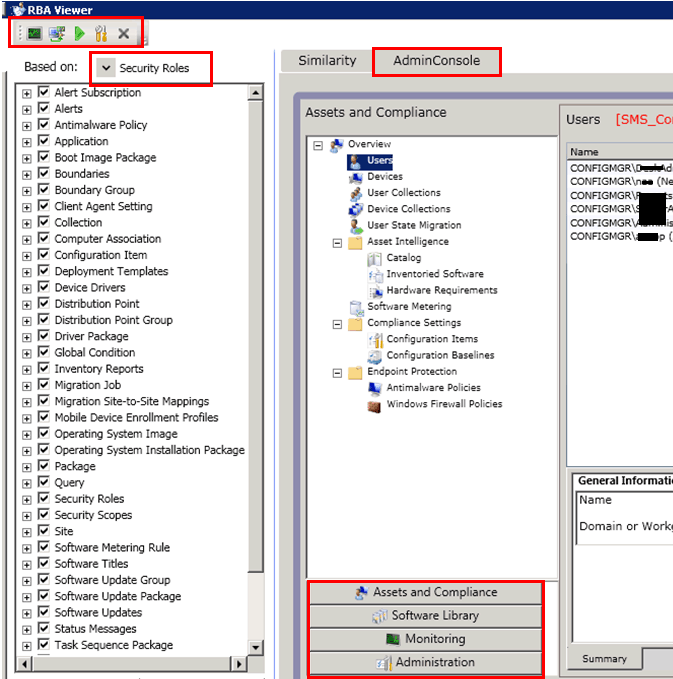
The following topics are covered in this post.
- CREATE, CUSTOMIZE, TEST, and EXPORT Security Role/s
- Audit RBA – Entire Hierarchy
- Run As – Audit RBA configuration for a specific user
CREATE, CUSTOMIZE, TEST, and EXPORT Security Role/s
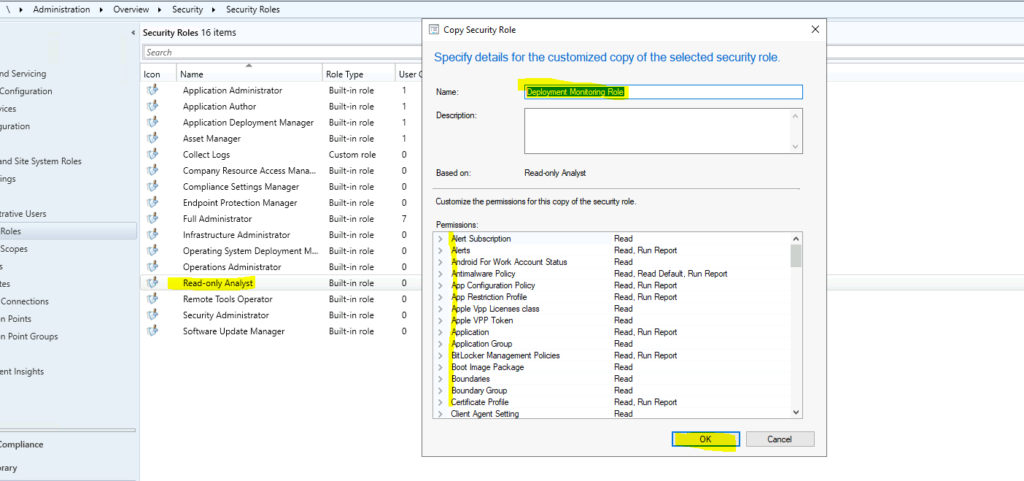
You can select built-in security roles from Security Roles in the drop-down menu. Using RBA viewer, you can CREATE, CUSTOMIZE, TEST, and EXPORT security role/s.
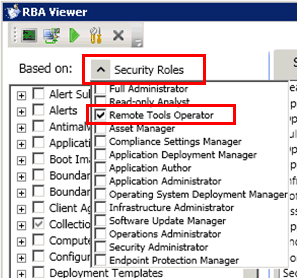
In the following pic, you can see that the new Remote Tool operator role has been selected.
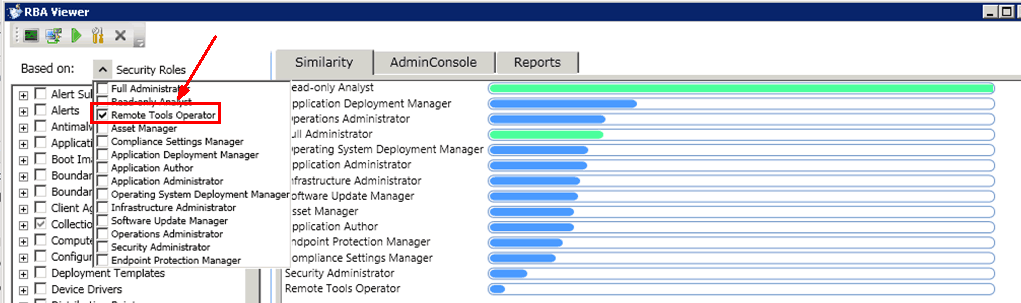
You can customize this security role as required with the help of the RBA tool. This can be done very easily by selecting/deselecting checkmarks, as shown in the following pic.
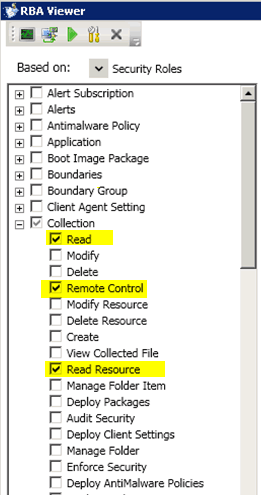
Once you have customized the role as per the requirement, you can even test it with the help of the RBA tool. The tabs AdminConsole and Reports can be used to verify the assigned permissions.
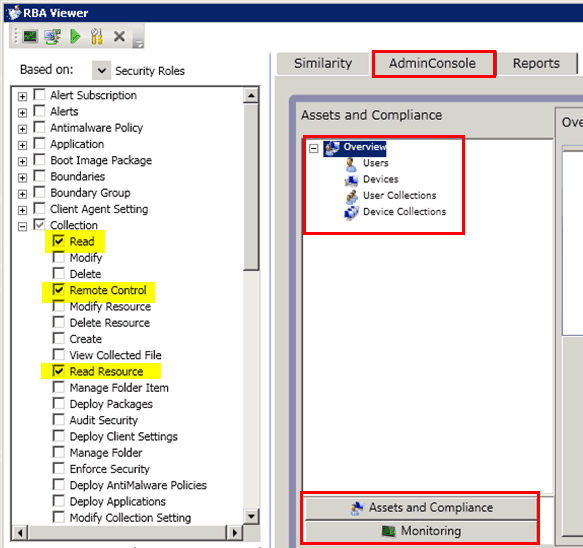
Once you’ve validated the console and reports, you can export the new security role into an XML file and import it for production use.

Audit RBA – Entire Hierarchy – SCCM RBAC
The Audit RBA button on the top left corner of the tool can perform an Audit for all Existing Administrative Users/Collections Hierarchy/Security scopes in Configuration Manager.
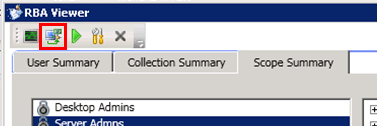
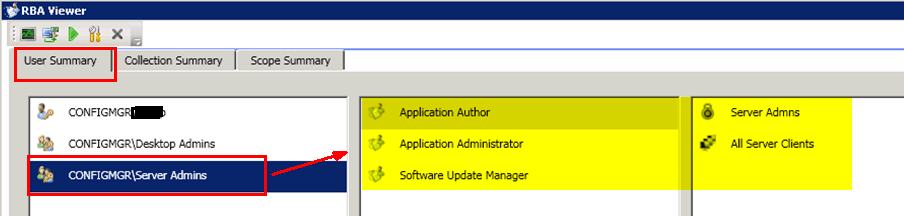
1) The User Summary tab will help you to audit the rights of a particular user.
In the following pic, we can see the access details of a user Called Server Admins.
In my scenario, the Server admin user has access to all the devices in a collection named All Server Clients. Server Admins are Application Authors, Application Administrators, and Software Update Managers for the “All Server Clients” collection.
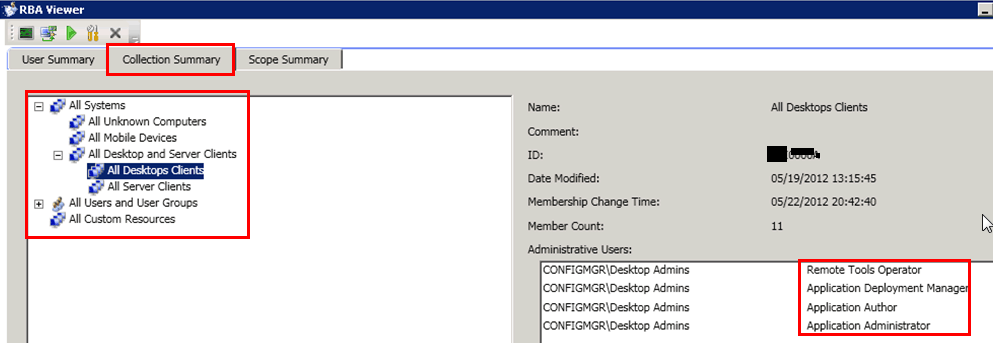
2) The Collection Summary tab will help you audit the permissions of a particular user concerning a Collection.
In the following pic, we can see the access details of a user Called Desktop Admins in a collection named “All Desktop Clients.”
In my scenario, Desktop Admins can remotely control the devices and deploy applications to those devices in the collection of All Desktop Clients. The user “Desktop Admins” is also the Application Author and administrator for those devices. The SCCM RBAC viewer is helpful in this scenario.
Server Admins users don’t have any access to these devices:
- Remote Tools Operator
- Application Deployment Manager
- Application Author
- Application Administrator
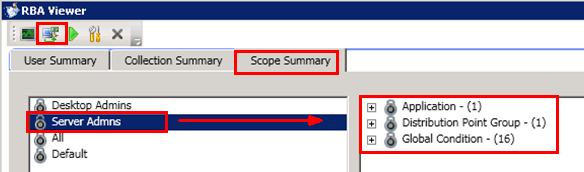
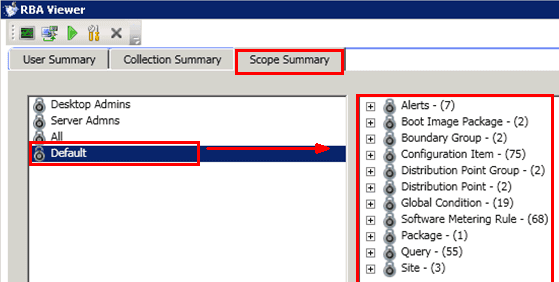
3) The Scopes Summary tab will help you perform an Audit on security scopes assigned to a particular user in the Hierarchy.
In the following pic, we can see the access details of a user Called Server Admins. The user “Server Admins” can access One application, One DP group, and 16 Global Conditions. You can verify this for other users as well.
Run As – Audit RBA Configuration for a Specific User
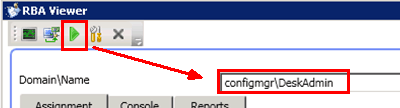
Select the Green Button on the RBA viewer (as shown in the pic). You need to key in the Domain\UserName and select the button called CHECK.
Under the Run As option, there will be 3 tabs available. The SCCM RBAC viewer is helpful in this scenario.
- Assignment Tab
- Console Tab
- Reports Tab
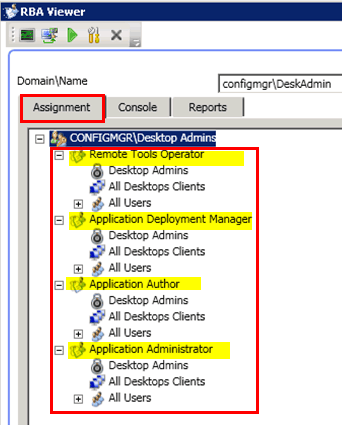
1) The Assignment tab will help you get that particular user’s role and scope details. You will see the security roles assigned to the user or the security group to which the user belongs.
In the following pic, you can see the roles and scopes assigned to a user called Desktop Admins.
The “Desktop Admins” user is associated with roles like Remote Tools Operator, Application Deployment Manager, Application Author, and Application Administrator.
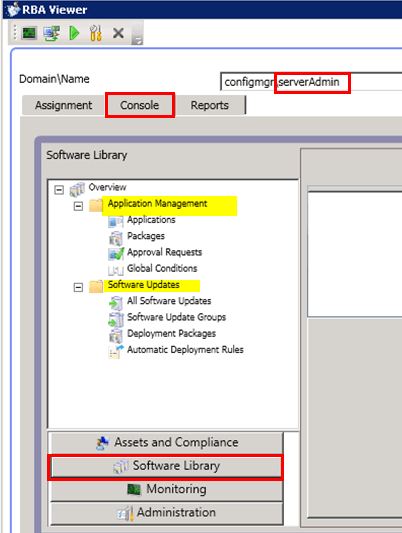
2) The Console tab will help you view the SCCM 2012 console with that particular user.
In the following pic, you can see the console view of the user called Server Admins. Notice that the user doesn’t have access to OSD. The OSD section is missing from the console because users cannot perform OSD tasks. SCCM RBAC viewer is helpful in this scenario.
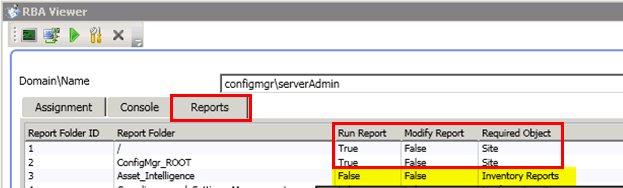
3) The Reports tab will help you get details about each reporting folder’s permissions for a particular user. As mentioned above, you should have SQL access to run this tab and view the relationship between report folders and security objects.
The following pic shows more details concerning reporting for a user called “Server Admins.” SCCM RBAC viewer is helpful in this scenario.
We are on WhatsApp. To get the latest step-by-step guides and news updates, Join our Channel. Click here –HTMD WhatsApp.
Author
Anoop C Nair has been Microsoft MVP from 2015 onwards for 10 consecutive years! He is a Workplace Solution Architect with more than 22+ years of experience in Workplace technologies. He is also a Blogger, Speaker, and leader of the Local User Group Community. His main focus is on Device Management technologies like SCCM and Intune. He writes about technologies like Intune, SCCM, Windows, Cloud PC, Windows, Entra, Microsoft Security, Career, etc.




Did the reports tab get stripped out when it was release to production? I don’t see that?
Hello,
I tried your RBA tool and was able to create a custom help desk type of security role. I’m trying to allow them to add/delete machines to collections, run reports and remote. Everything works except deleting computers from collections. Do you know what custom permissions are needed for right click tools? There is no error message, nothing happens. Any help would be greatly appreciated.
thanks,
Jeff
StaffHave you already tried to change the permissions of Collection – Delete Resource = Yes?
Yes I did try that.
StaffHow about the site level access? I hope, the collection is part of security 🙂 Probably you can post this query in tech forum http://social.technet.microsoft.com/Forums/en-US/home?forum=configmanagergeneral with some screenshots that would be helpful to toubleshoot further.
How about the site level access? I hope, the collection is part of security 🙂 Probably you can post this query in tech forum http://social.technet.microsoft.com/Forums/en-US/home?forum=configmanagergeneral with some screenshots that would be helpful to toubleshoot further. – See more at: https://www.anoopcnair.com/2012/06/29/sccm-configmgr-2012-how-to-use-rba-viewer-rbaviewer-exe/?replytocom=2012#respond
I’m still pretty new to SCCM 2012. How can I verify site level access and the collection security? I just exported the necessary permissions, named it and added this admin user to this new security role. I’m sure I’m missing something very basic.
Big Question – What do you do when the results of the RBA too conflict with what actually happens on the console?? ie you are granting rights to create metering rules to a role, the RBA tool says you should have rights to create metering rules, yet in the console it is greyed out?