






Accent Colors in Windows Start Menu and Taskbar
Let’s discuss Accent Colors in Windows. Microsoft Introduces Exciting Features on Accent Colors in Windows. The Accent Colors in Windows PCs are improved with different features, enhancing your PC’s appearance.
Accent colors in Windows emphasize essential elements in the user interface and indicate the state of an interactive object or control. The Accent colors are eye-catching, and you can customize different colors.
In this post, we are discussing Windows Accent colors in the Start Menu and Taskbar. The new Update of Windows 11 22H2 gives different changes in the Colors feature in Windows. These changes are reflected in the accent colors.
The New update in the accent colors in the Start Menu and Taskbar brings a beautiful experience for end users, and customized colors can also be given to the Start Menu and Taskbar. Accent colors can be easily added to the title bar and windows borders. It is one of the update of Windows 11 22H2.

What are the Advantages of Accent colours in the Start Menu and Taskbar?
1. It allows you to give different colours to your Start Menu
2. It helps to bring any color to the Taskbar
3. It gives a visual treat to the users
Accent Colors in Windows Start Menu and Taskbar
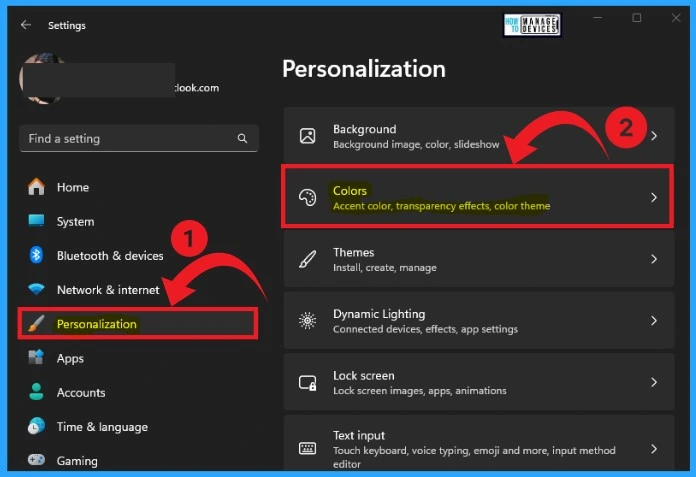
The Accent Colors in Windows Start Menu and Taskbar give a different look to your Start menu and Taskbar. Any colour can be chosen from the accent colors for your Start menu and Taskbar. Accent Colors can be easily selected from Settings Menu.
- Start Menu > Personalization
- Select the Colors option from the Personalization
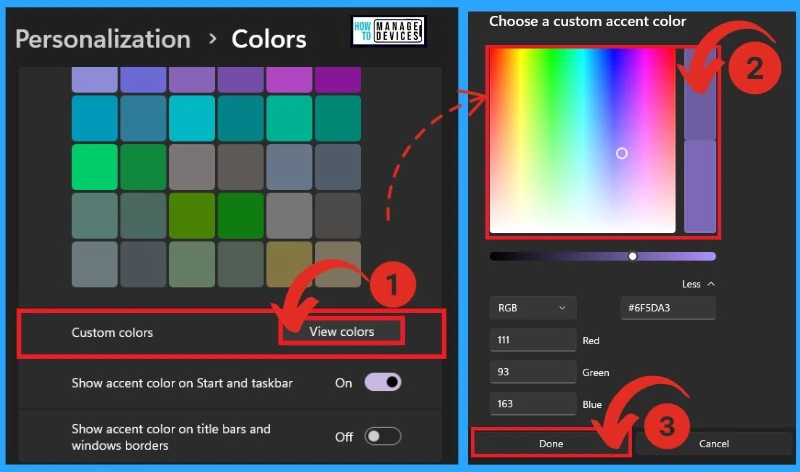
Custom Colors in Accent Colors
You can easily customize accent colors on your Windows PC. For this, select the custom colors option from colors option and click the view colors option. A color chart will appear, and you can select a color from this char. The RGB value of the selected color will also shown. After selecting the color, click on the Done option.
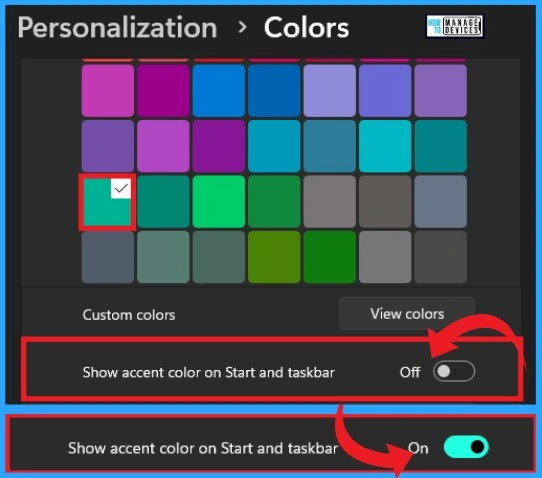
The colours window shows different accent colours from your Windows PC. The selected accented colour is shown below with a tick mark. The new Update in Windows 11 22H2 is to bring the Showing Accent colour on the Start Menu and Taskbar option to the Windows PC. This option is disabled by default.
| How to Enable Accent Colors on the Start Menu and Taskbar |
|---|
| To turn on this option, Toggle the pane to the right side |
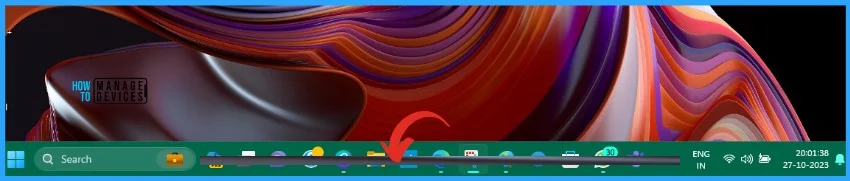
Accent Colors in Taskbar
After enabling the Accent Colors in the Taskbar option, the selected Accent color is shown in the background of the Taskbar. This feature helps users to identify the Taskbar from the Desktop screen.
Accent Colors in the Start Menu
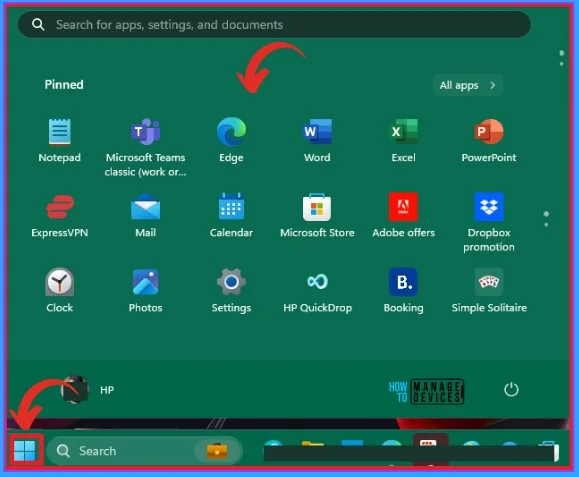
After Enabling the “Show accent colors on the Start and Taskbar” option, it will shown on the background of the Start Menu Window. Once you activate this feature and click the Start button, you will notice that the chosen accent color appears as the background of the Start Menu.
Accent Colors on the Title Bar and Windows Borders
Accent Colors can be easily applied to the tile bar and window borders. This is one of the updates on Windows 11 22H2 that is now available on Windows 11 PC. You can easily enable this feature from Settings. Custom accent colors also will be added to the windows borders and title bar.
- Settings > Personalization >Colors
- To enable “Show accent colors on the title bar and windows border”, toggle the pane to the right
We are on WhatsApp. To get the latest step-by-step guides and news updates, Join our Channel. Click here for HTMD WhatsApp.
Reference – Change colours in Windows – Microsoft Support
Author
Gopika S Nair is a computer enthusiast. She loves writing on Windows 11 and related technologies. She is here to share quick tips and tricks with Windows 11 or Windows 10 users. She is Post Graduate Diploma Holder in Computer Science.




Discussion