






Best Guide to Block URLs on Google Chrome and Microsoft Edge using Intune
This article seeks to provide a comprehensive guide on how to Block URLs on Google Chrome and Microsoft Edge using Intune. The guide is intended for individuals and organizations seeking to restrict access to specific websites for security or productivity reasons.
By following the outlined steps, users can configure their browsers to block access to designated websites, thereby enhancing their internet browsing experience. The instructions provided are written in a formal language, free from contractions and errors, and are designed to convey professionalism and expertise.
In contemporary organizational settings, management is often confronted with the challenge of ensuring employees’ adherence to work-related activities during work hours. Specifically, the use of social media and online shopping platforms by employees has been found to have a negative impact on productivity, resulting in consequential financial implications for the organization.
Allowing employees to access non-work-related websites can also lead to decreased productivity, as employees may spend more time on personal activities instead of focusing on their work tasks. Overall, this guide is a valuable resource for anyone seeking to limit internet access on Google Chrome and Microsoft Edge using Intune. So let’s get started!


Why are many Websites being Blocked in the Workplace?
Websites are often blocked in the workplace for various reasons, including preventing employees from accessing inappropriate content, reducing the risk of malware infections, and increasing productivity. Inappropriate content, such as adult websites or social media platforms, can be a distraction to employees and may even create a hostile work environment. Malware infections can also be a significant concern as they can cause damage to computers and networks, potentially leading to data breaches.
- How to Disable Google Chrome Notifications using Intune Easy Method
- Manage Google Chrome Settings Using Intune Administrative Template | Settings Catalog
In contemporary times, the issue of employees accessing non-work-related websites during working hours has become a matter of concern for organizations. According to a report by CNBC, individuals, especially millennials, spend a considerable amount of their work time on social media platforms such as Facebook, and the trend is on the rise. Moreover, website traffic generally peaks between 2:00 PM and 6:00 PM, which coincides with working hours, indicating a potential loss of productivity for the employer.
In order to mitigate the impact of non-work-related browsing on employee productivity, CNBC recommends taking measures such as blocking social media platforms like Facebook, YouTube, and Reddit, as well as any e-commerce platforms such as Flipkart and Amazon. By doing so, organizations may be able to minimize the risk of employee distraction and maximize their focus on work-related tasks.
Configuration Profiles to Block URLs on Google Chrome and Microsoft Edge using Intune
Using Configuration profiles, you can allow or block URLs where you find relevant. We’ll see the best possible way to block websites for Windows workstations
- Sign in to the Microsoft Intune Admin portal.
- Select Devices > Windows > Configuration Profiles > Create profile
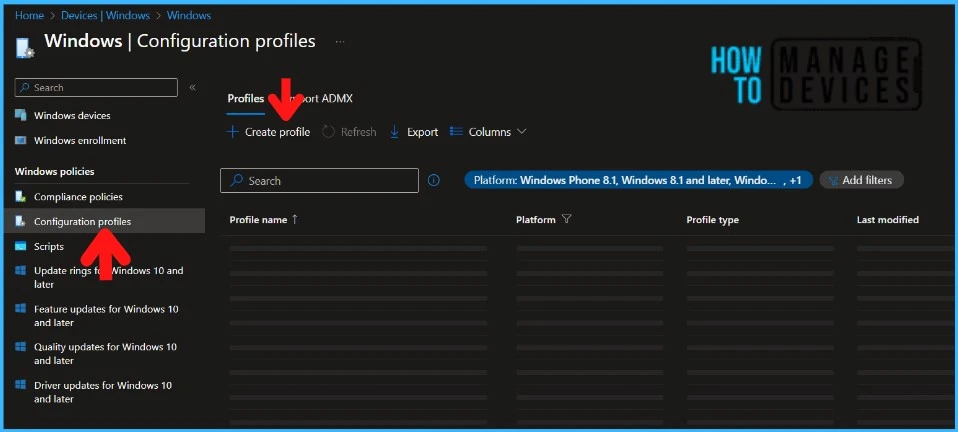
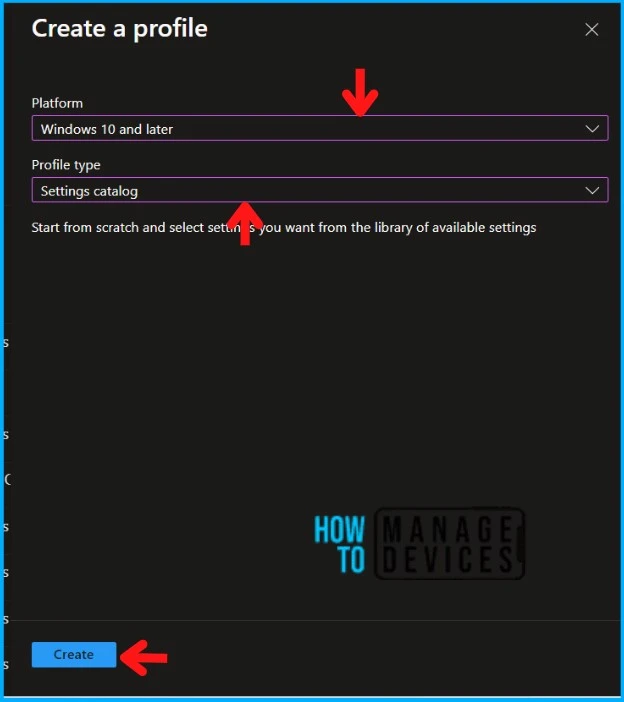
You will get a new window when you click Create Profile. Select Windows 10 and later in Platform, Select Profile Type as Settings Catalog. Click on the Create button.
| Platform | Profile Type |
|---|---|
| Windows 10 and later | Settings Catalog |
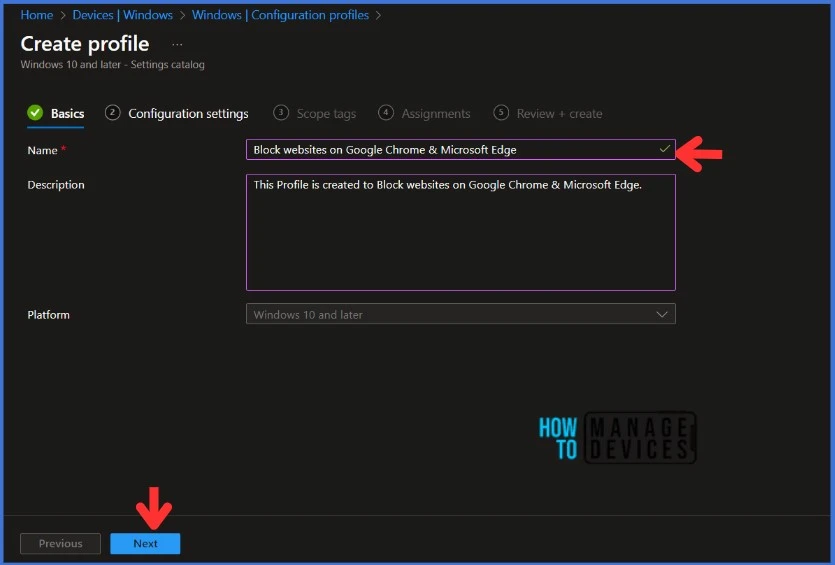
Navigate to the Basics tab and input the Name and Description for the profile.
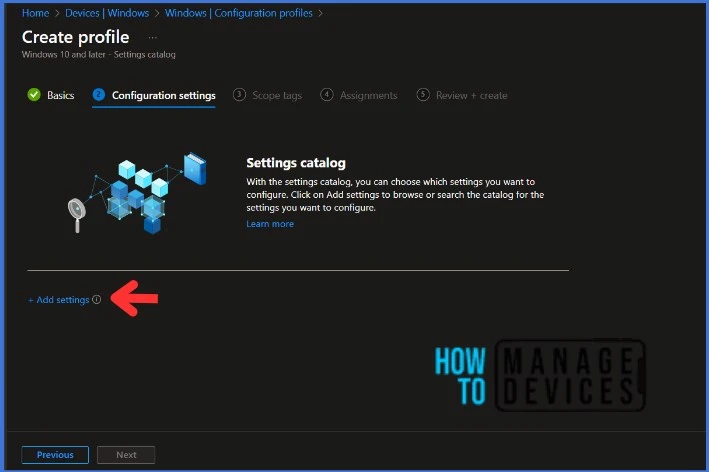
In the Configuration Settings section, under Settings Catalog, click Add Settings.
NOTE! Microsoft discovered that administrators may experience performance degradation when they add more than 400 settings to a single policy. However, Microsoft is working on making improvements to address this issue.
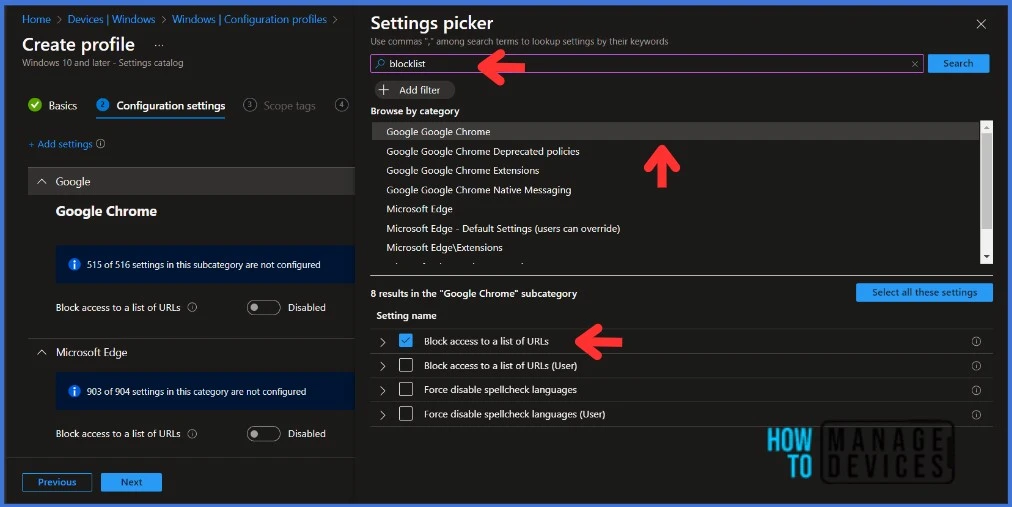
When you click on Add Settings, you will get a Settings picker tab, as in bellow screenshot below. In this example, first, I will block the URL of Facebook https://www.facebook.com/ in Google Chrome, and I’m going to do the same on Microsoft Edge as well. Select Block access to a list of URLs from the subcategory window for Google Chrome and Microsoft Edge. Close the Settings picker tab.
I will have two settings in the Configuration Settings section. I have Enabled both settings in this example. You can type random websites which you would like to block access. I’m blocking Facebook here on Google Chrome and Microsoft Edge. Type https://www.facebook.com/ in Block access to a list of URLs (Device) box for Google Chrome and Microsoft Edge.
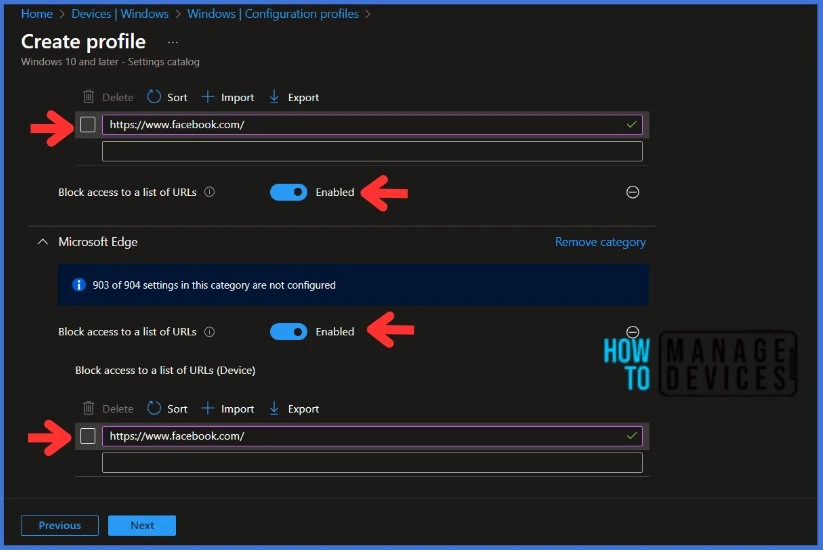
If you have multiple URLs that you want to block access from the workstation, you can Import them using the Import option. Simply save the URLs you want to block in an Excel file and import them to the Intune portal. Additionally, you can Export the blocked URLs into an Excel file for future reference.
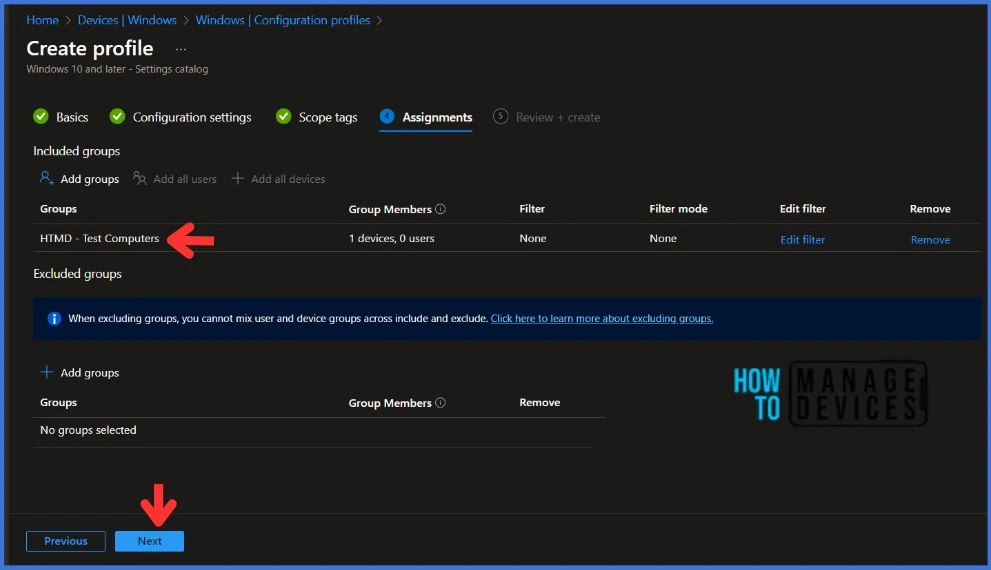
Click Next to display the Scope tags page. Add the Scope tags if you wish and click Next to assign the policy to computers. I will deploy it to the HTMD – Test Computers Group.
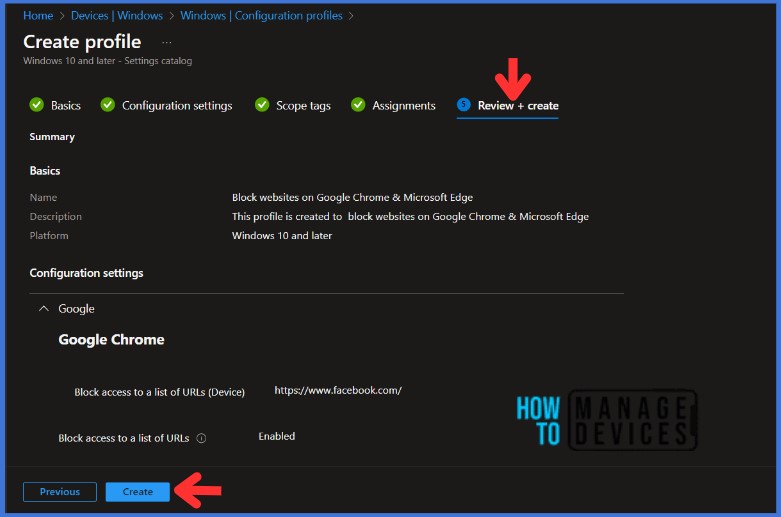
On the Review + Create page, carefully review all the settings that you have defined to Block websites on Google Chrome & Microsoft Edge. Once you have confirmed that everything is correct, select Create to implement the changes.
End-user experience after Blocking the URLs on Google Chrome & Microsoft Edge
Let’s verify if the policy is applied to devices and what happens when users try to access Facebook after deploying the Intune device configuration profile.
I have deployed the Configuration Profile to HTMD – Test Computers Group. This AD group has only the test devices. I recommend testing the deployment on pilot devices before implementing it in production. This can help identify any potential issues and ensure a smoother roll-out. In this particular test case, I’m accessing the www.facebook.com URL to check the deployment status on Google Chrome & Microsoft Edge.
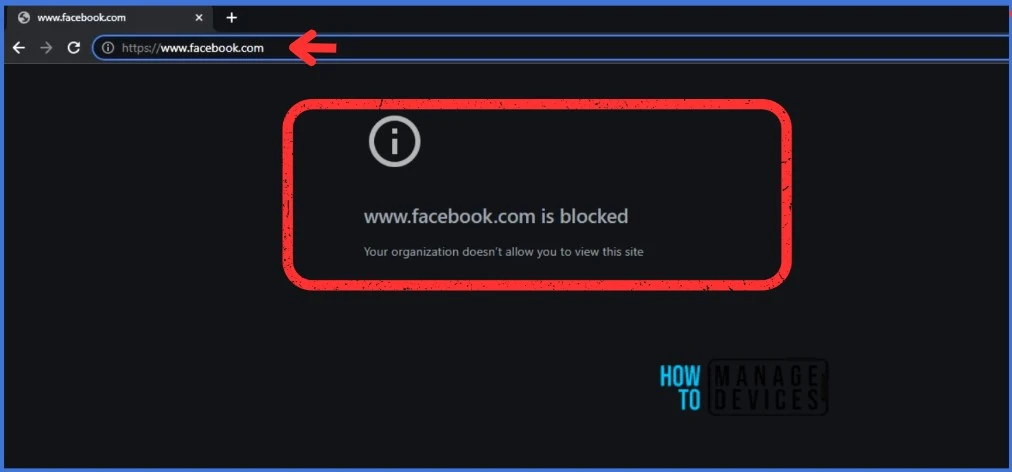
I received a website blocked message when I tried to access the www.facebook.com URL on Google Chrome.!
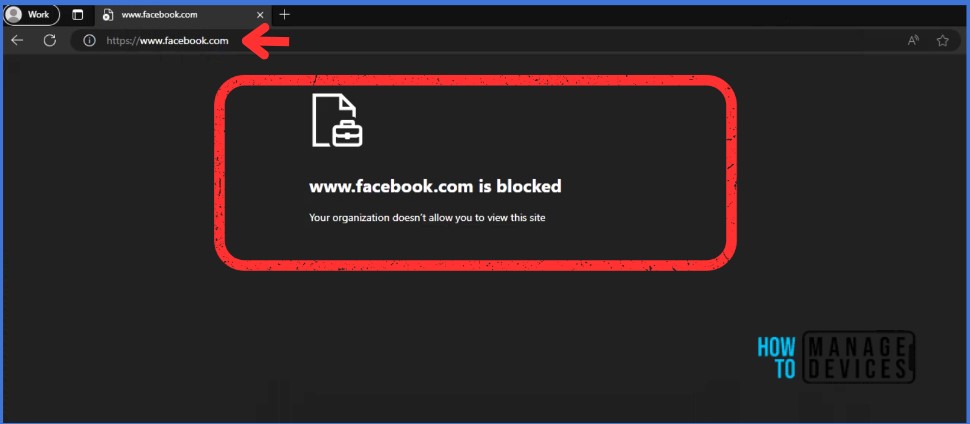
I have encountered the same message while trying to access www.facebook.com on Microsoft Edge.!
Monitor the Configuration Profile Deployment in Microsoft Intune
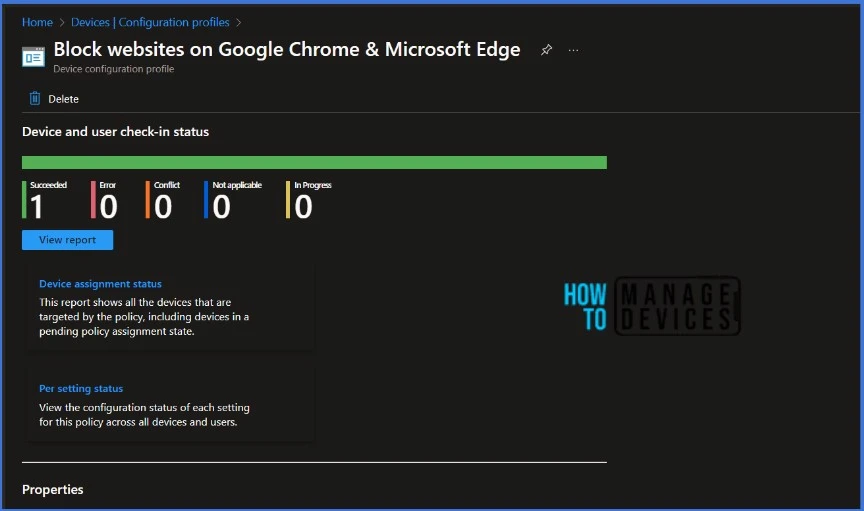
The configuration profile is deployed to Azure AD groups. Let’s see how we can monitor the deployment and status of installation from the Intune portal. To monitor the Intune policy assignment, follow these steps:
- Navigate to the list of Configuration Profiles and select the policy you targeted.
- Check the device and user check-in status from here.
- If you click “View Report,” you can see additional details.
- You can also quickly check the update as devices/users check status reports.
We are on WhatsApp. To get the latest step-by-step guides and news updates, Join our Channel. Click here – HTMD WhatsApp.
Thank you for your patience in reading this post. See you in the next post. Keep supporting the HTMD Community.
Author
About Author – Sujin Nelladath has over ten years of experience in SCCM device management and Automation solutions. He writes and shares his experiences with Microsoft device management technologies, Azure, and PowerShell automation.


Is there any way to customise the block page message while doing this ??
StaffI have never tested, I can check it for you
Can you please do so and let me know
Did you had a time to test it
Is the policy work for user based or it can only work on device base?
There is a way to create multiples ‘Block access to a list of URLs (Device)’ policies with different addreesses ?
I just create two policies, with different urls, but they appears as conflict. The URLs are not the same.