






Create SCEP Certificate Profiles Deploy SCEP Profiles to iOS Devices using Intune
Let’s discuss creating SCEP Certificate Profiles and Deploying them to iOS Devices using Intune. Before obtaining an SCEP certificate in Intune, we must consider some prerequisites.
It would be best if you also had on-prem infrastructure components available. NDES connector is supposed to be installed on your Data Center, and the NDES connector should be able to talk to the CA server and Azure AD App proxy connector if you are using the Azure app proxy.
In “Intune SCEP HTTP Errors Troubleshooting Made Easy With Joy – #5,” Joymalya Basu Roy provides a comprehensive guide on diagnosing and resolving HTTP errors encountered during SCEP (Simple Certificate Enrollment Protocol) certificate deployments using Microsoft Intune. The post focuses on various HTTP errors, particularly the HTTP 500 Internal Server Error, and offers detailed steps to effectively identify and troubleshoot these issues.
I won’t cover the setup of NDEs and Azure AD App proxy connectors. Those two configurations are complex and well explained in loads of other blogs. This post will cover how to create and deploy a SCEP Profile for iOS Devices via Intune Blade in the Azure portal.

- Part 1 – Learn The Basic Concepts of PKI
- Part 2 – Knowing SCEP – The General Workflow
- Part 3 – Intune SCEP PKI Implementation Deep Dive
- Part 4 – Intune SCEP Certificate Workflow Analysis
Table of Contents
How to Create and Deploy SCEP Certificate with Intune for iOS Devices
Deployment of SCEP Certificates to iOS devices will help them connect to corporate Wi-Fi and VPN profiles, etc.… You must create and deploy the certificate chain before creating an iOS SCEP Certificate in Intune.
The certificate chain includes the Root CA and Intermediate/Issuing CA certificates. There are 3 certificate profiles available in Intune: the TRUSTED Certificate, the SCEP Certificate, and the PKCS certificate. We are not going to use the PKCS certificate for SCEP profile deployment.
Introduction – Create SCEP Certificate Profiles Deploy SCEP Profiles to iOS Devices using Intune
Deploying a SCEP Certificate to iOS devices will help them connect to corporate Wi-Fi, VPN profiles, etc. Before creating an iOS SCEP Certificate in Intune, you need to develop and deploy a certificate chain. The certificate chain includes the Root CA and Intermediate/Issuing CA certificates.
There are 3 certificate profiles available in Intune: TRUSTED Certificate, SCEP Certificate, and PKCS certificate. We are not going to use the PKCS certificate for SCEP profile deployment. The following is the high-level task list for deploying SCEP Profile to iOS Devices (Deploy SCEP profiles to iOS Devices).
| Create SCEP Certificate Profiles Deploy SCEP Profiles to iOS Devices using Intune |
|---|
| Create and Deploy iOS Root CA certificate using Intune Azure Portal |
| Or Create and Deploy an iOS Intermediate CA certificate using Intune Azure Portal |
| Create and Deploy SCEP Certificate to iOS Devices using Intune Azure Portal |
Create and Deploy iOS Root CA, iOS Intermediate/Issuing CA Certificate Profiles
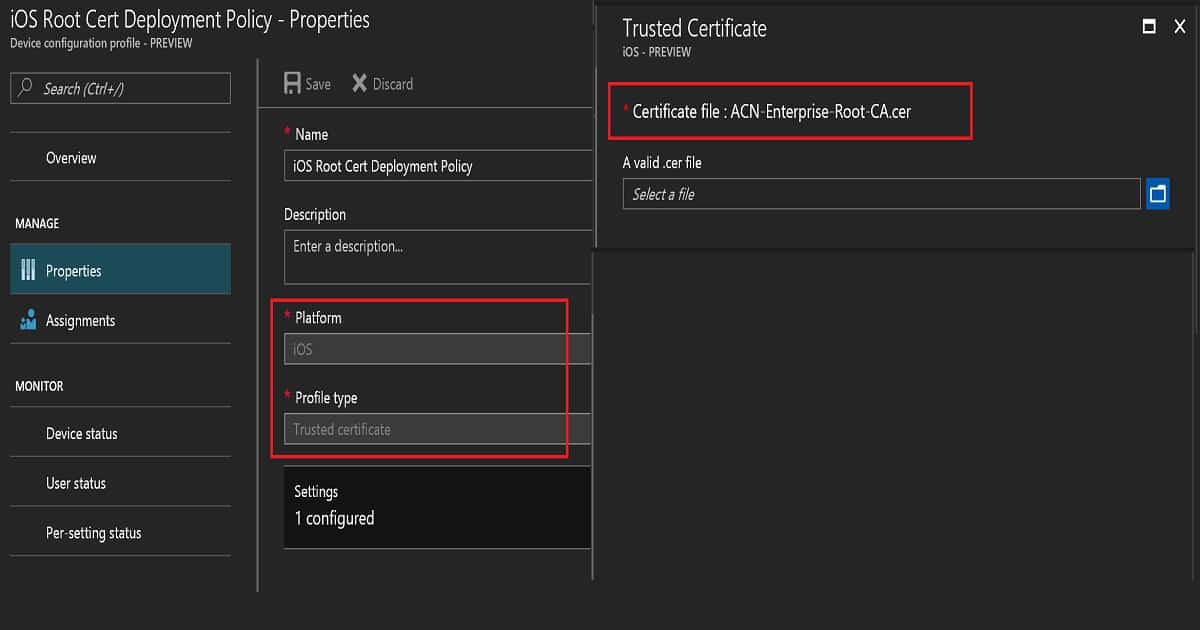
As the first step, we need to create a Root CA cert profile. To create a Root CA cert, navigate through Microsoft Intune—Device Configuration—Profiles—Create a profile (Deploy SCEP profiles to iOS Devices). Select the platform iOS and profile type Trusted Certificate. You must browse and upload your ROOT CA cert (Name of the cert = ACN-Enterprise-Root-CA.CER) from your CA server.
Once settings are saved, you must deploy the root cert profile to the required iOS devices. The exact process must follow for Intermediate/Issuing CA certificate profile deployment via Intune. Intune Create SCEP Certificate Profiles Deploy SCEP profiles to iOS Devices using Intune.
Make sure that you are uploading the issuing CA cert (Name of cert = ACN-Issuing-CA-PR1.CER) from your CA server. The video above explains all these configurations; you can watch them here.
Create and Deploy iOS SCEP Certificate Profile for iOS Devices
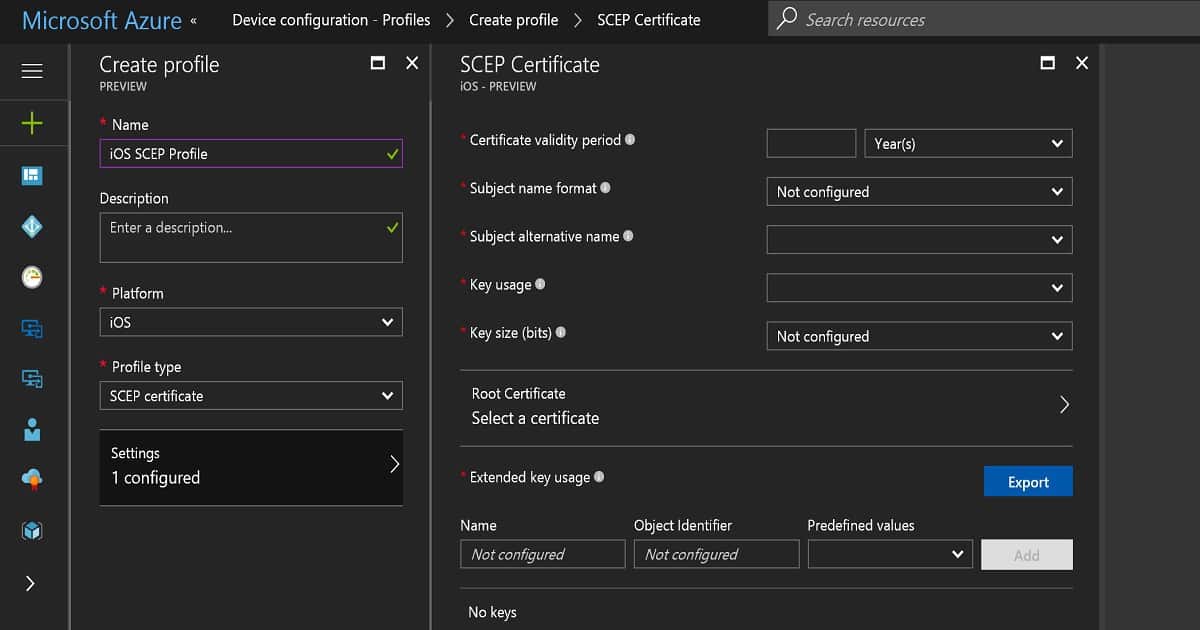
To create a SCEP certificate profile, navigate to Microsoft Intune – Device Configuration – Profiles – Create a profile. While making an iOS SCEP Certificate, we must select the Profile type as “SCEP certificate” and the platform as iOS.
The next step is configuring the settings. These settings are critical, and we need to consult with your CA team when you create a SCEP Certificate. Loads of these configurations can differ between the CA server setup and another on-prem component setup (Deploy SCEP profiles to iOS Devices).
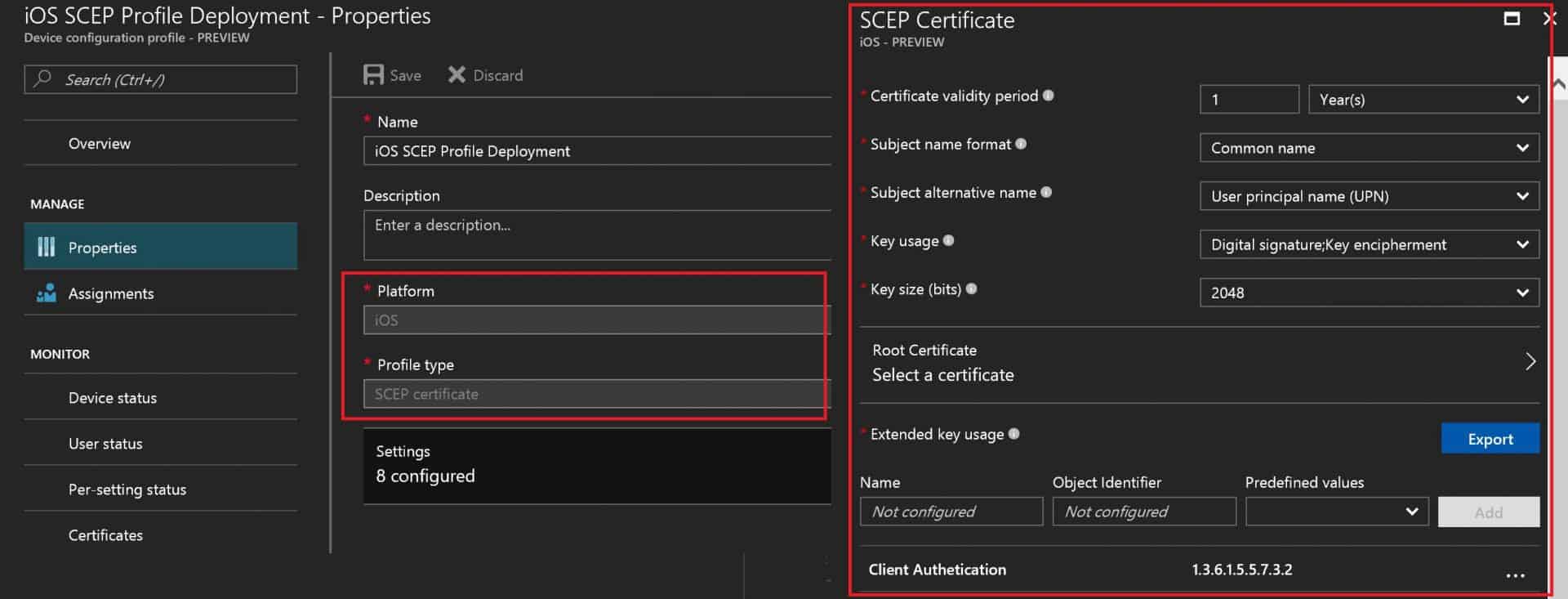
The certificate validity period is 1 year, which is the industry standard. The subject name format also depends on your organization’s preference. In this scenario, I selected a familiar name as email and a subject alternative name as UPN. The key usage is a digital signature and critical decipherment. The key Size is 2048.
Another critical point is linking the SCEP Certificate with the ROOT cert profile you created. If you have not earned any ROOT certification in Intune, you won’t be able to develop an SCEP Certificate. Extended key usage is another setting, and it should automatically get populated.
One example here is Client Authentication – 1.3.6.1.5.5.7.4.3. Intune Create SCEP Certificate Profiles Deploy SCEP profiles to iOS Devices using Intune.
Enrollment Settings is the last set of settings for iOS SCEP profiles in Intune. I recommend keeping the renewal threshold of certificates as the default value of 20%. SCEP server URLs are critical. These are the URLs to which iOS devices will request SCEP certifications.
So, this should be reachable from the Internet. As mentioned above, you can use Azure AD App proxy URLs here (e.g., https://acnndes-sccz.msappproxy.net/certsrv/mscep/mscep.dll ). In this scenario, I will use Azure AD App proxy settings. All these configuration details are explained in the video here.
SCEP certificate will be in the following format: “ACN-Issuing-CA-PR5“.
Resources
- Configure and manage SCEP certificates with Intune – New Azure Portal
- How to configure certificates in Microsoft Intune – New Azure Portal
- How to Protect NDES with Azure AD Application Proxy
We are on WhatsApp now. To get the latest step-by-step guides, news, and updates, Join our Channel. Click here. HTMD WhatsApp.
Author
Anoop C Nair is Microsoft MVP! He is a Device Management Admin with more than 20 years of experience (calculation done in 2021) in IT. He is a Blogger, Speaker, and Local User Group HTMD Community leader. His primary focus is Device Management technologies like SCCM 2012, Current Branch, and Intune. He writes about ConfigMgr, Windows 11, Windows 10, Azure AD, Microsoft Intune, Windows 365, AVD, etc.


Hello Annop,
have you had any success in deploying SCEP using only AADDS + AzureAD?
I have a requirement to identify DEM shared Device SCEP Certificate Serial Number for each device enrolled so we can manually revoke on the CA. We cannot revoke all certificate associated with an account as they share enrollment account credentials.
Is there a way to extract this from the NDES server or Intune?
Use case :
If a DEM shared Device was stolen and we need to revoke the certificate, there a requirement to isolate the certificate of the stolen device. Please note CA generates a unique SCEP Certificate Serial Number per certificate
StaffI’m not expert here. But, can we get some of these details from CA rather than NDES or Intune?
Hi, as far as I know, only the CA has the requested information.
Anoop thanks for the article. I don’t know if you are able to help but in setting up SCEP in my environment I get errors I cant seem to resolve and wondered if had any knowledge in this area.
I have captured the logs of an ipad during enrolment as Intune simply says ‘Error’. Within the logs I can see SCEP_ERROR_INVALID_RA_RESPONSE error with a code of 22003. This shows ‘Desc: The Registration Authority’s response is invalid’ . It also shows an error of ERROR_PROFILE_INSTALLATION_FAIL_P_ID with a code of 1009 and description of “the profile SCEP Profile could not be installed”
Trusted certificate profile has been created and successfully installs on the device. The Ipad also initiates a SCEP request on the external URL but fails with installing the SCEP certificate profile.
Any help would be appreciated.
Thanks
Andy Jones
StaffIt seems something to do with CA? Worth checking event logs on CA – The error means SCEP_ERROR_INVALID_RA_RESPONSE ==> The Registration Authority’s response is invalid
The following log files might also help:
1. NDESConnector__
https://support.microsoft.com/en-gb/help/4526726/troubleshooting-scep-profile-deployment-to-windows-devices-in-intune
Hi, SCEP with Intune works for us for Android and Windows but not for iOS. It shows an error. And i can not see something in the log files. Anyone an idea what it could be?