






Let’s learn about deploying Windows Catalog App type using Intune Enterprise Application Catalogs. Microsoft has shared detailed information about the tune Enterprise Application Catalog Details. The details are given in the latest Technical Takeoff session by Danny Guillory and Joe Lurie.
We have covered the release news of Intune Advanced App and Vulnerability Management for 3rd Party Patch Management from Microsoft. Intune Enterprise Application catalog can help you manage apps by providing simplified discovery, automated packaging and deployment, and updating outdated apps.
The Intune App catalog gives admins a better experience in choosing and managing the application, language, and architecture they want to deploy. We will also have options to Update 3rd Party Apps Using Intune Windows Catalog App.
You can use Intune Enterprise Application Catalog with Microsoft Intune to easily find, deploy, and update apps from a secure catalog of apps. The applications on the New Microsoft Store integrated with Intune are different from the enterprise app catalog.

- Complete List Of Managed Applications In Intune Enterprise App Catalog
- Intune Device Assistance Features with Copilot
- Intune create Conditional Access Policies for Windows MAM Devices
- Import Export Settings Catalog Policy from Intune
Intune Enterprise Application Catalog Details
In the technical takeoff session, Danny Guillory and Joe Lurie explained the Intune Enterprise Application Catalog demo. Enterprise Application Management feature of Microsoft Intune, which allows IT admins to quickly discover, deploy, update, and manage applications from a catalogue.
- Open the Microsoft Intune admin center
- Go to Apps View
- Click on Windows under the by platform section.
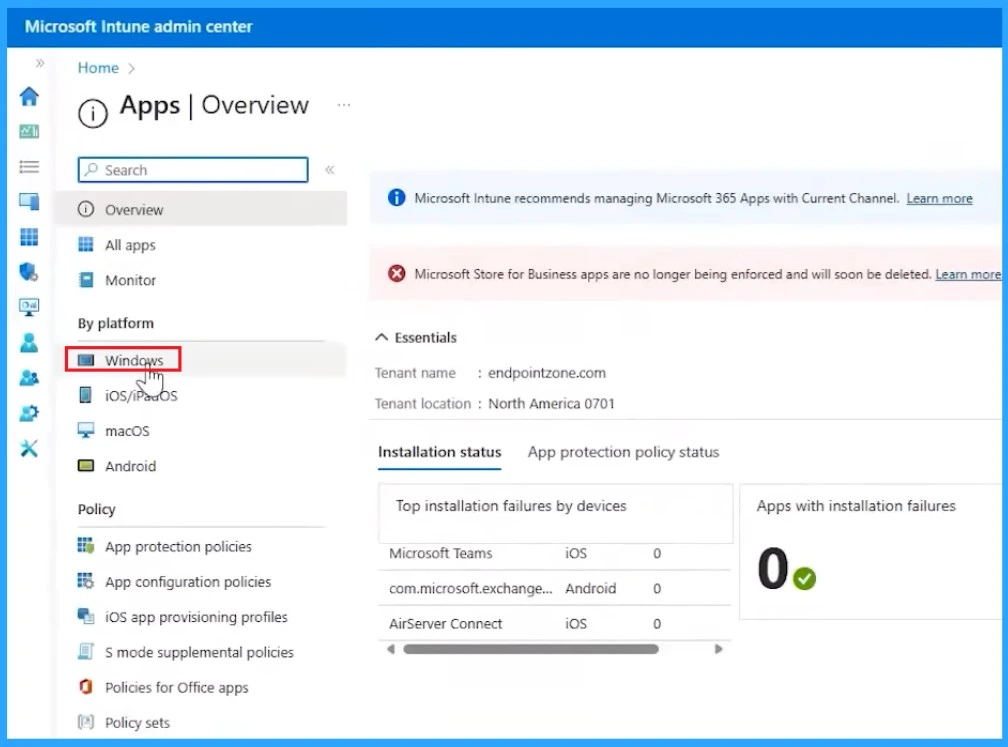
Afterwards, you will get the Windows app section (currently only supported in Windows) on the Add and select application type.
- Click on the + Add button to add a new app from the Intune enterprise app catalog
- You can see the Windows catalogue app(Win32) from the In-app types and click on that.
- Click on the select.
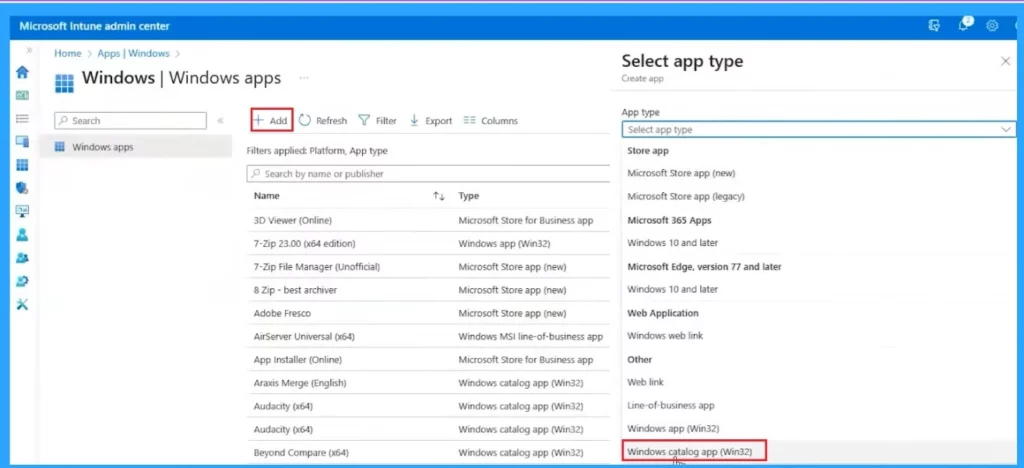
Deploy Windows Catalog App type using Intune Enterprise Application Catalog
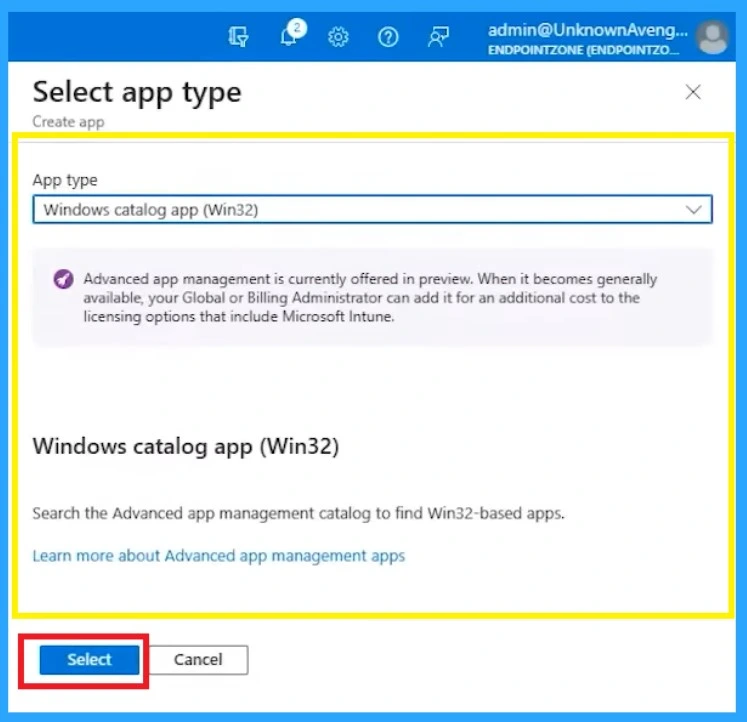
From the Select App type section, you will get the details about the selected app type called Windows Catalog App (Win32).
There is a note here ”Advanced app management is currently in preview. When it is available, your global or billing administrator can add it for an additional cost to the licensing options included in Microsoft Intune.”
- Click on the Select button to continue
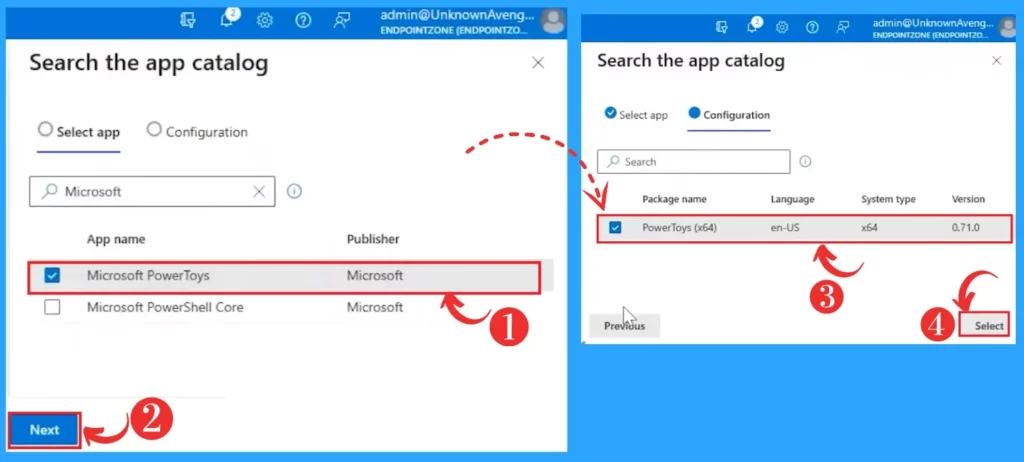
In another step, you can Search the Windows app (Win32) Catalog. You will get a pop catalog window on the right side when you click on that option. Here you can see the list of applications and you can Search the App Catalogue.
- In the Select App section, Search Microsoft
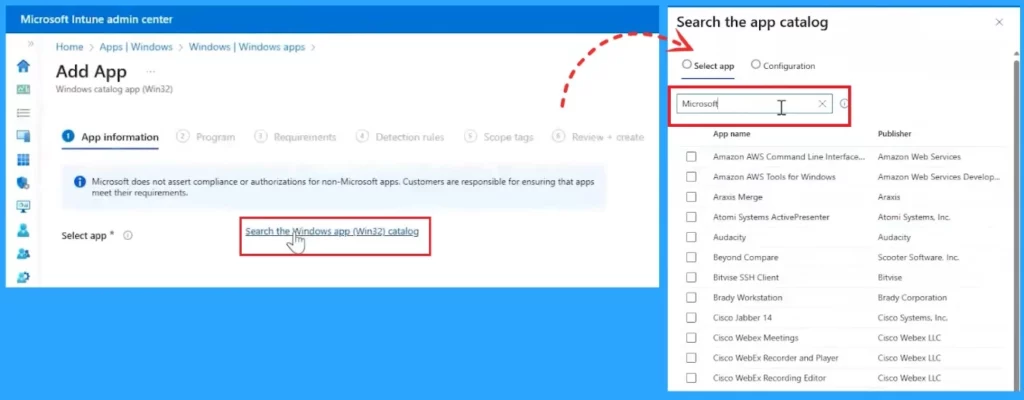
After that, you can deploy any app of your choice from the Intune Enterprise App catalog for Windows. In this example – Microsoft PowerToys is the application that is selected.
- Click on the Next option to get another window for searching the App catalog.
- Click on the Power Toy 64bit version.
- Click on the Next button.
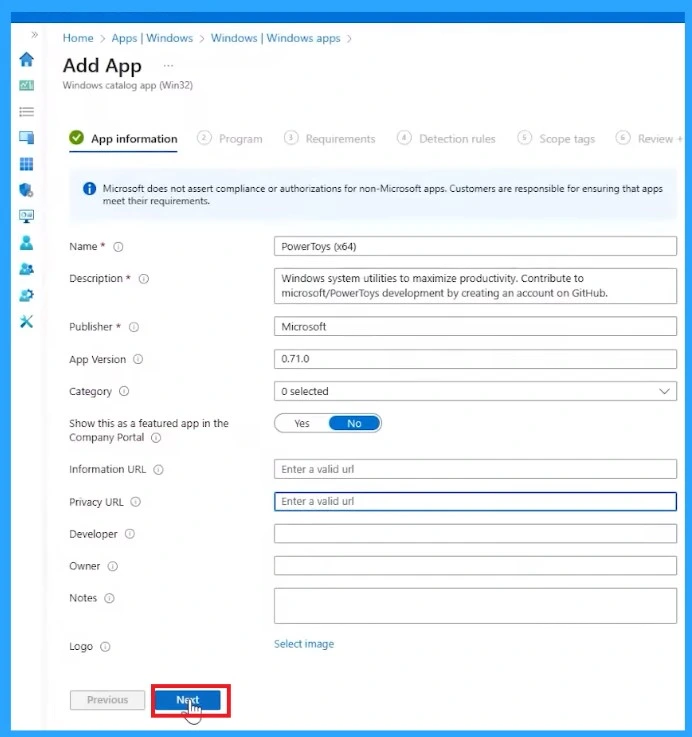
You will get the App information window now (metadata). Here you will get all the details about the Name description, publisher version etc., all data are pre-filled. You can edit any of the details if you want.
- Click on the Next button to continue
| Steps for the Windows Catalog App |
|---|
| Step 1. App Information |
| Step 2. Program |
| Step 3. Requirements |
| Step 4. Detection Rules |
| Step 5. Scope tags |
| Step 6. Review + create |
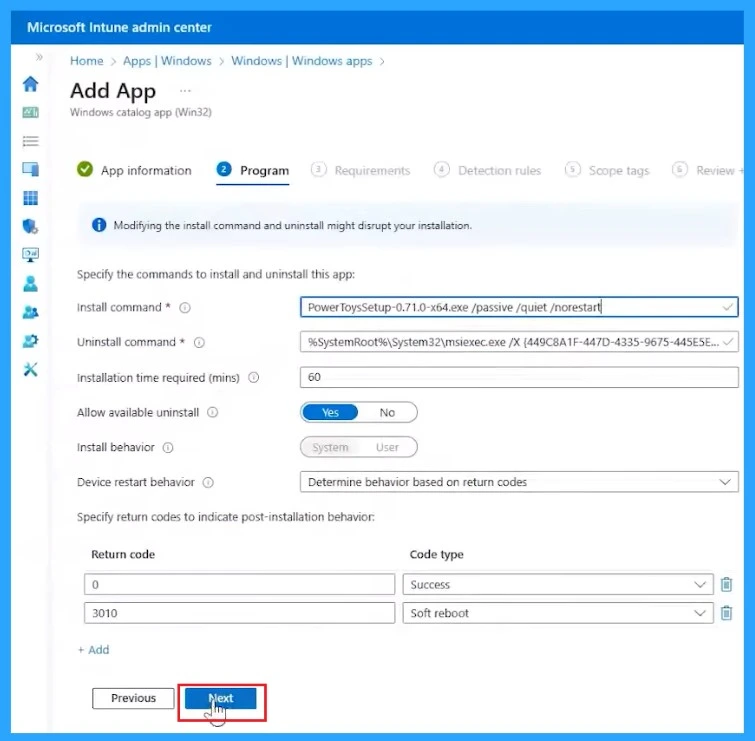
On the next page of the Windows Catalog App (win32), Program, you will have options to configure/change command lines.
Here you will get the install and uninstall commands. You can easily edit those commands. Microsoft supports uninstall and installation options from the company portal app. If you change those Microsoft test installs, uninstall work.
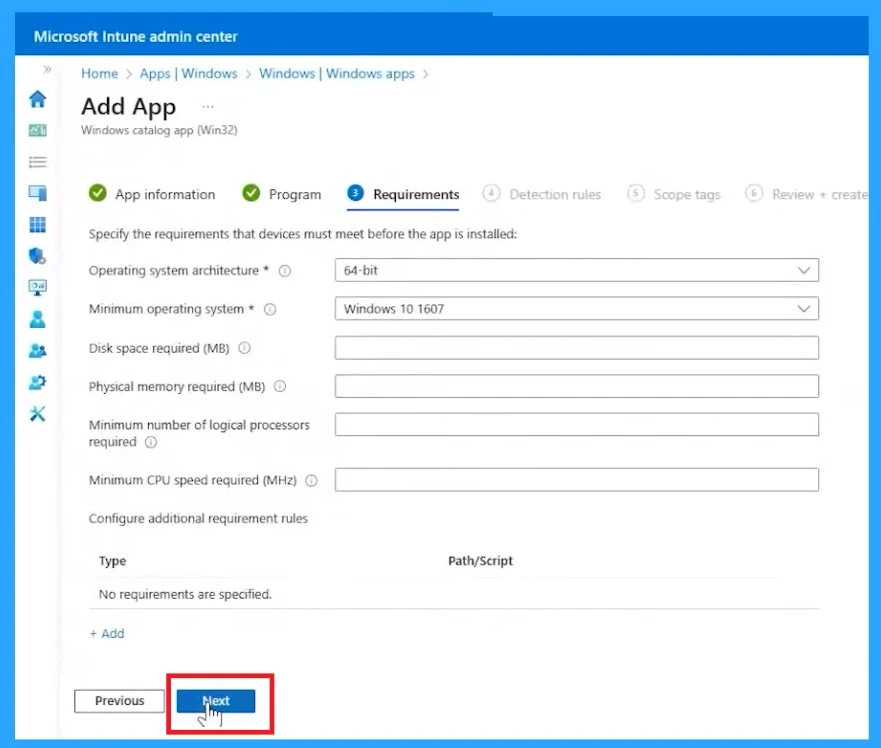
The Next step is Requirements. Requirements are the conditions that the application needs to run properly on the device.
Here it shows how the requirements can be specified in the application catalog, such as the operating system, the disk space, the memory, and the processor.
- Click on the Next
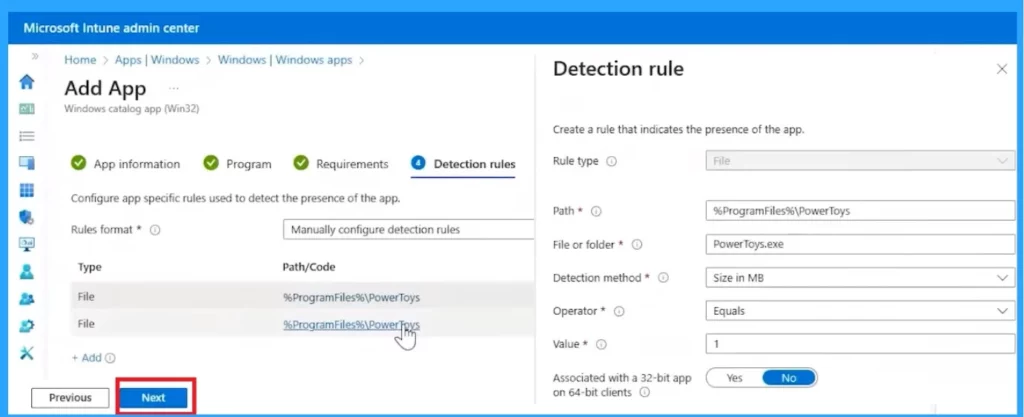
The Next Step is the Detection Rule. The Detection rule is a way to determine whether an application is installed on a device. The detection rule is also part of the metadata that Microsoft provides for the applications in the catalog.
In the detection rule, you can click on the file path to see the detection method completely filled with the 2 file paths. It will detect if that application is there or not.
- Click On the Next
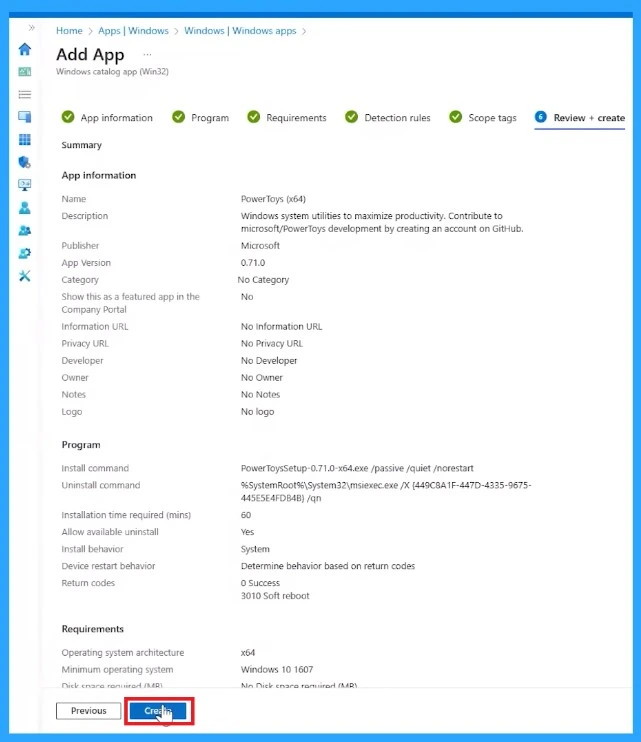
After the Scop tag step, Click on Review +create. In this step, you will get the details of all the steps like App information, program, Requirements etc. Click on the Next Option.
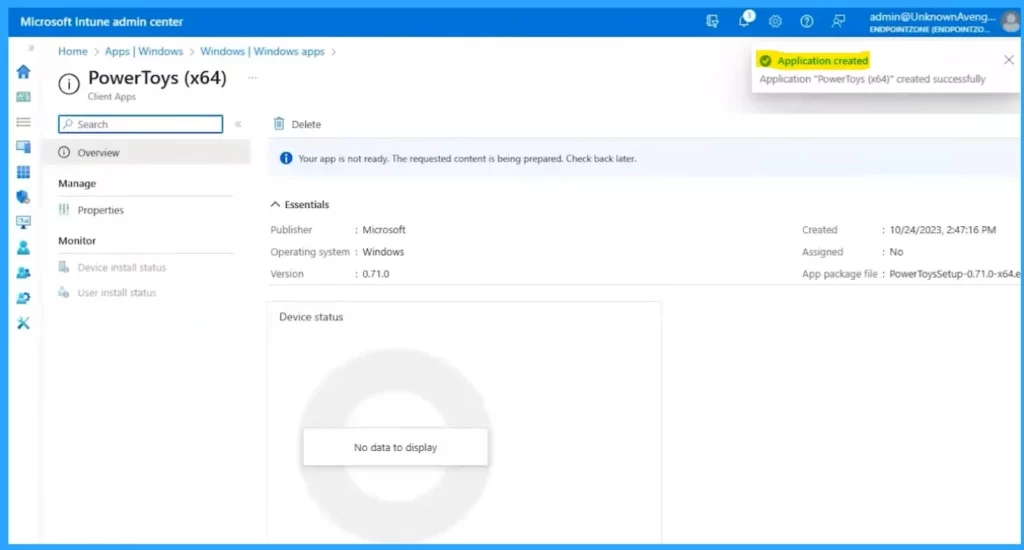
After that, the application is created. If you were uploading this application, you would still receive this banner, the app is not ready. Microsoft provides you with the application and binary while you wait for the upload.
The binary is moving from our Microsoft storage to your storage. You can also get this binary from the PowerToys website.
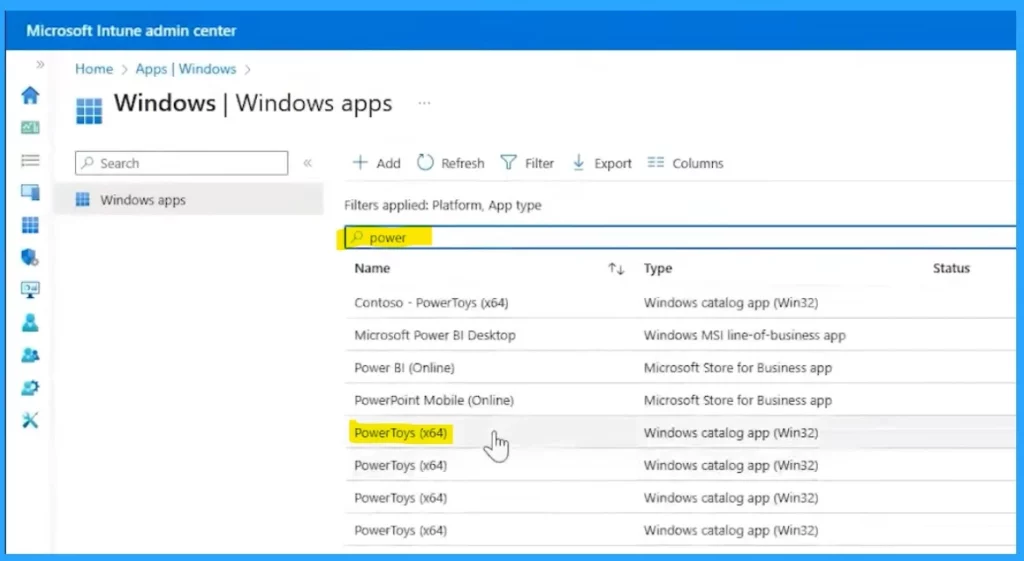
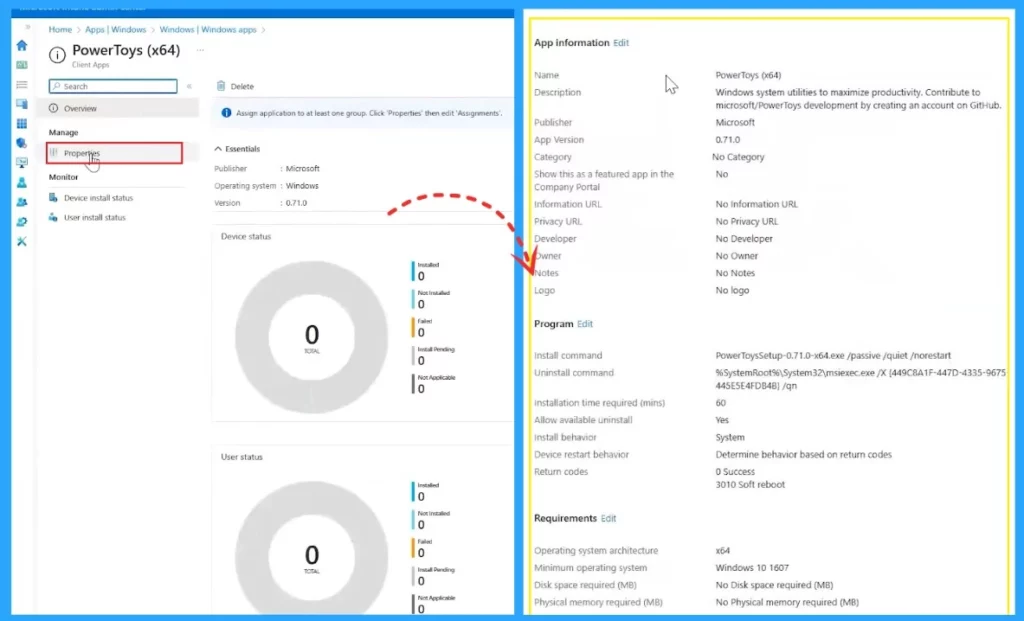
The main foundation is the Win32 app. When you go to the properties, you can not only assign it but there are filters and delivery optimization for everything in Win32. If you want to assign that choose any of the Powertoys.
- Click on the Windows app in the Microsoft Intune admin center
- Select the filters applied and search for Powertoy
- Select any of the Powertoys(x64)
In the properties, you can see all those things that you can do to customise that installation, everything you can see in the Win32. In the Properties, you will find the App information, Program and requirements and all the step details.
Video – Navigate the future of Enterprise Application Management with Intune
We are on WhatsApp. To get the latest step-by-step guides and news updates, Join our Channel. Click here – HTMD WhatsApp.
Author
Krishna. R is a computer enthusiast. She loves writing on Windows 11 and related technologies. She likes to share her knowledge, quick tips, and tricks with Windows 11 or Windows 10 with the community.


Discussion