






How to Create App Protection Policies for Windows MAM Devices
Let’s learn How to Create App Protection Policies for Windows MAM Devices. App protection Policies for Windows are used to protect the data using Intune. Intune MAM provides health checks for Unmanaged devices using CA and App Configuration policies.
Intune Admins can easily create an App protection policy to protect the organization’s data. Mobile Application Management (MAM) allows you to deploy apps without enrollment. You can easily create App protection policies for Windows devices using Intune MAM.
This blog post helps you easily create policies for Protecting Apps. Using this policy, you can protect your App data, know the device’s condition, etc. Conditional Access Policies for Windows MAM Devices are important to protect these types of Windows devices.
Health checks allow you to specify the criteria that must be met before your data can be accessed and to allow you to specify the automated action warn block or wipe that occurs if the health check fails. Microsoft shared detailed information on Windows MAM-related App protection policy with the latest Technical Takeoff session by Danniel Emerson.

- Why Android Business Apps Failed After Login On Intune Managed Devices
- Intune create Conditional Access Policies for Windows MAM Devices
- Multiple Identity Support for Intune MAM Policies
- Intune MAM for Personal Windows Devices is now Generally Available
What are the Advantages of App Protection Policies?
1. It allows to Protect the Company data at the app level
2. Helps to protect company data without touching personal data
3. Helps to protect data on both managed and unmanaged devices
Intune MAM Create App Protection Policies for Windows Devices
You can easily create App Protection Policies for Windows Devices via Microsoft Intune Admin Center. By protecting the app data you can increase the productivity of your organization.
| How to Create an App Protection Policy |
|---|
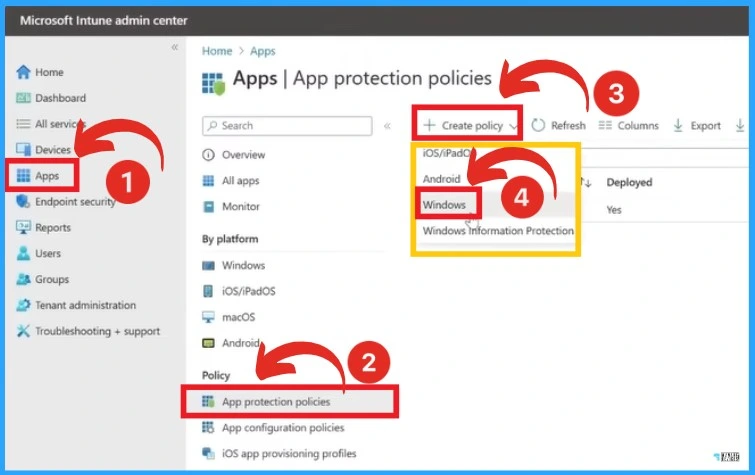
| Open Microsoft Intune Admin Center |
| Select the App section on the left side of the Microsoft Intune Admin Center window |
| Select the App Protection Policies option |
| Click on the Create Policy option |
| Select the Windows option from Create Policy |
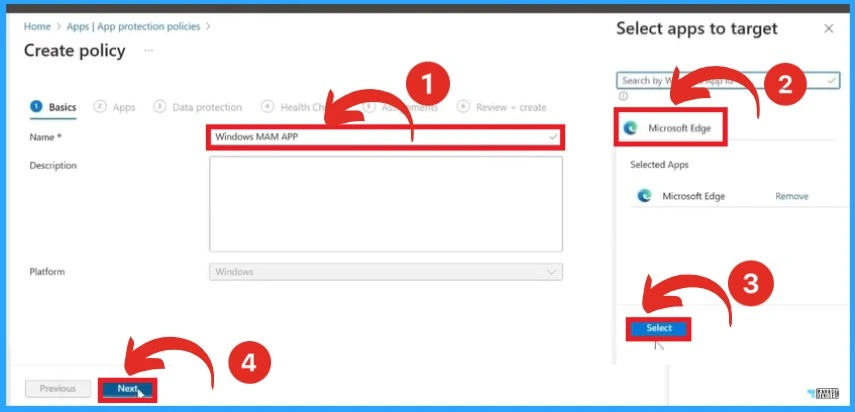
After selecting the Windows option for creating a Policy, name the policy. Here, the (Windows MAM app) is given as the name of the policy. After that, select Microsoft Edge as the target app and click on the Select option. Then click on the Next option from the below window.
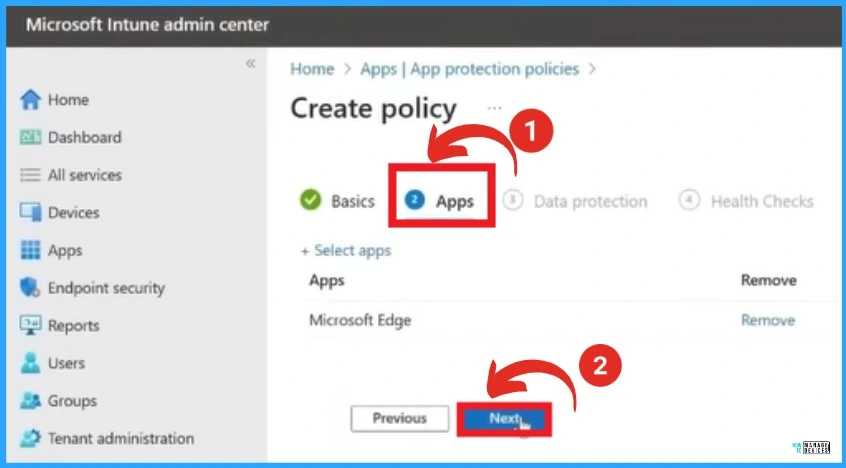
After that, Select the Apps option and click on the Next option from the below window. This screenshot below shows Microsoft Edge is shown as the selected app.
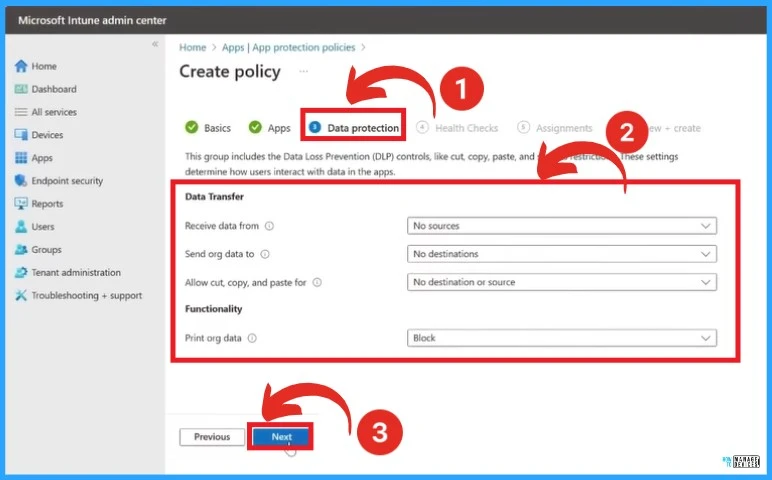
In the below window, the Data Protection option is selected. We support a simplified data container for Windows where organization data sharing is allowed or blocked from the protected application.
This demo will block all incoming and outgoing sharing clipboard usage and printing. Select the Next option after selecting the appropriate Data transfer and functionality options.
Health Checks in App Protection Policy
The Health check is an important section in the App Protection Policy. Health checks we support both app condition checks, such as how long the app can go offline without a policy check-in, and device checks.
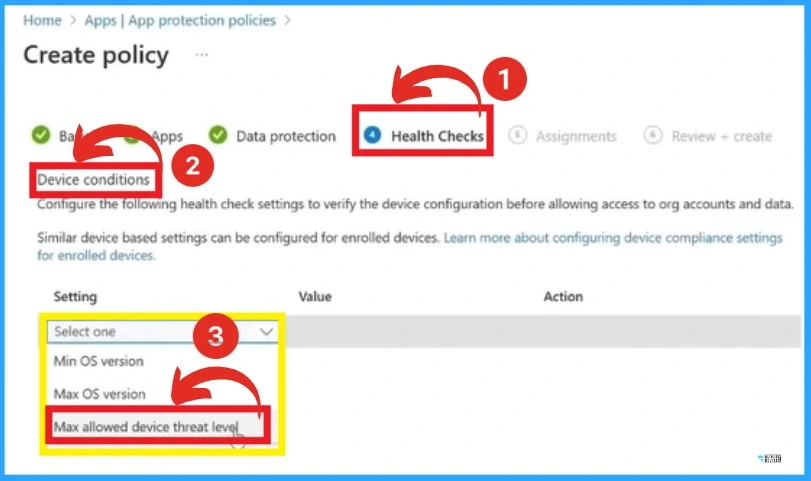
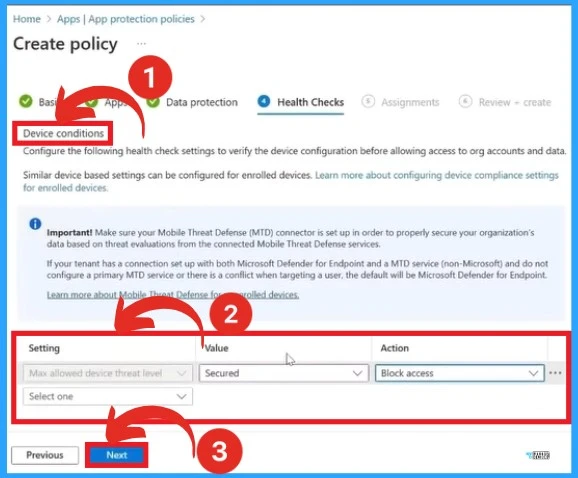
The Device conditions include the OS version for the demo. They will configure the maximum allowed device threat level triggered by the client health data from the Windows Security Centre. If the check fails to report the device is secure, it will block access.
- Click the Next button
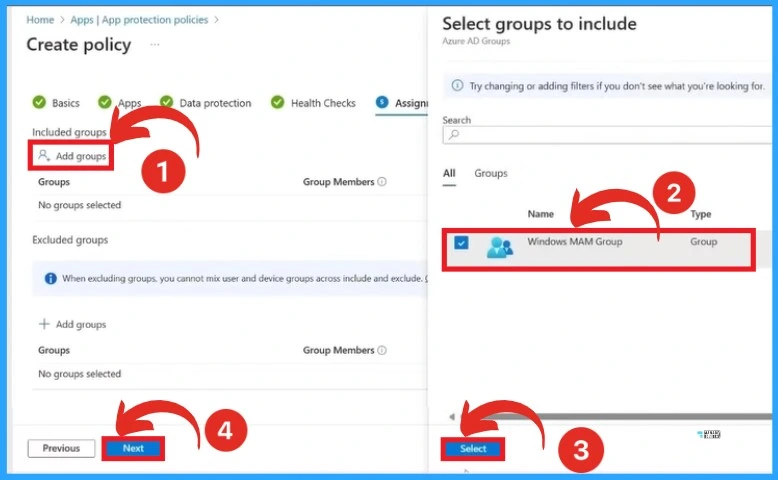
After that, you will need to Target user groups for the demo to Target the policy. Here choose the same group targeted with a conditional access policy, and clicking Create will allow you to save and deploy the policy to your users.
- Select the Add Groups option
- Select Windows MAM Groups to include
- Click on the Select option
- Click on the Next option
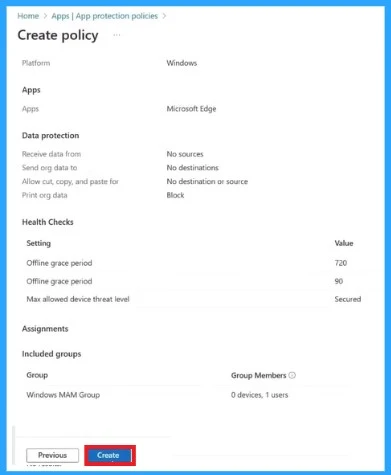
After clicking on the Next option, another window will appear. In this section, you can see the platform, Data protection, Health Checks, and Assignments of the policy. Click on the Create option to Create the policy.
We are on WhatsApp. To get the latest step-by-step guides and news updates, Join our Channel. Click here for HTMD WhatsApp.
Author
Gopika S Nair is a computer enthusiast. She loves writing on Windows 11 and related technologies. She is here to share quick tips and tricks with Windows 11 or Windows 10 users. She is Post Graduate Diploma Holder in Computer Science.


Is there a solution to only apply the windows app protection policy to unmanaged windows devices. The filter for windows apps doesn’t have the same option as Android and iOS to create the following query:
(app.deviceManagementType -eq “Managed”)