






How to Deploy Dell Bios Firmware Updates Via SCUP and SCCM CB Configuration Manager ConfigMgr
How to Deploy Dell Bios Firmware Updates Via SCUP and SCCM CB Configuration Manager. SCUP 2017 has four 3rd party software update catalogs.
Dell, HP, Fujitsu, and Adobe are the four third-party software update catalog providers in the SCUP 2017 Preview version.
In previous blog posts and video tutorials, I explained the installation, configuration, and integration process of SCUP with SCCM.
This post will show how “How to Deploy Dell Bios Firmware Updates Via SCUP and SCCM CB“. We must follow the same process for publishing HP and Fujitsu software updates.

Table of Contents
- How to Install, Configure and Integrate with SCUP 2017 and SCCM CB
- How to Publish 3rd Party Abode Acrobat Patches via SCCM SCUP 2017
- SCCM Third-Party Software Updates SCUP Troubleshooting Part-2
- Learn How to Upgrade SCUP Environment SCCM System Center Updates Publisher
How to Publish Dell BIOS Firmware Updates Via SCUP and SCCM CB
Dell Software updates Catalog (Bios, Drivers and Applications, Firmware) are added to the SCUP console. Click on the Dell Folder and expand the Dell folder to see subfolders.
How to Add Dell Software Update Catalog to SCUP
Open the SCUP 2017 console. Navigate to “Update Workspace—Overview” and click Add Partner Software Updates catalogs. Select Dell and click on the Add button.
This will add the Dell updates to the SCUP database. Dell updates include Dell Bios, Drivers, Applications, and Firmware updates.
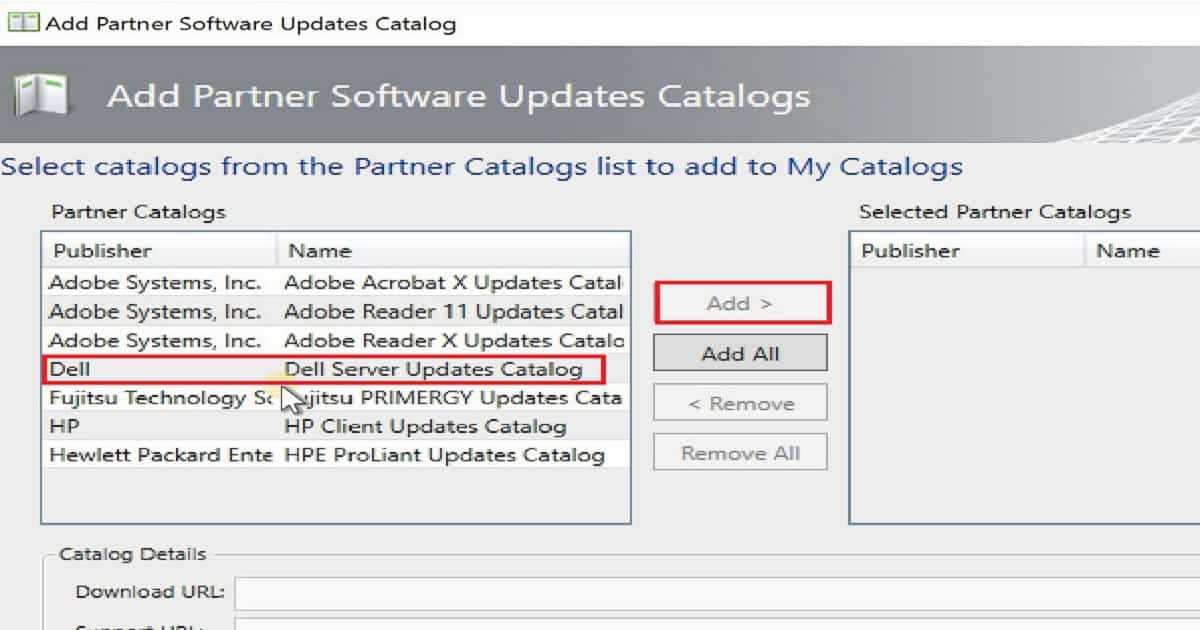
How Do you Publish Dell Software Updates to SCUP, WSUS, and SCCM CB?
Dell Software updates Catalog (Bios, Drivers and Applications, Firmware) are added to the SCUP console. Click on Dell Folder. Expand the Dell folder to see subfolders. Select the updates from the right pane of the SCUP console that you want to publish to SCCM CB.
Specify the publish option—There are three options while posting updates: Automatic, Full content, and Metadata Only. I usually recommend selecting the Automatic option. The reasons for choosing the Automatic option are given below. This has been shown in the video here.
Click Automatic to all updates publisher to query SCCM to determine whether the selected software updates are published with full content or only metadata.
In this mode, software updates are only published when they meet the client request count and package source size thresholds specified on the SCCM server page of the Options dialog box. Automatic is available only when SCCM integration is selected on the SCCM server page.
Select the checkbox at the bottom of the SCUP publish wizard. When published software updates have not changed, but their certificate has changed, this checkbox will sign all software updates with a new publishing certificate.

How to Select Dell Products from SUP Component Properties in SCCM? How to Deploy Dell Bios Firmware Updates Via SCUP and SCCM CB Configuration Manager ConfigMgr
Once the updates are published from the SCUP console, you can go to the SCCM CB console to configure the rest. Navigate SCCM console – \Administration\Overview\Site Configuration\Sites.
Click on Settings—Configure Site Components—Software Update point component—Properties. Go to the Products tab and Select Dell, Bios, Drivers and Applications, and Firmware. This is the same thing I showed in the video.
| Dell |
|---|
| Bios |
| Drivers and Applications |
| Firmware |
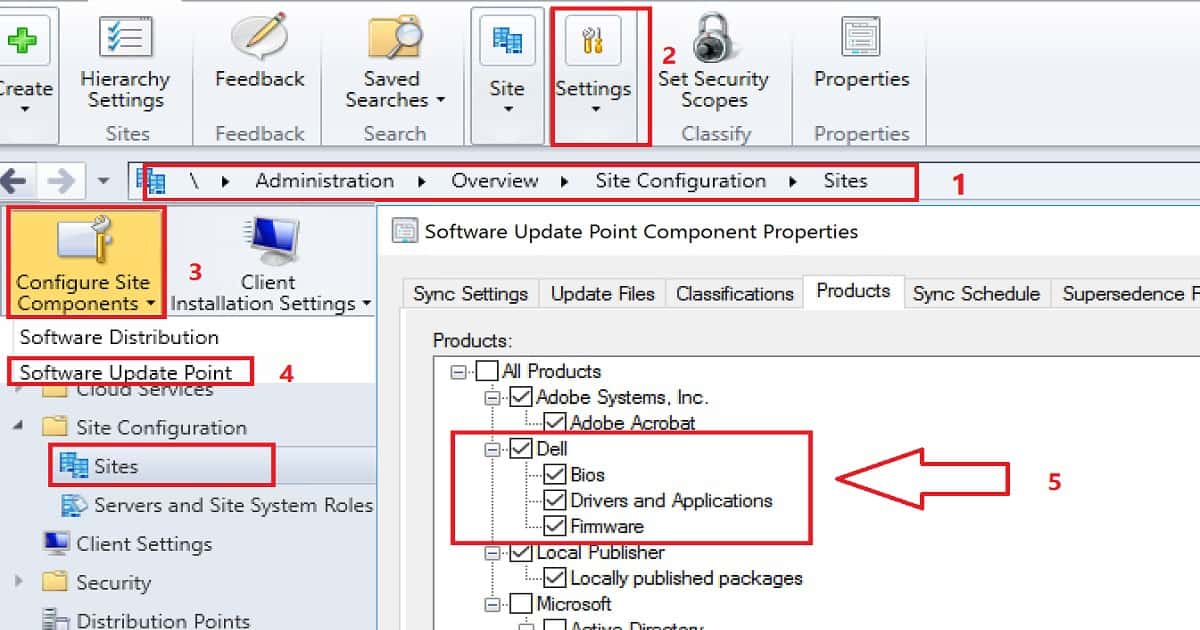
Once the appropriate products are selected, navigate \Software Library\ Overview\Software Updates in the SCCM CB console. Right-click on the Software Updates node & select Synchronize Software Updates.
This will help sync and get the Dell updates to the SCCM CB console. WsyncMgr.log will provide you with the details about Dell updates.
How to Deploy Dell Updates via the Software Updates Deployment Method?
In the following post, I have already blogged about the SCCM Software Update process, “Step by Step Guide SCCM ConfigMgr CB Software Update Patching Process“. Deploying Dell software updates to Windows 10 devices is similar to any other software update deployment.
As shown in the video, select all the Dell Bios and Firmware updates you want to deploy from the All Software Updates node. Once selected, right-click those updates and click on Deploy.
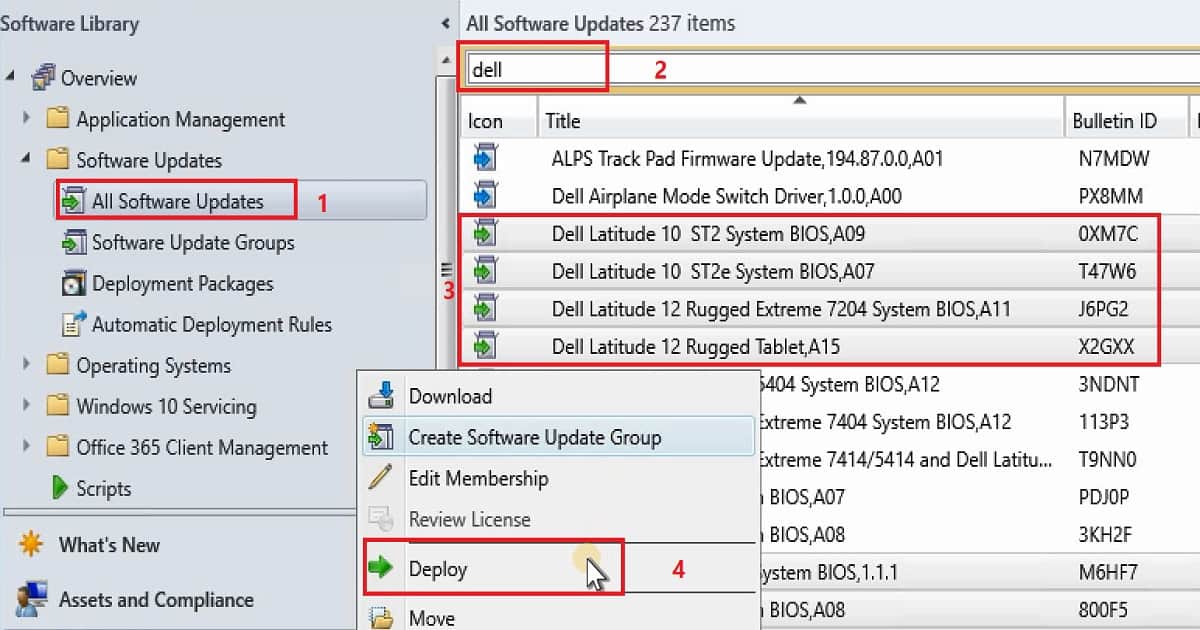
For Dell software updates, you must provide the Deployment name and software update group name. On the next screen, select the collection name from the list.
The members of that collection will get the Dell software updates deployment. Schedule the deployment and make sure you set a good user experience.
Also, provide the new Dell software update package name and the shared folder location to store the Dell software updates. You also need to select the DPs to distribute this package.
Example of the Dell Software Update Deployment via SCUP and SCCM – How to Deploy Dell Bios Firmware Updates Via SCUP and SCCM CB Configuration Manager ConfigMgr
It would be best to have an internet connection to the server to download the Dell updated from Dell. Otherwise, you must have already downloaded the binaries from Dell and stored them in a shared location, as shown in the video here.
Do you want to download these Dell software updates in different languages? If so, you can select other languages on the Language Selection page.
• Dell Latitude 10 ST2 System BIOS,A09 0XM7C(Article ID)
• Dell Latitude 10 ST2e System BIOS,A07 T47W6(Article ID)
• Dell Latitude 12 Rugged Extreme 7204 System BIOS,A11 J6PG2(Article ID)
• Dell Latitude 12 Rugged Tablet,A15 X2GXX(Article ID)
• Dell Latitude 3180/3189 System BIOS,1.1.1 M6HF7(Article ID)
• Dell Latitude 3330 System BIOS,A08 800F5(Article ID)
• Dell Latitude 3340 System BIOS,A13 48CH6(Article ID)
• Dell Latitude 3350 System BIOS,A09 0468G(Article ID)
 Success: General:
• Deployment Name: 3rd Party Updates SCUP - Dell Software Updates
• Collection: All Desktop and Server Clients
 Deployment Settings:
• Send wake-up packets: No
• Verbosity Level: Only success and error messages
 Scheduling:
• Deployment schedules will be based on: Client local time
• Available to target computers: 23-09-2017 07:25:00
• Deadline for software update installation: 30-09-2017 07:23:00
• Delayed enforcement on deployment: False
 User Experience:
• User Notifications: Display in Software Center and show all notifications
• Install software updates outside the maintenance window when deadline is reached: No
• Restart system outside the maintenance window when deadline is reached: Suppressed
• If a restart is required it will be: Allowed
• Commit changes at deadline or during a maintenance window (requires restarts): Yes
• If any update in this deployment requires a system restart, run updates deployment evaluation cycle after restart: No
 Alerts:
• On software update installation error generate a Window Event: No
• Disable Window Event while software updates install: No
 Download Settings:
• Computers can retrieve content from remote distribution points: No
• Download and install software updates from the fallback content source location: Yes
Package:
 Success: The software updates were placed in a new package:
• 3rd Party Updates SCUP - Dell Software Updates
 Success: Content (1):
• SCCMTP1.INTUNE.COM
Software updates downloaded from the internet
 Success: Dell Latitude 10 ST2 System BIOS,A09
 Success: Dell Latitude 10 ST2e System BIOS,A07
 Success: Dell Latitude 12 Rugged Extreme 7204 System BIOS,A11
 Success: Dell Latitude 12 Rugged Tablet,A15
 Success: Dell Latitude 3180/3189 System BIOS,1.1.1
 Success: Dell Latitude 3330 System BIOS,A08
 Success: Dell Latitude 3340 System BIOS,A13
 Success: Dell Latitude 3350 System BIOS,A09
Language Selection:
 English
References
- SCCM + SCUP Wiki – https://blogs.technet.microsoft.com/jasonlewis/
- System Center Updates Publisher June 2017 Preview is now available https://blogs.technet.microsoft.com/enterprisemobility/2017/07/03/system-center-updates-publisher-june-2017-preview-is-now-available/
- System Center Updates Publisher https://docs.microsoft.com/en-us/sccm/sum/tools/updates-publisher/
We are on WhatsApp now. To get the latest step-by-step guides, news, and updates, Join our Channel. Click here. HTMD WhatsApp.
Author
Anoop C Nair is Microsoft MVP! He is a Device Management Admin with more than 20 years of experience (calculation done in 2021) in IT. He is a Blogger, Speaker, and Local User Group HTMD Community leader. His main focus is Device Management technologies like SCCM 2012, Current Branch, and Intune. He writes about ConfigMgr, Windows 11, Windows 10, Azure AD, Microsoft Intune, Windows 365, AVD, etc.




Hi, in this post (Video) it is not defined, how the download into SCCM was maked. the publishes updates in the step before includes only the metadata. How is the way to get the Content from the updates into SCCM
StaffIt’s very well there. The content is downloaded as part DEPLOY process explained “Select all the Dell Bios and Firmware updates you want to deploy from All Software Updates node as I shown in the video here. Once selected, right click those updates and click on Deploy.”
How do you handle bitlockered? Everytime we attempt to update a bios and not pause bitlocker. We have to re-enter or reset the bitlocker password.
Bit Locker is one of the major flaws of this method. Having an admin BIOS password is another.
That is why more admins move to task sequences out of desperation of trying to handle any eventuality.
Hi ANoop ,
Unable to see dell firm ware update on software center in client machine , am i missed any configuration from client side.
Nice article, but needs to reference that the Dell OpenManage Inventory Agent must be installed on the clients, in order for the Dell SystemInventoryAgent (WMI Class) to be created, which is how the SCUP Dell Driver files are detected. Without Dell OMIA, all the drivers one would publish with have 0 required and 0 installed.
https://www.dell.com/community/Optiplex-Desktops/Managing-drivers-for-Dell-with-SCCM/td-p/7897588