






Intune Allow or Block Accounts to Add in Android Personally Owned Work Profile
Let’s learn how you can allow or block Accounts to Add in Android Personally Owned Work Profile using Intune. Admins can manage whether users can add or remove work profile accounts in the Settings app. This feature is crucial for organizations to use their personal devices for work purposes while ensuring security.
Android Personally Owned Work Profiles provides the capability to either allow or block specific user accounts from being added. When administrators choose to allow certain accounts, they are essentially permitting users to add those accounts to their Android Work Profiles.
This flexibility is beneficial for employees who may need to access work-related resources, such as emails or documents, from their personal devices. Note that this does not affect the accounts that are automatically added in Settings when a user enrolls, or accounts entered directly into work apps.
On the other hand, the ability to block specific accounts is a security measure that organizations can leverage to prevent unauthorized access or potential data breaches. By restricting the addition of certain accounts, administrators can minimize the risk of sensitive corporate information falling into the wrong hands or being accessed by individuals without the appropriate permissions.

On personally owned devices with a work profile (BYOD) and corporate owned devices with work profile (COPE), Google accounts can’t be added to the Settings app > Accounts > Work.
- Install Power BI Desktop From New Microsoft Store In Intune
- Enable Disable Auto-restart Notifications For Windows Update In Windows 11
Intune Allow or Block Accounts to Add in Android Personally Owned Work Profile
Enabling the “Allow or Block Accounts to Add in Android Personally Owned Work Profile” feature in Microsoft Intune involves configuring specific settings within the Android device restriction profile. Here’s a step-by-step guide:
- Sign in to Microsoft Intune Admin Center https://intune.microsoft.com/
- Click on Devices > Android > Configuration Policies. I selected the existing configuration profile (Device Restriction) for modification.
You can check more details, you wanted to create device restriction policies from scratch, Enforcing Screen Lock For Android Devices In Intune
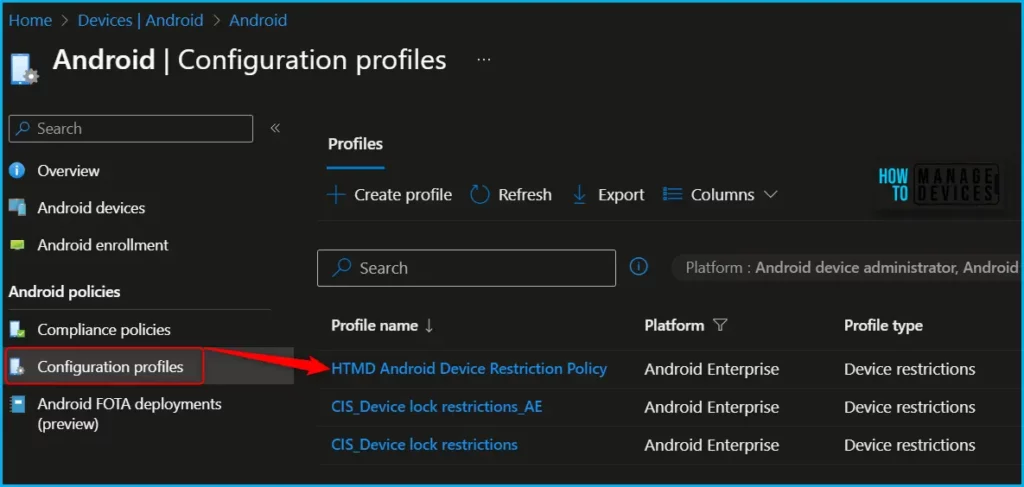
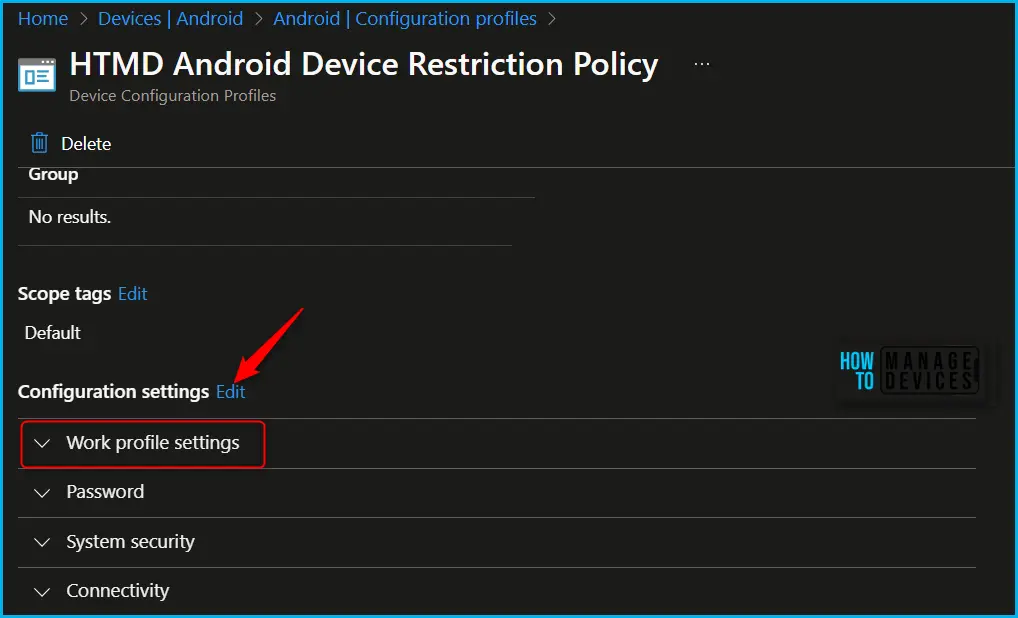
You can see the different categories of applied configuration in the configuration settings for Android Enterprise personally owned devices with a work profile (BYOD). The Work profile settings allow you to configure the policy to control work profile accounts.
Here you can review the available restriction settings under Work profile settings. You can select and customize them as per our requirements. In the Add and remove accounts, you will find three options to be configured. By default, Allowed all accounts types, except Google accounts. You can also configure to allow or block accounts types from the available options.
| Settings | Description |
|---|---|
| Add and remove accounts | This setting allows or prevents accounts from being added in the work profile, including Google accounts. |
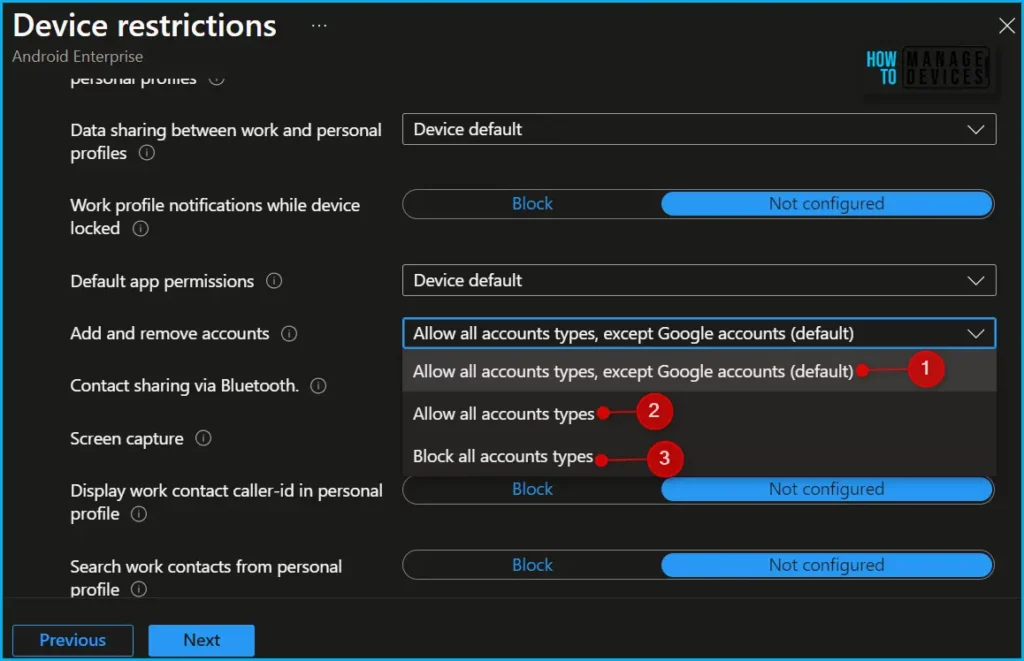
Block all account types: Prevents users from manually adding or removing accounts in the work profile. For example, when you deploy the Gmail app into the work profile, you can prevent users from adding or removing accounts in this work profile.
Allow all account types: Allows all accounts, including Google accounts. These Google accounts are blocked from installing apps from the Managed Google Play Store. You can also configure:
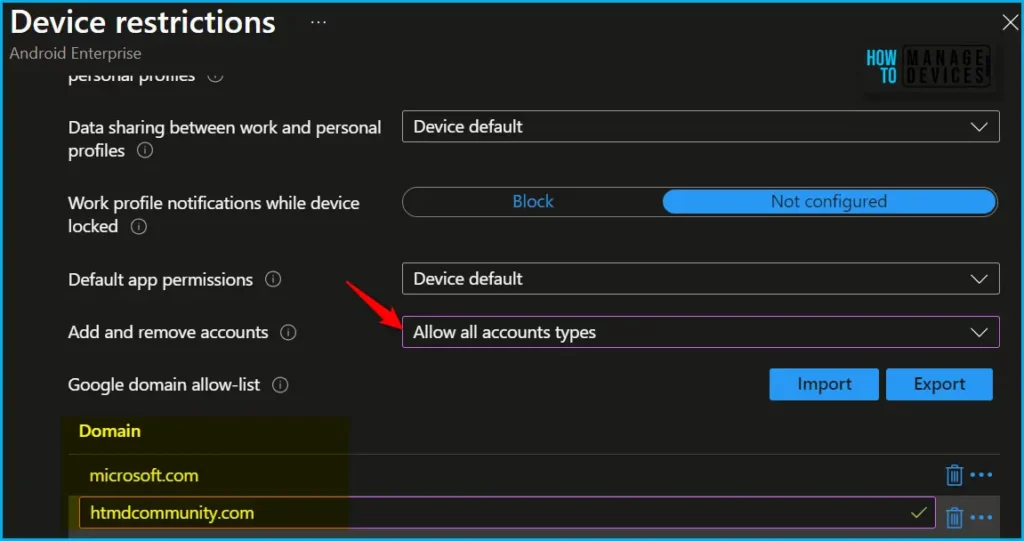
The next step is to review the setup policy and Save. A notification prompt will appear when you save the profile, Profile “HTMD Android Device Restriction Policy” saved successfully.
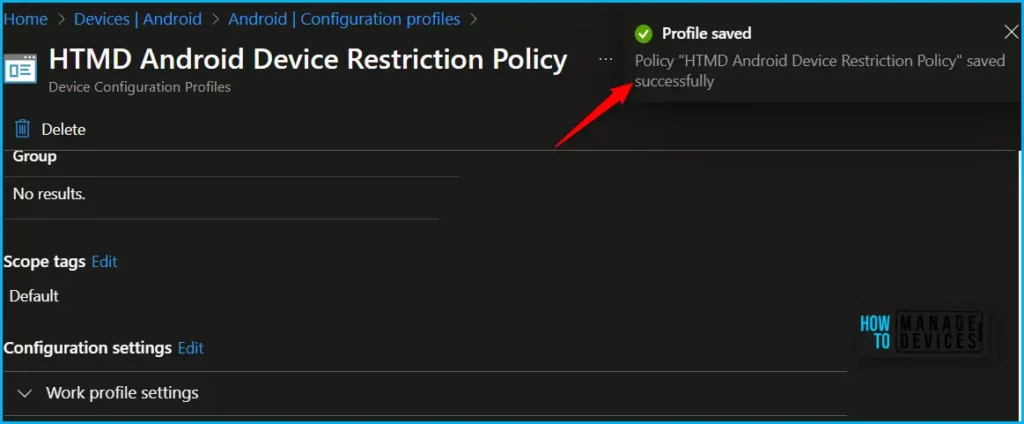
Once the configuration is applied to the device, based on the specified settings, you either can continue using the account inside or completely block adding the account. On personally owned devices with a work profile, Google accounts can’t be added to the Settings app > Accounts > Work.
We are on WhatsApp. To get the latest step-by-step guides and news updates, Join our Channel. Click here –HTMD WhatsApp.
Author
About Author – Jitesh, Microsoft MVP, has over six years of working experience in the IT Industry. He writes and shares his experiences related to Microsoft device management technologies and IT Infrastructure management. His primary focus is Windows 10/11 Deployment solution with Configuration Manager, Microsoft Deployment Toolkit (MDT), and Microsoft Intune.
Discussion