






Intune Audit Security Group Management Policy
This article is written to take you through implementing the Intune Audit Security Group Management Policy. We’ll use Intune’s Settings Catalog to enforce this policy, emphasizing a practical, hands-on approach to make you understand the Audit Security Group Management Policy in action with Intune.
Audit Security Group Management Policy setting enables the auditing of events related to modifications in security groups, including the creation, alteration, or deletion of security groups, as well as the addition or removal of members from a security group and changes in the group type.
If configured, this policy setting triggers an audit event when an attempt is made to modify a security group. Successful attempts are recorded as Success audits, while unsuccessful attempts are recorded as Failure audits. In the absence of configuration for this policy setting, no audit event is generated when changes occur in a security group.
This particular subcategory provides a record for each occurrence of security group management events, encompassing instances when a security group undergoes creation, modification, or deletion, as well as when members are added to or removed from a security group.

Enabling this Audit policy setting allows administrators to monitor these events, aiding in identifying potentially malicious, accidental, or authorized activities related to creating security group accounts. Events falling under this subcategory include:
- 4727: A security-enabled global group was created.
- 4728: A member was added to a security-enabled global group.
- 4729: A member was removed from a security-enabled global group.
- 4730: A security-enabled global group was deleted.
- 4731: A security-enabled local group was created.
- 4732: A member was added to a security-enabled local group.
- 4733: A member was removed from a security-enabled local group.
- 4734: A security-enabled local group was deleted.
- 4735: A security-enabled local group was changed.
- 4737: A security-enabled global group was changed.
- 4754: A security-enabled universal group was created.
- 4755: A security-enabled universal group was changed.
- 4756: A member was added to a security-enabled universal group.
- 4757: A member was removed from a security-enabled universal group.
- 4758: A security-enabled universal group was deleted.
- 4764: A group’s type was changed.

Audit Security Group Management Policy
To create a Audit Security Group Management Policy, follow the steps stated below:
- Sign in to the Intune Admin Center portal https://intune.microsoft.com/.
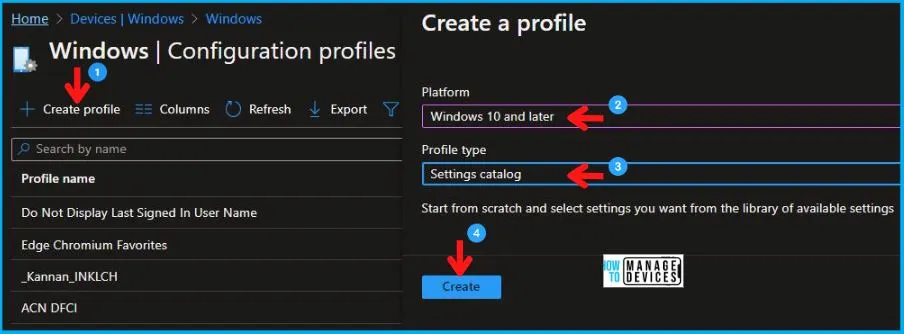
- Select Devices > Windows > Configuration profiles > Create a profile.
In Create Profile, I select Windows 10 and later in Platform, I choose the Profile Type as Settings catalog. Click on the Create button.
- SCCM ConfigMgr Software Updates Deployment Group Policy
- Deploy Intune Run All Administrators in Admin Approval Mode Policy
- How to Create Intune Audit Credential Validation Policy
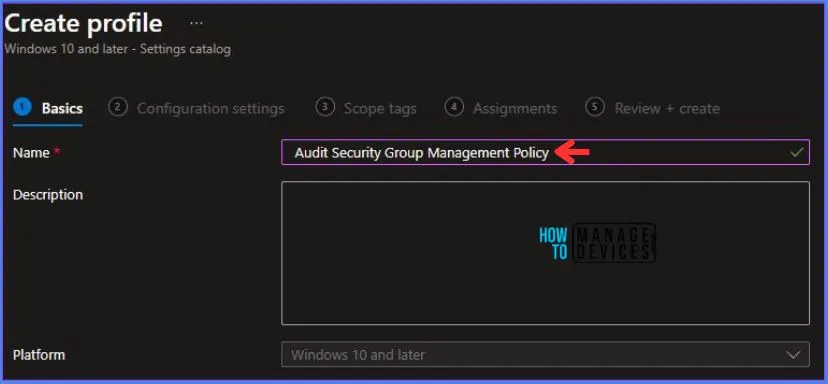
On the Basics tab pane, I provide a name for the policy as “Audit Security Group Management Policy.”
- Optionally, if you want, you can enter a policy description and proceed by selecting “Next“.
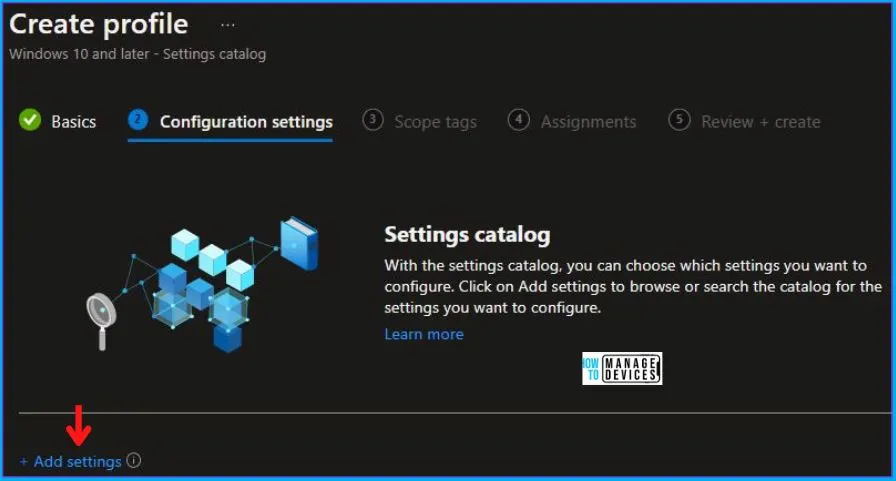
Now, in Configuration Settings, Click Add Settings to browse or search the catalog for the settings I want to configure.
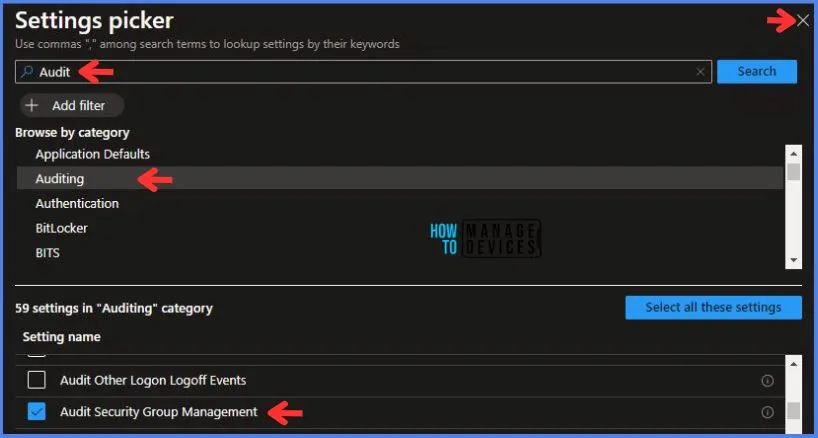
In the Settings Picker windows. I searched for the keyword Audit. I found the category Local Policies Security Options and selected this.
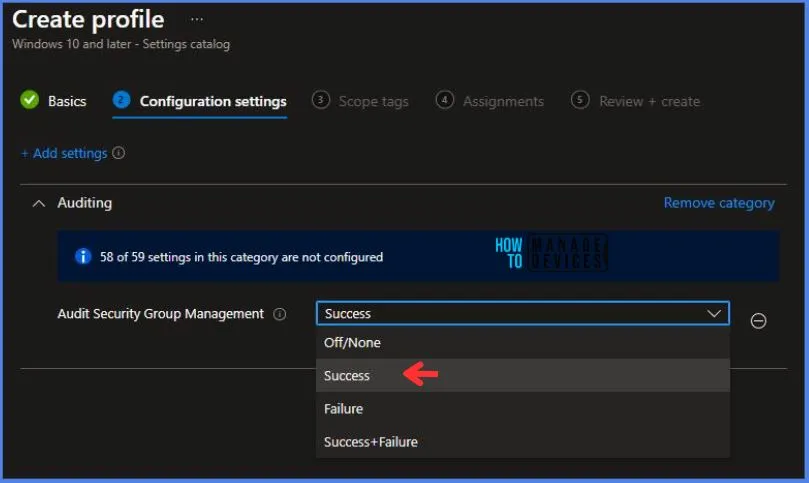
- I see the sub-category Audit Security Group Management. After selecting that, click the cross mark at the right-hand corner, as shown below.
Here in Auditing, I have set the Audit Security Group Management to Success.
Using Scope tags, you can assign a tag to filter the profile to specific IT groups. One can add scope tags (if required). More details on Intune Scope Tags Implementation Guide.
- Click Next to continue.
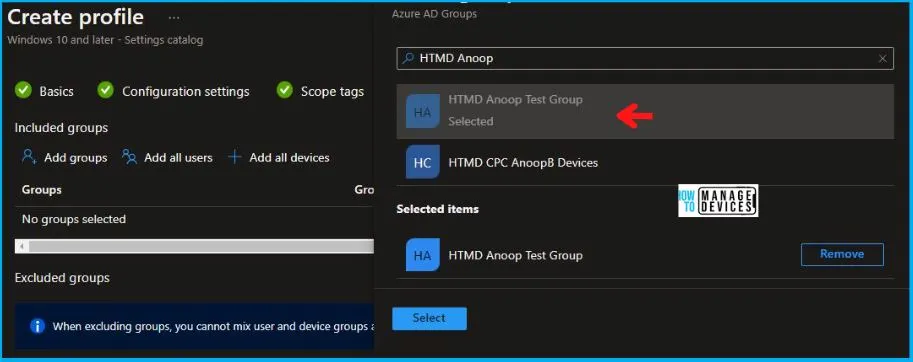
Now in Assignments, in Included Groups, you need to click on Add Groups and choose Select Groups to include one or more groups. Click Next to continue.
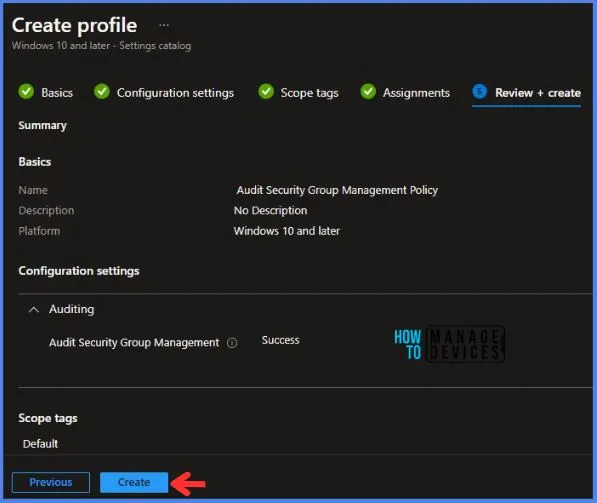
In the Review + Create tab, I review settings. After clicking on Create, changes are saved, and the profile is assigned.
After successfully creating the “Audit Security Group Management Policy,” a notification will appear in the top right-hand corner confirming the action. You can also verify the policy’s existence by navigating to the Configuration Profiles list, where it will be prominently displayed.
Your groups will receive your profile settings when the devices check in with the Intune service. The Policy applies to the device.
Intune Report for Audit Security Group Management Policy
From the Intune Portal, you can view the Intune settings catalog profile report, which provides an overview of device configuration policies and deployment status.
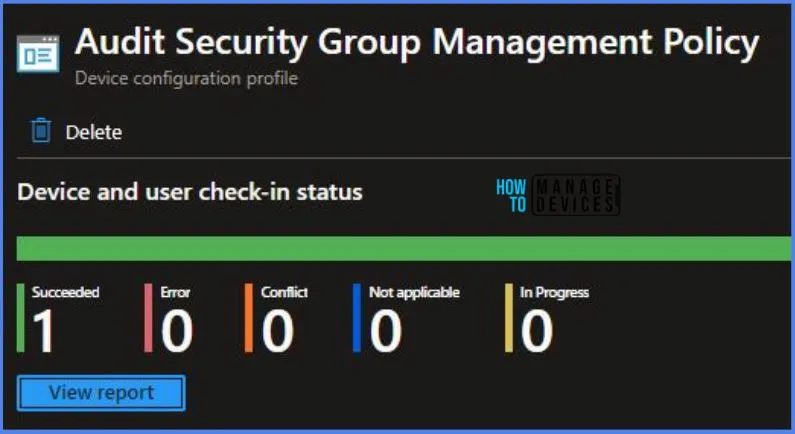
To track the assignment of the policy, you need to select the relevant policy from the Configuration Profiles list, which is the Audit Security Group Management Policy. Then, you can review the device and user check-in status to determine whether the policy has been successfully applied.
- If you require more detailed information, you can click on “View Report” to access additional insights.
Registry Key Verification – Audit Security Group Management Policy
Now we will verify whether the policy was successfully deployed or not by accessing the registry settings that will hold the group policy configurations on a specific computer. To accomplish this, you can execute “REGEDIT.exe” on the target computer and navigate to the precise registry path mentioned below, where these settings are stored.
Computer\HKEY_LOCAL_MACHINE\SOFTWARE\Microsoft\PolicyManager\providers\5B88AEF1-09E8-43BB-B144-7254ACBBDF3E\default\Device\Audit
When you navigate the above path in the Registry Editor, you will find the registry key named