






Renew Automated Device Enrollment Apple ADE Tokens in Intune
In this post, you will learn how to renew Automated Device Enrollment Apple ADE Tokens in Intune. This straightforward process allows organizations to continue effectively managing apple devices.
With the push certificate, Intune can enroll and manage iOS/iPadOS devices by pushing policies to enrolled mobile devices. Intune automatically synchronizes with Apple to access your enrollment program account.
Use the Apple Business Manager portal to create and renew your ADE token (MDM server). This token is added to Intune and communicates between Intune and Apple. The enrollment program token must be renewed annually, but it can be renewed anytime.
By ensuring the timely renewal of these tokens, organizations can maintain seamless app distribution, license management, and overall device management within iOS deployment, maximizing productivity and user experience.

To maintain the functionality and validity of your Apple ADE token or VPP token in Intune, it is important to renew, if the user who initially set up the token in Apple Business Manager undergoes a password change or leaves your organization, the token must be renewed. Failure to do so will mark the token as “invalid” within Intune.
- Enroll iOS/iPadOS Devices In Intune Step By Step Guide
- How to setup Microsoft Enterprise SSO plug-in for Apple macOS Devices using Intune
Download Apple ADE Tokens from Apple Business Manager
By ensuring the timely renewal of these tokens, you can have uninterrupted access and management of your Apple device enrollment, preserving a seamless user experience within your organization. You can renew an Apple ADE token by downloading the token from ABM by using the following steps:
- Navigate to Apple Business Manager or Apple School Manager.
- Once you log in, To download the existing token, click on the account name at the left bottom of Apple Business (or School) Manager and select Preferences.
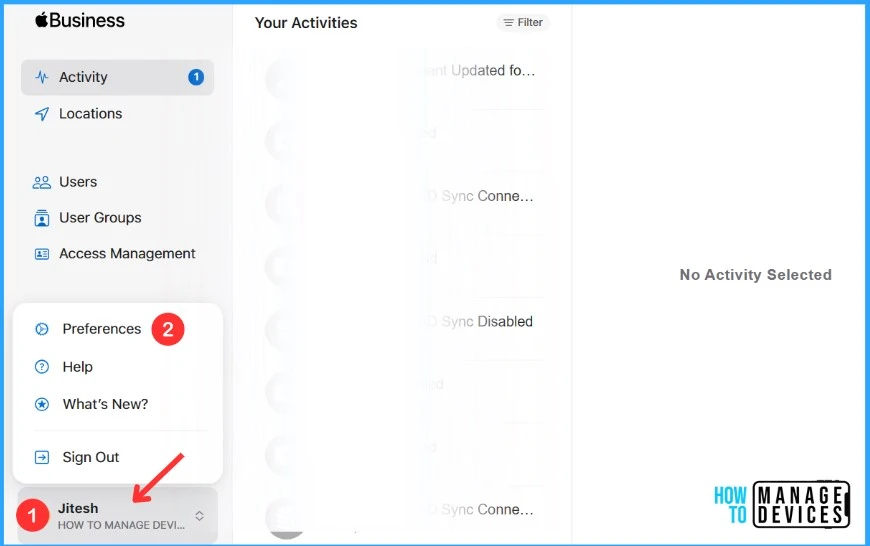
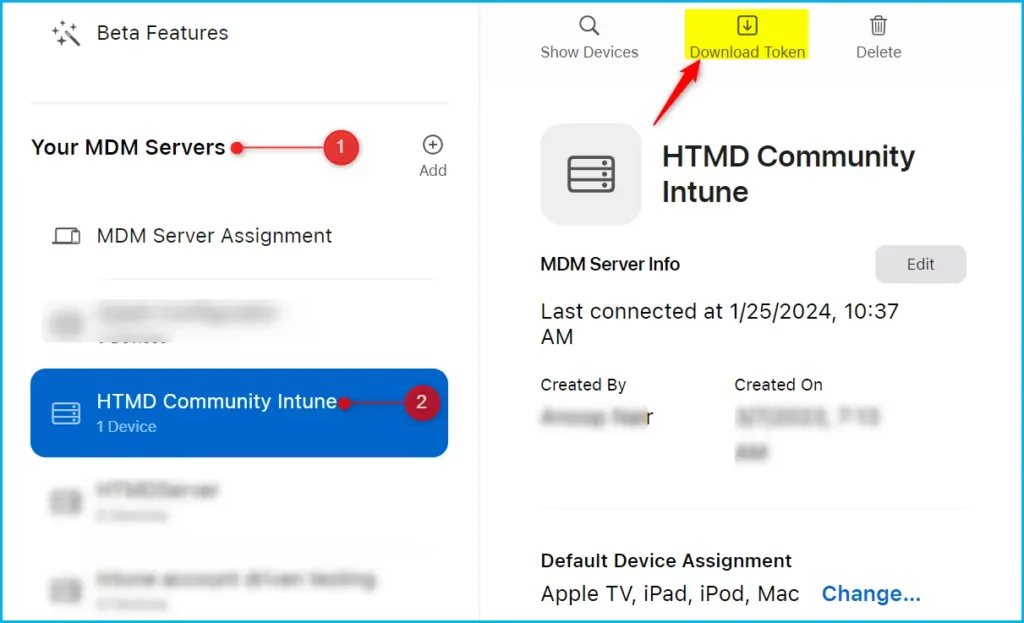
To Download Token, Navigate to Settings > MDM servers, click on “Download Token”. You will able to see the token available to download, By clicking on the Download button token will be automatically downloaded.
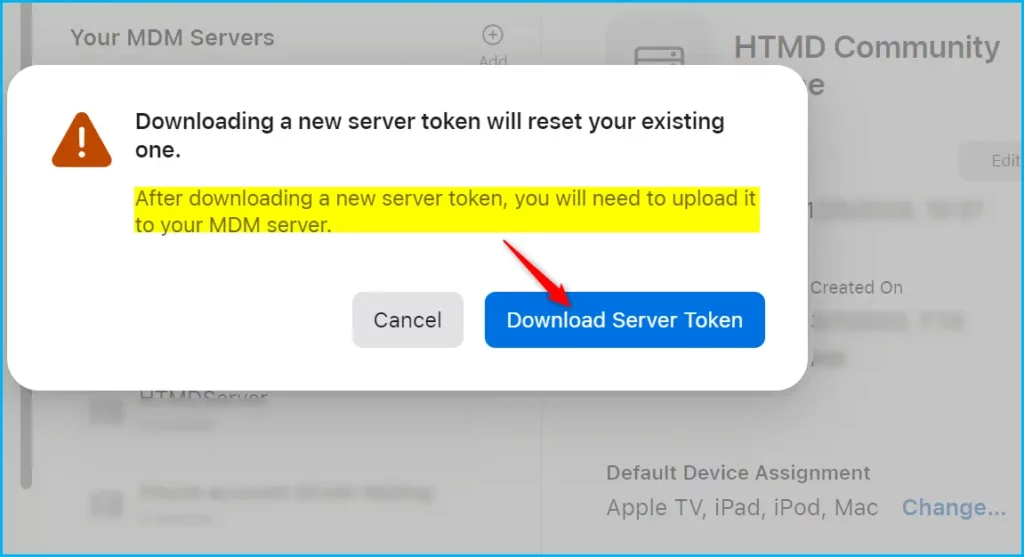
While attempting to download toke, you may be prompted with the warning message, “Downloading a new server token will reset your existing one.” Once you have downloaded a new server token, you will need to upload it to your MDM server.
How to Renew Apple ADE Tokens in Intune
To renew Apple ADE tokens in the Intune Admin center, follow these steps. Firstly, navigate to the section within the Intune Admin center where you can upload the newly downloaded token obtained from Apple Business Manager.
- Sign in to the Microsoft Intune admin center https://intune.microsoft.com/.
- Navigate to the Devices > Enrollment. Select the Apple tab. Select Enrollment Program Tokens.
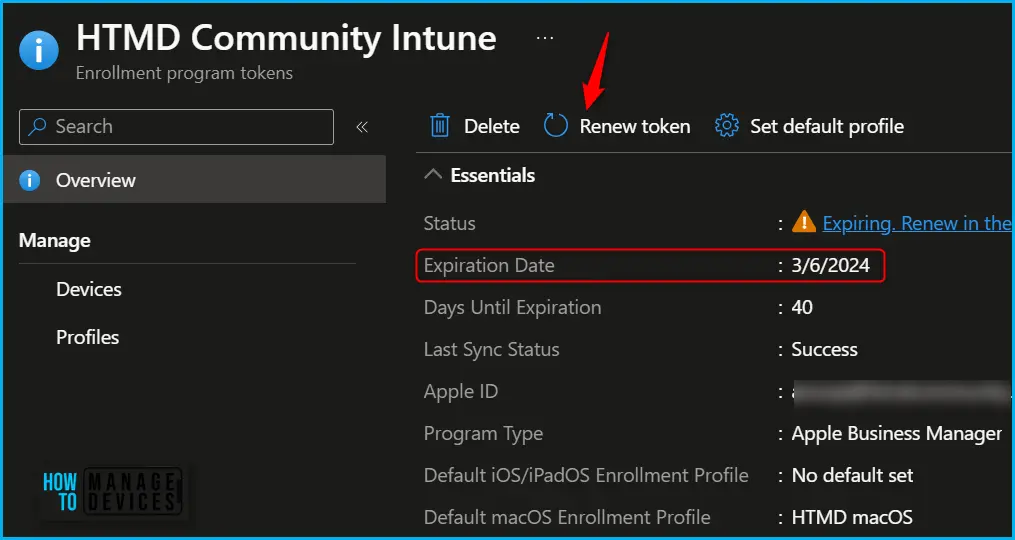
In the Enrollment program tokens, Click on the ADE token you want to renew or expire state; here, you can renew Apple tokens or update existing tokens.
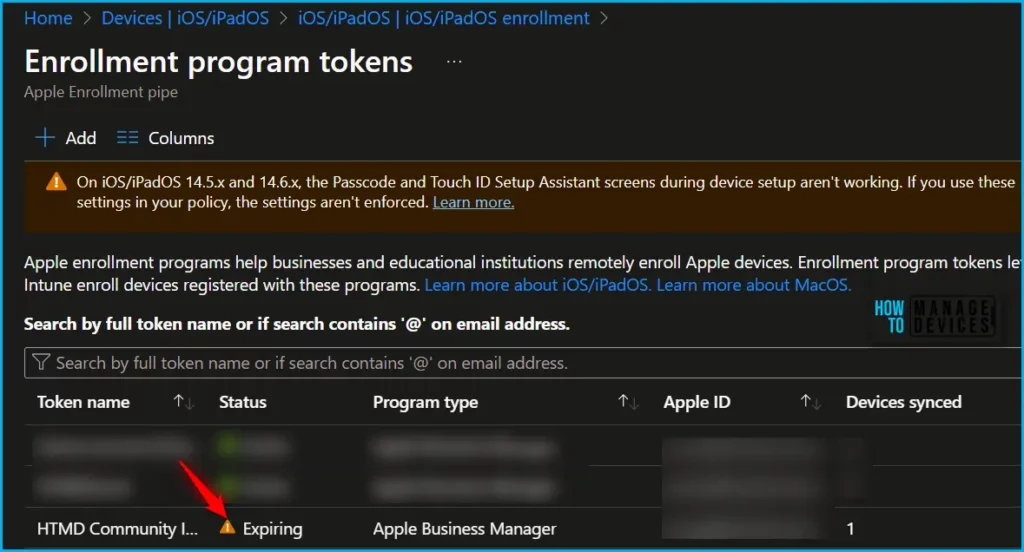
In the Apple Token Overview, you will find various options, including the token status, program type, Apple ID and enrollment profile details.
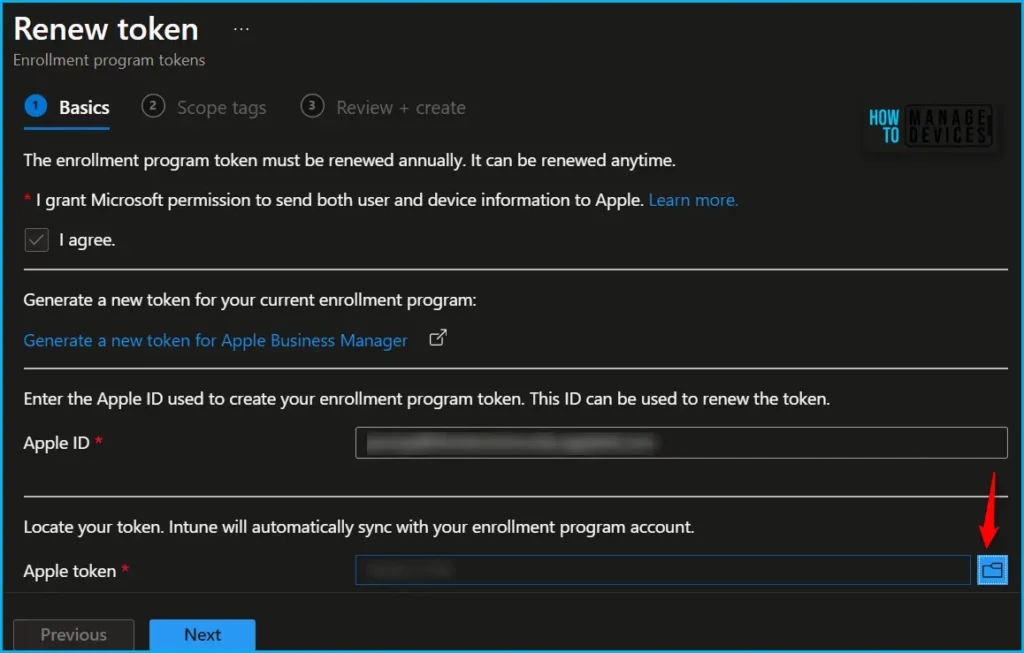
In Apple token, browse to the .p7m certificate file, Upload the ADE Token file (.p7m), and then select Open. On the Review + Create tab, select Create.
Once you Upload the new token and save your changes, a notification message will appear showing Apple tokens saved.
In the Apple ADE Tokens, you can see the updated Expiration date for ADE tokens and all other information. The token validity has been extended to another year.
We are on WhatsApp. To get the latest step-by-step guides and news updates, Join our Channel. Click here –HTMD WhatsApp.
Author
About Author – Jitesh, Microsoft MVP, has over six years of working experience in the IT Industry. He writes and shares his experiences related to Microsoft device management technologies and IT Infrastructure management. His primary focus is Windows 10/11 Deployment solution with Configuration Manager, Microsoft Deployment Toolkit (MDT), and Microsoft Intune.


Discussion