






Setup Enrollment Notification in Intune for Mac Devices
In this post, we will discuss how to setup enrollment notification in Intune for newly enrolled macOS devices. We’ll start by discussing the prerequisites for pushing notifications and then move on to creating notifications in the Intune portal.
Additionally, we’ll provide examples of how to push notifications within your environment. By the end of this article, Admins should be able to set up enrolment notifications with ease and efficiency. Furthermore, it is also possible to send enrollment notifications on other platforms such as Android, iOS/iPadOS, Windows 10 and 11.
Enabling enrollment notifications in Microsoft Intune can keep employees in your organization informed about newly enrolled devices. With these notifications, end-users can stay up-to-date with the latest device enrollments, ensuring they always have access to the right tools and resources.
Managing many devices in an organization can be challenging, especially when ensuring compliance with organizational standards. However, with the help of Mobile Device Management (MDM) platforms, we can quickly push required settings and configurations to all devices from the backend without user intervention.

If you find my articles informative and helpful, I suggest you look at my previous article on the macOS Devices Migration Framework to Intune from Jamf Kandji JumpCloud Platforms. This article provides a step-by-step guide to help migrate Mac devices to Microsoft Intune easily and ensure these function efficiently after the migration.
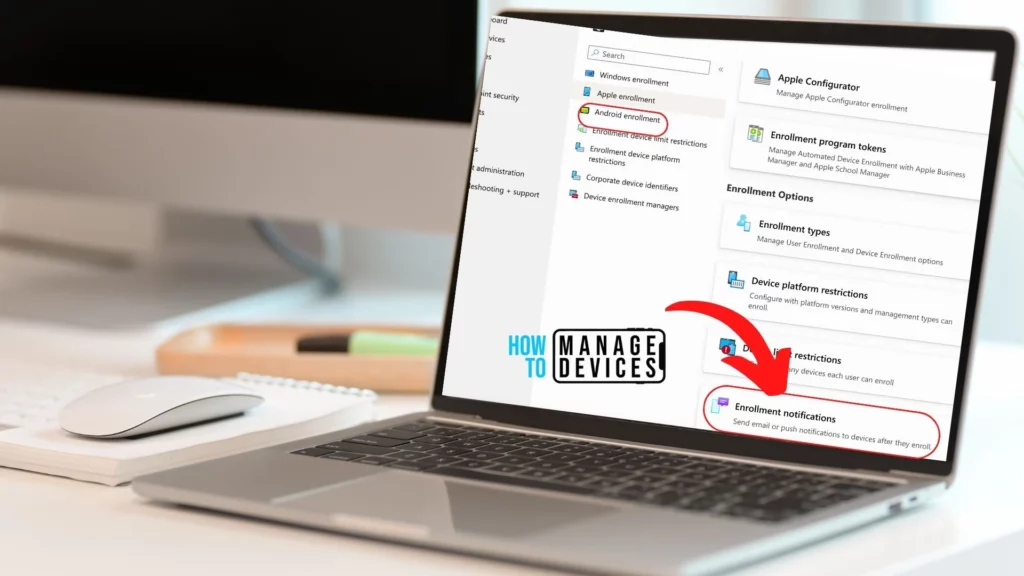
What is an Enrollment Notification?
Microsoft Intune offers an enrollment notification feature to help organisations inform their employees of newly enrolled devices. These notifications can be sent via email or push Notification to assigned users and include a personalized message with information on how to report unrecognized devices.
Additionally, email notifications can be customized with the organization’s branding and customization settings to ensure a consistent look and feel.
The enrollment notifications feature is supported on a range of devices, including Android, iOS/iPadOS, Macs, and Windows devices (excluding Microsoft Entra hybrid joined devices). By activating enrollment notifications, organizations can improve their security and keep their employees informed without any unnecessary disruptions.
Pre-requisites to Push Enrollment Notification
Having the right permissions is important for successfully creating an enrollment notification. Let’s check the required prerequisites before pushing the Notification to the end user’s device.
- Be a Global or Intune Administrator.
- Configure branding and customization settings in Tenant administration > Customization.
It’s important to note that enrollment notifications work only with user-driven enrollment methods and are not supported in userless enrollment scenarios.

To ensure end-users receive notifications in a timely manner, please keep in mind that email notifications will appear in the user’s email inbox. For push notifications, be sure to check the Intune Company Portal apps for iOS/iPadOS, macOS, and Android devices.
Steps to Create Enrollment Notification in Intune
As mentioned earlier, The Intune MEM portal allows global or Intune administrators to create enrollment notifications. For guidance, let us follow the steps mentioned below.
- Sign in to the Microsoft Endpoint Manager admin center https://intune.microsoft.com/
- Navigate to Devices > under Device enrollment, and Select Enroll devices.

3. To enrol your Apple devices, such as iPhones, iPads, and MacBooks, you need to select the Apple enrollment option under Enroll Devices. Once you have done this, proceed to the Enrollment Notifications tab.

4. For iOS or macOS Notifications, we can select accordingly and click on Create notifications. Also as mentioned earlier, these notifications can be sent only for user-enrolled devices.

5. Let us proceed further by Providing the name of the Notification along with its detailed description on which type of devices it should be pushed.

6. Once the Basics have been filled in, let’s proceed further with providing the Notification settings tab, and here we see 2 categories that need to be filled, such as :
- Push Notification
- Email Notification

7. Under Push Notification, we need to provide 3 details, such as :
| Configuration | Description |
|---|---|
| Send Push Notification | Toggle On/Off |
| Subject | Subject to appear in the Notification |
| Message | Message to be shown to the end-user |

8. Under Email Notification, we need to provide details, such as :
| Configuration | Description |
|---|---|
| Send Email Notification | Toggle On/Off |
| Subject | Subject to appear in the Notification |
| Message | Message to be shown to the end-user |
Please be aware that enabling the “Show device details” option may cause a delay in the enrolment email notification. However, it’s important to note that Admins do not have control over this delay. If the email arrives early, it may or may not include the device details. On the other hand, if the email is delayed, it may or may not fetch the correct device details as well.

The below mentioned values should appear only if Branding details are supplied under Tenant Administration > Customization. If you haven’t customized them for your organization, you can follow the article below and learn how to edit and save the details of the branding.
| Show Company Logo | Toggle On/Off |
| Show Device details | Toggle On/Off |
| Show Company Name | Toggle On/Off |
| Show contact information | Toggle On/Off |
| Show Company portal website link | Toggle On/Off |

9. Scope tags are filtering options provided in Intune to simplify admin tasks. In the scope tag section, you can configure scope tags for the application. Click on Next.

10. Under Assignments, In Included Groups, click Add Groups and then choose Select Groups to include one or more groups. Click Next to continue.

11. Under the Review + Create tab, review the provided details. If anything needs to be changed, go back and edit them, and once confirmed, click on the Create button.

In addition to macOS devices, you can also configure enrolment notification push for Android and Windows devices. Detailed instructions are provided in the articles below.
- Setup enrollment notifications for Windows Devices using Intune
- Setup enrollment notifications for Android Devices using Intune
User Experience
Once the enrolment notification configuration is complete, the new user must enrol their Mac device in the environment using their login credentials to receive notifications. The notifications will be sent through Alert on their newly enrolled device and an automated email from Microsoft. So, ensuring the enrolment process is completed correctly is crucial to avoid delays in receiving important notifications.

Conclusion
This feature can be a great asset to organizations that require users to perform post-enrollment processes. It can streamline registration procedures, making it easier and more efficient for users to provide necessary details after logging in.
Additionally, this feature has a wide range of use cases, such as providing all the required details in an email or alert message, which can help save time and effort. Overall, this feature has the potential to significantly enhance the user experience and improve the efficiency of organizational processes.
It’s worth noting that while not every MDM solution provides an enrolment notification feature, you’ll be pleased to know that Intune provides this feature included with MDM Solution.
We are on WhatsApp now. To get the latest step-by-step guides, news, and updates, Join our Channel. Click here. HTMD WhatsApp.
Author
Snehasis Pani has 7+ years of IT Support experience and is currently a macOS Administrator. He loves to help the community by sharing his knowledge of Apple Mac Devices Support. He is an M.Tech graduate in System Engineering. Do check out his profile on Twitter and Linkedin.


Discussion