






Exciting Update in the Start Menu! Let’s discuss the Start Menu Upgrade in the Moment 5 Update. As part of the recent Moment 5 update, the Start Menu received a significant enhancement, the ability to group multiple recently added apps within the Recommended section.
This is the critical update that groups recently added apps within the Recommended section. This enhancement aims to simplify the Start Menu interface by organizing recently installed applications into a single, easily accessible folder.
By consolidating these apps, users can navigate the Start Menu more efficiently without using the interface with individual app titles. This update reflects Microsoft’s ongoing efforts to enhance user experience and productivity within the Windows operating system.
This post guides you through understanding the new feature called “Grouping Recently Added Apps” in the Recommended section of the Start Menu. Instead of showing each recently added app separately, they are now grouped in one folder. This makes it easier to find and manage your recently installed apps.

- Now Get Microsoft Teams Meetings Shortcut Directly from Start Menu
- Accent Colors in Windows Start Menu and Taskbar
- New Windows Update for Start Menu on Windows 11
Start Menu Upgrade in Windows 11 Moment 5 Update
In Moment 5, some updates to the Start menu make it even more convenient to use. One of the changes is that if you have added multiple apps recently, they will now be grouped into a folder within the Recommended section.
Organizing recently added applications within the recommended section of the start menu enhances user accessibility and efficiency. By grouping these newly installed apps, users can quickly locate and access them without navigating through multiple sections or menus.
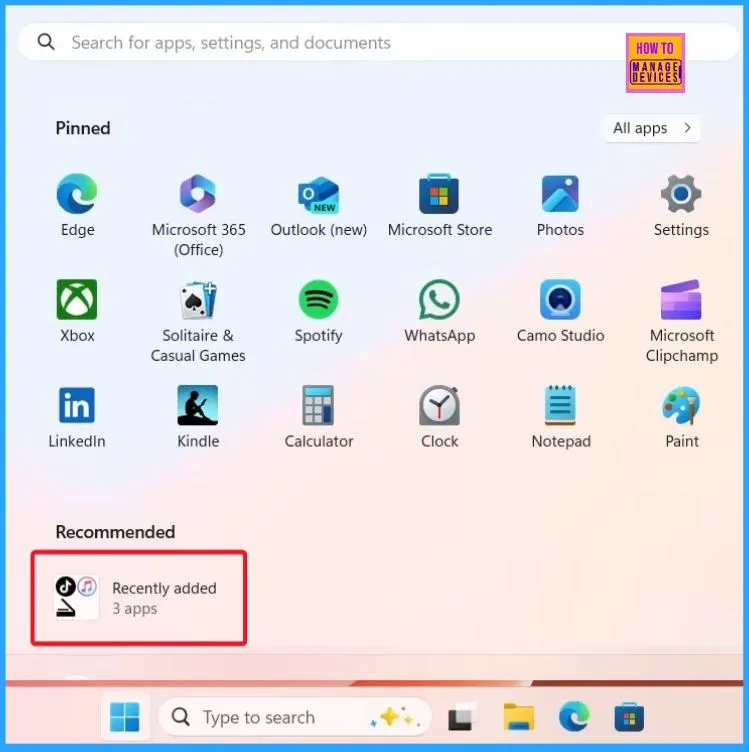
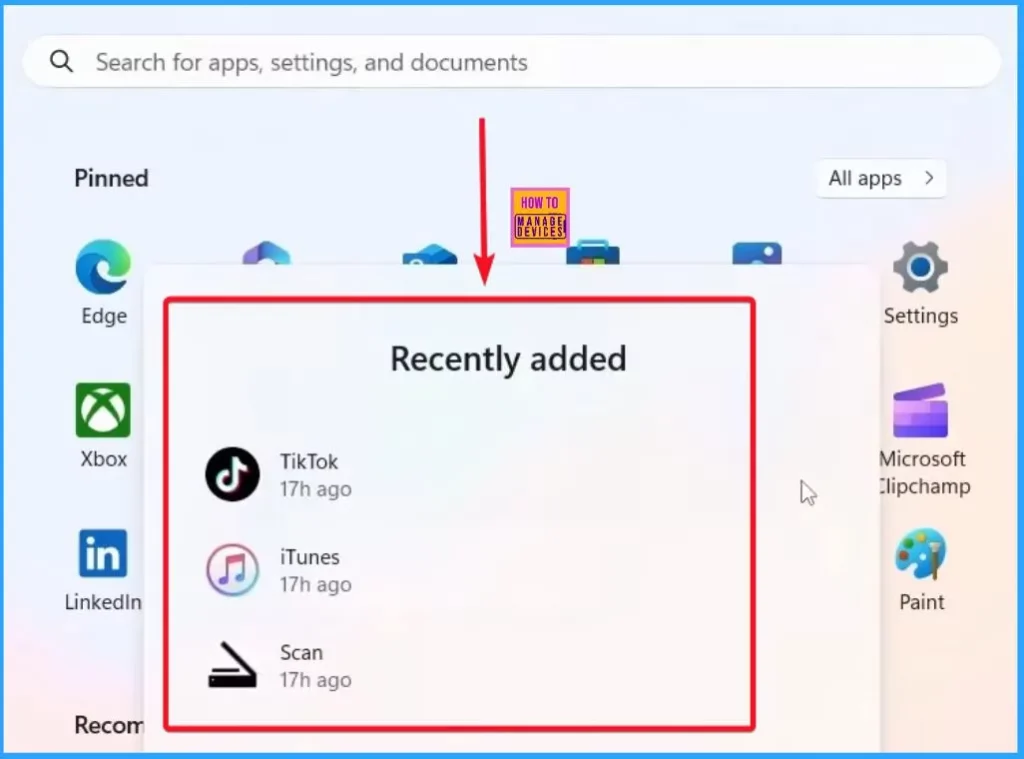
If you click on the folder, you will see the complete list of apps, their names and when they were added. Here, you see 3 apps – TickTok, iTunes, and Scan. These are the ones that you have recently installed on your computer. It is a handy way to find them quickly without searching around.
- Exciting Features Coming Soon to Latest Windows 11 Moment Drop Release
- Windows 11 22H2 New Features Coming soon as part of Moment 3 Drop
- New Shapes Feature in Snipping Tool How to Use Guide
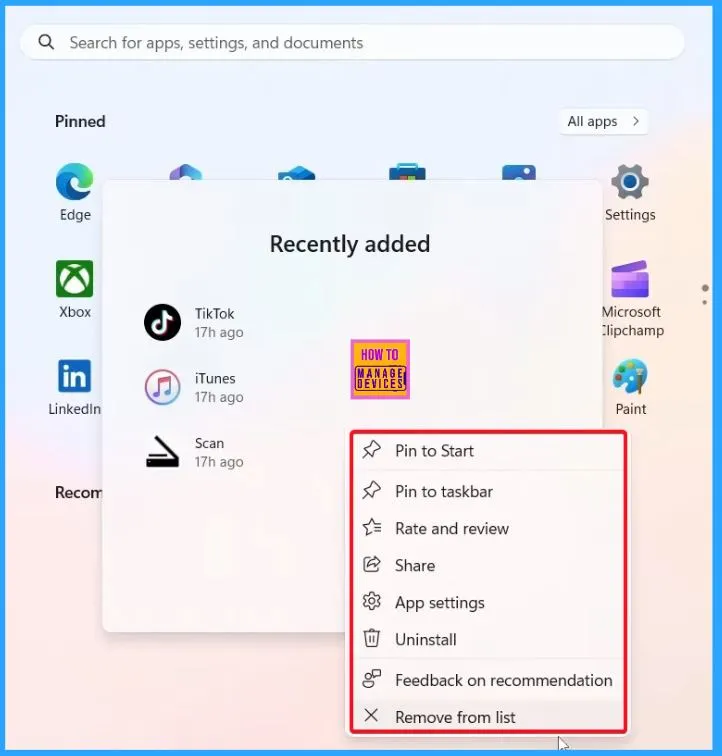
Right-clicking one of the apps will open a context menu showing options. The table below helps you show the context menu options.
| Context Menu Options |
|---|
| Pin to Start |
| Pin to Taskbar |
| Rate and review |
| Share |
| App settings |
| Uninstall |
| Feedback on recommendation |
| Remove from list |
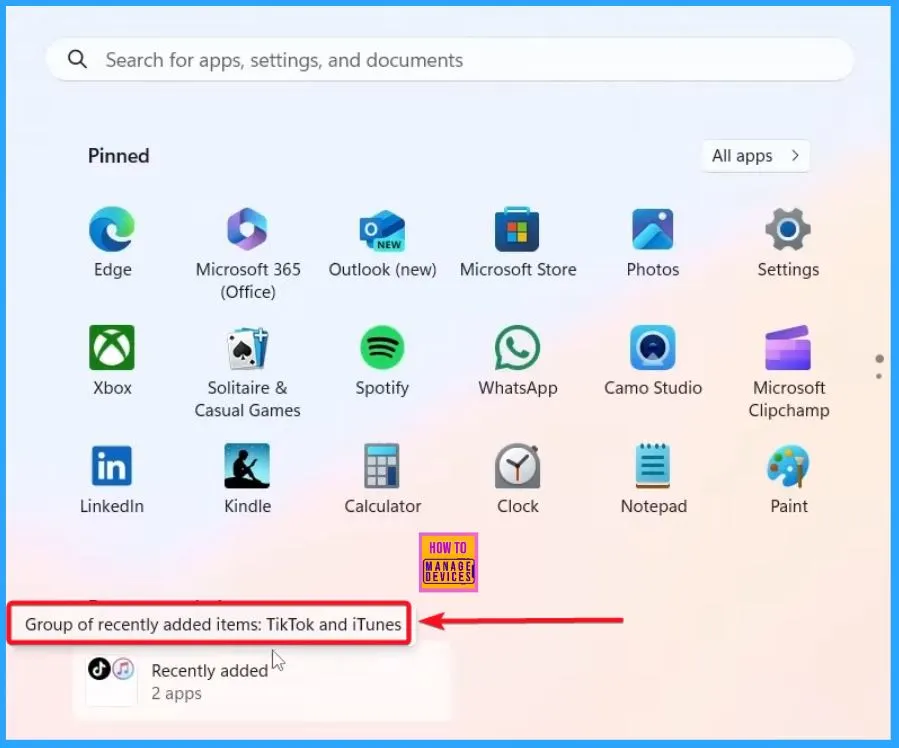
When you move your mouse over the Recently added folder, a little box pops up with the names of the apps inside. So, if you are not sure which apps are in there, hover your mouse over the folder, and it will show you their names. It helps you remember what’s inside without even opening it.
We are on WhatsApp now. To get the latest step-by-step guides, news, and updates, Join our Channel. Click here HTMD WhatsApp.
Author
About the Author – Vidya is a computer enthusiast. She is here to share quick tips and tricks with Windows 11 or Windows 10 users. She loves writing on Windows 11 and related technologies. She is also keen to find solutions and write about day-to-day tech problems.


Discussion