






Let’s discuss how to Install the 7-Zip App with Intune Enterprise App Catalog App. Installing applications like 7-Zip through the Intune Enterprise App Catalog is easy and secure, simplifying software deployment within organizations.
7-Zip is a free and open-source file archiver utility developed by Igor Pavlov. It is primarily used for compressing and decompressing files and folders, making large amounts of data accessible for storage and transfer.
7-Zip supports various compression formats, including its 7-Zip format and ZIP, GZIP, TAR, and more. It’s free to use and has been around since 1999. 7-Zip typically achieves higher compression ratios compared to other archiving utilities.
NanaZip is a free application that allows you to create and edit Zip archives. It is straightforward to develop and manage the Zip archive in NanaZip, and there is also an option to delete archives. The archive format is compatible with all versions of Windows.


- 11 New Archive File Types in Windows 11
- NanaZip File Manager for Windows | Download and Use
- Top 5 Features of Intune Driver Management Coming Soon
Installing 7-Zip App with Intune
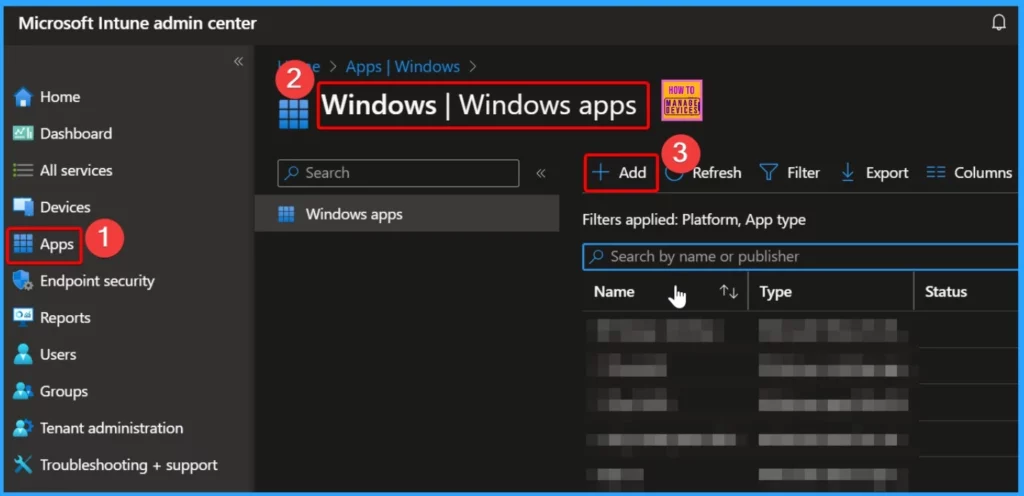
Go to the Intune Admin Center portal at intune.microsoft.com and sign in. After logging in, look for the “App” section on the left side of the portal page. Click on it. Then, choose “Windows” and click on “Windows apps.”
- Now, you will see a list of Windows apps.
- Select the Add button from the Intune portal.
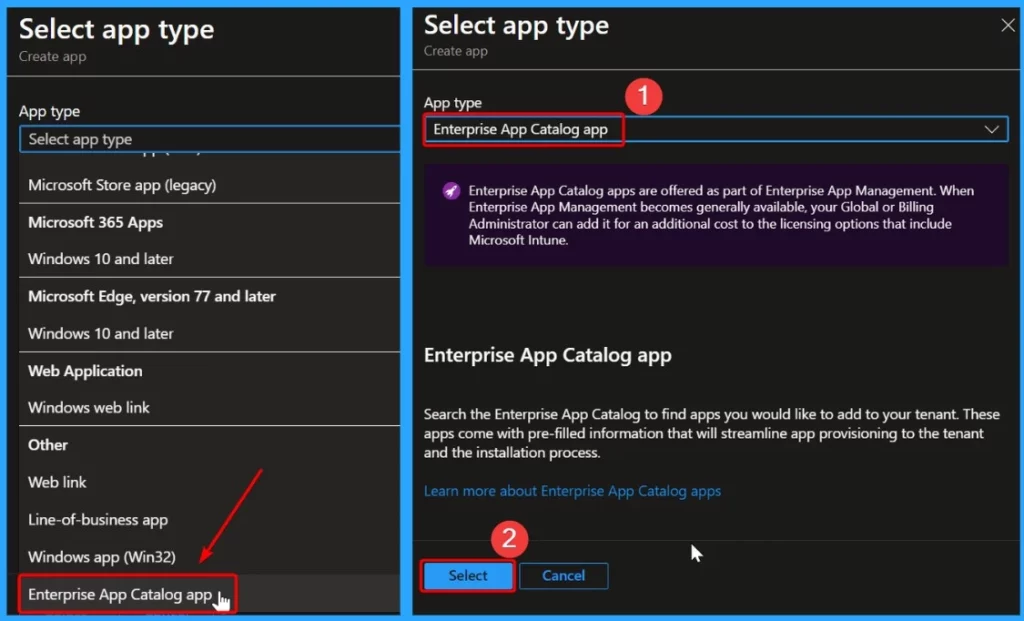
Enterprise App Catalog apps are offered as part of Enterprise App Management. When Enterprise App Management becomes generally available, your Global or Billing Administrator can add it for additional licensing costs, including Microsoft Intune.
- After selecting the Add button, it will redirect you to the Selection of App type window.
- You should select the Enterprise app catalog app as the app type.
- Click the Select button from the window below.
- Create and Deploy Python Application with Intune Enterprise App Catalog App
- Install Zoom Client using Windows Enterprise App Catalog App with Intune
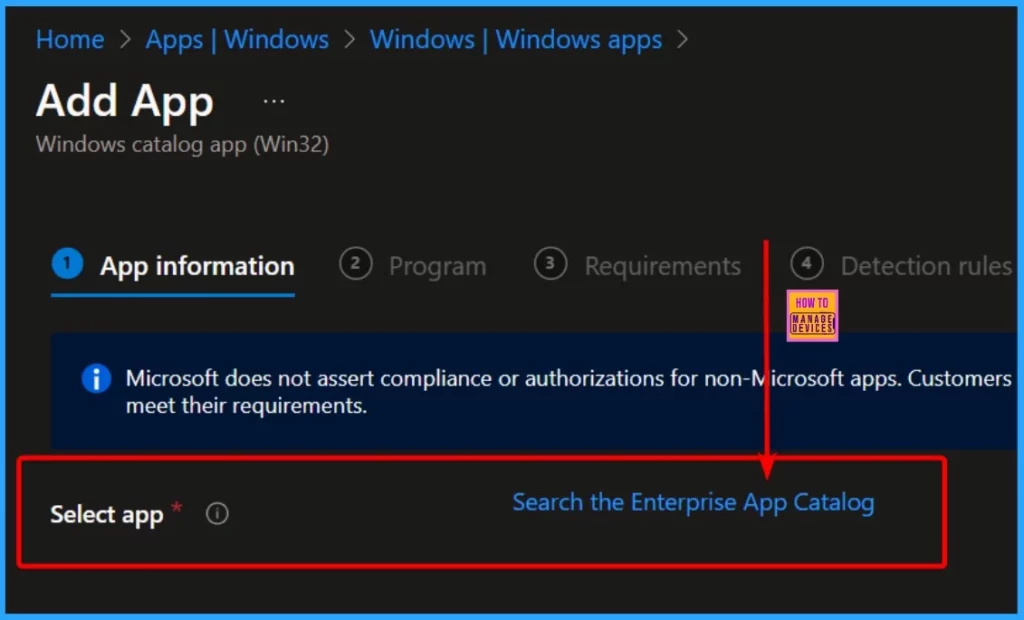
To access apps within the Enterprise App Catalog, click on the “Search the Enterprise App Catalog” hyperlink. This action will show the search panel, featuring a convenient search bar. Utilize this search bar by typing in the name of the desired app.
- Create and Deploy Python Application with Intune Enterprise App Catalog App
- Deploy Windows Catalog App type using Intune Enterprise Application Catalog.
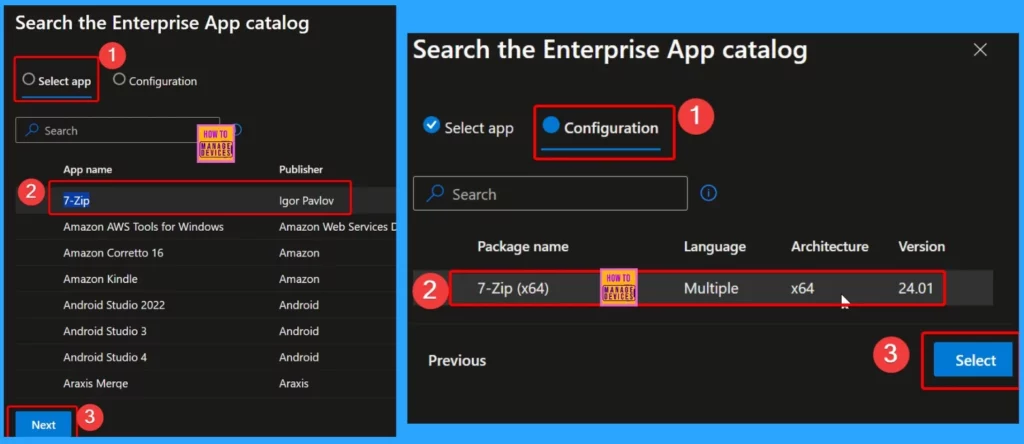
Once you select the 7-Zip app from the available options, you will notice additional details, including the publisher’s name (Igor Pavlov). In the configuration section, you will find various settings and options to customize how the app is deployed and managed.
| Package name | Language | Architecture | Version |
|---|---|---|---|
| 7-Zip (x64) | Multiple | ×64 | 24.01 |
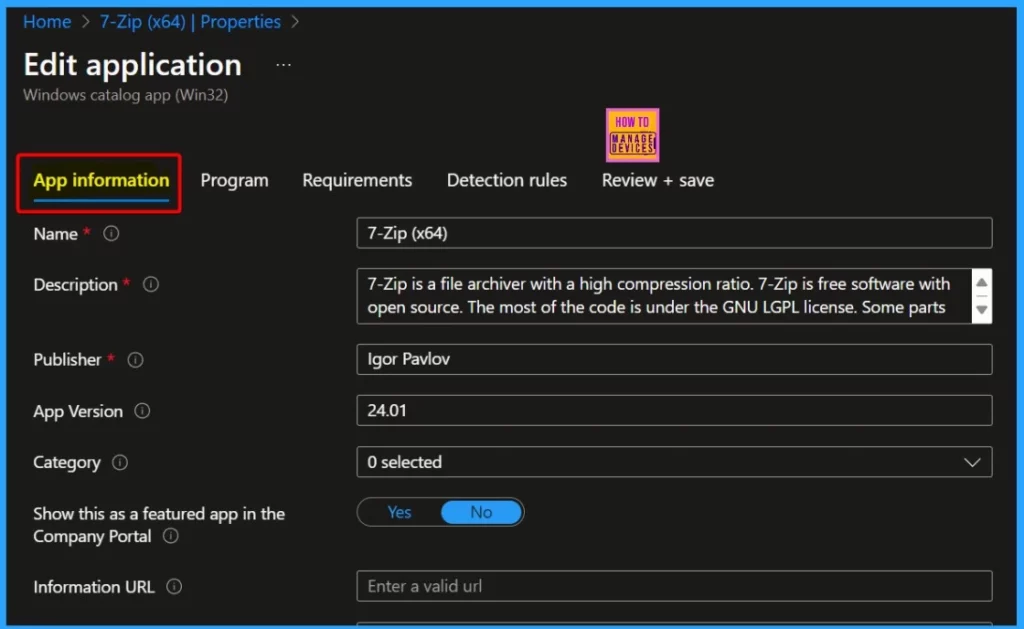
The app information category helps show information such as the Name, Description, Publisher name, App V, version, etc. The screenshot below shows all the information related to the 7-Zip app.
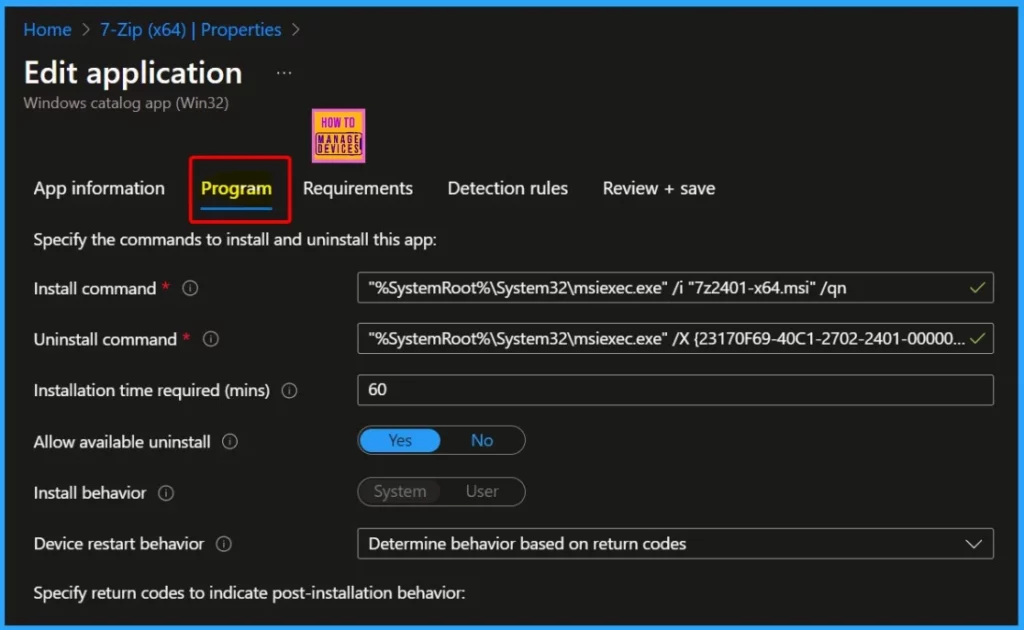
The program category helps specify the commands to install and uninstall the app. The category also shows the installation time required; by default, the system waits 60 minutes for the installation program to finish, but you can adjust this once you are ready. Just click “Next” to be prepared.
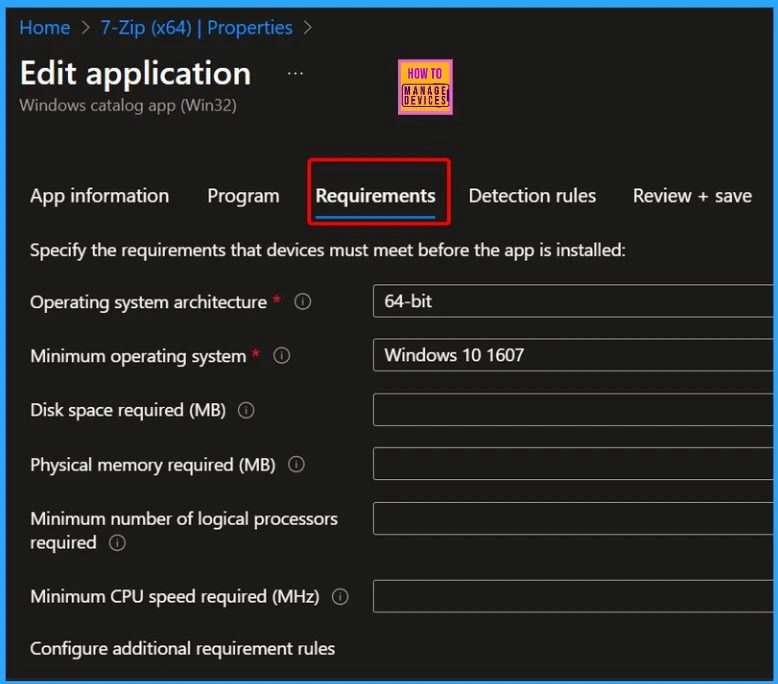
The “Requirements” section helps specify device requirements before the app is installed. These criteria include details like the operating system’s architecture (32-bit or 64-bit), the minimum version of the operating system needed for the app to function correctly, the amount of available disk space required for installation, location, etc.
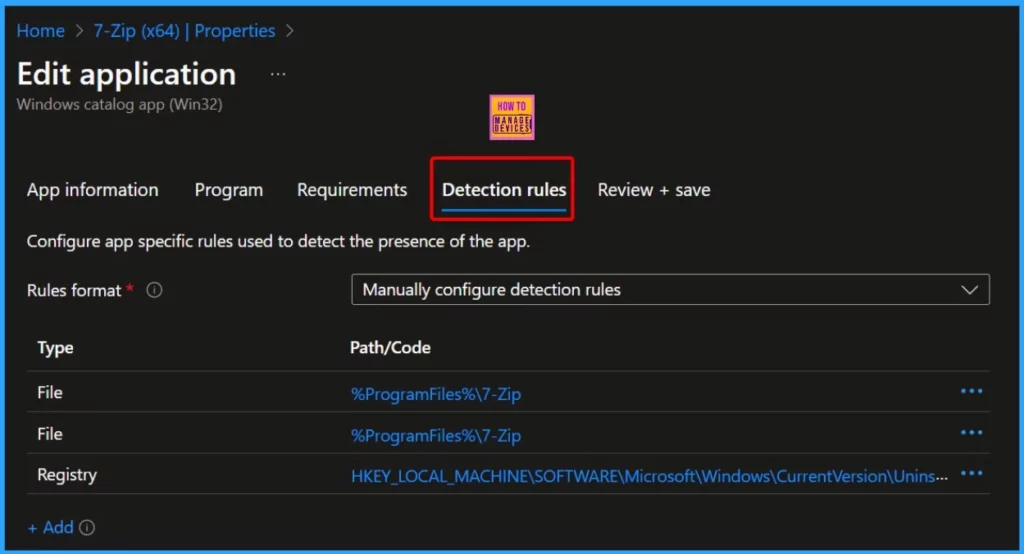
In the “Detection rules” section, you’ll find details on how the system identifies whether the app is installed on a device. This information includes the format of the detection rules and may also display the registry path or code used for detection.
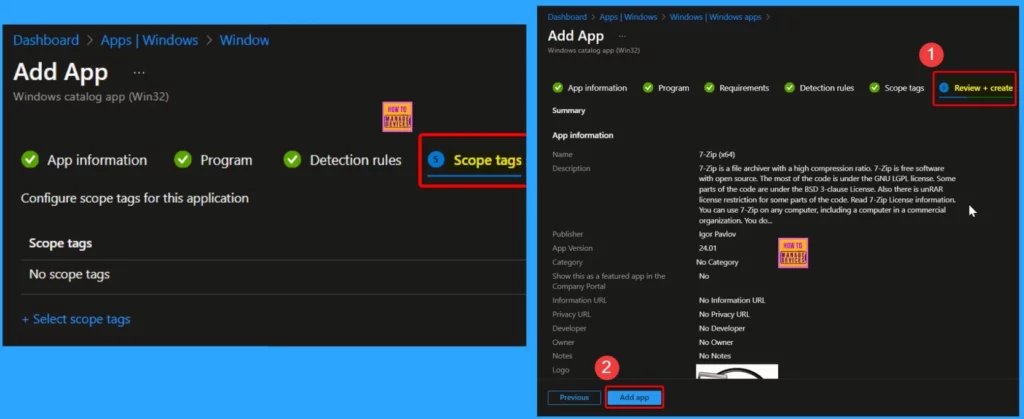
In the Intune portal, you can use Scope tags to filter profiles for specific IT groups, making management more effortless. If needed, you can add scope tags and proceed by clicking Next. In the “Review + Create” tab, carefully review your settings. Once satisfied, click “Add app” to save your changes.
- 6 Exciting Features Coming to Intune Enterprise App Management
- Guidelines for Installing Microsoft PC Manager from New Microsoft Store in Intune
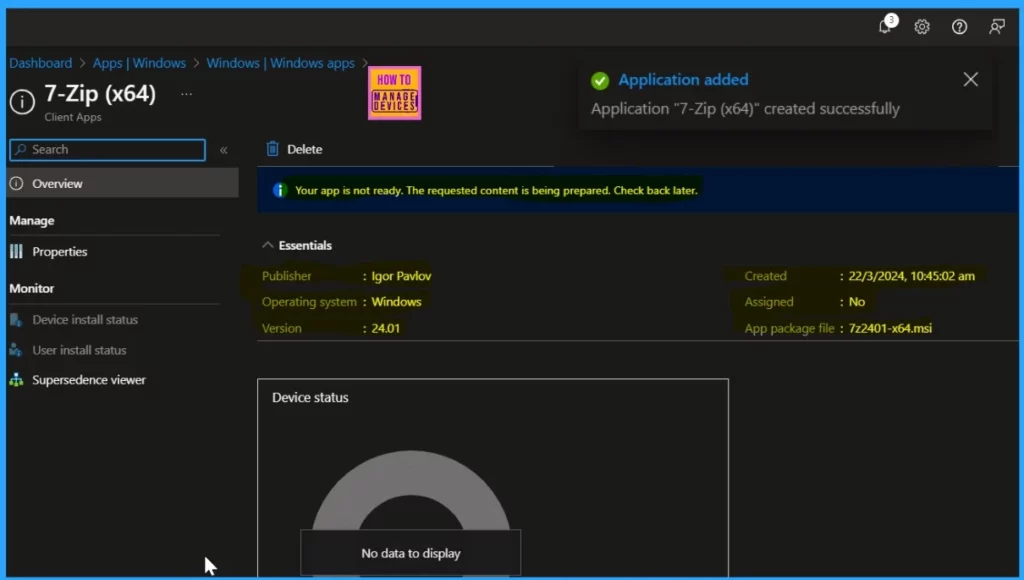
After clicking the Add app option, you will be notified that the application 7-Zip has been created successfully. Here, the Device status shows that there is no data to display. The below window also shows a banner notification that says, “Your app is not ready, but the requested content is being prepared. Check back later.“
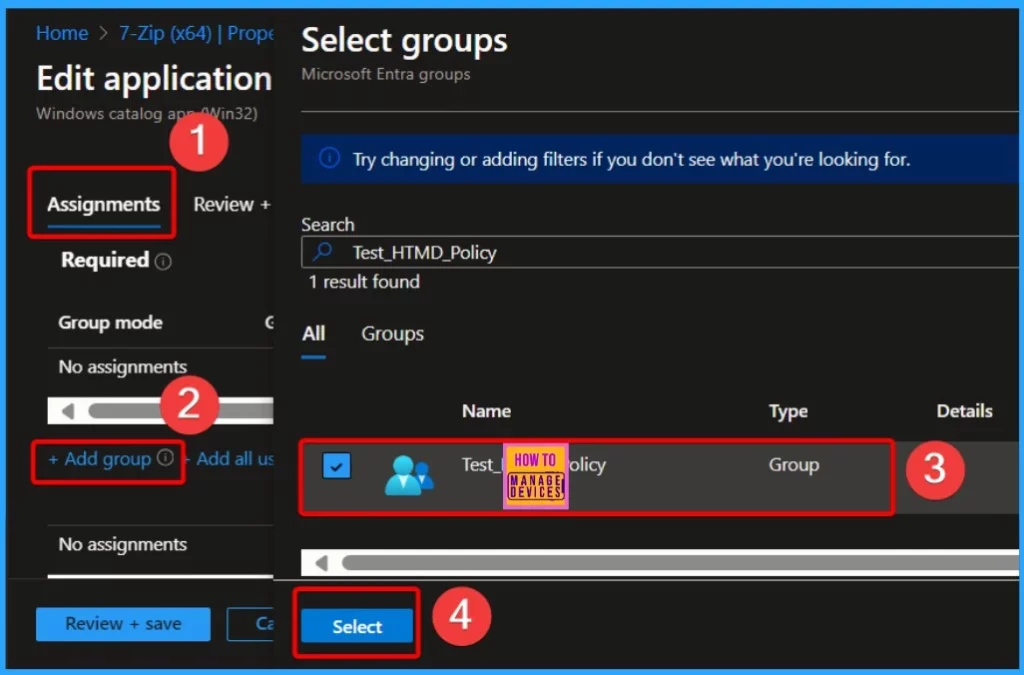
After setting up the 7-Zip app, deploying it to specific groups within your organization is crucial. To do this, navigate to the application’s “Properties” and modify the assignment settings.
- Here, we select the Test HTMD Policy Group
Monitoring Deployment Status
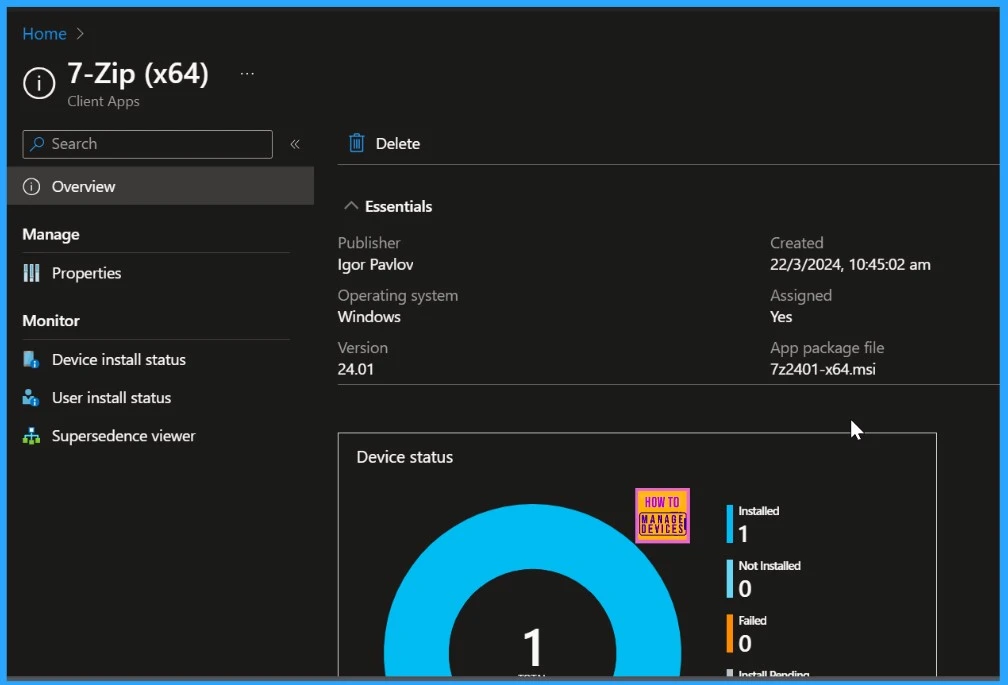
The window below shows that the assignment of the 7-Zip application to a device was successful; it was installed on 1 device. This comprehensive information ensures administrators are informed about the deployment status and relevant device details, facilitating effective management of the 7-Zip application within the organization.
End-User Experience
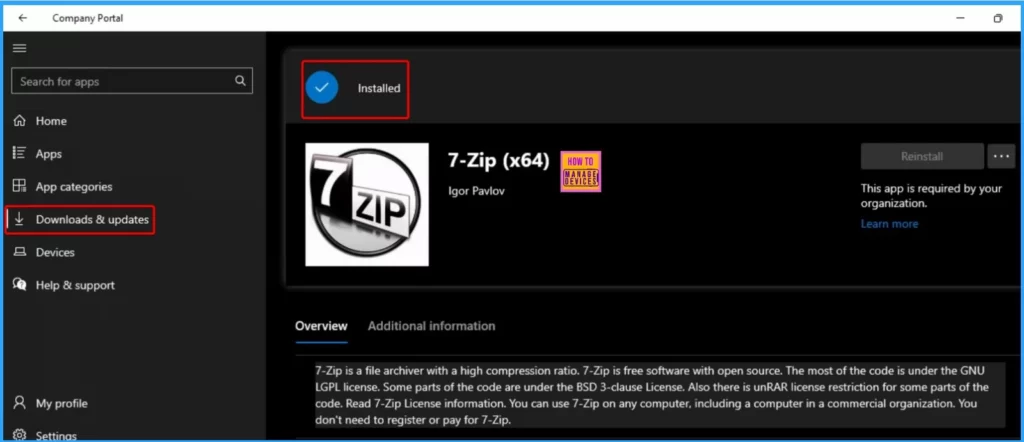
The app will be automatically installed on those devices after the 7-Zip App is deployed to workstations and designated as a required deployment. To monitor the deployment from the client side, open the Company Portal on the workstation and go to the “Download & Updates” section.
We are on WhatsApp now. To get the latest step-by-step guides, news, and updates, Join our Channel. Click here. HTMD WhatsApp.
Author
About the Author: Vidya is a computer enthusiast. She is here to share quick tips and tricks with Windows 11 or Windows 10 users. She loves writing about Windows 11 and related technologies. She is also keen to find solutions and write about day-to-day tech problems.


Discussion