






Turn On or Off Microsoft Defender SmartScreen for Microsoft Edge in Windows 11
Let’s learn how to Turn On or Off Microsoft Defender SmartScreen for Microsoft Edge in Windows 11. This security feature protects against phishing or malware websites and applications and the downloading of potentially malicious files.
Malware and Phishing are the major cybercrimes the cyber world faces nowadays. Users are not protected under any circumstances, and they may accidentally download malware or face several cybercrimes. Microsoft Edge helps users protect themselves from such malware.
Microsoft Defender SmartScreen protects users from malicious files, software, and websites in the Edge browser. This is a great feature that allows users to browse safely. Microsoft Edge has default settings to protect users from malicious attacks.
With the Edge browser, users can easily avoid malicious attacks through websites and different downloading methods. There are different methods available for this. This blog post helps you learn more about Turning on or Off Microsoft Defender SmartScreen for Microsoft Edge in Windows 11.

- Configure Microsoft Defender SmartScreen Using Intune
- Ways to Allow an App through Windows Defender Firewall
- Enable Microsoft Defender SmartScreen in Intune to Block Malicious Websites Phishing Unsafe Downloads and Unrecognized Apps
What are the Advantages of Microsoft Defender SmartScreen?
1. It supports Anti-phishing and anti-malware support
2. It provides Reputation-based URL and app protection
3. It has Operating system integration
4. Management through group policy and Microsoft Intune
5. It blocks URLs associated with potentially unwanted applications
Turn On or Off Microsoft Defender SmartScreen for Microsoft Edge in Windows 11
Users can protect and securely download files with the Microsoft Defender SmartScreen for Microsoft Edge in Windows 11. There are 3 Methods for enabling it.
| Different Methods for Microsoft Defender SmartScreen for Microsoft Edge in Windows 11 |
|---|
| Turn on or off Microsoft Defender SmartScreen for Microsoft Edge using Windows 11 Settings |
| Turn on or off Microsoft Defender SmartScreen for Microsoft Edge in Windows 11 Security |
1. Turn on or off Microsoft Defender SmartScreen for Microsoft Edge using Windows 11 Settings
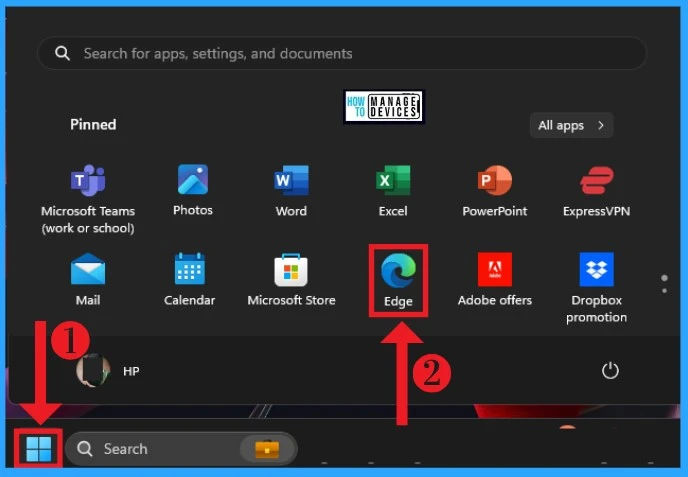
The first method of turning on or off Microsoft Defender SmartScreen for Microsoft Edge is from the Edge Settings. You can easily do these steps. Select Microsoft Edge from the Start Menu
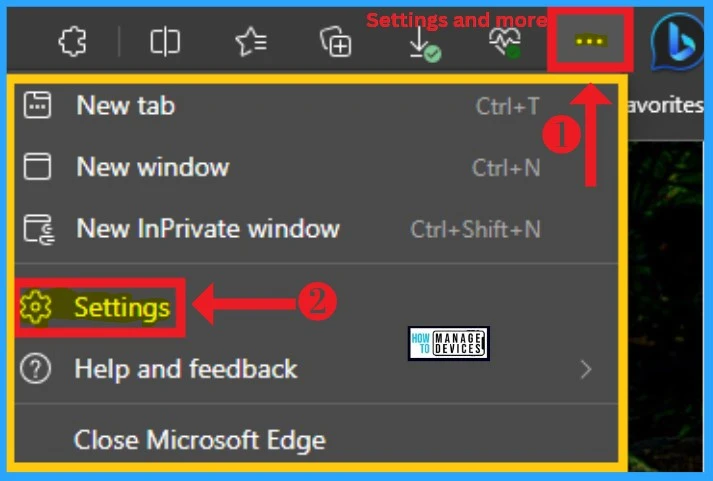
After that, click on the three dots (Settings and more) option at the top right corner of the Edge browser. Select the Settings option from the Settings and More menu.
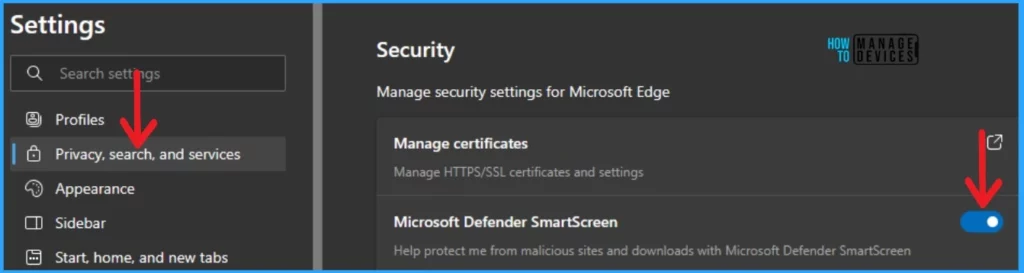
The settings window shows different Settings for the Microsoft Edge browser. Select the Privacy, Search, and Service option on the left side of the window. You can see the Security features in Privacy, Search, and Service.
Here, you can see the Microsoft Defender SmartScreen feature. It helps protect against malicious sites and downloads. This option is enabled by default. You can turn it off by toggling the pane to the left.
2. Turn on or off Microsoft Defender SmartScreen for Microsoft Edge in Windows 11 Security
You can turn off Microsoft Defender SmartScreen for Microsoft Edge using Windows Security. To do this, search for Windows Security from the Start Menu. Open the Windows Security.
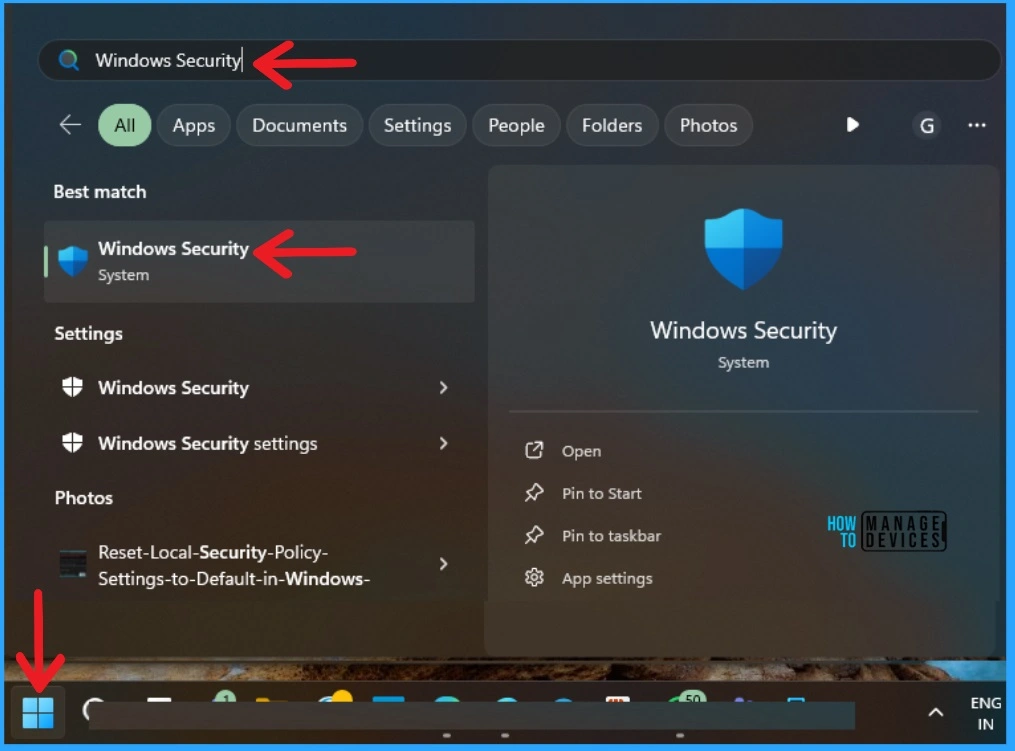
There are many security features available on Windows Security. Select the App & browser control feature from Windows Security. This feature helps to block potentially unwanted app downloads.
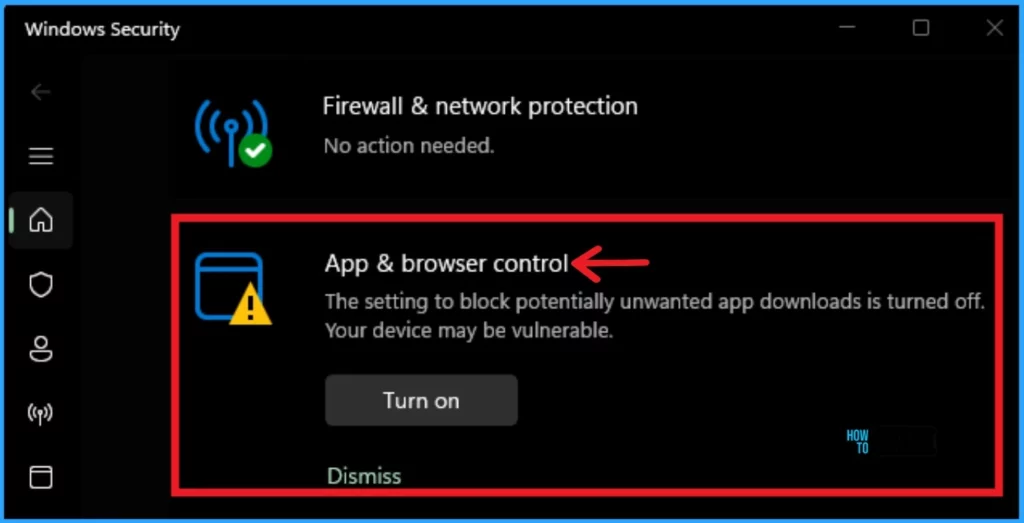
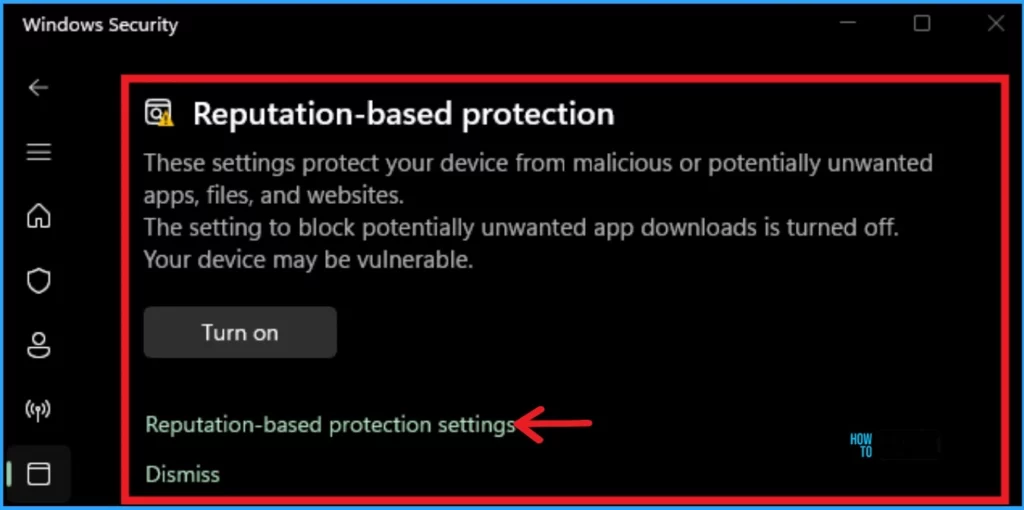
Select the Reputation-based protection option from the App & browser control. You protect your device from various malicious attacks via unwanted apps and downloads. Click on the Reputation-based protection settings.
- Use Windows Performance Recorder Event Tracing Tool in Windows 11
- Start Menu Stop Working in Windows 11 Insider Preview Build
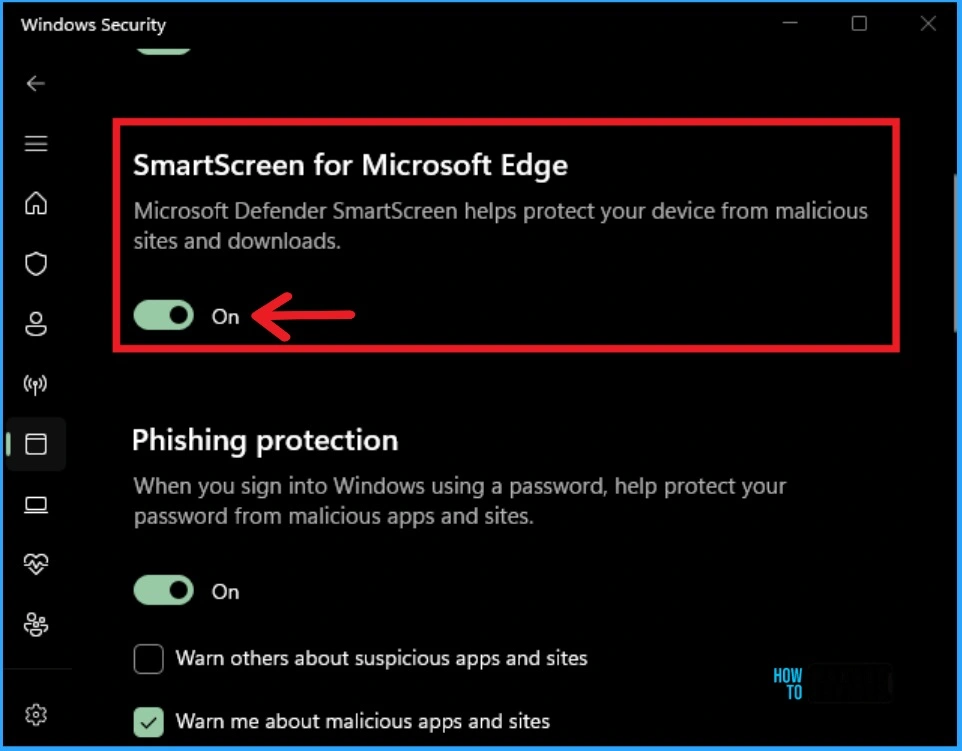
The SmartScreen for Microsoft Edge feature on Reputation-based protection is enabled by default. You can also see the Phishing Protection in this window. It is also enabled by default.
If you turned off the SmartScreen for Microsoft Edge on Windows Security, your security may be less. The Edge browser may contain unwanted files and downloads; disabling this feature will make the device vulnerable.
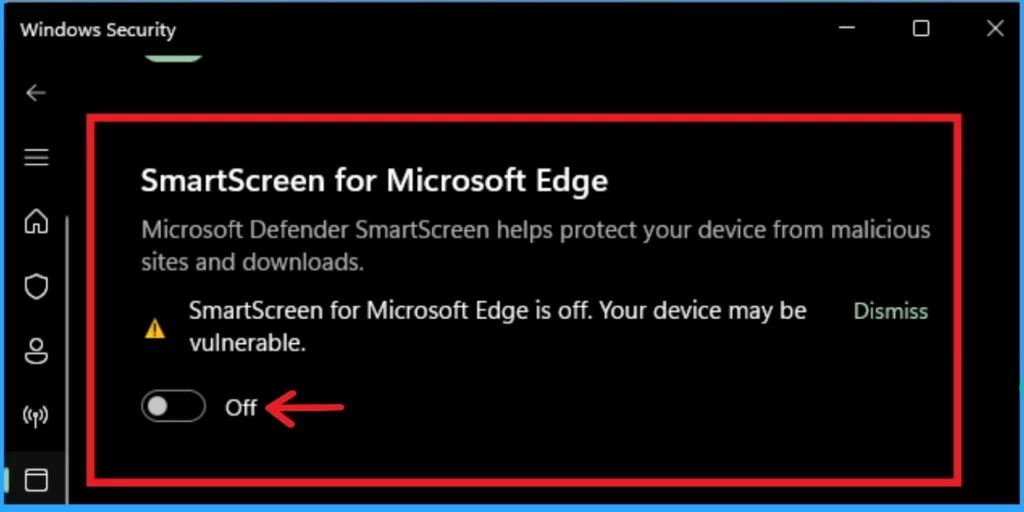
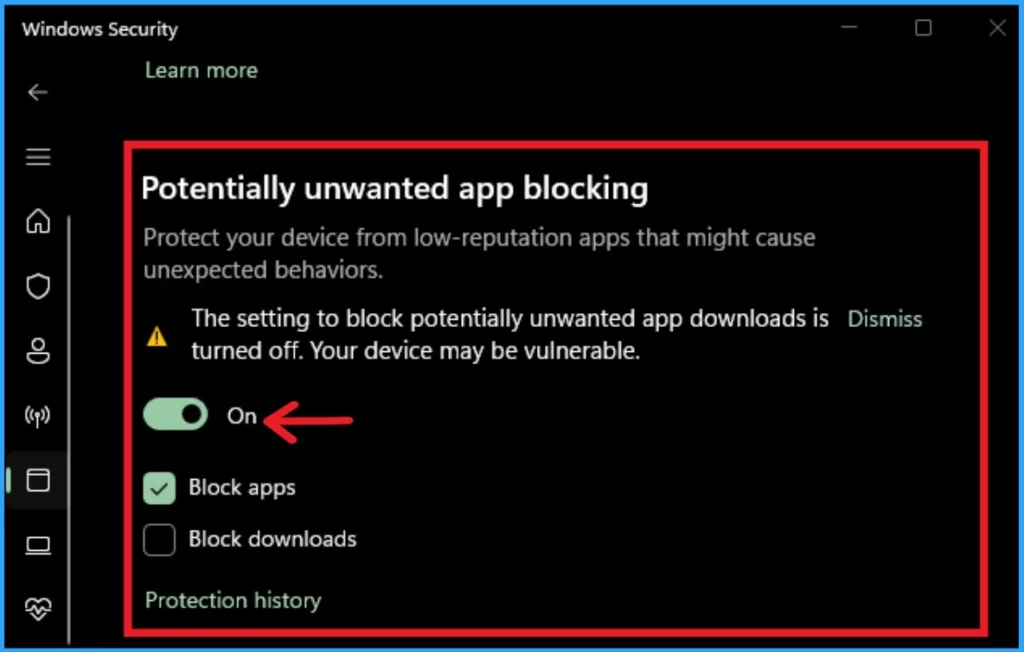
You can also see the Potentially Unwanted app blocking feature in Windows Security. This feature is enabled by default. If you disable this feature, your device will be vulnerable.
- Microsoft Ends Support for Running Android Apps on Windows 11
- 2 Methods to View Reserved Storage Size in Windows 11
We are on WhatsApp. To get the latest step-by-step guides and news updates, Join our Channel. Click here –HTMD WhatsApp.
Author
Gopika S Nair is a computer enthusiast. She loves writing on Windows 11 and related technologies. She is here to share quick tips and tricks with Windows 11 or Windows 10 users. She is Post Graduate Diploma Holder in Computer Science.




Discussion