






Hi, Let’s discuss how to Add or Remove Copilot Toolbar Icon in Microsoft Edge. Nowadays, Copilot is growing its features day by day. You all know that Copilot is the best AI companion for users. Microsoft Edge is a modern web browser known for its features, looks, and new tools. The Copilot Toolbar Icon is one of these tools, making browsing smarter and more effortless.
The Copilot Toolbar in Microsoft Edge is an AI-powered feature that brings an AI-powered assistant into your browser. It enhances your browsing experience by assisting directly within the browser’s sidebar.
Toggling the Copilot Toolbar Icon in Microsoft Edge is not a big deal, but knowing about this is essential. The Copilot Toolbar Icon on Microsoft Edge is not just there for looks. It also represents the integration of artificial intelligence within the browser.
It’s like having an intelligent assistant right in the browser, helping you get information and do things quickly without leaving the page you’re on. Copilot is very helpful when you are working on a browser. It’s excellent for fast searches, making sense of lots of information, or getting intelligent suggestions.

- Copilot with Commercial Data Protection in Microsoft Edge for Business
- Create AI Images from Microsoft Edge
- New Error Detecting Feature in Edge Browser using Copilot
What are the Advantages of the Copilot Toolbar Icon in Microsoft Edge?
1. It provides easy access to the Copilot features directly from the browser
2. It helps with task automation like organizing tabs, importing passwords
3. Copilot Toolbar Icon is designed to boost efficiency and productivity
4. It can generate text for various purposes and also create images based on prompts
5. You can use Copilot in any version of Microsoft Edge
Add or Remove the Copilot Toolbar Icon in Microsoft Edge
Toggling the Copilot Toolbar Icon in Microsoft Edge allows users to customize their browsing experience and interact with AI through the web browser. It’s easy; follow the steps below.
| Numbers | Methods for Add or Remove Copilot Toolbar Icon in Microsoft Edge |
|---|---|
| 1 | By using Microsoft Edge, browse Settings |
| 2 | Remove the Copilot Toolbar icon in Microsoft Edge using Shortcut |
- Open Microsoft Edge
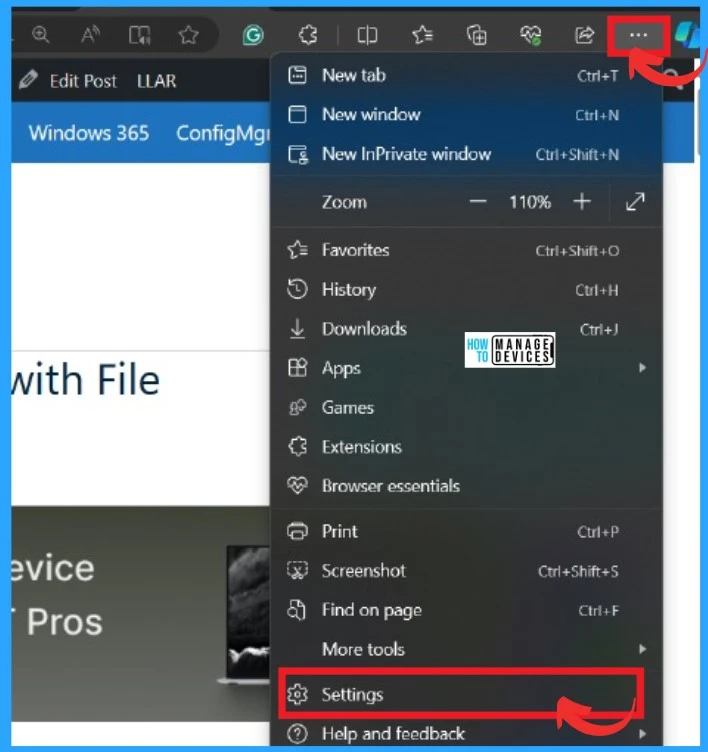
- Click on the 3 dot menu for Microsoft Edge Settings and more options
- Select Settings
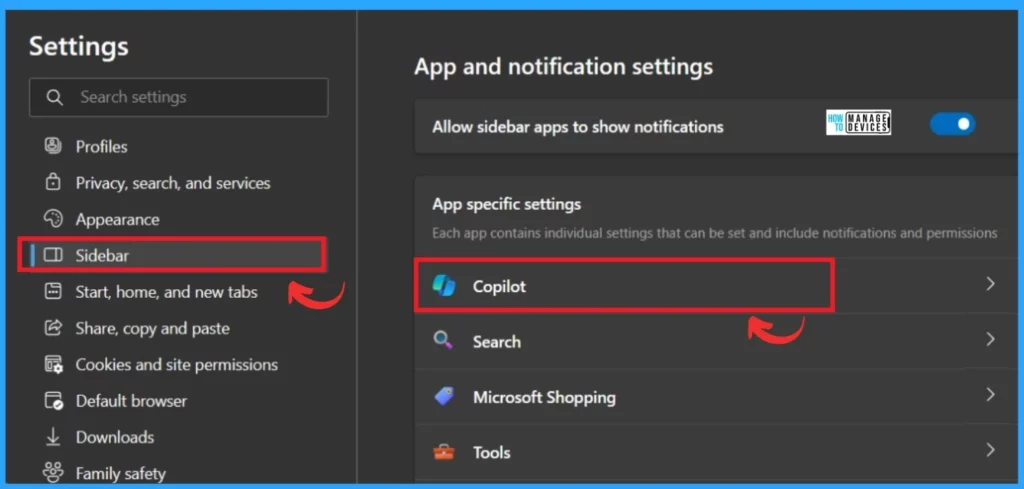
After opening the Settings of Microsoft Edge, you have to select the sidebar option; after clicking on the sidebar, you will get the Copilot option under the App-specific settings.
- Click on the Copilot
- New Capabilities in Microsoft Copilot for Security
- Pin or Unpin Copilot Side Pane on Desktop in Windows 11
- New Copilot Feature in Windows 11 to Connect Plugin
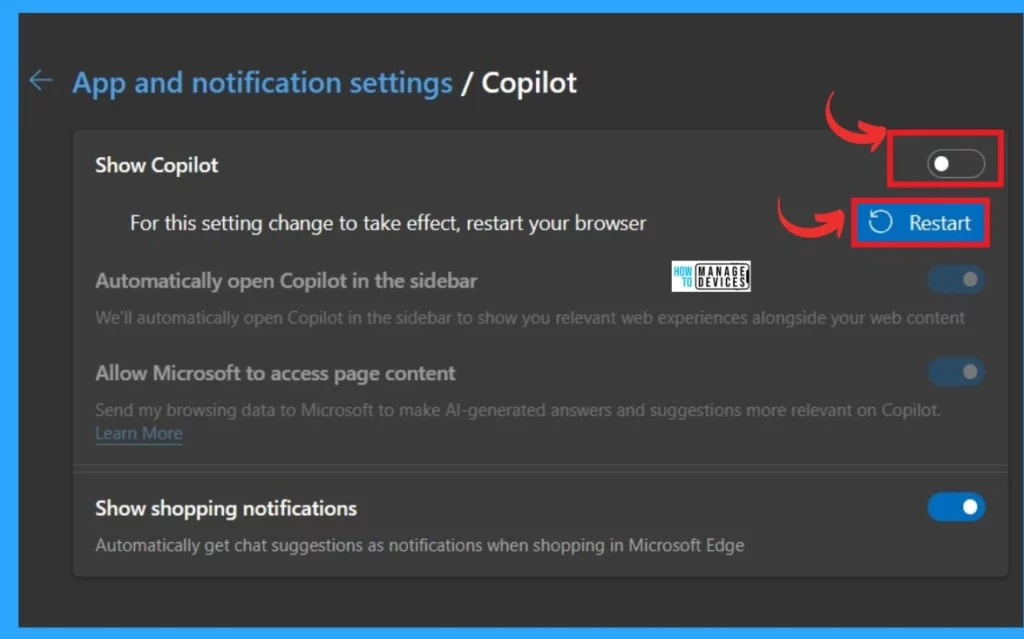
After opening the Copilot option, you have many options for toggling. From that, select the Show Copilot option. In this option, you can toggle the pane from right to Left to remove the Copilot toolbar icon in Microsoft Edge. If you want to turn it on, toggle from Left to right, then click Restart.
- Here, I show how to remove the toolbar icon by toggling right to left.
- After that, click on the Restart option.
Remove Copilot Toolbar Icon in Microsoft Edge Using Shortcut
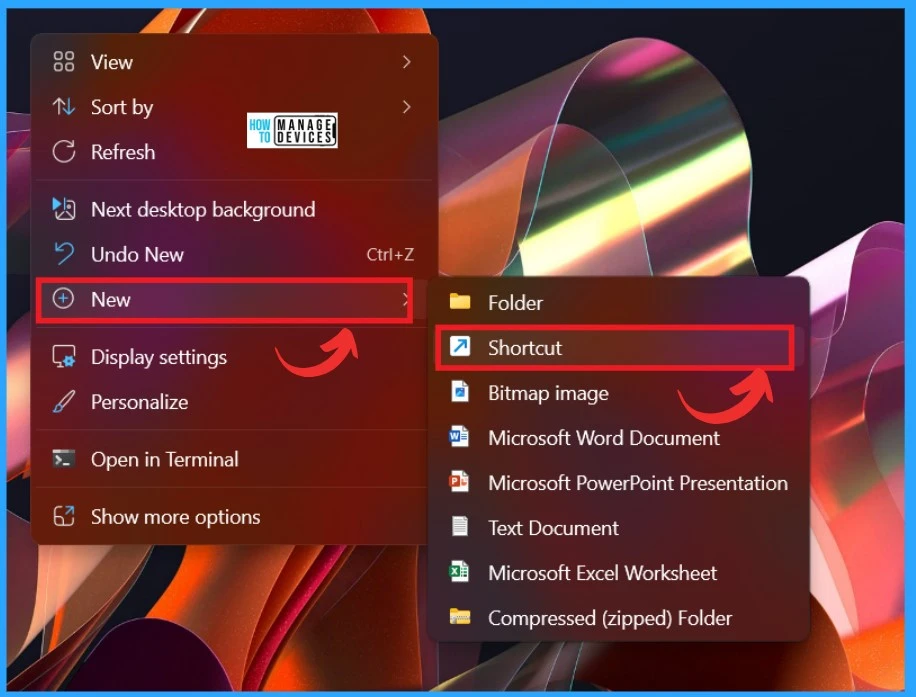
You can remove the Copilot Toolbar icon from Microsoft Edge using a shortcut. To create a shortcut Right Click on the desktop and select the New option. In the new option, select the shortcut.
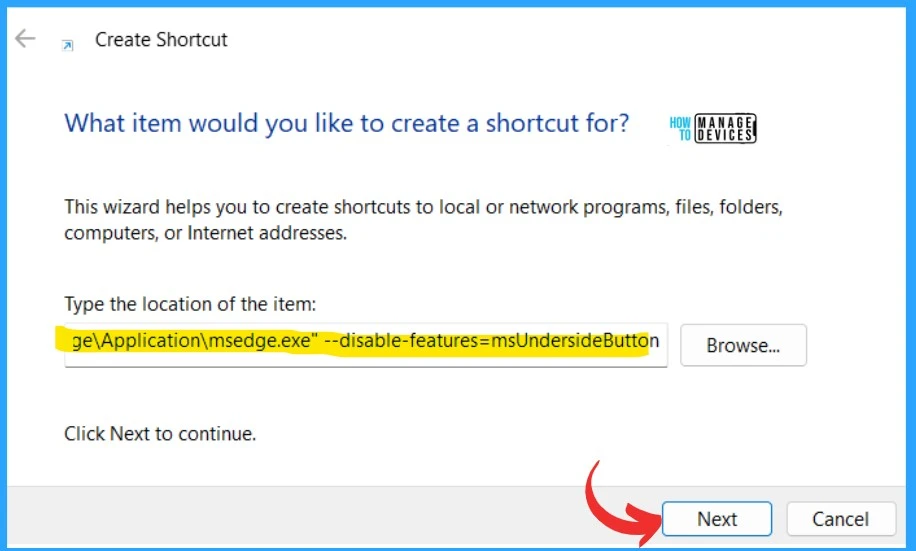
In the location field, enter the specific command for your version of Microsoft Edge, then click the ‘Next’ option to proceed.
- Here, I am using Microsoft Edge, so I give the following Command
- “C:\Program Files (x86)\Microsoft\Edge\Application\msedge.exe” –disable-features=msUndersideButton
| Microsoft Edge Versions | Command |
|---|---|
| Microsoft Edge | "C:\Program Files (x86)\Microsoft\Edge\Application\msedge.exe" --disable-features=msUndersideButton |
| Microsoft Edge Dev | "C:\Program Files (x86)\Microsoft\Edge Dev\Application\msedge.exe" --disable-features=msUndersideButton |
| Microsoft Edge Beta | "C:\Program Files (x86)\Microsoft\Edge Beta\Application\msedge.exe" --disable-features=msUndersideButton |
| Microsoft Edge Canary | "%LocalAppData%\Microsoft\Edge SxS\Application\msedge.exe" --disable-features=msUndersideButton |
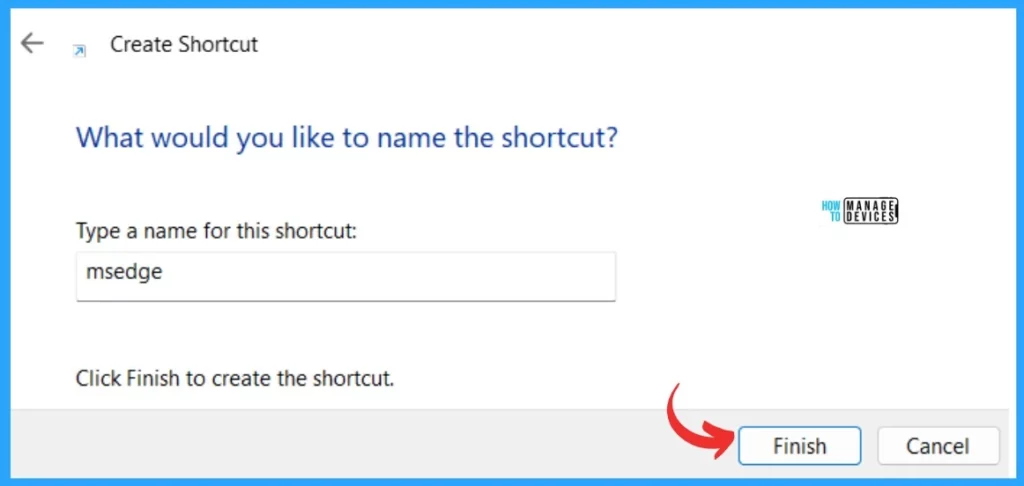
In the next Window, you can give the Name of the shortcut; here, I gave the msedge as the name of the shortcut. After giving the name, you can click on the finish button.
We are on WhatsApp. To get the latest step-by-step guides and news updates, Join our Channel. Click here –HTMD WhatsApp.
Author
Krishna. R is a computer enthusiast. She loves writing about Windows 11 and Intune-related technologies and sharing her knowledge, quick tips, and tricks about Windows 11 or 10 with the community.



Discussion