






Enable Disable Defender SmartScreen for Microsoft Store Apps in Windows 11
Let’s learn to Enable Disable Microsoft Defender SmartScreen for Microsoft Store Apps in Windows 11. Microsoft Defender Smart screen is the best tool for cybersecurity; we live in a digital world where many cyber-attacks are to be done. Microsoft Defender SmartScreen is the best option to prevent this in those cases.
If you are wondering why we must enable Microsoft Defender SmartScreen, its security level is very high. It mainly concentrates on users’ safety from many types of malware on the Internet. It is an integrated part of Windows 11 and acts as a warning system for the device.
Apps are very secure with the help of Microsoft Defender. Microsoft Defender SmartScreen is essential for apps from the Microsoft Store in Windows 11 as it offers multiple levels of security. SmartScreen offers immersive security to keep users safe when installing apps.
This blog post will explain disabling and enabling Microsoft Defender SmartScreen for Microsoft Store Apps in Windows 11. It is necessary to learn about your app’s security. Defender SmartScreen detects and blocks malware websites and applications for your protection.

- Turn On or Off Microsoft Defender SmartScreen for Microsoft Edge in Windows 11
- Reset Windows Security App in Windows 11
- Privacy and Security Settings in Windows 11
- Enable Microsoft Defender SmartScreen in Intune to Block Malicious Websites Phishing Unsafe Downloads and Unrecognized Apps
Is it necessary to Enable and Disable Microsoft Defender SmartScreen for Microsoft Store Apps in Windows 11?
1. Defender SmartScreen is like a safeguard for the Microsoft Store.
2. It ensures that the apps users download are safe, thus protecting the integrity of their devices and personal data.
3. It detects and blocks malware activity in websites and applications
4. It allows you an early warning when any attacks on your application
Enable Disable Microsoft Defender SmartScreen for Microsoft Store Apps in Windows 11
Turning on or off Microsoft Defender SmartScreen for Microsoft Store Apps in Windows 11 is easy. Smarscreens, present in old Windows versions, are a tool to help make web browsing safer. To Enable and disable Defender SmartScreen, you first have to open Windows Security.
- Search for Windows security in the Search bar
- Click on the Open
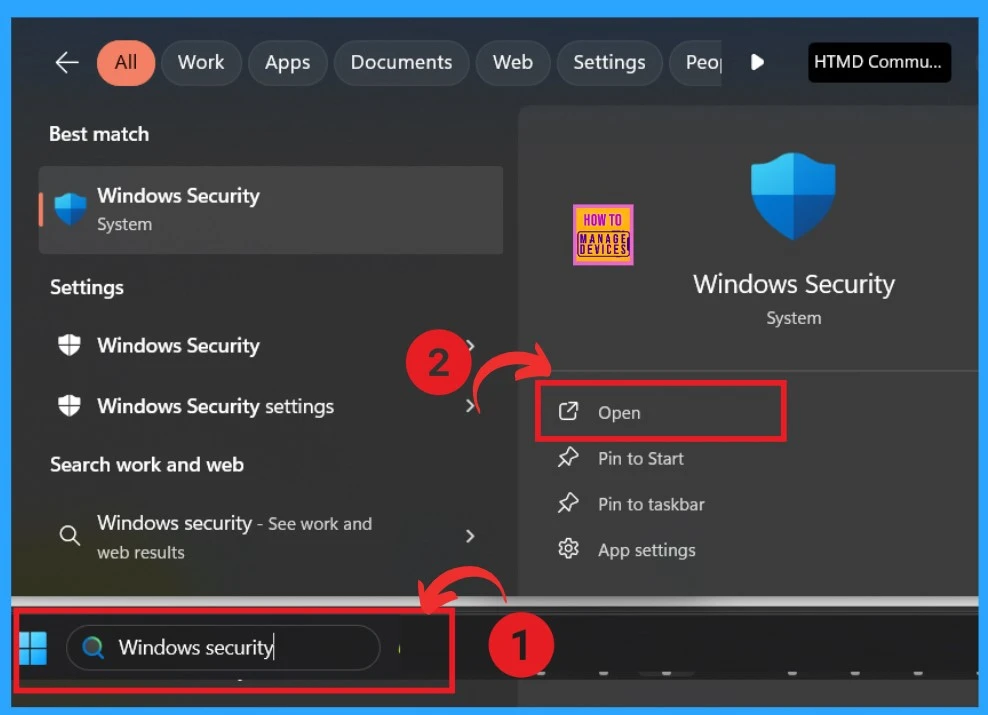
After clicking on open, you will see Windows security. There are many sections for Windows security. You have to concentrate on App and browser control. Click on App and Browser control. Many security options are available in that option.
| App Protection and Online Security Features | Info |
|---|---|
| Smart App Control | Enhancing protection from untrusted apps |
| Reputation- based protection | These settings protect from malicious or potentially unwanted apps, files and websites. |
| Exploit protection | It is built in Windows to help protect your device against attacks. |
- Click on the Reputation-based protection settings
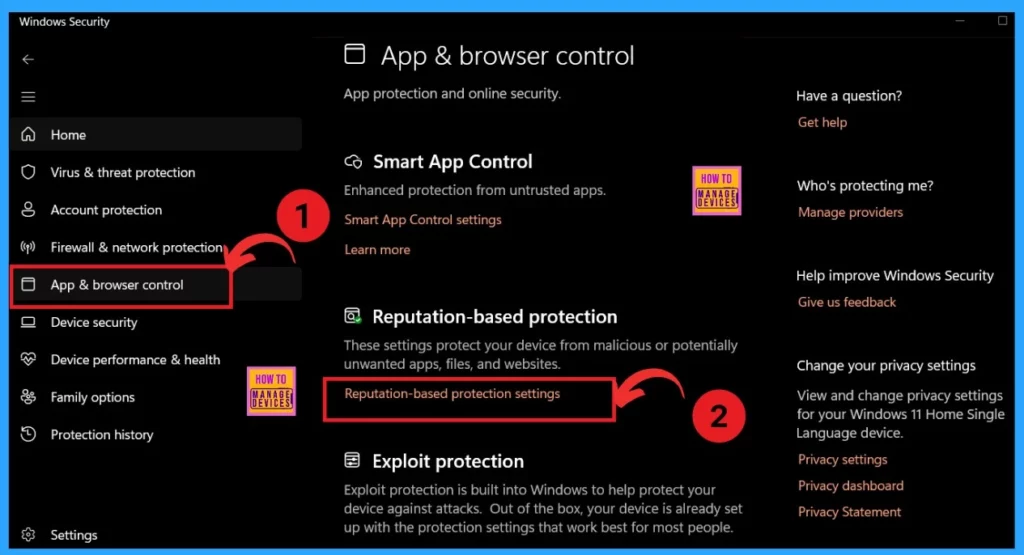
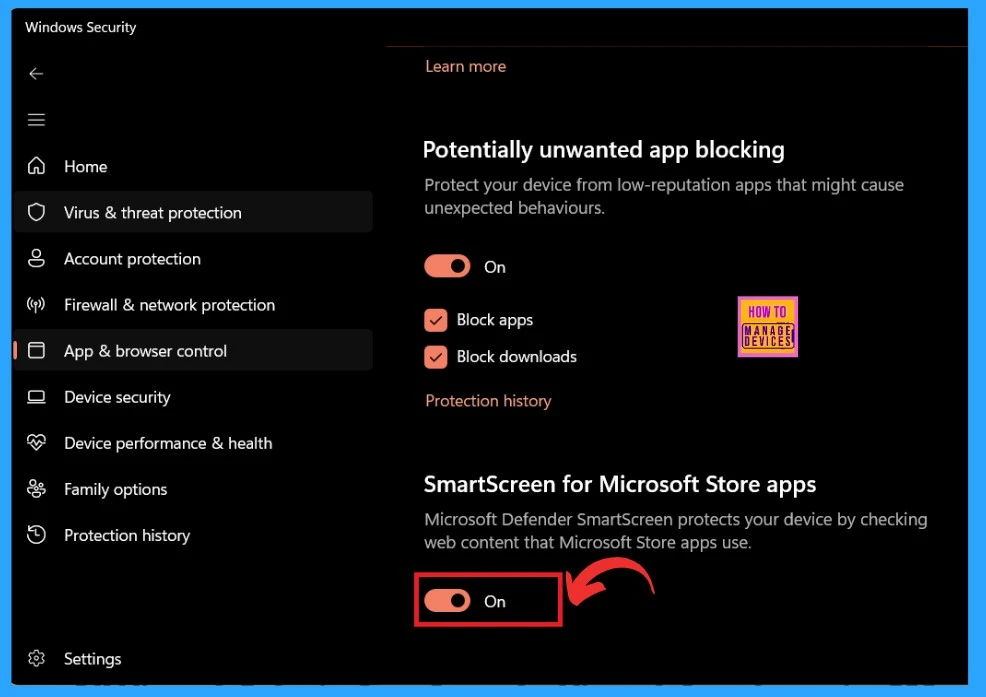
The Reputation-based protection settings protect your device from malware or potentially unwanted apps, files, and websites. Scroll down the screen until you get the option called SmartScreen for Microsoft apps.
- The SmartScreen for Microsoft apps option is enabled by default
- If you want to Disable them, you have to toggle the pane from the Right to the Left
Enable and Disable Microsoft Defender SmartScreen for Microsoft Store Apps using Registry
Registry options are crucial to our device. A REG file is a text file in Windows that contains instructions for the Windows registry and a database that stores settings for our device. Using the REG file to enable and disable Microsoft Defender SmartScreen for Microsoft Store Apps is very easy.
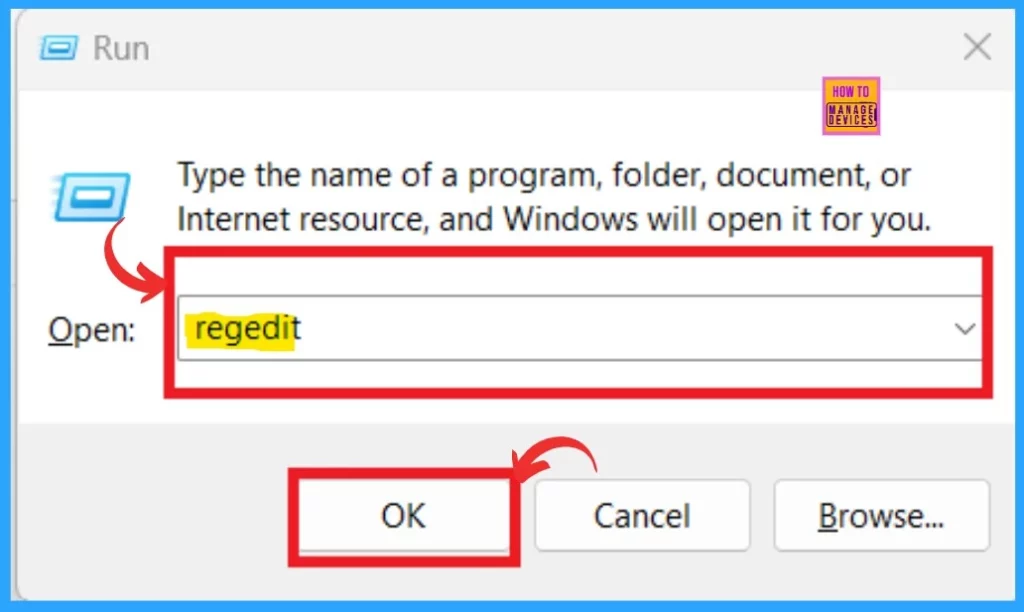
- First, you have to Open the Registry by clicking Win+R.
- This will open the Run dialog box
- Type regedit into the Open field of the Run dialog box
- Click OK
- Microsoft Defender Offline Scan Options for Windows PCs
- Microsoft Defender Antivirus Periodic Scanning in Windows 11
- How to Check Drive Encryption Support in Windows 11
After opening the registry, you must give the appropriate path for enabling Microsoft Defender SmartScreen for Microsoft Store Apps. You can use the following path for navigation for Enabling Microsoft Defender SmartScreen for Microsoft Store Apps.
| Microsoft Defender SmartScreen for Microsoft Store Apps using REG | Navigation path |
|---|---|
| For Enabling/ Disabling | [HKEY_CURRENT_USER\Software\Microsoft\Windows\CurrentVersion |
Note: Microsoft Defender SmartScreen for Microsoft Store Apps are Enabled by Default
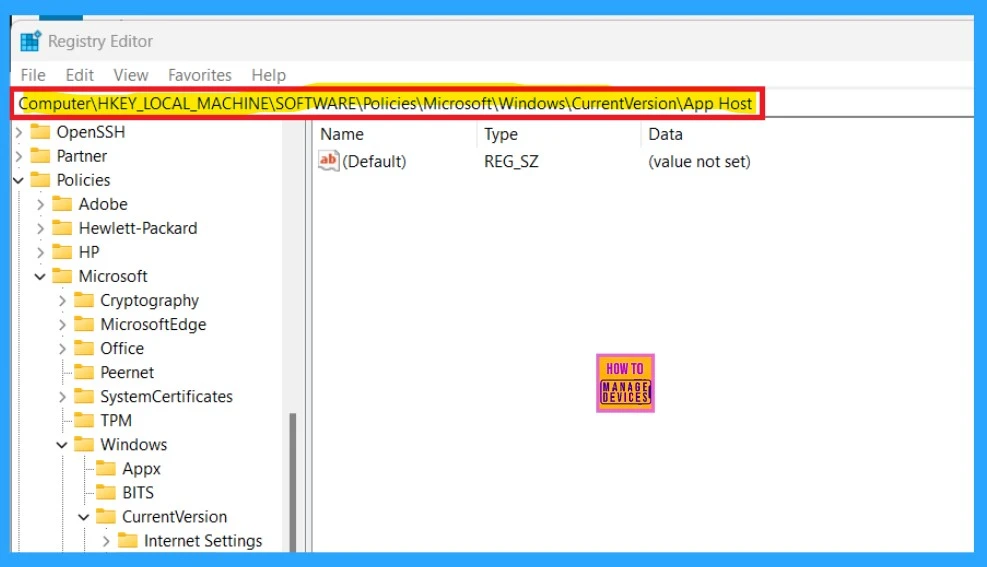
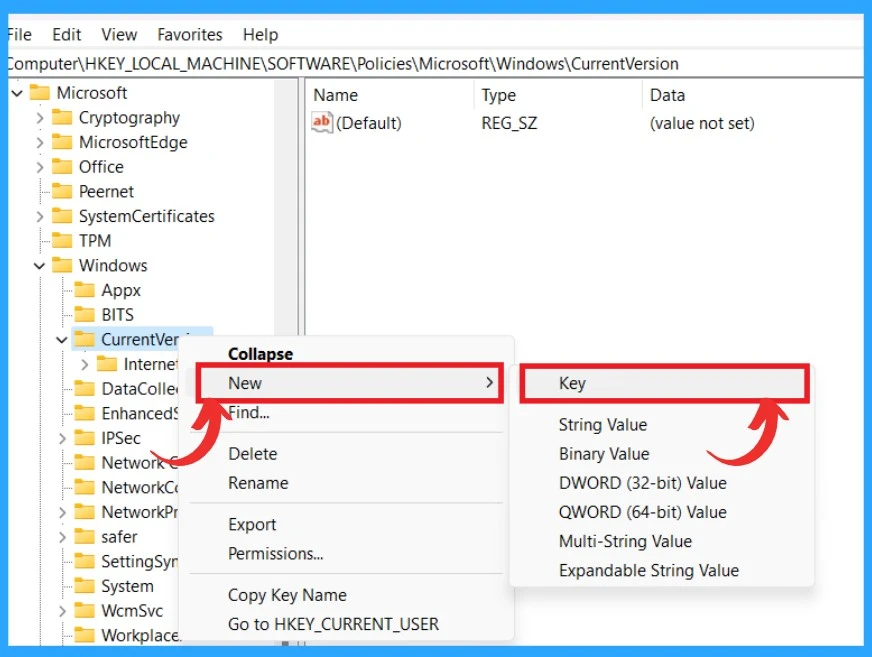
If you want to disable this option in registry, you have to enter the above path. After entering the path, In the left sidebar, right-click and select New > Key.
- Name the key as AppHost
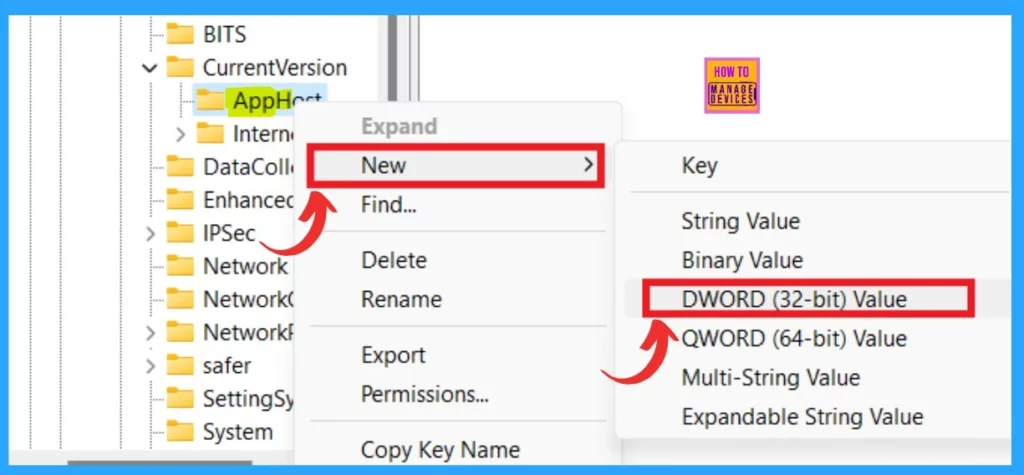
With the AppHost key selected in the left sidebar, right-click in the main pane, choose New > DWORD (32-bit) Value, and Name this new DWORD value “EnableWebContentEvaluation.”
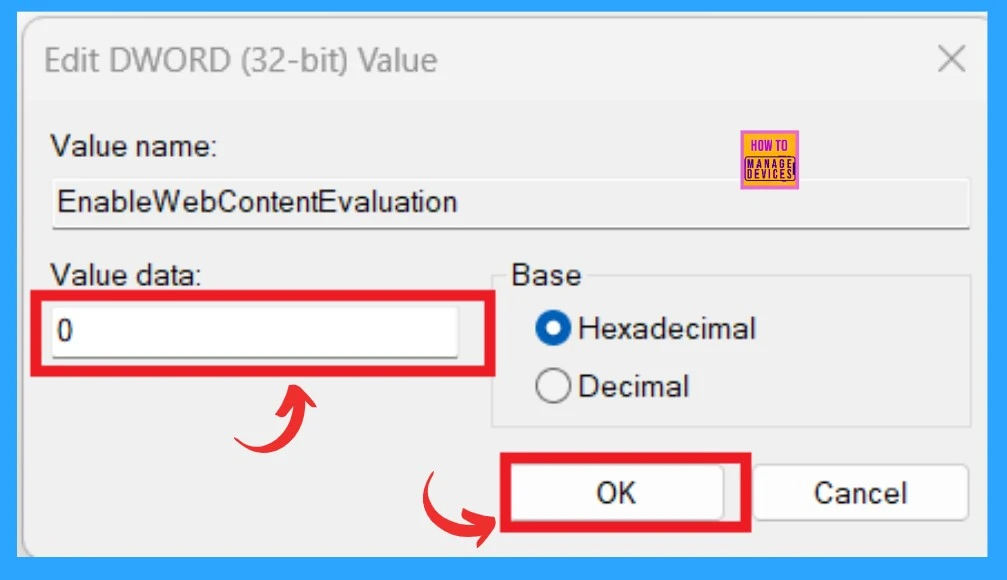
After rename as the “EnableWebContentEvaluation” double click on that, now EnableWebContentEvaluation dialog box is now opened. You can modify the value data as 0 for Disable the Microsoft Defender SmartScreen for Microsoft Store Apps.
- The 0 value for Disabling
- the 1 value is for Enabling
We are on WhatsApp. To get the latest step-by-step guides and news updates, Join our Channel. Click here –HTMD WhatsApp.
Author
Krishna. R is a computer enthusiast. She loves writing about Windows 11 and Intune-related technologies and sharing her knowledge, quick tips, and tricks about Windows 11 or 10 with the community.




Discussion