






Process to View Delivery Optimization Activity Monitor in Windows 11
Let’s learn how to View the Delivery Optimization Activity Monitor in Windows 11. Windows Update Delivery Optimization helps you get Windows updates and Microsoft Store apps more quickly and reliably. You can refer directly to the Windows update options from the Windows Update settings.
You can access the advanced stages of Windows updates and find the update history installed on your device. Windows 11 used Delivery Optimization, a cloud-based downloader, to download Windows Updates, apps from the Store, and other Microsoft products.
Delivery Optimization can not be used to download or send personal content. Delivery Optimization does not access your personal files or folders or change any files on your device. To quickly and reliably download these files onto your device, Delivery Optimization identifies the best source and dynamically optimizes the bandwidth your device uses.
As always, you decide whether you want Delivery Optimization to share parts of downloads between your device and others on your local network or the Internet. And now, new features let you view your device’s download and upload activity, control bandwidth usage, and more.

- Enable Power Optimization Settings on Windows 11 | Intune | Group Policy
- Enable Disable Delivery Optimization Using Intune SCCM for Windows 11 PCs
How to View Delivery Optimization Activity Monitor
As we all know, Windows provides all-over access to Windows OS users. Here, Windows also provides access to view delivery optimization activity monitor by using the Windows Settings App & the Run Command dialogue box. The process is described in detail below.
Delivery Optimization downloads the same updates and apps that you would get through Windows Update and Microsoft Store, using the same security measures. To ensure you get authentic updates, Delivery Optimization securely gets information from Microsoft to check the authenticity of each part of an update or app that it downloads from other devices. The authenticity of the downloads is checked again before installing them.
View Optimization Activity Monitor using Windows Settings App
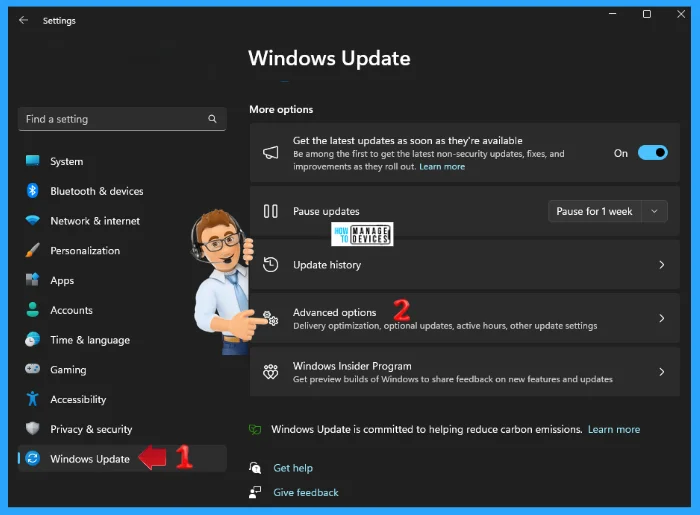
You can use Windows Settings to View the Delivery Optimization Activity Monitor. Click on the Windows button, select Settings, or press Win Key + I to open settings directly. Then, under settings, click on the Windows Update option on the left panel and scroll down to find Advanced Options in the right panel.
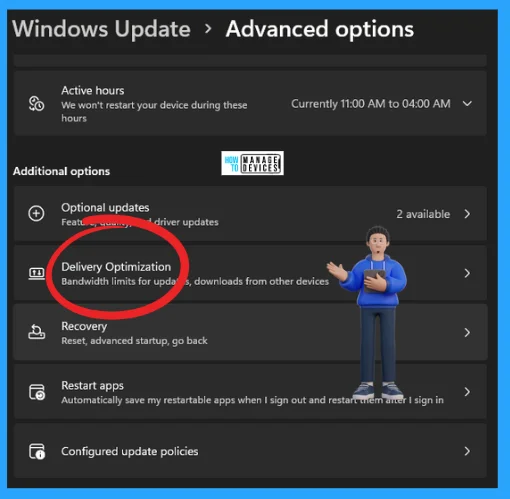
The Advanced Options window opens. Scroll down to find the Delivery Optimization option. This option sets bandwidth limits for updates and downloads from other devices. Now click on Delivery Optimization to open it.
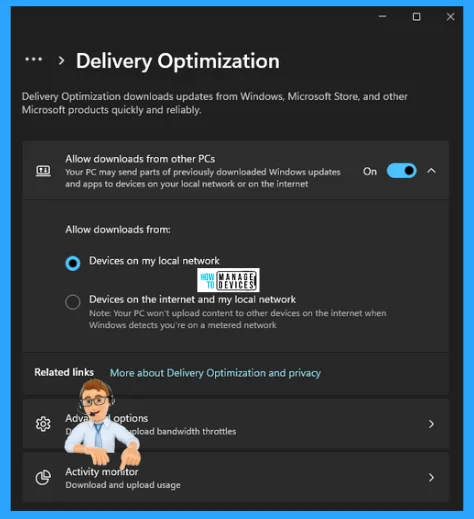
Now the Delivery Optimization Window opens. Delivery Optimization downloads updates from Windows, Microsoft Store, and other Microsoft products quickly and reliably. Scroll down to find the Activity Monitor option and click on it to open.
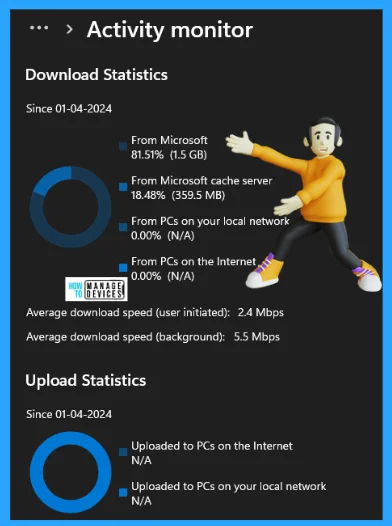
Here, the Activity Monitor window opens; it shows the Download Statistics for a particular time period that your device uses and also provides the Upload Statistics for a particular time period. You can also find the Average download speed (user-initiated) and the Average download speed (background).
View Optimization Activity Monitor using Run Command
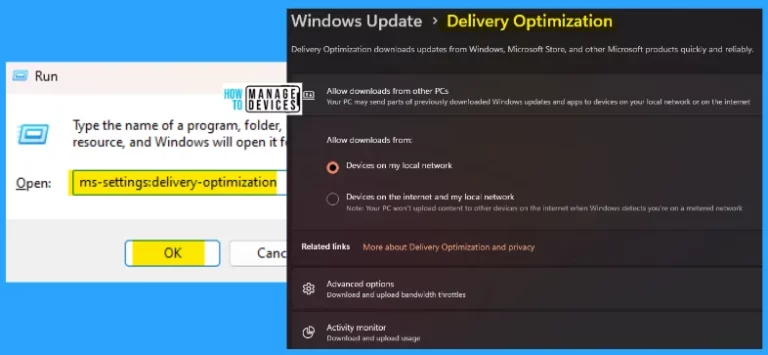
The ms-settings:delivery-optimization command is used to deliver optimization downloads updates from Windows, Microsoft Store, and other Microsoft products quickly and reliably.
This window allows your PC to send parts of previously downloaded Windows updates and apps to devices on your local network or the internet – Run Commands for Windows Update and Other Settings.
- Open the Run command dialog box.
- Type ms-settings:delivery-optimization and press OK.
Now that the Delivery Optimization window is open, scroll down to find and open the Activity Monitor, and follow Fig. 4 and Fig.5, which are equal steps later.
I hope the information on the Status Management of Windows Welcome Experience in Windows 11 is helpful. Please follow us on the HTMD Community and visit our website, HTMD Forum, if you like our content. Suggest improvements, if any, and we’d love to know which topic you want us to explore next.
We are on WhatsApp. To get the latest step-by-step guides and news updates, Join our Channel. Click here – HTMD WhatsApp.
Author
Alok is a Master of Computer Applications (MCA) graduate. He loves writing on Windows 11 and related technologies. He likes to share his knowledge, quick tips, and tricks with Windows 11 or Windows 10 with the community.




Discussion