






Let’s try to learn how to Install SQL Server as part of SCCM Migration SQL Server—Installation | Part 1. I recently received many inquiries from admins regarding upgrading their ConfigMgr (SCCM|MEMCM) hierarchy.
SCCM Migration SQL Server step-by-step guide. Most of their organizations want to upgrade/migrate their hierarchy to ConfigMgr Current Branch’s latest version.
Since most of the existing ConfigMgr 2012 environment runs on Windows Server 2008 R2, the upgrade needs to be planned properly.
As of writing this post, SQL 2017 is the latest version, ConfigMgr Current Branch 1702 is the baseline version, and Windows Server 2008 R2 is not supported for site servers or most site system roles but does remain supported for the distribution point site system role (including pull-distribution points, and for PXE and multicast).

Table of Contents
Introduction – How to Install SQL Server as Part of SCCM Migration SQL Server Installation
In the next few weeks, I will cover the SCCM role migration from one server to another in my next series of posts. The topics that will be covered are below.
Related Post – New ConfigMgr Primary Server Installation Step-by-Step Guide | SCCM
You can check more on the depreciated OS for site system roles and the Current Branch support lifecycle.
- The Complete Guide for SCCM Server Migration Part 1 – SQL 2017 -SCCM SQL Server 2017 Installation and Best Practices
- The Complete Guide for SCCM Server Migration Part 2 – Database Migration
- The Complete Guide for SCCM Server Migration Part 3 – WSUS Server Migration
- The Complete Guide for SCCM Server Migration Part 4 – Primary Server Migration – SCCM Site Restore without SCCM Backup
- How to Upgrade SCCM SQL Server to 2019 | Primary Site Database
- SQL Server 2019 Upgrade For SCCM Secondary Server (Part 1)
- Upgrade SSRS SQL Server Reporting Services to 2019 (Part 2)
Following are the topics covered in the first part of this series. My years of experience with different customers helped me derive the best approach from the SCCM world.
- Tips on SCCM SQL Server Best Practices
- How to Install SQL Server 2017 for SCCM
- How to Install Reporting Service for SCCM
- How to Configure Report Server for SCCM
Tips on SCCM SQL Server Best Practices
Below are some of the best practices followed
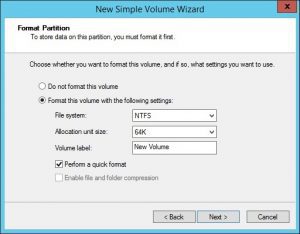
64K File Allocation Unit Size
By default, the NTFS file format uses 4K file allocation units. The SQL stores data in pages and extents of size 8K and 64K, respectively.
Formatting the drives, which will hold the SQL Databases, including tempdb, should be done using a 64 K file allocation size.
ConfigMgr Database Sizing
Below is a rough estimate for configuring the ConfigMgr database size based on the initial sizing and number of clients. Make sure you forecast the asset count increase for the next 5 years and include it in the total number of clients
| ConfigMgr Database Sizing |
|---|
| 250 MB (initial DB size) + (x * 6MB) – Where x is the number of clients the site server manages |
For Example, if an Organization has 10K workstations, including the growth for the next 5 years, the ConfigMgr DB size will be as below:
- Data File = 250 + 10,000*6 = 60250 MB
- Log File = 30% of Data File = 18075 MB
It is always recommended to pre-create the DB file
TempDB Best Practice
Tempdb files should be placed on a dedicated drive. Suppose your ConfigMgr hierarchy is huge, with a central administration site and multiple primaries, and SQL replication plays an important role. In that case, it is recommended that you place the tempdb on a drive with high IOPS.
Tempdb should be sized at 25-30% of ConfigMgr DB.
The latest version of SQL Setup adds multiple equally sized tempdb data files during a new instance installation. By default, setup adds as many tempdb data files as the logical processor count or eight, whichever is lower.
Pag File Sizing
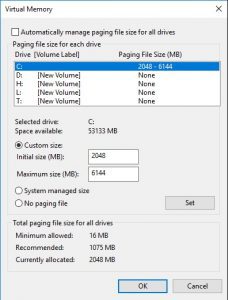
Pagefiles and server RAM are used as virtual memory, and it is recommended that you set a MIN and MAX page file size.
- MIN = 1 X RAM on Server
- MAX = 3 X RAM on Server
In my lab server with 2 GB RAM, below is the configuration.
Memory Configuration
By default, SQL consumes 100% of the server’s memory. If ConfigMgr DB resides on the Primary site, restrict max memory to 75% of total RAM, and if ConfigMgr DB is on a remote SQL server, restrict max memory to 80-90% of total RAM.
AV Exclusions
AV exclusions play an important role in SQL performance. It is recommended that the SQL process and DB files be excluded from real-time monitoring for better performance. However, if these files get infected, your antivirus won’t identify them. Below are the exclusions for SQL Server 2017.
%ProgramFiles%\Microsoft SQL Server\MSSQL14.MSSQLSERVER\MSSQL\Binn\SQLServr.exe
%ProgramFiles%\Microsoft SQL Server\MSRS14.MSSQLSERVER\Reporting Services\ReportServer\bin\ReportingServicesService.exe
SQL Server data files (.mdf, .ndf, .ldf files)
SQL Server backup files (.bak, .trn files)
Trace files (.trc files )
SQL Service Account
As a SQL Security best practice, using a service account for SQL and Reporting Services is recommended. Use SQL Server Configuration Manager to manage the passwords of the SQL Service account.
How to Install SQL Server 2017 for SCCM
Beginning with SQL Server 2017, SSRS installation moved from the standard SQL server installation to a lightweight installer. The major advantage I see here is that Reporting services can now be upgraded without impacting the SQL Server database engine.
Below are the steps involved in installing a stand-alone SQL 2017 instance.
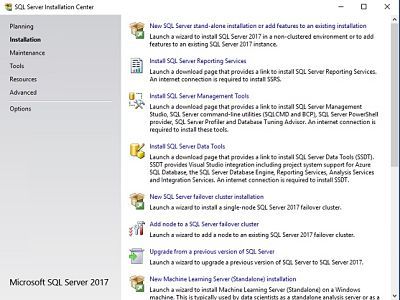
- As soon as you start the SQL 2017 setup,
- Just click on the installation tab on the SQL Server Installation Center
- Then, on the New SQL Server stand-alone installation,
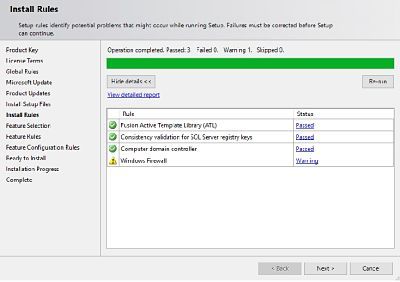
2. Enter the product key, accept the agreement, install the setup files, and run the pre-requisite rules. Once you have completed all the rules, proceed to the next window.
3. In Feature Selection, you need to select: The table below helps show more details.
| Feature Selection |
|---|
| Database Engine Services. |
| Client Tools Connectivity. |
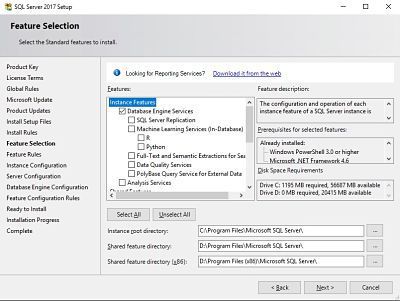
4. Select Default Instance as a part of Instance Configuration.
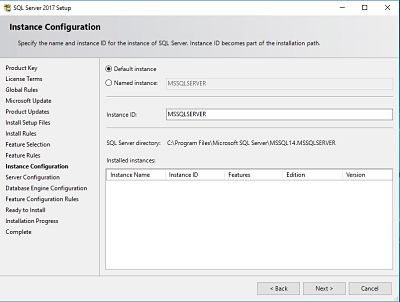
I won’t prefer installing ConfigMgr on SQL with multiple instances as it’s really hard to troubleshoot the performance bottlenecks. The ConfigMgr license includes standard SQL, so there is nothing to worry about regarding SQL licensing.
5. Provide the SQL Service account details(recommended), or else leave it on the default SYSTEM Account.
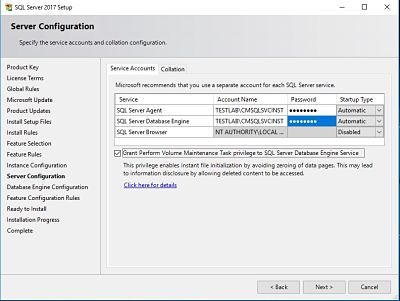
6. Provide the Collation SQL_Latin1_General_CP1_CI_AS
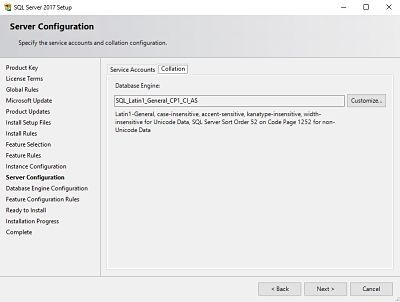
The screenshot below helps you show the database engine configuration. The screenshot below helps you show the database engine configuration.
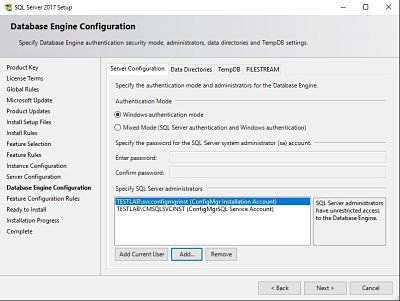
7. Select Windows Authentication and provide SQL Service account and SQL DBA security group Administrator access.
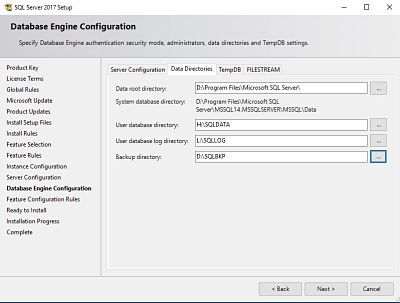
8. Select the Data directories based on your drive configurations. Recommended placing on different drives.
9. Place tempdb on a separate drive with high IOPS, and the setup will detect the number of files based on the logical processor on the server or 8, whichever is lower.
Since my test server has one logical processor, it has taken the number of files as 1. Also, as I mentioned earlier, make sure you do the tempdb sizing for better performance.
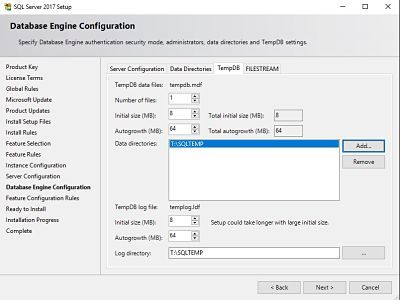
The screenshot below shows the SQL Server 2017 setup. The screenshot below helps you show more details.
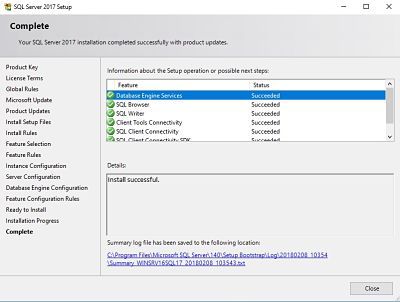
10. you will get a successful installation window once the setup is complete.
11. Reboot the server and Install SQL Server Management Studio separately by downloading
How to Install Reporting Service for SCCM
Let’s discuss how to Install a Reporting Service for SCCM. The screenshot below provides more details. Download the SQL Server 2017 Reporting Services installer
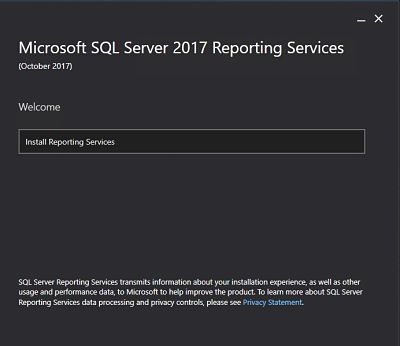
Run the SQL Server Reporting Services set up to land on the welcome page.
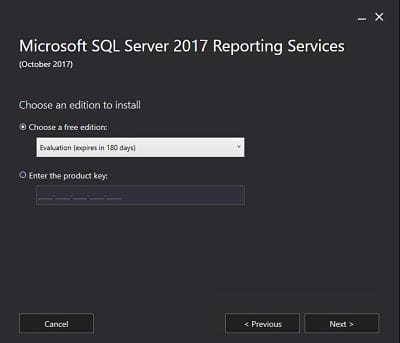
2. Choose the appropriate licensing option and proceed with the license terms agreement. The key used for SQL Server 2017 installation will be the same. More info on Reporting Services licensing can be found here.
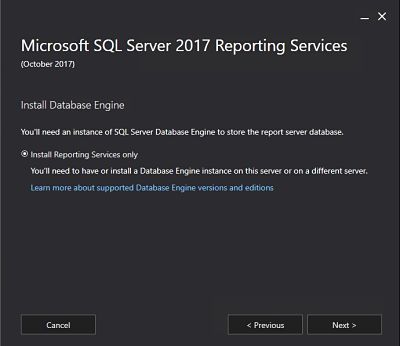
3. Select Install Reporting Services only and complete the setup. After configuring the Report Server, you may need to reboot the server.
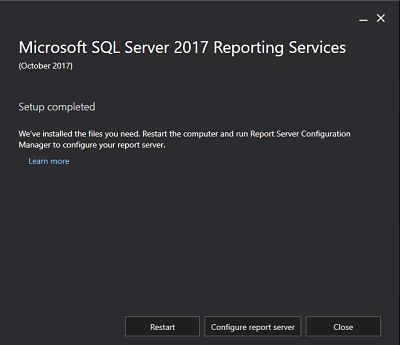
How to Configure Report Server for SCCM
Let’s learn how to Install SQL Server as part of SCCM Migration SQL Server—Installation. In this part, we will learn about the SCCM report server.
- Open the SSRS Configuration page and connect to the Report Server Instance.
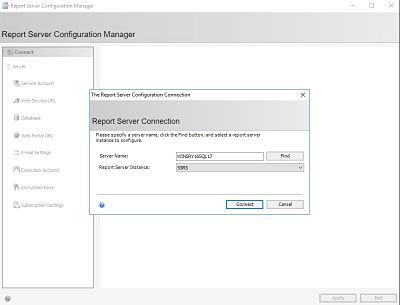
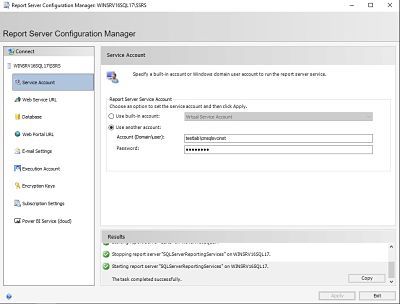
2. Select the Service Account tab and click on Use another account if you use a service account for SSRS. Provide the Service account and password and click on apply.
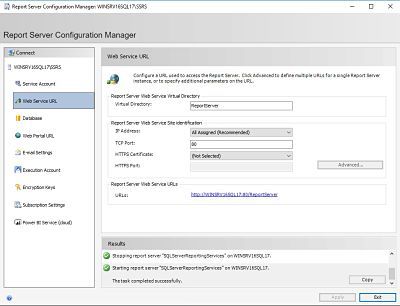
3. Select the Web Service tab and verify the default provided values. If you wish to change the Report Server URL, modify it according to your requirements and click Apply to save the settings.
4. Select the Database tab on the left and then click Change Database on the right to create a new Report Server Database in the SSRS configuration window.
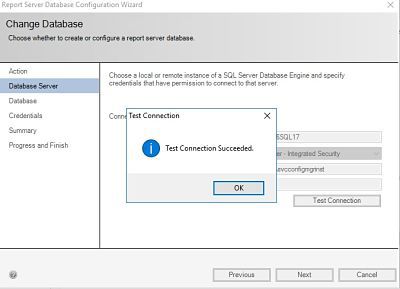
a. Click on the test connection tab to check the connectivity to the SQL database engine and proceed to the next step in the success.
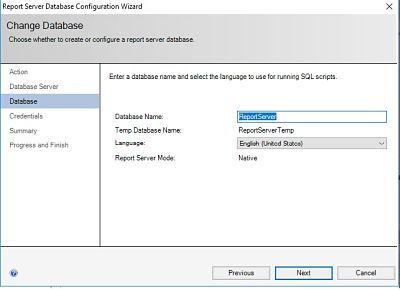
b. Provide the Report Server database name if you want custom naming. Else, leave it default, and the name will be ReportServer.
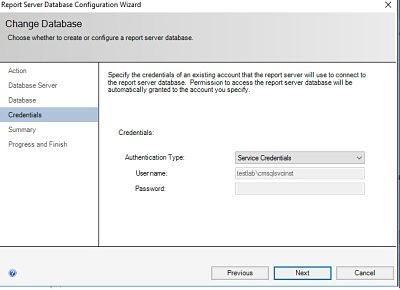
c. The Service Credentials will appear on the credentials page since I have used the service account. If you initially configured the service account, you don’t need to provide the password again.
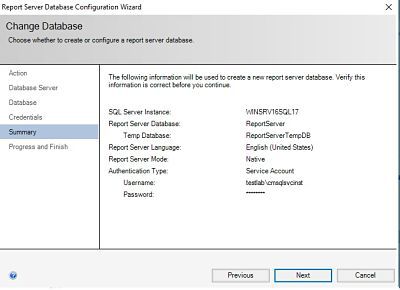
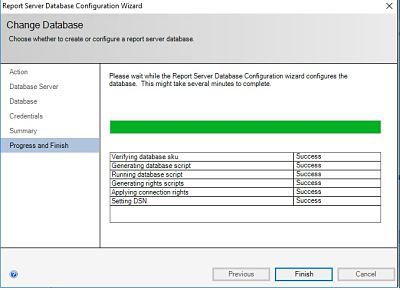
d. Finally, you will see the summary page where you can verify the details provided earlier before the SSRS database is created. e. On proceeding further, the SSRS DB is created, and appropriate permissions are set.
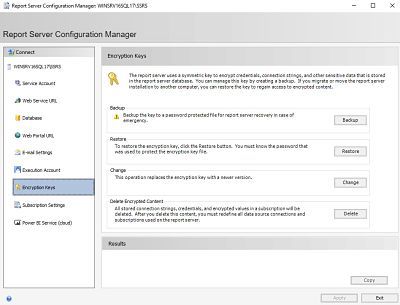
5. Back up the SSRS encryption key (.snk file and password) in a safe location so that you can restore it in case of failure.
We are on WhatsApp now. To get the latest step-by-step guides, news, and updates, Join our Channel. Click here. HTMD WhatsApp.
Author
Rajul is a technical architect with over 12 years of experience as an endpoint configuration manager. He has hands-on experience in SCOM, SCVMM, SCEP, SQL, Azure, Intune, etc. His main area of interest is the design and implementation of ConfigMgr and OpsManager Infrastructure. He has a vast knowledge of ConfigMgr infrastructure and client-side troubleshooting.




Is it possible to upgrade current CB1710 with SQL 2016 SP1 to SQL 2017?
Ram
StaffYes, You can. My next post will include the steps on how to move DB from an older version to SQL 2017.
Can wait to read it, great article!
When are you going to do that next post on moving the DB from an older version to SQL 2017? Interested to see what you put together.
StaffI am currently editing the post, will publish it mostly by next week.
So what you mean is install a new instance of SQL 2017 and then move the DB to SQL 2017?
Any possibility to directly upgrade SQL 2016 SP1 to SQL 2017? I am aware RS is separate in SQL 2017.
Thanks
Ram
StaffI have not tested the in-place upgrade of SQL 2016 SP1 to SQL 2017 with ConfigMgr DB. Logically it should work and the only difference would be to upgrade the SSRS separately from DB engine upgrade.
Great article, very useful.
StaffThanks Paddy
Hello, Rajul!
Is it to possible to the in-place upgrade OS Windows 2012 R2 -> Windows 2016 on Site Server?
Or needed to make a new site and migration?
It is possible, just make sure you do a full site backup from within SCCM, then do a complete site stop.
Once the OS is upgraded, I had to run ConfigMgr setup and run “Perform Maintenance or reset this site” so that all the components were re-initialised – not doing this causes many headaches..
I had some issues afterwards where several windows services failed to autostart but this could be my environment
StaffYes, it is possible. But from my past experience, I would say to restore the site on a fresh machine with fresh OS installation. By doing this, you are not carrying the rot from the old server. Obviously, you will have to make some extra effort but it will be worth and will have a problem-free environment.
hi,
I have primary server with remote sql server with Sccm cb 1710,now I want to migrate the sql server from physical to virtual.what are the best practices for p2v?what are the precautions need to be taken?
StaffP2V is ok. I used P2V in the environment where I work. In new world P2V is so normal and you don’t need to worry about that at all.
If you would have asked this question 6-7 years before then, the answer could be different
Is there a part 2 to this?
You say “ConfigMgr license comes with standard SQL included, so nothing to worry about the SQL licensing.” This article details the installation of SQL 2017 Std, yet in VLSC the only SQL option is 2016 Std. Do you have any further detail to shed on this?
Hi Anoop. You mention “ConfigMgr license comes with standard SQL included, so nothing to worry about the SQL licensing.”
In this article you are installing SQL 2017, yet in VLSC only SQL 2016 is available with ConfigMgr. Can I assume you have purchased SQL 2017 for other means and have this available to you? Otherwise you could only be running it in eval.
StaffHi Jeff – It’s not me. The posts are from Rajul. Have you seen the following doc? https://docs.microsoft.com/en-us/sccm/core/understand/product-and-licensing-faq#bkmk_sql
Approved use rights for the SQL capabilities with SCCM include:
Site database role
Windows Server Update Services (WSUS) for software update point role
SQL Server Reporting Services (SSRS) for reporting point role
Data warehouse service point role
Database replicas for management point roles
SQL Server Always On
Hi
i have different drives setup as suggested earlier on site server:
C : OS = 150
E: SCCM = 200 GB
F: SQL Database =100 GB
G: SQL TempDB = 50 GB
H: SQL Logs = 50 GB
How can i setup
-root and shared feature directories on “Features Selection “Tab,
-data directories and temp db directories on “Database Engine Configuration” Tab
Could you please guide me through this?
setup Crownship K1A