






Best Intune Guide to Enable Developer Mode in Windows Machines
Let’s learn how to Enable Developer Mode in Windows Machines using Intune Configuration profiles. The present article aims to elucidate the process of managing Developer mode with the Intune Configuration Profile and deploying the configuration profiles to the Security group.
As per Microsoft, If your computer usage is limited to common day-to-day activities such as gaming, web browsing, or email, you do not need to activate Developer Mode. If you’re not developing your own applications on your PC, you don’t need to enable Developer Mode. In fact, it is advisable not to activate it.
When you’re a developer, you often need to test the software you’ve created on your computer. However, you must enable Developer Mode, which is turned off by default on a Windows PC. After enabling Developer Mode, you’ll have more permissions to write, develop, and test your own software. Opening a UWP project when Developer Mode is not enabled will either open the For Developers settings page or cause this dialogue to appear in Visual Studio.
Developer mode can be enabled or disabled manually using Windows settings, Group Policy, or Registry. Enabling Developer mode requires administrator access. If your device is owned by an organization, the option to enable Developer Mode might be disabled.

Discuss the Developer Mode Features
Developer Mode supersedes the Windows 8.1 requirements for a developer license. In addition to facilitating sideloading, the Developer Mode setting enables debugging and provides supplementary deployment options. This encompasses initiating an SSH service to facilitate deployment to the respective device. To deactivate this service, it is necessary to disable Developer Mode.

When you enable Developer Mode on your desktop, a package of features is installed. This includes Windows Device Portal and firewall rules for SSH services, allowing remote app installation. Enabling Device Discovery activates the SSH service. Windows Device Portal is enabled, and firewall rules are configured for it only when the Enable Device Portal option is turned on.
- Enable or Disable Developer Mode in Windows 11
- Enable Disable Performance Mode for Dev Drive Protection in Windows 11
- Intune Shared Device Mode for Android and iOS Devices
Enabling Developer Mode may present security vulnerabilities. Activation for development purposes exposes your PC to potential risks. While the option to enable developer mode is intended for developmental use, it also functions as a fundamental security measure, limiting exposure to potentially harmful programs. If you have enabled testing mode, we advise against downloading third-party apps from untrustworthy sources.
Enable Developer Mode in Windows with Intune
Let’s learn how to Enable Developer Mode on a Windows device through configuration profiles in Intune. Follow these steps meticulously.
- Sign in to the Microsoft Intune Admin Portal.
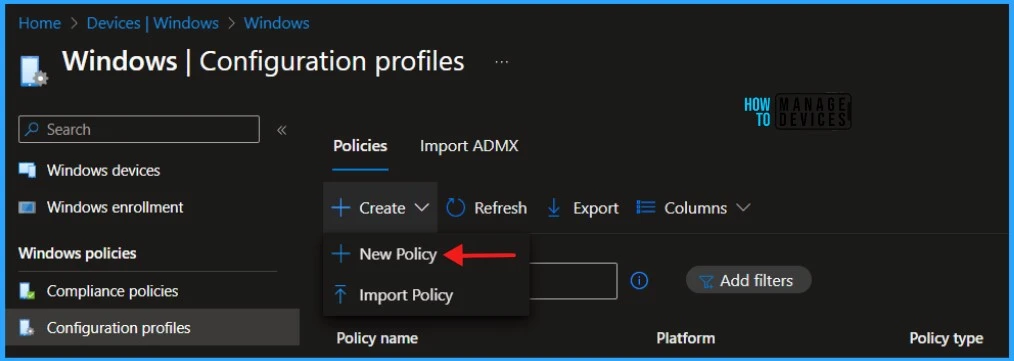
- Select Devices > Windows > Configuration Profiles > Create > New Policy.
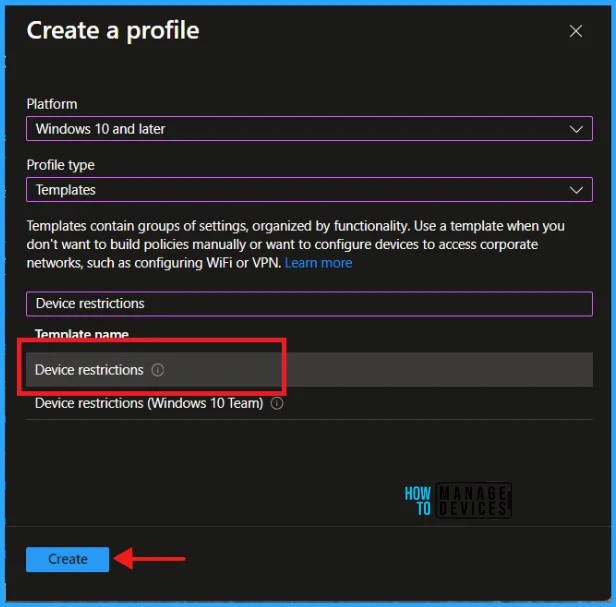
When you click Create and New Policy, a new window will open. In Platform, select Windows 10 and later, Select Profile Type as Templates and Device restrictions. Click on Create.
| Platform | Profile Type |
|---|---|
| Windows 10 and later | Templates |
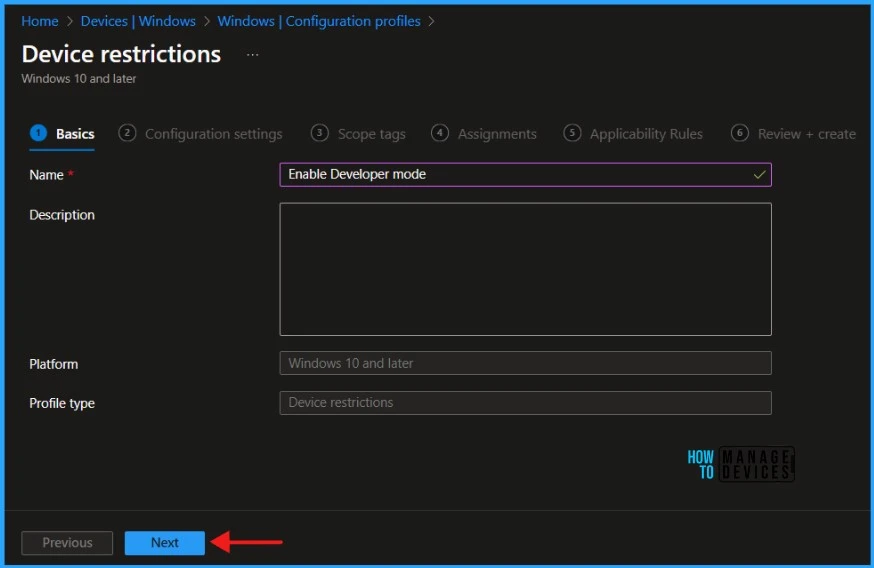
Navigate to the Basics tab and input the profile’s Name and Description. Click Next to proceed.
To add settings in the Configuration Settings section, navigate to the App Store and Click on Developer Unlock. These settings use the ApplicationManagement policy CSP, which also lists the supported Windows editions. Developer unlock allows Windows developer settings, such as allowing sideloaded apps to be modified by users.
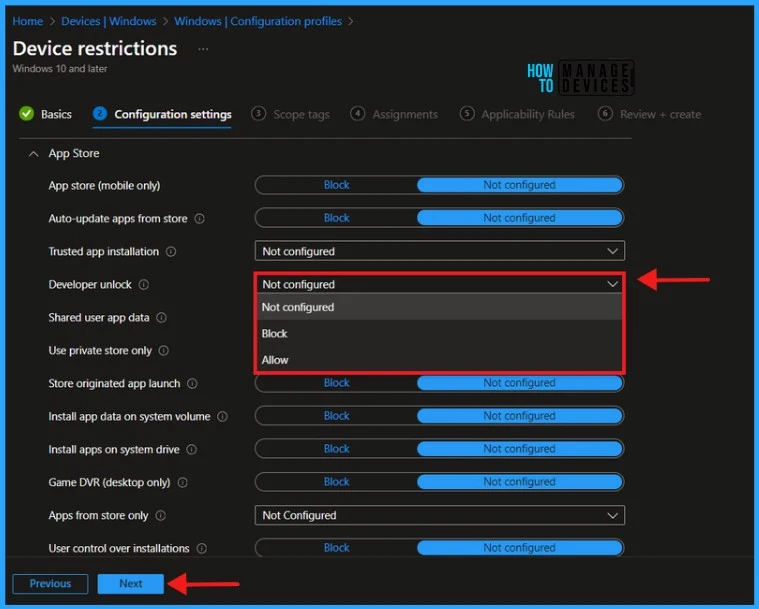
There are three settings available. By default, Developer unlock is set to Not configured, and Intune does not change or update this setting. When you set it to Block, Intune prevents developer mode and sideloading apps. In this example, I will choose the Allow option, which permits developer mode and sideloading apps. Select Allow and click Next to continue.
./Device/Vendor/MSFT/Policy/Config/ApplicationManagement/AllowDeveloperUnlockClick Next to display the Scope tags page. Add the Scope tags if you wish and click Next to assign the policy to computers. I will deploy it to the HTMD – Test Computers Group.
Read more : Intune Scope Tags Implementation Guide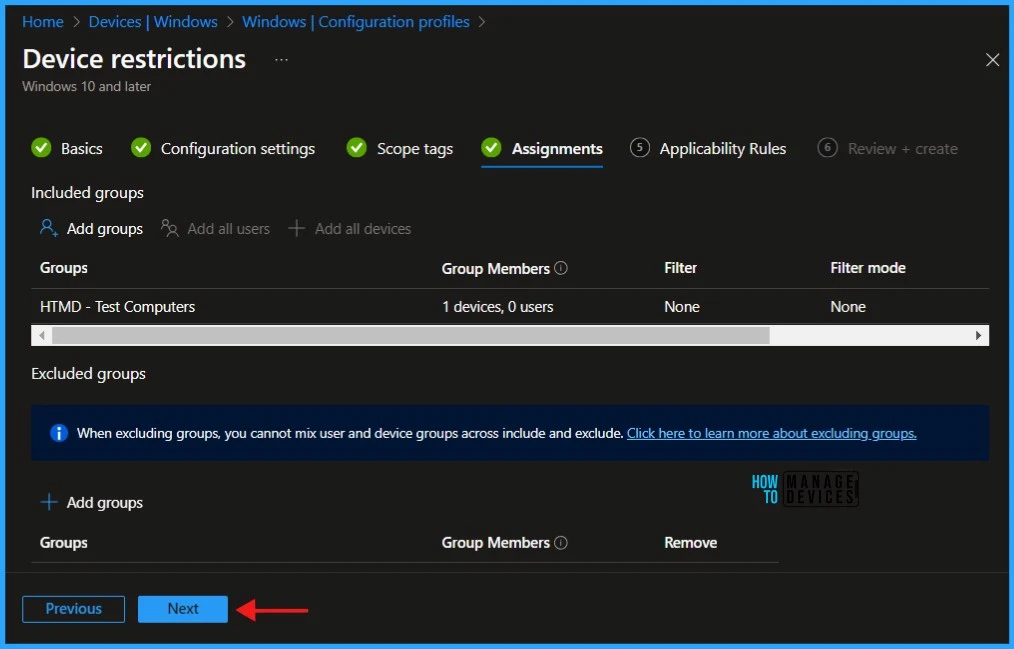
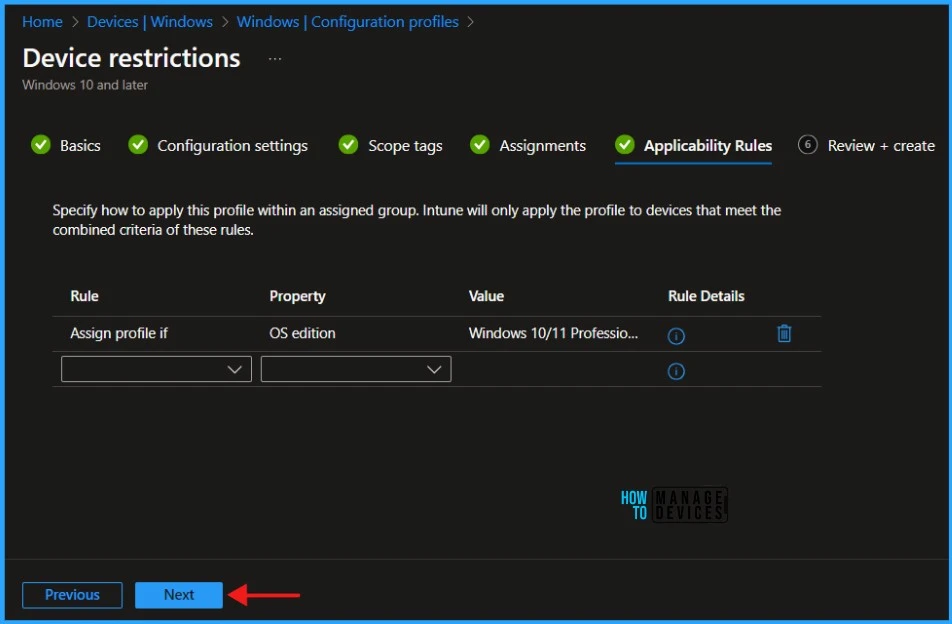
On the Applicability Rules page, if you wish specify how to apply this profile within an assigned group. Intune will only apply the profile to devices that meet the combined criteria of these rules.
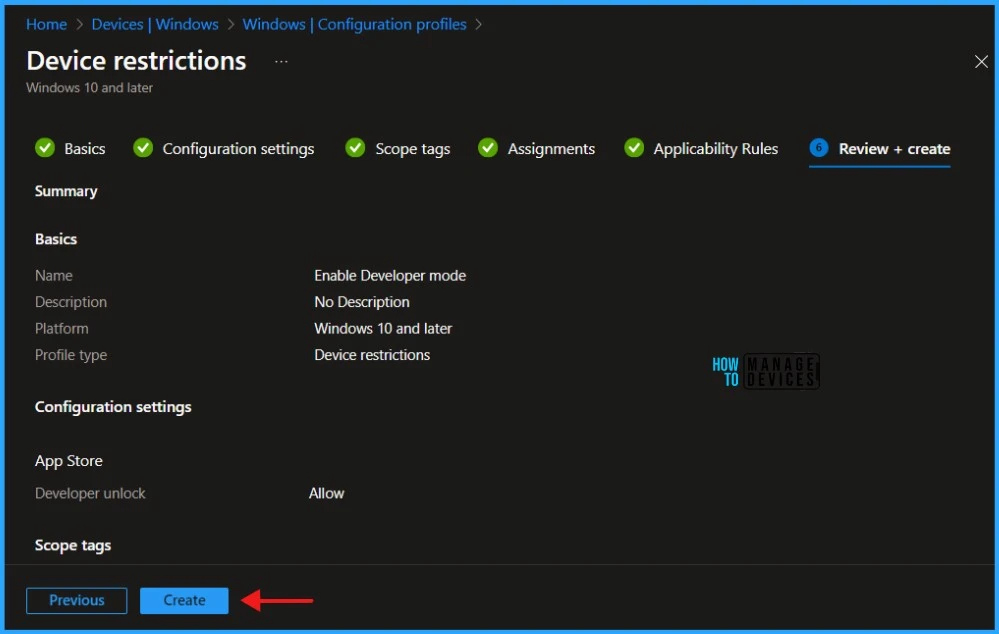
On the Review + Create page, carefully review all the settings you’ve defined to Enable Developer mode in Windows Machines. Once you’ve confirmed that everything is correct, select Create to implement the changes.
Monitor Configuration Profile Deployment in Microsoft Intune
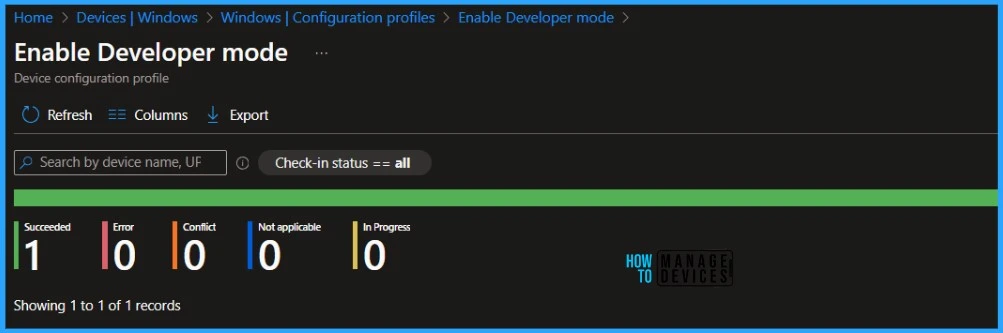
We have created a Configuration Profile to Enable Developer mode and deployed it to Microsoft Entra groups. Let’s see how we can monitor the deployment and status of installation from the Intune portal. To monitor the Intune policy assignment, follow these steps:
- Navigate to the list of Configuration Profiles and select the policy you targeted.
- Check the device and user check-in status from here.
- If you click “View Report,” you can see additional details.
- Monitor Intune App Protection Policy Status
- Monitor Device Enrollment Profile Deployment Report in Intune
- Turn on Real-time Monitoring Antivirus policy for Microsoft Defender in Intune
Event Log to Verify Intune Policy Deployment Status
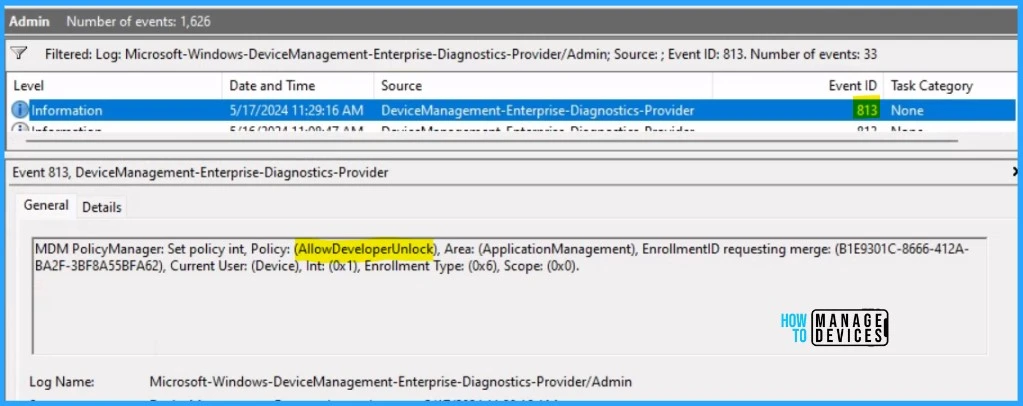
To verify the successful implementation of String or integer policies on Windows 10 or 11 devices through Intune, you can leverage event IDs 813 and 814. These event IDs provide valuable insights into the application status of the policy as well as the specific value assigned to the policy on those devices.
In the case of this particular policy, the value is String and is linked to the event ID 813. Analyzing these event IDs lets you understand the policy’s application status and corresponding value on the devices in question.
To confirm this, you can check the Event log path – Applications and Services Logs – Microsoft – Windows – Devicemanagement-Enterprise-Diagnostics-Provider – Admin.
End User Experience
The configuration profile is deployed to Microsoft Entra groups. Let’s learn the End User Experience as well.
- Press Start and click on the Settings
- Navigate to System > For Developers
- Check the Developer Mode setting at the top of the For Developers page
If the policy is applied to the machine, Developer Mode must be enabled. Since your device is owned by an organization, this option to turn off Developer Mode should be disabled.
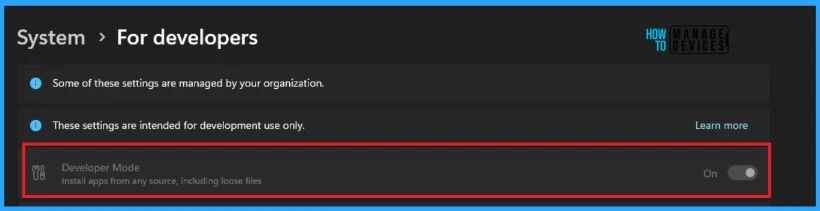
Well, your machine is Enabled your device for development.! I believe that this article will be a valuable resource for you and your organization. Thank you for being so patient in reading this post. I look forward to seeing you in the next post. Keep supporting the HTMD Community.
We are on WhatsApp now. To get the latest step-by-step guides, news, and updates, Join our Channel. Click here. HTMD WhatsApp.
Author
About the Author – Sujin Nelladath has over 10 years of experience in SCCM device management and Automation solutions. He writes and shares his experiences with Microsoft device management technologies, Azure, and PowerShell automation.


Discussion