






Monitoring Defender Updates using Intune Portal
In this post, Monitoring Defender Updates using Intune Portal. We will explore the Intune Portal to find the Status of Defender Updates for the Endpoints.
We will cover how to navigate the portal, locate the relevant information, and interpret the status reports to maintain optimal security across your network. Defender Updates refer to the updates provided by Microsoft to keep Microsoft Defender Antivirus (formerly known as Windows Defender) current and effective in protecting against the latest threats.
Applying these updates regularly is crucial for maintaining system security and integrity, as they ensure that Microsoft Defender Antivirus can protect against the latest security threats.
The updates are typically delivered through Windows Update but can be managed and monitored through enterprise tools like the Intune Portal. These updates typically include:

- Security Intelligence Updates (or Definitions): These updates provide the latest information about new malware and potentially unwanted software, allowing Microsoft Defender Antivirus to identify and neutralize new threats.
- Platform Updates: These updates enhance the core functionality of Microsoft Defender Antivirus, improving its performance, stability, and security features.
- Engine Updates: These updates improve the antivirus engine’s scanning and detection capabilities, ensuring it can effectively detect and handle new types of malware.
In this post, we will focus on the types of information regarding Defender updates on endpoints that can be accessed through the Intune Portal.

- How To Manually Add Users To Intune Console Portal Azure AD
- Turn on Real-time Monitoring Antivirus policy for Microsoft Defender in Intune
- What is Microsoft Defender XDR?
Manually Checking the Status of Defender Updates on a Device
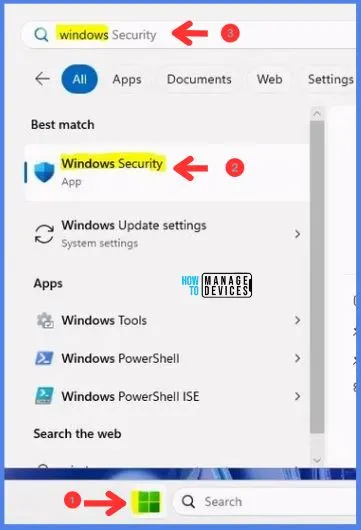
Most of you know how to check for the Defender Updates status on your device, but to begin, let’s look at how to quickly check it on any Windows device. Just type and search Windows Security in the Start Menu of your device and open it as shown in the image:
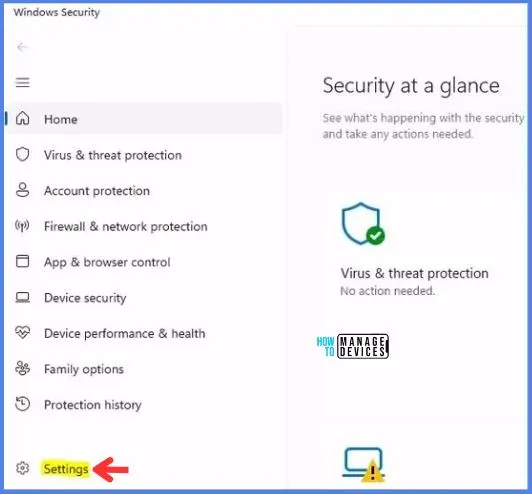
Now, on the Windows Security page, we need to open the Settings tab, which is located on the left-bottom side of the page, as highlighted in the screenshot below.
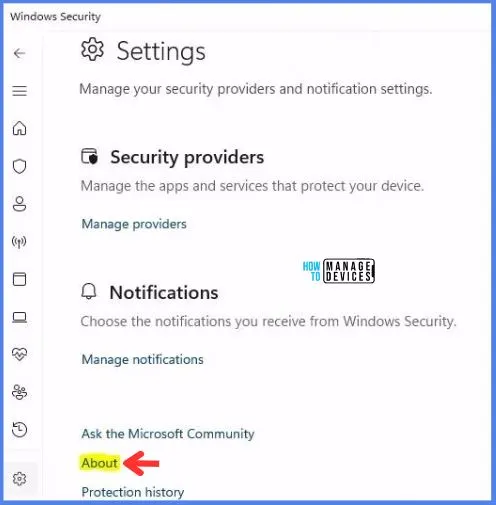
After clicking on Settings, you will be taken to another page where you will see the About option, marked yellow in the image below.
Once you click on About, it will display all the details about the Defender Updates and show you which version of the device is currently running.
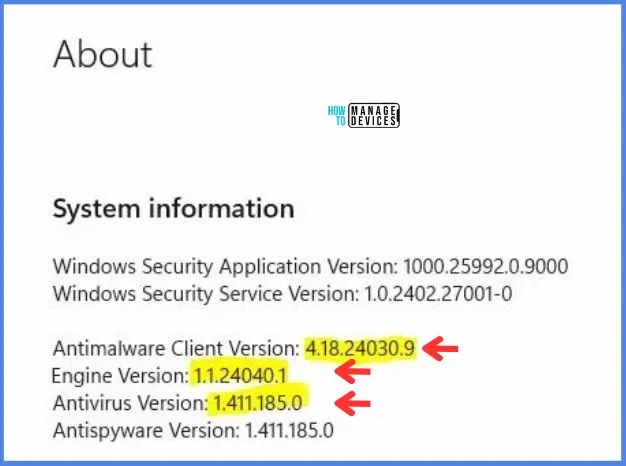
Note! Also, Microsoft releases more than one Antivirus Version daily. To check for the latest Antivirus Version, you can visit the Security intelligence updates for Microsoft Defender Antivirus and other Microsoft Antimalware pages.
Monitoring Defender Updates using Intune
We just manually checked the status of Defender Updates on the endpoint. Now, we will see how to get the same and more information from the Intune Portal. It is not practical to manually check each device.
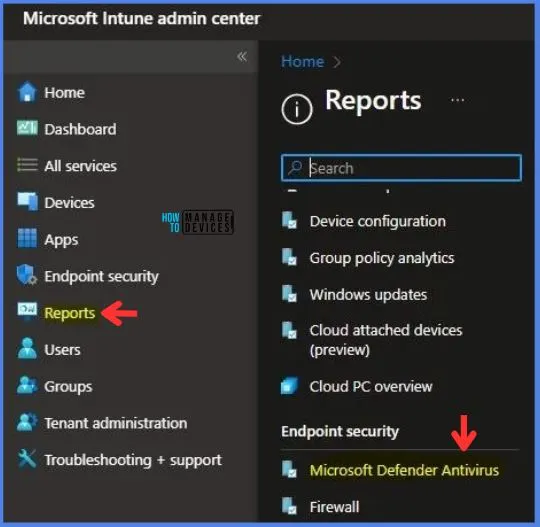
Once logged into Intune Portal using the link https://intune.microsoft.com/, click on the Reports Tab and then Microsoft Defender Antivirus as depicted below in the image.
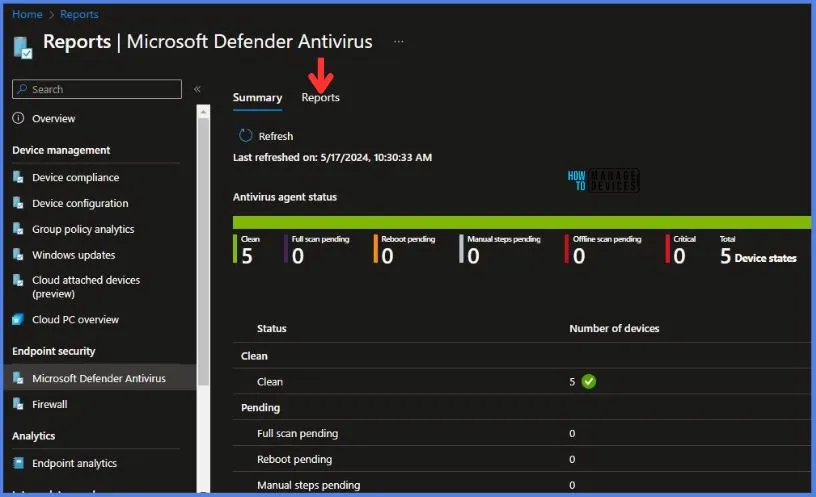
It will take you to the Summary page. Here, you need to click on Reports to check for the device status. The summary page gives you the status of the state of devices, as seen below.
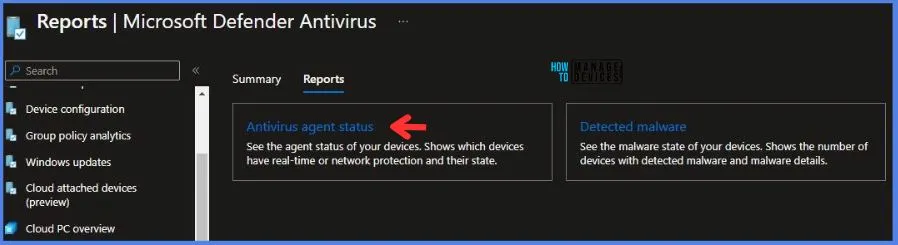
Once you click on the Reports tab, you will be taken to the page with the option to look for the reports mentioned below. They are:
- Antivirus agent status
- Detected malware
- Click on Antivirus agent status to look for Defender Updates status on devices.
After clicking on Antivirus agent status, you will see the status of all the devices in your environment and which version they are running. You can then type the device’s name and look for the updated version.
This is the detailed report regarding the Defender updates, which you can look at and extract from the Intune Portal. There are multiple columns, which you can see if you scroll to the right on your screen.
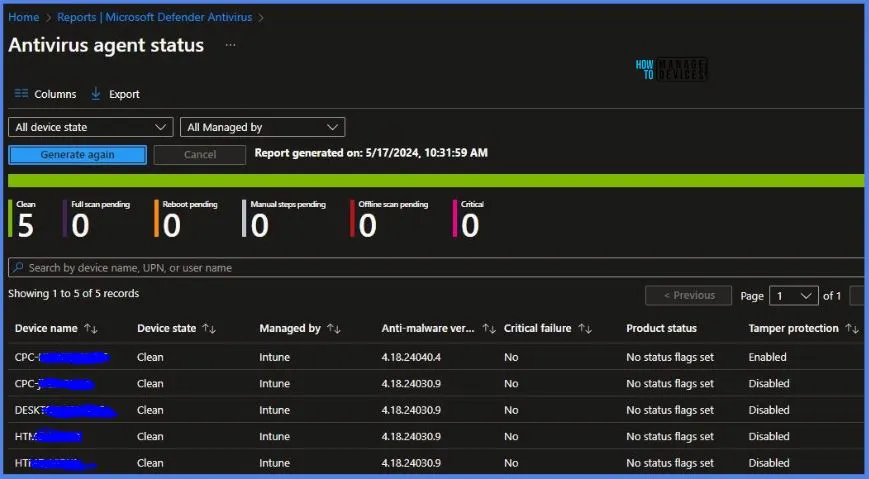
To extract the report, click Export, as shown below, and choose the columns you want. The report will be downloaded. You can also open the report in Excel and look for the version details of the devices currently running in your environment.
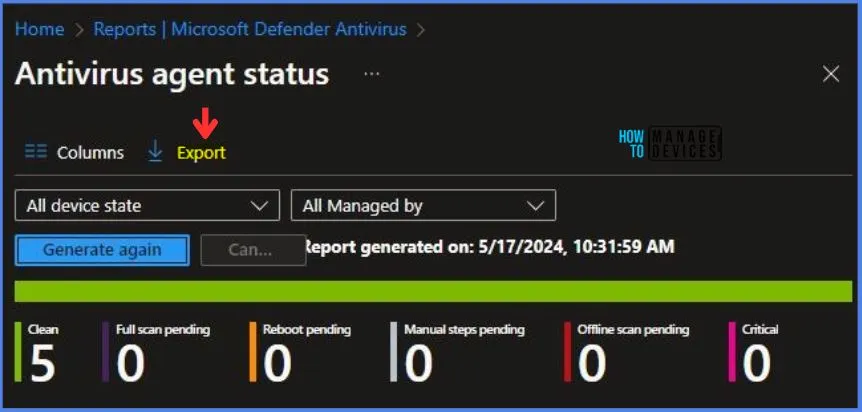
This is how Intune Portal can help you check the details about the Defender Updates. In the next post, we will look into troubleshooting devices that are not getting updated with the latest Defender patches.
We are on WhatsApp. To get the latest step-by-step guides and news updates, Join our Channel. Click here – HTMD WhatsApp.
Author
Abhinav Rana is working as an SCCM and Intune Admin with several years of experience. He loves to help the community by sharing his knowledge. He is a B.Tech graduate in Information Technology.


Discussion