






Best Way to Turn On or Off Allow Wake Timers in Windows 11
Let’s learn how to turn on or off Allow Wake Timers in Windows 11. The Allow Wake Timers setting in Power Options allows Windows to automatically wake your device from sleep per scheduled tasks or other programs.
A user can have some choices; they may be “enable“, “disable“, or they can set it as “important wake timers only“. A wake time is a timed event that wakes a computer from sleep or hibernate mode at a specific time to perform scheduled tasks. It can also be used to reboot a device after an Update.
Important wake timers like Windows updates or any essential reboot can supersede all other settings. When selecting sleep as an option or simply letting the PC go to sleep independently, it will display a black screen and immediately show the login screen.
By changing the wake timers, you can prevent any program from waking your computer up automatically or allow major Windows computer events only. When your computer still wakes up more often than you want, you can always set the wake timers to Disabled.


Ways to Turn On or Off Allow Wake Timers in Windows 11
As we all know Windows has the unique feature of providing various methods for modifying settings; Windows helps to protect the user by providing many processes. Users can turn on or off and wake timers using Windows modification options. The methods are listed below.
- Turn On or Off Allow Wake Timers Using Power Option
- Turn On or Off Allow Wake Timers Using Registry Editor
- Turn On or Off Allow Wake Timers Using Command Prompt
Turn On or Off Allow Wake Timers Using Power Option
A user can turn on or off allow wake timers using the power option. To do so, type the power option in the search box in the taskbar, then open the Edit Power Plan option from the appropriate option.

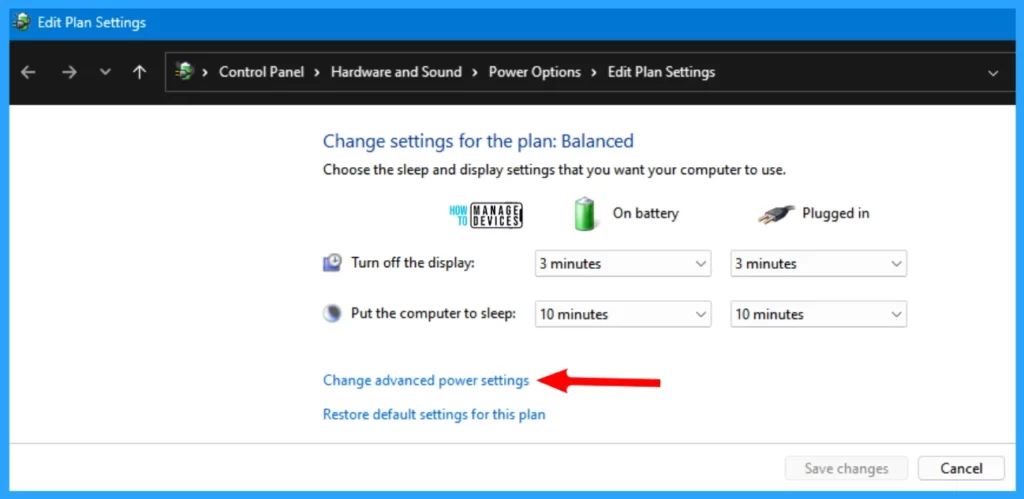
The Edit Plan Setting window opens, which comes under Control Panel>Hardware and Sound>Power Options>Edit Plan Settings, used to choose the sleep and display settings that you want your computer to use. In this window, choose the Change advanced power settings and tap on it.
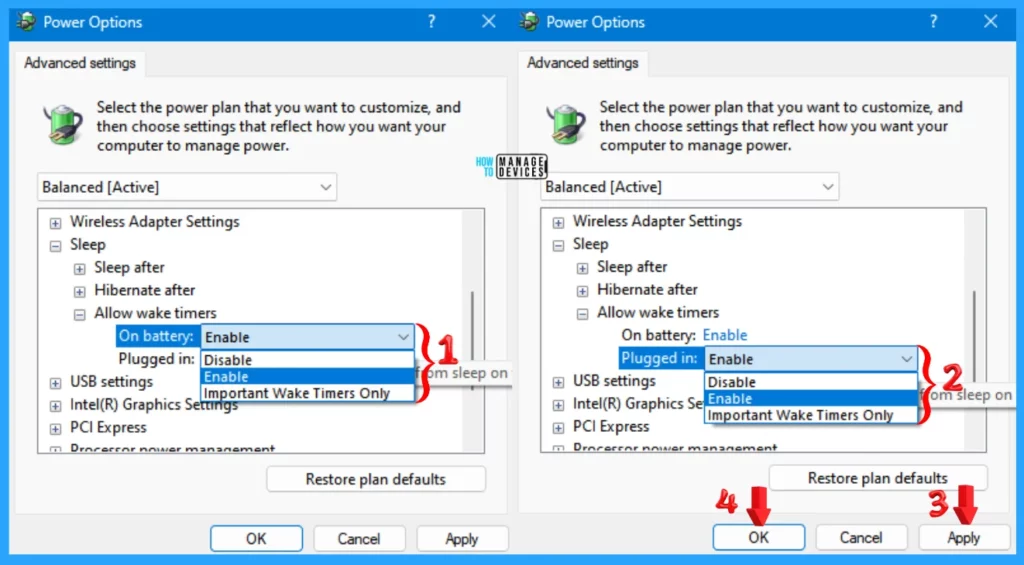
The Power Options Advanced Settings pop-up appears. This selects the power plant you want to customize and then chooses settings that reflect how your computer manages power.
Scroll down, find the Sleep option, and expand it. Under Sleep, expand the Allow Wake Timers option. There are two options: On Battery and Plugged in. Both options consist of three drop-down options listed below. Select one of them to apply the settings, press Apply, and then OK.
- Disable
- Enable
- Important Wake Timers Only
Turn On or Off Allow Wake Timers Using Registry Editor
Another way is to Set Active Hours on Windows 11 from the registry. This procedure is done using the Registry Editor. Let’s check how to Set Active Hours on Windows 11 using the Registry Editor. You can now follow the process listed below to enter the registry editor to modify changes.
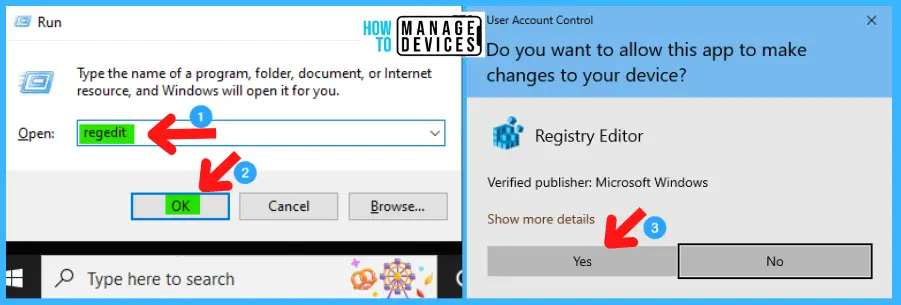
- Window Key + R (To open run command)
- Type ‘regedit‘ and press OK
- Administrator (UAC) permission press Yes
NOTE! Take Backup—If any mistake occurs in the Registry Editor, it may affect the system. It is advisable to take a backup of the Registry before proceeding. In the Registry Editor, go to File in the left top corner for backup. Click on it, then select Export and save the backup.
When the registry editor opens, you must take the backup for your registry editor. Follow the steps below to make a backup for your registry editor.
- Go to File.
- Right-click on HKEY_LOCAL_MACHINE
- Click on Export.
- Save it.

In the registry editor, follow a certain path for certain applications. The trail to reach the required folder for further modification is listed below. Under the Registry Editor, there is a folder named Computer expand the Computer folder and process further.
- Expand the HKEY_LOCAL_MACHINE
- Expand SYSTEM under HKEY_LOCAL_MACHINE
- Expand CurrentControlSet under SYSTEM
- Expand Control under CurrentControlSet
- Expand Power under Control
- Expand PowerSettings under Power
- Expand 238C9FA8-0AAD-41ED-83F4-97BE242C8F20 under PowerSettings
- Click on BD3B718A-0680-4D9D-8AB2-E1D2B4AC806D under 238C9FA8-0AAD-41ED-83F4-97BE242C8F20 and find the Attributes
The path is HKEY_LOCAL_MACHINE\SYSTEM\CurrentControlSet\Control\Power\PowerSettings\238C9FA8-0AAD-41ED-83F4-97BE242C8F20\BD3B718A-0680-4D9D-8AB2-E1D2B4AC806D.
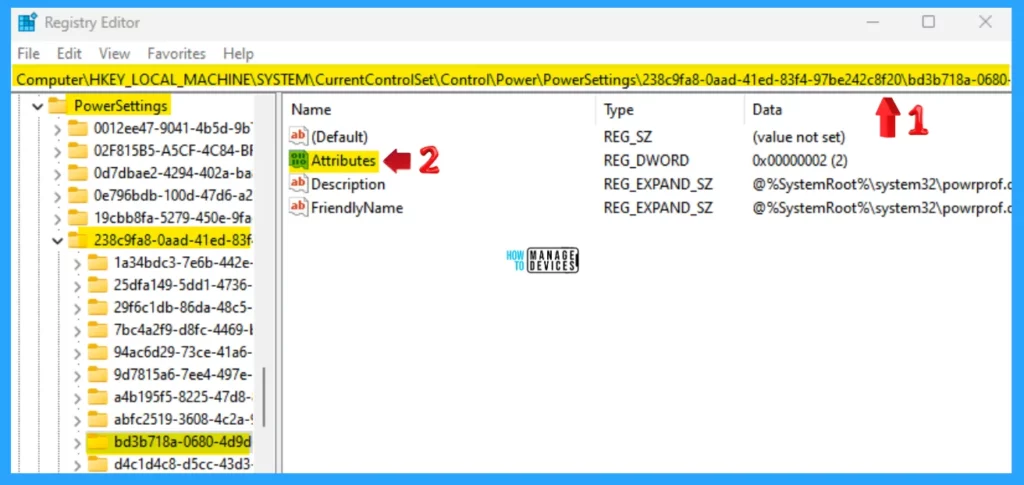
When you find the Attributes option, double-click on it to open it. After opening the Attributes option, type 1 to Remove (Turn Off/Disable) the allowed wake timers. The allowed wake timers are set to 2 to Add (Turn On/Enable) by default. After providing the required value as per your choice, press OK to save the changes.
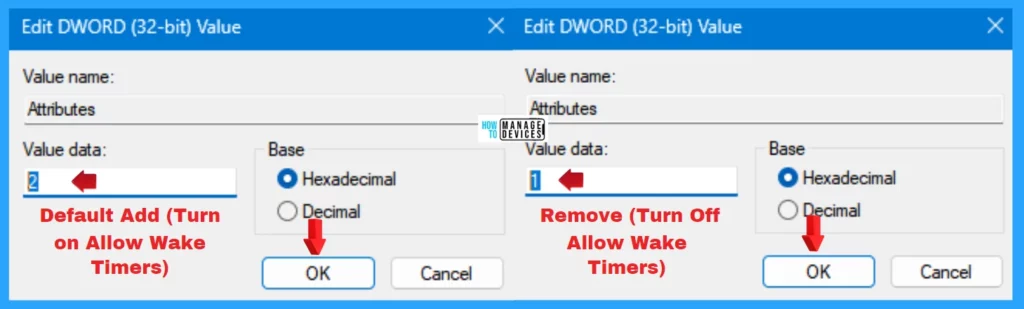
NOTE! Restart the device after every change made by the user.
Turn On or Off Allow Wake Timers Using Command Prompt
Users can turn on or off and wake timers using the command prompt. To do so, press Win Key + R simultaneously to open the run dialogue box, and follow the below steps. The Run window said to type the name of a program, folder, document, or internet resource, and Windows will open it for you.
- Press Win Key + R
- Type cmd for the command prompt
- Press Enter

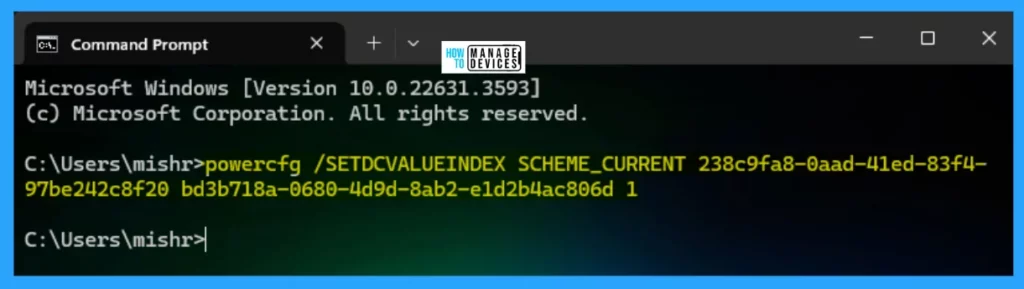
In the Command Prompt window, type the following command or copy-paste it and press Enter, which enables the On Battery option.
powercfg /SETDCVALUEINDEX SCHEME_CURRENT 238c9fa8-0aad-41ed-83f4-97be242c8f20 bd3b718a-0680-4d9d-8ab2-e1d2b4ac806d 1
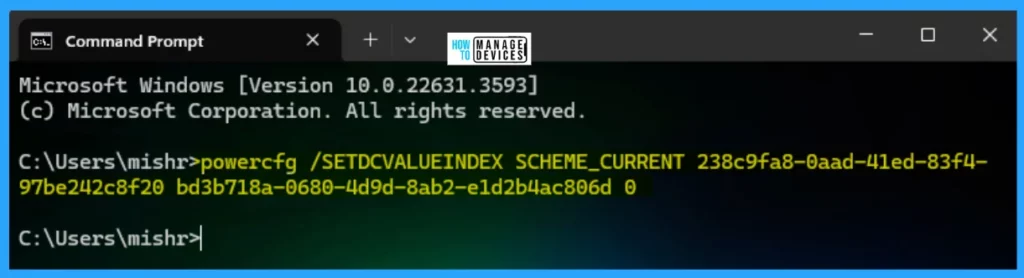
In the Command Prompt window, type the following command or copy-paste it and press Enter, which disables the On Battery option.
powercfg /SETDCVALUEINDEX SCHEME_CURRENT 238c9fa8-0aad-41ed-83f4-97be242c8f20 bd3b718a-0680-4d9d-8ab2-e1d2b4ac806d 0
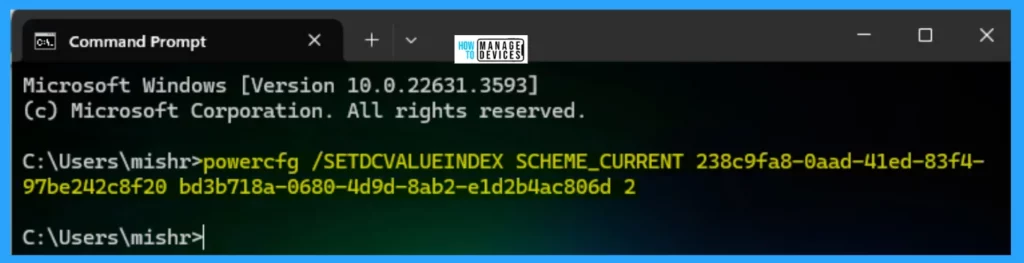
In the Command Prompt window, type the following command, copy-paste it, and press Enter, which allows Important Wake Timers Only the On Battery option.
powercfg /SETDCVALUEINDEX SCHEME_CURRENT 238c9fa8-0aad-41ed-83f4-97be242c8f20 bd3b718a-0680-4d9d-8ab2-e1d2b4ac806d 2
Users can use this option for a desktop computer since it will not have separate the On battery and Plugged-in options available unless it has a data connection to a UPS.
In the Command Prompt window, type the following command or copy-paste it and press Enter, which enables the Plugged-in option.
powercfg /SETACVALUEINDEX SCHEME_CURRENT 238c9fa8-0aad-41ed-83f4-97be242c8f20 bd3b718a-0680-4d9d-8ab2-e1d2b4ac806d 1

In the Command Prompt window, type the following command, copy-paste it, and press Enter, which disables the Plugged-in option.
powercfg /SETACVALUEINDEX SCHEME_CURRENT 238c9fa8-0aad-41ed-83f4-97be242c8f20 bd3b718a-0680-4d9d-8ab2-e1d2b4ac806d 0
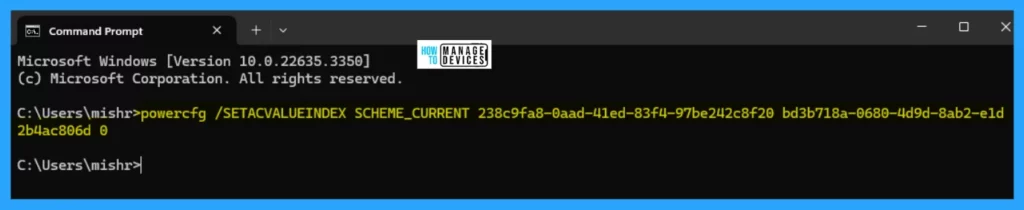
In the Command Prompt window, type the following command, copy-paste it, and press Enter, which allows Important Wake Timers Only the Plugged-in option.
powercfg /SETACVALUEINDEX SCHEME_CURRENT 238c9fa8-0aad-41ed-83f4-97be242c8f20 bd3b718a-0680-4d9d-8ab2-e1d2b4ac806d 2

I hope the information on the Best Way to Turn On or Off Allow Wake Timers in Windows 11 is helpful. Please follow us on the HTMD Community and visit our website, HTMD Forum, if you like our content. Suggest improvements, if any, and we would love to know which topic you want us to explore next.
We are on WhatsApp. To get the latest step-by-step guides and news updates, Join our Channel. Click here – HTMD WhatsApp.
Author
Alok is a Master of Computer Applications (MCA) graduate. He loves writing on Windows 11 and related technologies. He likes to share his knowledge, quick tips, and tricks with Windows 11 or Windows 10 with the community.




Discussion