






Windows PC Recall Feature Photographic Memory
Exciting News for Windows Users! The Windows PC Recall Feature Photographic Memory arrived. Microsoft introduced a new AI photographic memory feature called Recall. This feature will be Microsoft’s best-ever contribution to the AI world.
This feature will provide a wonderful experience for Windows users. AI is the most familiar word in this digital world, and I think this world is not the newest for people in the fastest world. The new Recall Feature Photographic Memory will also be a great innovation.
The Recall feature is more intelligent than you think. It can find and understand everything you do on your computer by taking constant screenshots. So, it is a very user-friendly feature that will be really helpful in your busy day-to-day life.
We know that AI innovation gives users a better and more creative life. These Recall features improve the dignity of AI features. In this blog post, I will explain more about Windows PC Recall Feature Photographic Memory.

- Introducing AI Upgraded Snapdragon X Elite Qualcomm with Windows 11
- Enable Disable Let Copilot Use Content from Microsoft Edge in Windows 11
Windows PC Recall Feature Photographic Memory
I already mentioned that the Recall feature can understand everything you do on your computer. The Windows Recall feature works with Windows Copilot Runtime. Do you know what Windows Copilot Runtime is?
It allows users to interact with the Operating System with AI, such as a Small Language Model (SLM). It is more impactful and efficient so that it can run locally on Windows.
- In this year AI is improved with many innovative features. Windows now offers AI-assisted discovery to power Recall.
- Recall is an API that helps Windows users retrieve past activities and continue where they left off.
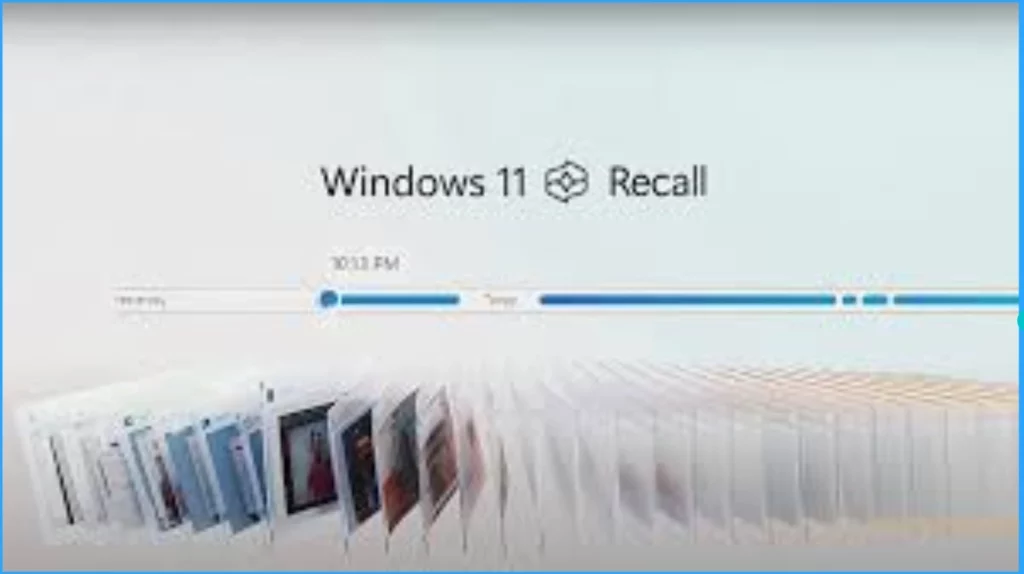
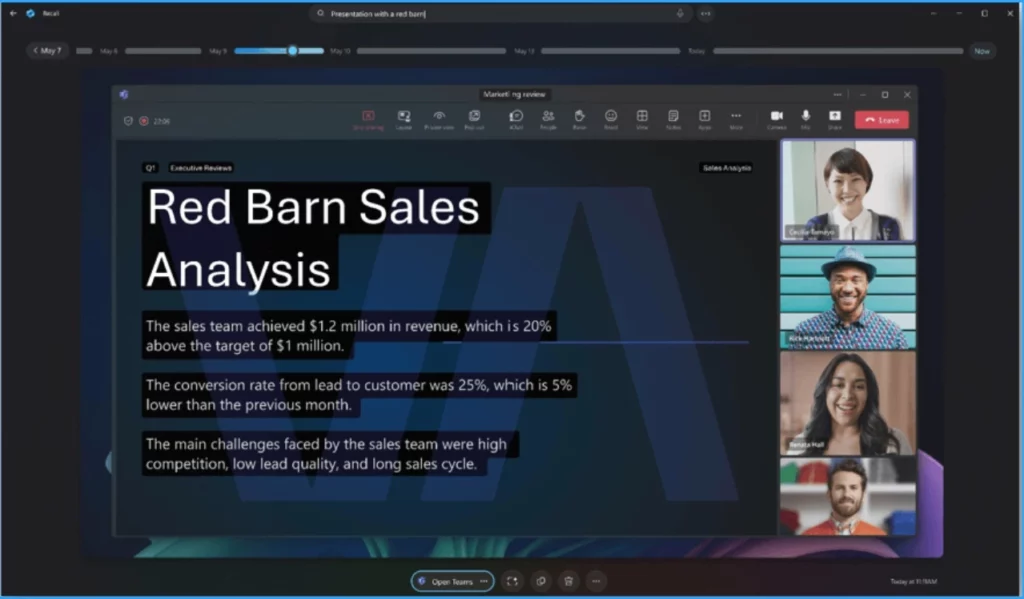
Recall is not a Keyword search; it is a semantic search of all your history. And it is not just about any document. We can recreate moments from the past fundamentally. Microsoft constantly takes screenshots of what is on your screen.
- Users can easily search using the timeline to scroll through past activities, including apps, documents, and websites.
- After you find what you’re looking for, you can quickly return to the content seen in the snapshot by selecting the relaunch button below the screenshot.
- Windows 11 Copilot Integrates with File Explorer Context Menu
- Copilot AI Features make Microsoft Edge Go to Browser
Prerequisites of Windows PC Recall
Some Prerequisites are needed to use the Windows PC Recall feature on your PC. This feature is not supported by all Windows versions. The following are the Prerequisites.
| Prerequisites of Windows PC Recall |
|---|
| Recall is currently available only on the new Copilot+ PC |
| User Activity is supported in Windows SDK version 10.0.17134.0 (Windows 10, version 1803, Build 17134) or later. |
Working of Recall in your Windows App
Microsoft Constantly take screenshots of what is on your screen, then uses a generative AI model right on the device, along with NPU, to process all the data and make it searchable. The System Component of Recall feature saves snapshots of the customer’s screen and stores them locally.
Windows provides the power to gain insight into what is visible on the screen by using screen segmentation and image recognition. So you can allow your app users to semantically search these saved snapshots and find content related to your app.
We are on WhatsApp. To get the latest step-by-step guides and news updates, Join our Channel. Click here for HTMD WhatsApp.
Author
Gopika S Nair is a computer enthusiast. She loves writing on Windows 11 and related technologies. She is here to share quick tips and tricks with Windows 11 or Windows 10 users. She is Post Graduate Diploma Holder in Computer Science.


Discussion