






How to Show Details Pane in File Explorer of Windows 11
Let’s learn How to show Details pane in File Explorer of Windows 11. File Explorer is an essential tool in Windows 11. It allows you to access, delete, create, move, and copy the files, whether they are stored on the device.
File Explorer is a file browser that helps you access, view, and manage all the files stored on your computer. It also helps you find files and folders easily. The main function of Windows Explorer is to display and arrange all files and folders on the hard drive and other computer drives.
File Explorer is the default application in Windows. It provides a graphical user interface for accessing the file systems and user interface elements such as the taskbar and desktop.
This is an existing feature in File Explorer. We can easily use and understand. This blog post will help us how to show the details pane in Explorer. It helps to get the full details of saved items.

What are the Features of File Explorer?
We can easily search files and folders in File Explorer, and it can be easily dragged and moved to other folders or drives. Some important features are given below.
1. It helps you access to all files and folders
2. It helps to create, edit, and share documents and spreadsheets easily
3. It provides move files and folders
4. It helps to delete files from our device
How to Show Details Pane in File Explorer of Windows 11
File Explorer in Windows 11 has a new Details pane that shows information about any file or folder we select. The pane also allows you to preview the content in the view’s reading pane.
| Different Methods |
|---|
| 1. Show Details Pane in File Explorer using Keyboard Shortcut |
| 2. Show Details Pane in File Explorer from Command Bar |
| 3. Show Details Pane in File Explorer from the View menu on Command Bar |
| 4. Using Registry Editor |
1. Show Details Pane in File Explorer using Keyboard Shortcut
Keyboard Shortcut is the first method used to show Details Pane in File Explorer. To do this, follow the following steps.
- Open File Explorer (Win+E).
- Press the Alt+Shift+P keys to toggle show or hide the Details pane in File Explorer.
2. Show Details Pane in File Explorer from Command Bar
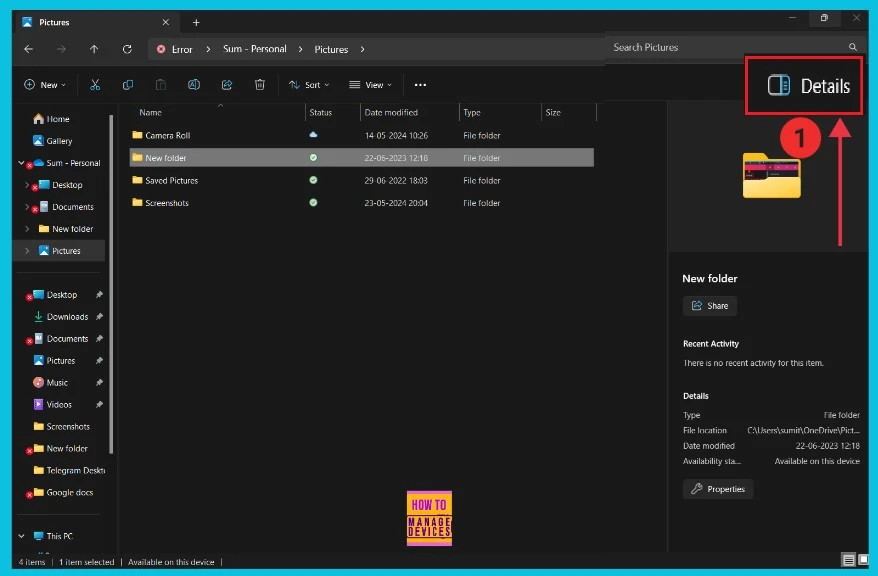
The screenshot below shows the second method for showing the details pane in File Explorer from the Command Bar. First, we open File Explorer (Win+E), then click the Details option on the right side of the Explorer page. Now, we can see the details of the selected file or folder.
3. Show Details Pane in File Explorer from View menu on Command Bar
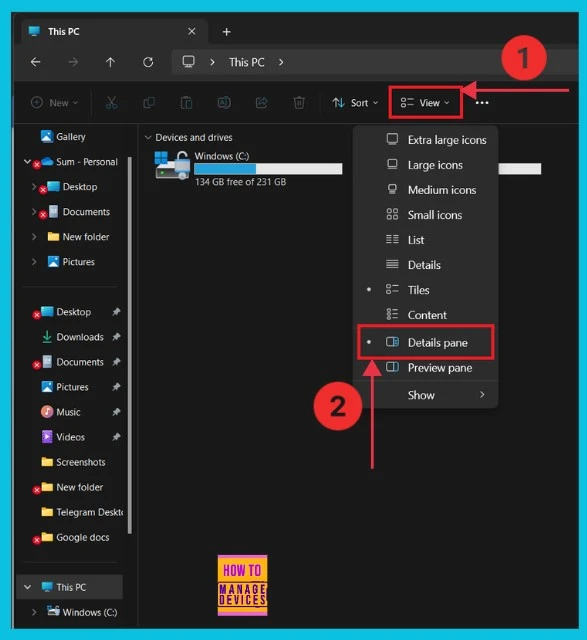
The third method shows the details pane in File Explorer from the View menu on the Command Bar. First, open File Explorer and select the View option on the Explorer Page to show this.
4. Using Registry Editor
The fourth method for showing the Details Pane in File Explorer is using the Registry Editor. To enable it, first open the Registry Editor by following the steps.
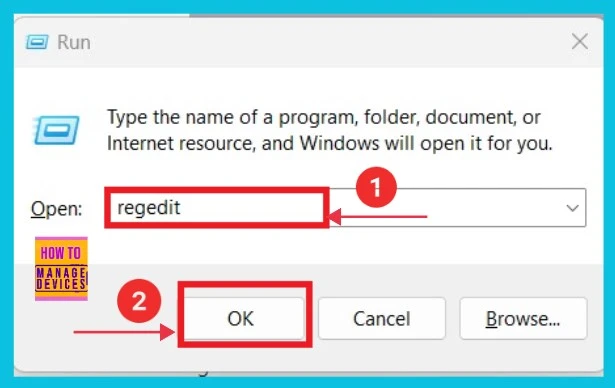
- Press Win+R and type regedit, then click OK.
- How to Show Hide Updates in Windows 11
- Enable Disable Performance Mode for Dev Drive Protection in Windows 11
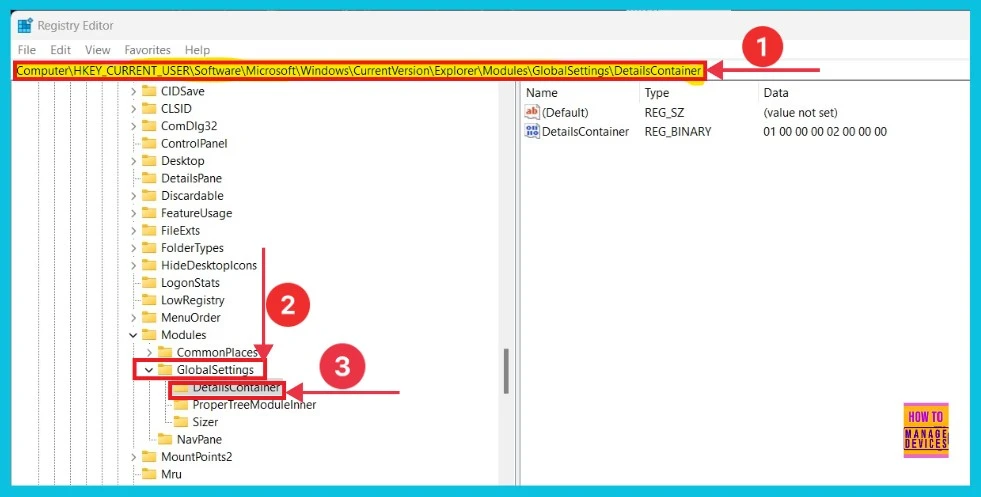
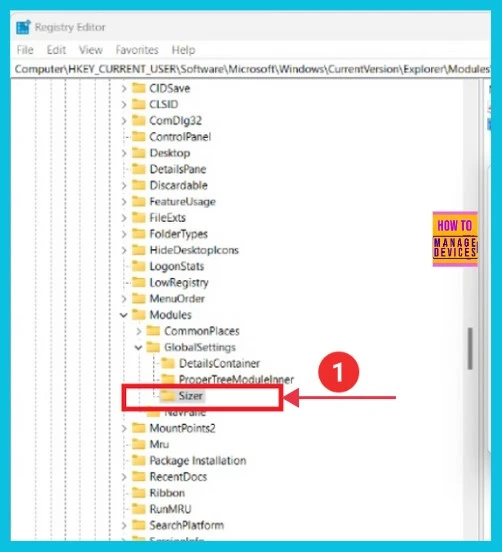
Now, we can see a new window when we click Registry Editor. Here, we can give the path, click Global settings, then click the Details container.
[HKEY_CURRENT_USER\Software\Microsoft\Windows\CurrentVersion\Explorer\Modules\GlobalSettings\DetailsContainer]
The next screenshot shows the Edit Binary value. Here, we can see the value data in the small box, then click ok to continue.
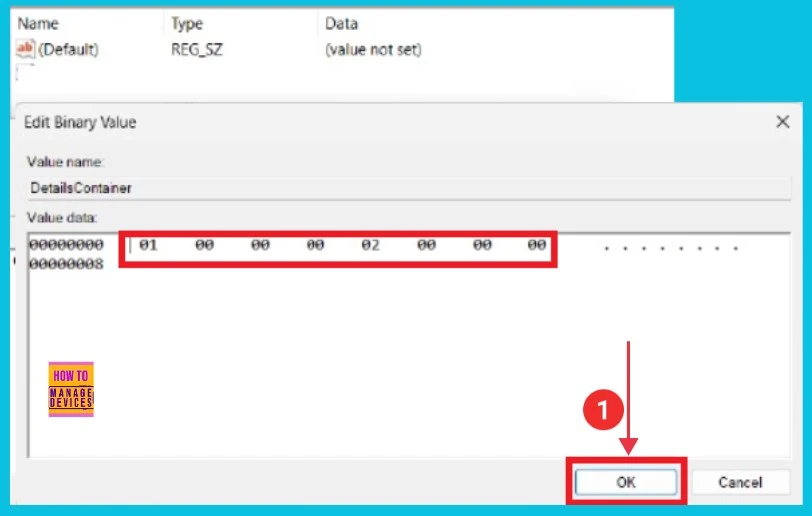
The screenshot below details what we selected. After clicking the OK button, select the Sizer option on the left side.
- Enable Disable Defender SmartScreen for Microsoft Store Apps in Windows 11
- Enable Disable Conversation View in Outlook for Windows 11
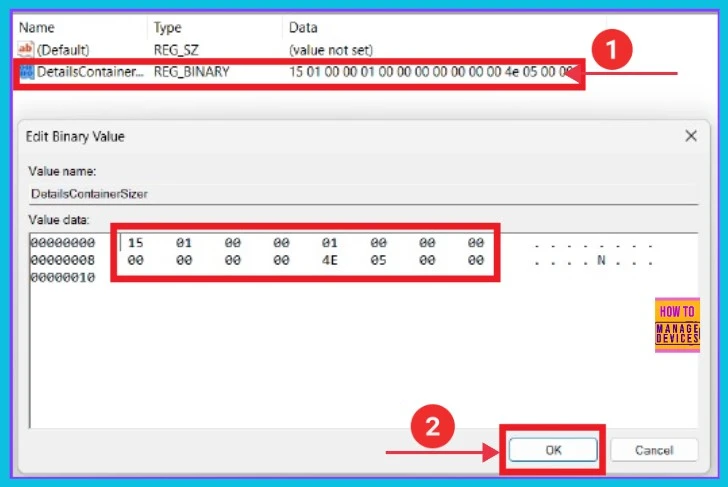
Now click the DetailsContainer on the right side, then we can see a small pop-up window, here we can see binary values then click Ok.
We are on WhatsApp now. To get the latest step-by-step guides, news, and updates, Join our Channel. Click here – HTMD WhatsApp.
Author
Sumitha was introduced to the world of computers when she was very young. She loves to help users with their Windows 11 and related queries. She is here to share quick news, tips and tricks with Windows security.




Method work, thanks you, activated my windows 11 pro key, and if you need retail key, got my from Hypest-key