






MS Edge Browser Automatic Options to Organize Tabs Stay Organized with Tab Groups
Exciting News for Microsoft Edge users! MS Edge Browser Automatic options to Organize Tabs Stay Organized with Tab Groups. Microsoft introduced a new Tab group feature for users to Automatic options to Organize Tabs.
Microsoft Edge is a most popular browser that helps to provide futuristic features for users. Every new features are unique and it improve the quality of Edge browser. Now, users can enhance the browsing experience with new organize tab feature. This feature is worked with AI capabilities of Edge browser.
Many browsers allow users to open multiple tabs for new webpages they visit. This helps users revisit previous webpages, compare information, or explore new topics. Now, Edge browsers’ Organize Tab helps users organize similar tabs in a group.
In this blog post i will help you to know more about MS Edge Browser Automatic options to Organize Tabs Stay Organized with Tab Groups. You can stay organized with organized Tab in Microsoft Edge. It will defenitely helps you improve your browsing experiemce with Edge.


What are the Advantages of Organize Tab in Edge Browser?
1. It helps to easily group similar tabs
2. It keeps different topics separate
3. This feature helps you to move your tab to vertical position
4. Helps to access favorite tab quickly
5. It improves productivity
6. It enhance multitasking
- New Text Prediction and other Features in MS Edge Browser
- Latest AI Features of Microsoft Edge Browser | Game Changer
- Best Way to Organise your Workspaces in Microsoft Edge
- How to Enable and Use the New Screenshot Tool in MS Edge
MS Edge Browser Automatic options to Organize Tabs Stay Organized with Tab Groups
As i mentioned above, organize Tab feature really helpfull for organzing tabs. In my experience, this feature is very convenient for users. Edge browser will organize similar tabs with this feature. So you can easily identify tabs according to the topic and work-related web pages that are distinguished from personal pages.
How to Organize Browser Tabs in Microsoft Edge
Users can easily organize different tabs in Microsoft Edge. This makes it very easy to access and recognize a tab from multiple tabs and helps avoid confusion. The following are the steps for Organizing Browser Tabs in Microsoft Edge.
- Click on the tab action menu on the edge browse.
- Select Organize tabs feature from the new window.
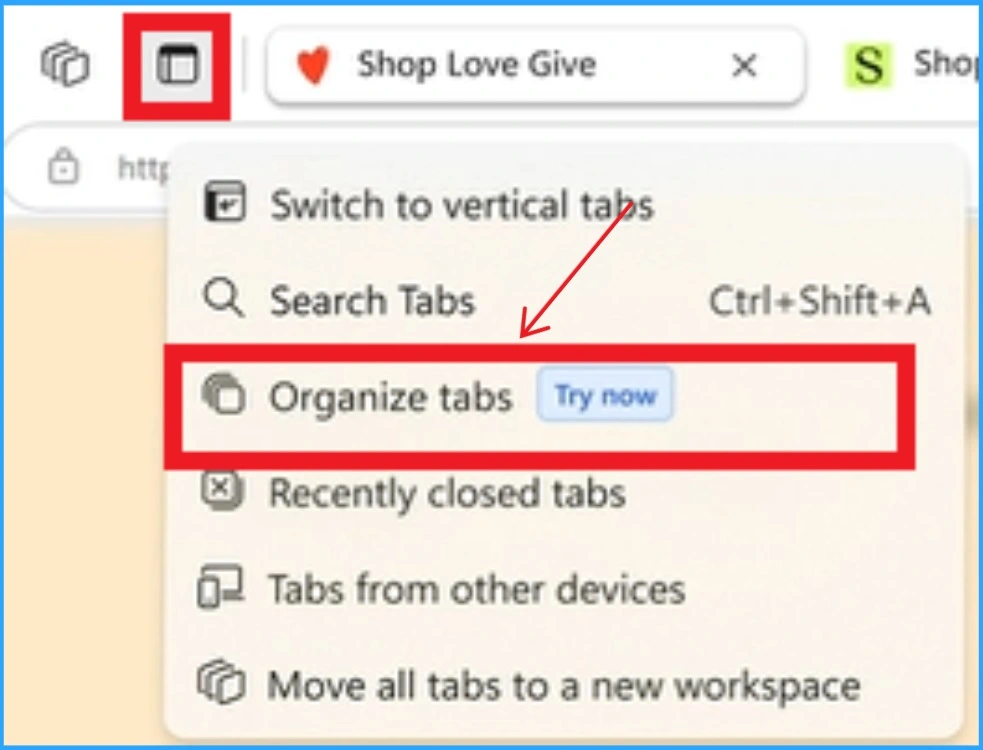
After that, new window will appear and from this window you can see all the opened tabs on Edge browser. Edge browser will group your tabs by relevance and assign them a name and a color. After that click on the Group tabs. Click cancel to leave this dialog and make no changes to your current tabs.
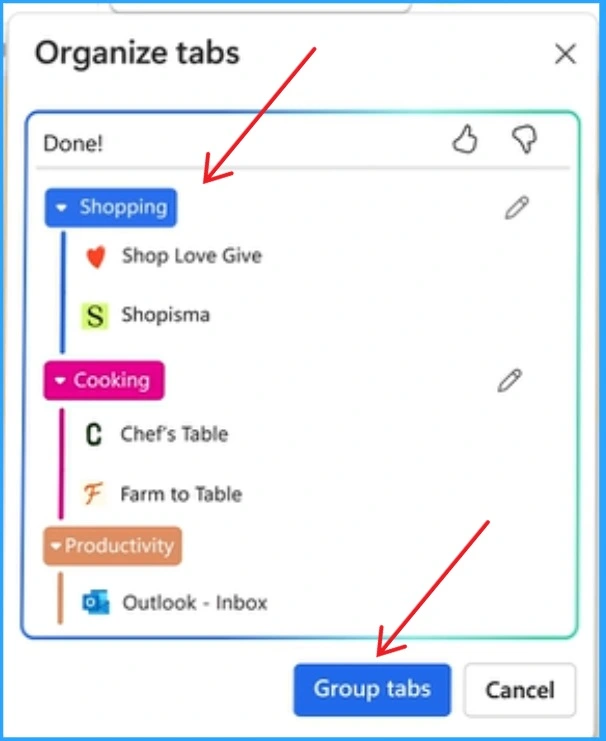
| Different Features of Organize Tab |
|---|
| Tab Groups are a great way to organize important tabs and keep them safe. |
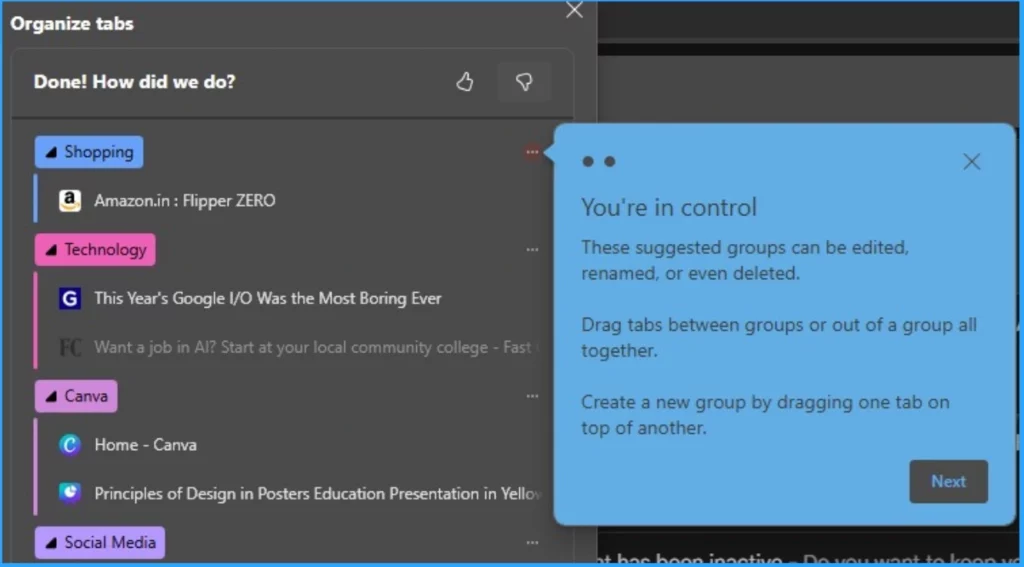
| These suggested groups can be edited, renamed, or even deleted. |
| Drag tabs between groups or out of a group all together. |
The below screenshot shows the different tabs organized. Here some groups created like Shopping, Technology, Canva, Social Media etc. The below showing groups are suggested by Microsoft. It helps to easily recognize each tab and avaoid confusions.
- Copilot with Commercial Data Protection in Microsoft Edge for Business
- Copilot AI Features make Microsoft Edge Go to Browser
- Setting Up Microsoft Edge Workspaces in 3 Easy Steps
We are on WhatsApp. To get the latest step-by-step guides and news updates, Join our Channel. Click here for HTMD WhatsApp.
Author
Gopika S Nair is a computer enthusiast. She loves writing on Windows 11 and related technologies. She is here to share quick tips and tricks with Windows 11 or Windows 10 users. She is Post Graduate Diploma Holder in Computer Science.




Discussion