






Manage to Enable Disable Devices to Wake Computers in Windows 11
Let’s learn how to Manage to Enable Disable Devices to Wake Computers in Windows 11. When you put your computer to sleep, a device can automatically wake it if it is currently configured (allowed) to wake the system from a sleep state.
Important wake timers like Windows update or any essential reboot can supersede all other settings. When selecting sleep as an option or simply letting the PC go to sleep independently, it will display a black screen and immediately show the login screen.
By changing the wake timers, you can prevent any program from waking your computer up automatically or allow major Windows computer events only. When your computer still wakes up more often than you want, you can always set the wake timers to Disabled.
Using the powercfg.exe to control power plans (also called power schemes), use the available states, control the power states of individual devices, and analyze the system for common energy efficiency and battery-life problems.


How to Enable Disable Devices to Wake Computers in Windows 11
Microsoft provides settings that users can modify according to their choice. You can also modify the Devices to Wake Computers. You can enable or disable Devices to Wake Computers as per your requirement. The methods to change the settings are listed below.
NOTE! The user must be signed in as an Administrator to enable or disable devices to wake computers.
- Enable Disable Devices to Wake Computers Using Device Manager
- Enable Disable Devices to Wake Computers Using Powercfg Commands
Enable Disable Devices to Wake Computers Using Device Manager
You can use the Device Manager to Enable Disable Devices to Wake Computers in Windows 11. Type Device Manager in the Search Box on the taskbar, then select the appropriate option. Launch the command prompt, press Win Key + R, type devmgmt.msc in the Run dialogue box, and press Enter.

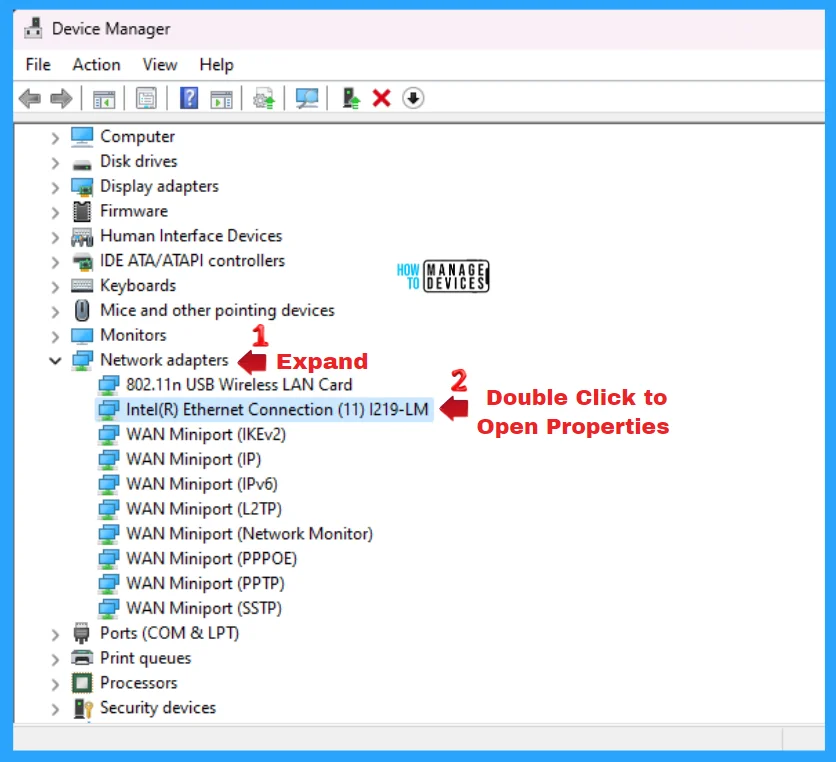
The Device Manager window is open now. Scroll down to find the Network Adapters option and expand it. After expanding, choose the Ethernet Connection option and double-click on it to enter its properties window.
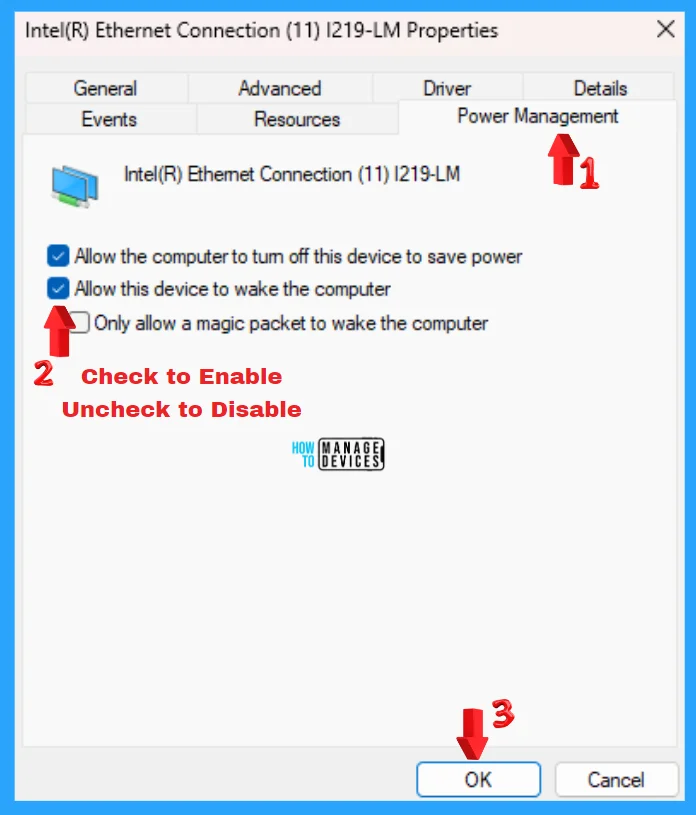
When the ethernet connection properties window opens, tap on the Power Management tab to option its options. Now check the Allow this device to wake the computer option to enable it or uncheck the Allow this device to wake the computer to disable and then press OK to continue. Now, you can close the Device Manager.
Enable Disable Devices to Wake Computers Using Powercfg Commands
To get a list of all programmable devices to wake computers in Windows 11, you can use the Command Prompt or the PowerShell with Administrative privilege to get the list, if any. Let’s check for the list using the Elevated Command Prompt and follow the steps.
Open the Elevated Command Prompt, press Win Key + R simultaneously to open the run dialogue box, and follow the below steps. The Run window said to type the name of a program, folder, document, or internet resource, and Windows will open it for you.
- Press Win Key + R
- Type cmd for the command prompt
- Press Ctrl + Shift + Enter

The next window appears as User Account Control, which asks, “Do you want to allow this app to make changes to your device?” For Windows Command Processor, press YES to continue. This window is an administrative approval to perform some tasks.

Enable Devices to Wake Computers Using Powercfg Commands
The Elevated Command Prompt window opens, and you can run some administrative commands. This window is represented as “Administrator: C:\WINDOWS\system32\cmd.exe“. Now, type the following command and then press Enter to get the list of all devices that wake computers in Windows 11.
powercfg -devicequery wake_programmable
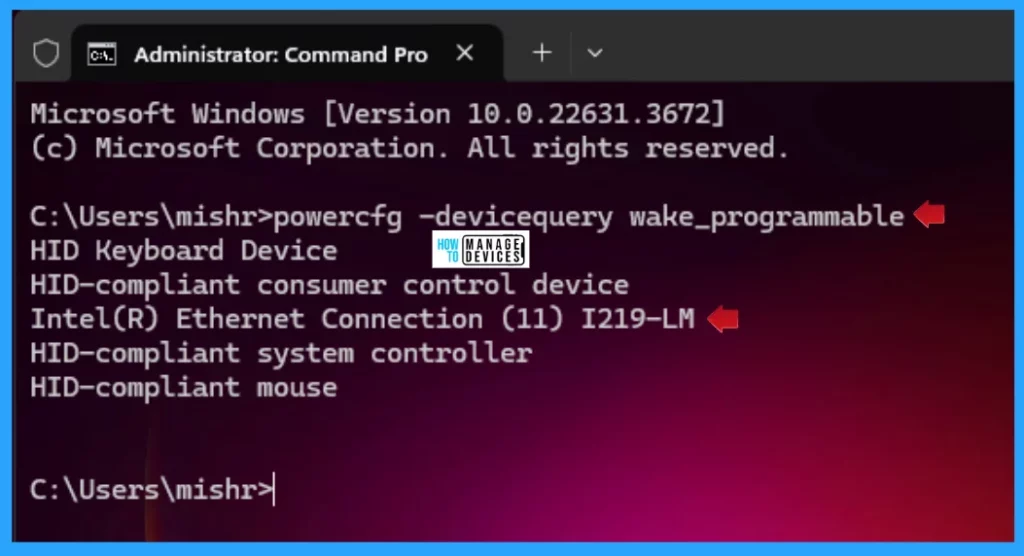
Using the above command, you can find the list of programmable devices that can be used to wake computers in Windows 11. Now copy the device name that you want to enable devices to wake computers. Execute the following command to enable the devices.
powercfg -deviceenablewake “Device name”
NOTE! Replace the “Device Name” with the device you want to enable, for example (powercfg -deviceenablewake “Intel(R) Ethernet Connection (11) I219-LM”)

Disable Devices to Wake Computers Using Powercfg Commands
The Elevated Command Prompt is represented as “Administrator: C:\WINDOWS\system32\cmd.exe“. Now, type the following command and then press Enter to get the list of all devices that used to wake computers in Windows 11.
powercfg -devicequery wake_armed
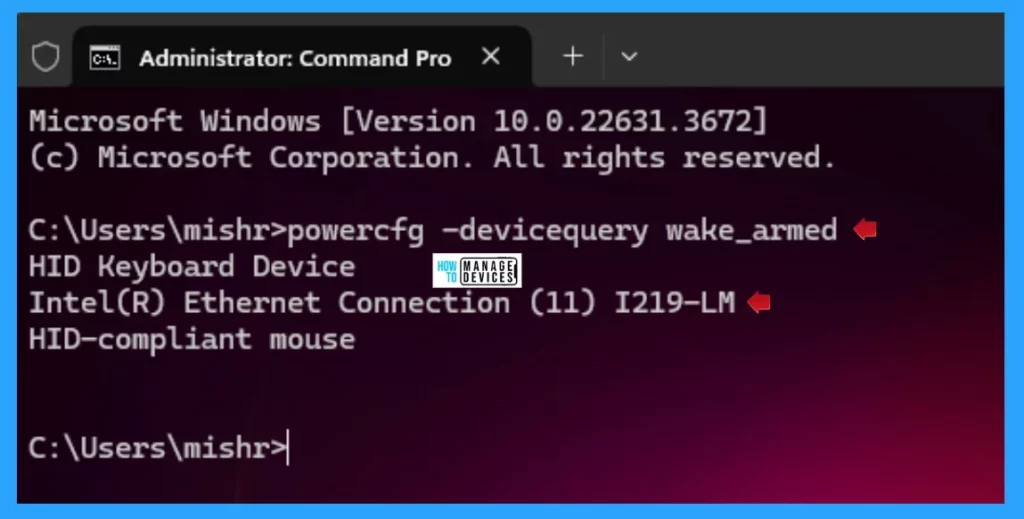
Using the above command, you can find the list of devices that can be used to wake computers in Windows 11. Now copy the device name that you want to disable devices to wake computers. Execute the following command to enable the devices.
powercfg -devicedisablewake “Device name”
NOTE! Replace the “Device Name” with the device you want to enable, for example (powercfg -devicedisablewake “Intel(R) Ethernet Connection (11) I219-LM”)

I hope the information on Manage to Enable Disable Devices to Wake Computers in Windows 11 is helpful. Please follow us on the HTMD Community and visit our website, HTMD Forum, if you like our content. Suggest improvements, if any, and we would love to know which topic you want us to explore next.
We are on WhatsApp. To get the latest step-by-step guides and news updates, Join our Channel. Click here – HTMD WhatsApp.
Author
Alok is a Master of Computer Applications (MCA) graduate. He loves writing on Windows 11 and related technologies. He likes to share his knowledge, quick tips, and tricks with Windows 11 or Windows 10 with the community.




Discussion