






Classic Outlook for Windows Now Improved with Copilot
Exciting News for Windows users! Classic Outlook for Windows is Now Improved with Copilot. Microsoft introduced Copilot on Classic Outlook for Windows last year and showed their plans for Copilot in Outlook to bring the most recent features first on Outlook for Windows on the last Ignite.
As you know, Outlook is a personal information manager that helps users manage their Emails. Microsoft has added the ability of copilot to Outlook for Windows to enhance users’ experience and help them manage their activities more quickly.
Microsoft is dedicated to providing Classic Outlook for Windows with more copilot abilities because copilot abilities benefit customers. Regular users of Copilot in Classic Outlook for Windows wish to have more, which is why Microsoft introduced Copilot features in the last few months.
The Copilot in Classic Outlook for Windows feature will be available for most Current or Monthly Enterprise channels. This blog post will help you learn more about its new features.

- Change to Classic or Modern Theme in Outlook for Windows 11
- How to Set Out of Office in Outlook
- How to Search Emails in Outlook
| Index |
|---|
| Classic Outlook for Windows Now Improved with Copilot |
| Summarize by Copilot |
| Coaching by Copilot |
| Draft with Copilot |
Classic Outlook for Windows Now Improved with Copilot
In the future, Microsoft will continue to release Copilot features first in the new Outlook for Windows and the web, with Mac and mobile fast following, and classic releasing between 3 and 12 months after the first rollout. The following are the new Copilot features in Classic Outlook for Windows.
| New Copilot Features in Classic Copilot for Windows |
|---|
| Summarize by Copilot |
| Coaching by Copilot |
| Draft with Copilot |
1. Summarize by Copilot
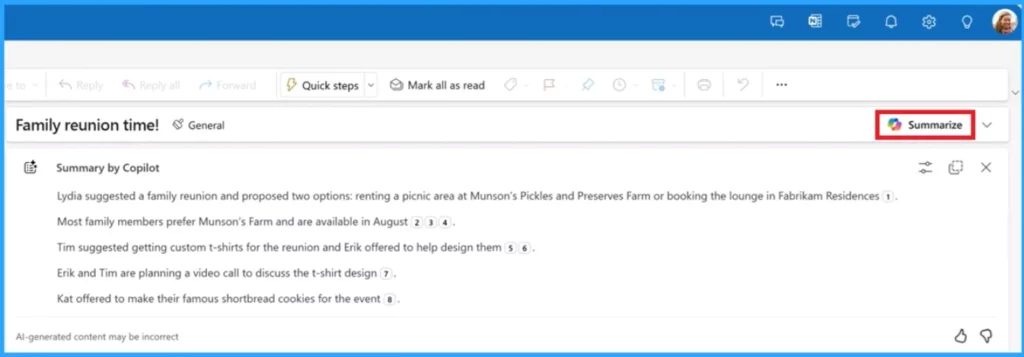
This feature helps you quickly summarise a few bullet points in a minute. It will also help you when sending an email, taking a short break, and returning to a very active thread with multiple replies. Scrolling back to the first response is very time-consuming. The following steps will help you access the Summarize feature.
- Select the “Summarize” button on the top right of the reading pane after you open a message.
- This feature is available in build 16.0.17028.10000 in the Current Channel and Monthly Enterprise Channel.
2. Coaching by Copilot
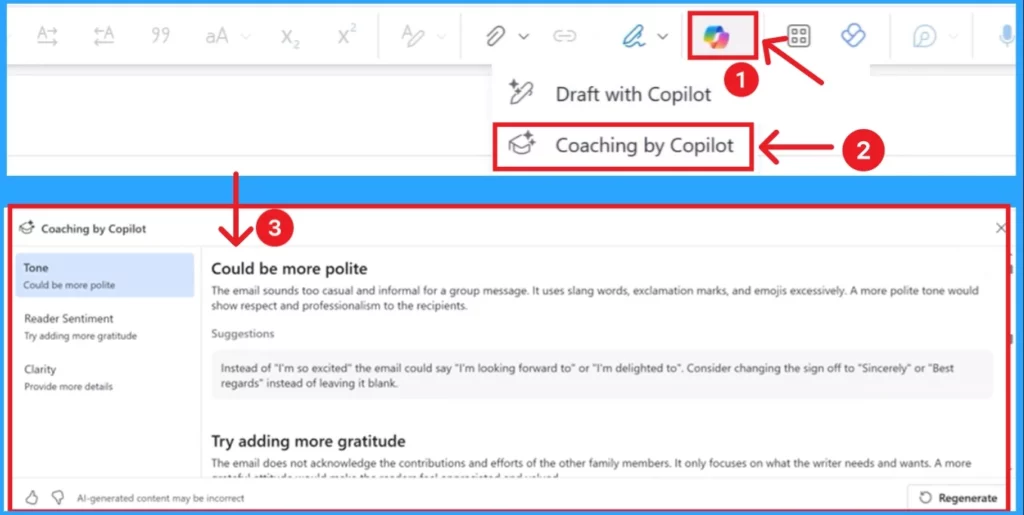
Coaching by Copilot can be that set of extra eyes and provide suggestions to help you communicate your ideas with the right tone and clarity and ensure the reader’s sentiment is the intended one. This feature is available in build 16.0.17231.20182 in the Current Channel and Monthly Enterprise Channel.
Coaching is a feature that can be started once you have drafted a message. To do so, select the Copilot icon in the ribbon and then “Coaching by Copilot.”
3. Draft with Copilot
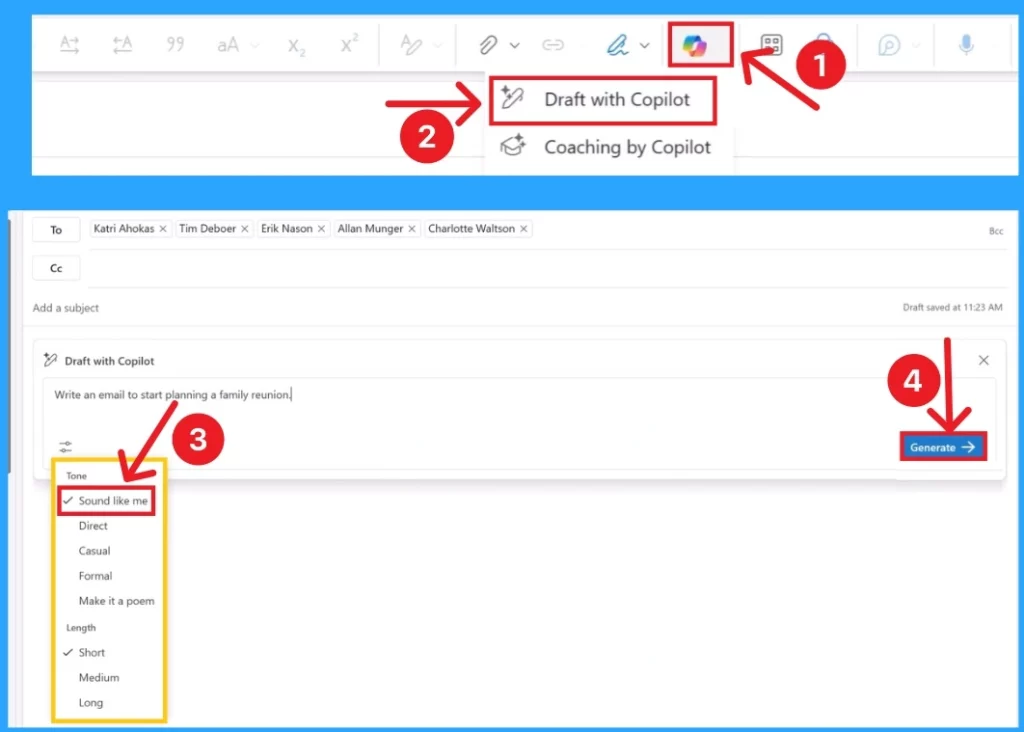
This feature helps users draft emails quickly and easily. Select the New Email option or reply to a message in Outlook to start this feature. Then select the Copilot icon on the ribbon and select Draft with Copilot. You will see a box titled Draft with Copilot. You can enter a prompt in this box and select a tone for the prompt.
- Click on Generate from the screenshot below
- Turn On or Off Smart Suggestions in the New Outlook App on Windows
- New Unified Outlook Experience Overview
We are on WhatsApp. To get the latest step-by-step guides and news updates, Join our Channel. Click here –HTMD WhatsApp.
Author
Anoop C Nair is Microsoft MVP! He is a Device Management Admin with more than 20 years of experience (calculation done in 2021) in IT. He is a Blogger, Speaker, and Local User Group HTMD Community leader. His main focus is on Device Management technologies like SCCM 2012, Current Branch, and Intune. He writes about ConfigMgr, Windows 11, Windows 10, Azure AD, Microsoft Intune, Windows 365, AVD, etc.


Discussion