






Clean-up SCCM CMG Cloud Services from ConfigMgr Cloud Management Gateway
Let’s discuss the Clean-up of SCCM CMG Cloud Services from ConfigMgr Cloud Management Gateway. Most SCCM admins have isolated lab environments to test the new features of SCCM.
Setting up Azure cloud services for testing new SCCM CMG (Cloud Management Gateway), Azure AD User Discovery, and Cloud DP is costly.
I recommend creating an Azure trial subscription to test the SCCM features. You will learn how to remove SCCM CMG and other cloud services from this post.
Can’t Delete or Remove Azure AD Apps (used for Cloud Services) from SCCM Console? Here is the guide to removing those from MEMCM using WMI | WBEMTEST https://www.anoopcnair.com/remove-azure-ad-apps-from-sccm-using-wmi-delete/

Table of Contents
Tips Before Removing SCCM CMG and Cloud Services
Don’t remove the Azure PaaS server and blob storage before removing the CMG from the SCCM console. Follow the steps below to remove the SCCM CMG (Cloud Management Gateway) from your environment.
- How to Remove SCCM Cloud DP
- Add More Security CMG Web App in SCCM 2309 Update
- How to Setup SCCM CMG in Virtual Machine Scale Set Model
When you have enabled SCCM CMG as CDP, your Cloud DP will also get removed when you delete or remove SCCM CMG.
Ensure your internet client management won’t be impacted when you perform this deletion action in a production environment. You should have an additional CMG for internet client management.
You need to remove SCCM CMG and other cloud services in different scenarios. One situation is to clean up your lab environment.
Another situation is to remove SCCM CMG or other cloud services like Azure AD user discovery as part of troubleshooting or migration.
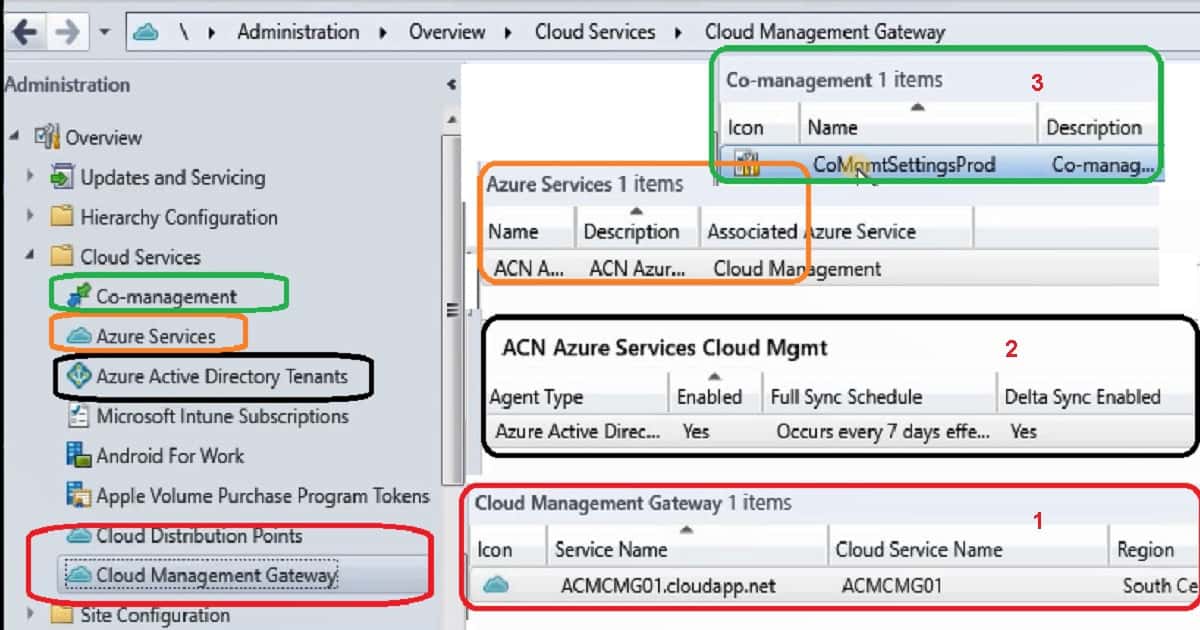
Video Tutorial – How to Remove SCCM CMG and Cloud Services?
The following topics are discussed in the video tutorial. I hope this will give a video experience and a better understanding.
- Why Delete Azure Cloud Services
- Check Azure Portal before Deleting
- Remove SCCM CMG and Cloud DP
- Remove the SCCM Cloud Management Connection Point Role
- How to validate SCCM CMG Deletion (Log Files)
- Remove Cloud Services and Azure AD User Discovery
- Remove Co-Management Configurations
- Remove Azure Active Directory Tenants
[Related Post – How to Remove SCCM Cloud DP]
How to Remove SCCM CMG (Cloud Management Gateway & CDP)?
Yes, removing or deleting Cloud DP and CMG is easy compared to installing both roles or services. Follow the steps below to remove SCCM CMG and configure Cloud DP in the CMG.
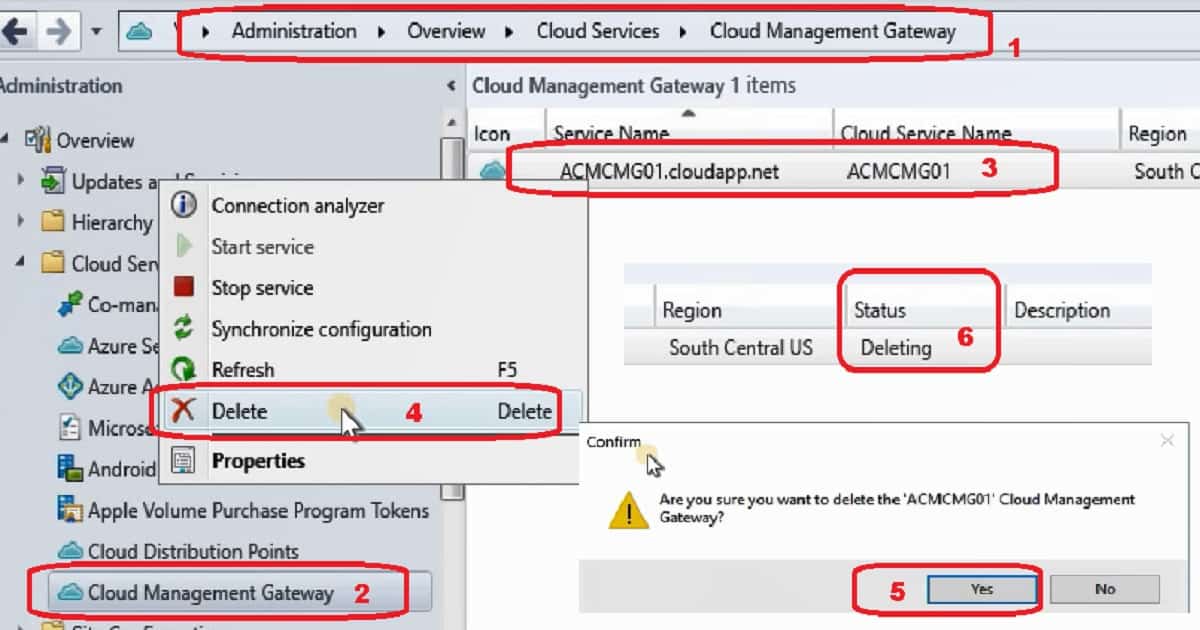
- Navigate to \Administration\Overview\Cloud Services\Cloud Management Gateway
- Select the Cloud Management Gateway, go to properties, and select Content. Then, ensure no packages are distributed (other than default packages, which can’t be removed) to that Cloud DP.
- Click on the Delete button from the ribbon menu to remove SCCM CMG
- Click on the Yes button from the confirmation windows to initiate the CMG deletion process
- Step #4 launches the deletion process from the SCCM side and Azure side as well
How to Confirm Whether SCCM CMG is Removed?
You can confirm whether the SCCM CMG got removed from Azure and SCCM. The best way is to check the log files like CloudMgr.log. Another option is to check the status monitoring in the Cloud Management Gateway node in the SCCM console.
Another option is to check the Azure Portal to confirm whether the SCCM CMG Azure blob storage account and Azure CMG Virtual server (PaaS) were removed.
How to – Remove the SCCM Cloud Management Connection Point Role?
You can remove the connector role before or after removing SCCM CMG. In the above video and this guide, I removed the SCCM cloud management connection point role after removing CMG.
Follow the steps to remove the SCCM cloud management connection point role.
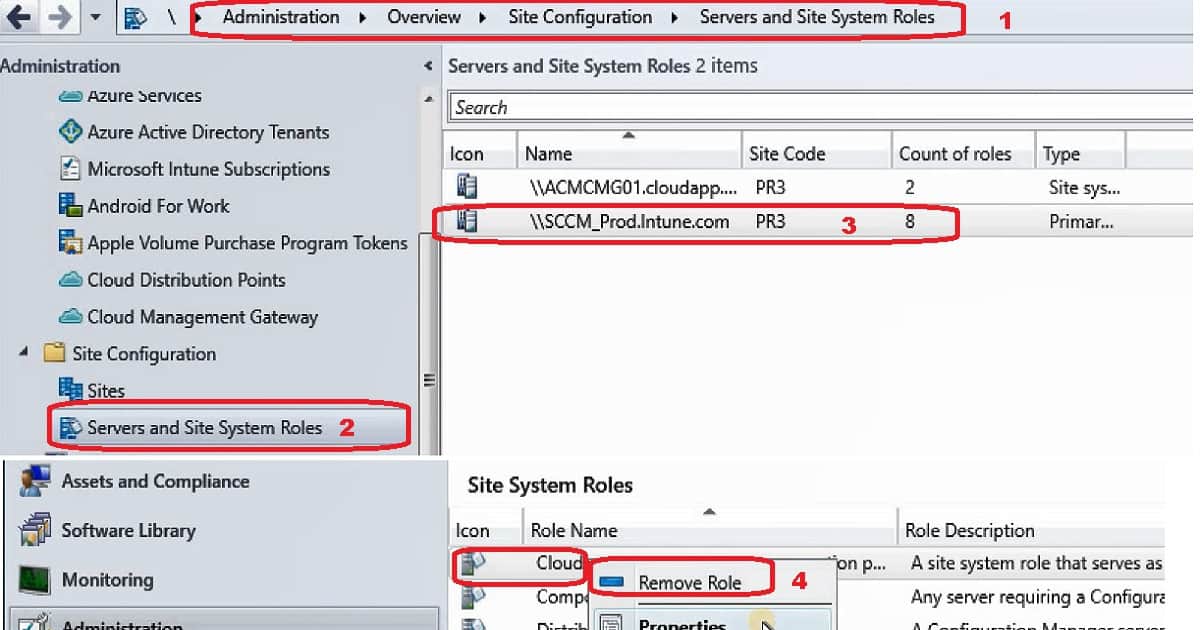
- Navigate to \Administration\Overview\Site Configuration\Servers and Site System Roles
- Select the server where you have installed the CMG connection point role
- Go to Details Pane in the SCCM console, then Right-click & select Remove Role – the cloud management connection point role
- The above step #3 launches the process of deleting the part from the SCCM primary server or remote site system
[Related Post – How to Remove SCCM Cloud DP]
Remove – Azure AD User Discovery and Azure Services from SCCM
You can remove the Azure Active Directory user discovery details from the SCCM console. This option is available under the Azure services node.
- Navigate to \Administration\Overview\Cloud Services\Azure Services
- Select the Azure service name from which you want to remove the AAD User discovery
- Go to Details Pane in the SCCM console, then Right-click & select Remove the discovery (optional)
- Right-click on the Azure Service name and Delete
Remove – Azure Active Directory Tenants and Server and Client Azure Apps
You can remove the Azure Active Directory tenant details from the SCCM console. This option is available under the Azure Active Directory tenant node.
From this node, you can delete Azure server and client apps created during the cloud service onboarding process.
- Navigate to \Administration\Overview\Cloud Services\Azure Active Directory Tenant
- Select the Azure Tenant name which you want to remove the server and client apps
- Go to the Details Pane in the SCCM console, then Right-click and select Remove the server app and then the client app. Alternatively, you can click on the DELETE button from the ribbon menu.
- Right-click on Azure Active Directory Tenant name and Delete to remove the tenant details from SCCM
Remove – Co-Management Configurations from SCCM
You can remove the co-management details from the SCCM console. This option is available under the Co-Management node. From this node, you can delete SCCM co-management configurations.
- Navigate to \Administration\Overview\Cloud Services\Co-Management
- Select the Co-management option list view
- Right-click on Co-Management configuration and Delete to remove the co-management configuration from SCCM

Resources
How to Setup Co-Management Video Tutorials
Integrate Apps with Azure AD – https://docs.microsoft.com/en-gb/azure/active-directory/develop/quickstart-v1-integrate-apps-with-azure-ad
We are on WhatsApp. To get the latest step-by-step guides and news updates, Join our Channel. Click here –HTMD WhatsApp.
Author
Anoop C Nair is Microsoft MVP! He is a Device Management Admin with more than 20 years of experience (calculation done in 2021) in IT. He is a Blogger, Speaker, and Local User Group HTMD Community leader. His primary focus is Device Management technologies like SCCM 2012, Current Branch, and Intune. He writes about ConfigMgr, Windows 11, Windows 10, Azure AD, Microsoft Intune, Windows 365, AVD, etc.




You also have to remove manually the App registration in Azure.
Go in Azure portal, App registrations, find you app and delete it.
I was confronted with this error “Another object with the same value for property identifierUris already exists.” trying to reinstall an Azure Service.
Clue from :
https://github.com/Azure/azure-powershell/issues/5403
https://github.com/Azure/pcs-cli/issues/146
Regards from Switzerland,
Phil
Hi Anoop,
I deleted and recreate the Azure service. I am getting the following error message.
—————————
Configuration Manager
—————————
Another object with the same value for property identifierUris already exists.For more details you can refer to the AdminUILog.
—————————
OK
—————————
Please guide me.
StaffHow bout https://www.anoopcnair.com/fix-error-sccm-azure-ad-web-app-already-exists/ to delete apps and Azure AD tenant to clean up things
Just out of my experience.
In case your account has access to multiple tenants and you are receiving the error “Another object with the same value for property identifierUris already exists.”
The wizard will create the apps in your default tenant so make sure to check the other Azure AD’s you have permissions on.
In my case the wizard created the apps in the wrong tenant, while I was searching for the apps in the tenant of the customer… 🙂
StaffThank you for sharing your experience !
Hello!
It seems like there is no “Right-click & select Remove the server app and then client app.”.
Was this possible in older Versions of SCCM?
Thank you.