





Enable Show Desktop Button on Windows 11 Taskbar
Let’s check different methods to enable show desktop button on Windows 11 Taskbar. The Show Desktop button is one of the best features of Windows 11 PCs, and as you know, the Taskbar is very important.
The taskbar is an essential part of the Windows Operating System that helps users quickly access crucial programs, applications, settings, and notifications. So, the toolbar will soon be handy for everyone to use on Windows 11 PC.
Do you know what the Show Desktop Button is in Windows 11 PC? It is a convenient way to minimize all your open windows and get a clear desktop view. This feature is beneficial if you cannot reduce the opening windows.
Some methods for accessing the Show Desktop Button on the Windows 11 Taskbar are available. This post will inform you more about the Show Desktop Button on Windows 11. This tool is necessary for users and will improve their experience.

What are the Advantages of Show Desktop Button on Windows 11 Taskbar?
1. It is very user-friendly for everyone.
2. Easy to access quickly with different methods.
3. Best method to minimize desktop windows.
4. Helps to bring all the open windows back.
- 3 Best Ways to Disable Taskbar Thumbnail Preview on Windows 11
- Accent Colors in Windows Start Menu and Taskbar
- Keep User Desktops Clean by Blocking Windows Media Player Shortcuts using Intune
Different Methods to Enable Show Desktop Button on Windows 11 Taskbar
As mentioned above, the Windows 11 Taskbar’s best feature is Show Desktop. This feature helps users quickly minimize windows and access their Desktop. The Show Desktop icon appears in the right corner of the Taskbar. The table below shows the different ways of enabling the Show Desktop button.
| Different Methods to Enable Show Desktop Button |
|---|
| Enable Show Desktop Button Using Settings Application |
| Enable Show Desktop Button Using Right-Click on the System Tray |
| Enable Show Desktop Button Using Shortcut |

1. Enable Show Desktop Button using Settings Application
Users can easily enable the Show Desktop Button Using the Settings Application. This is the quicker way to access taskbar settings.
- Click on the Start Menu and select Settings Application.
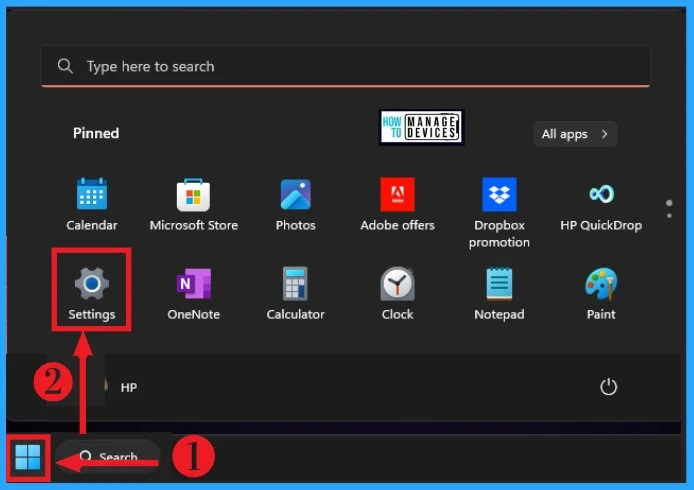
The Settings Application shows many options for users to access different tools on Windows 11 PC. The left side of the Settings Application window shows many options. Select Personalization Settings and then the Taskbar option, as shown in the screenshot below.
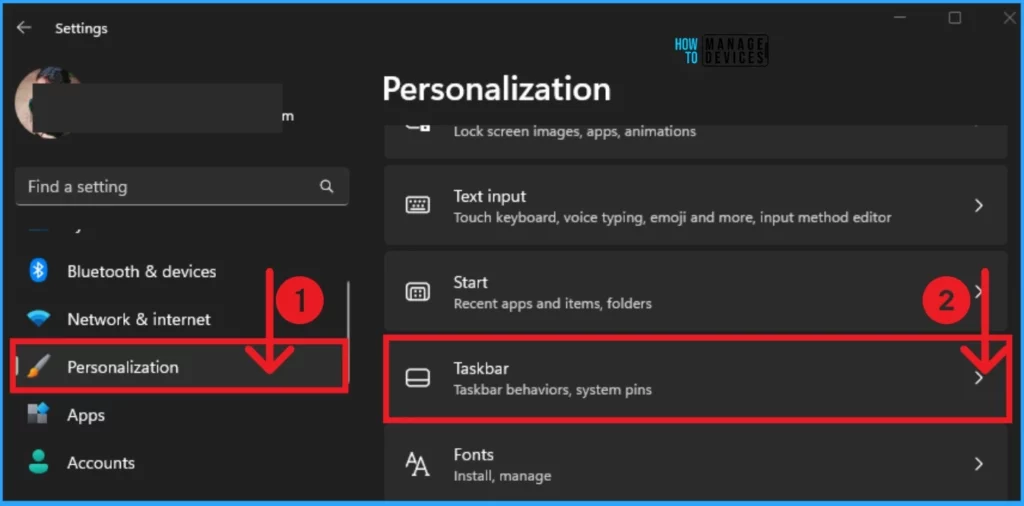
As you know, the Taskbar is the quick access area on Windows 11 PC. The Taskbar settings help you to access different settings related to the taskbar. You can easily customize the taskbar to your preference. Select the Taskbar Behaviour option as below.
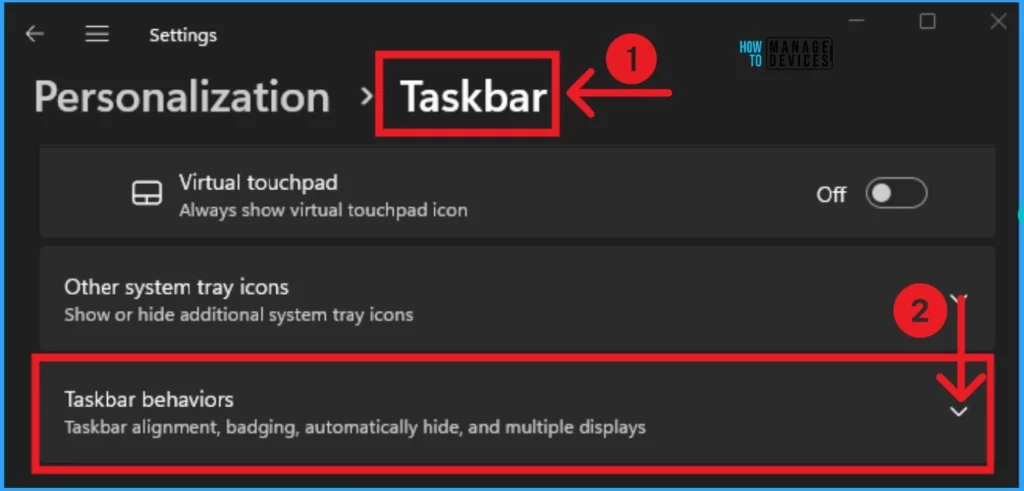
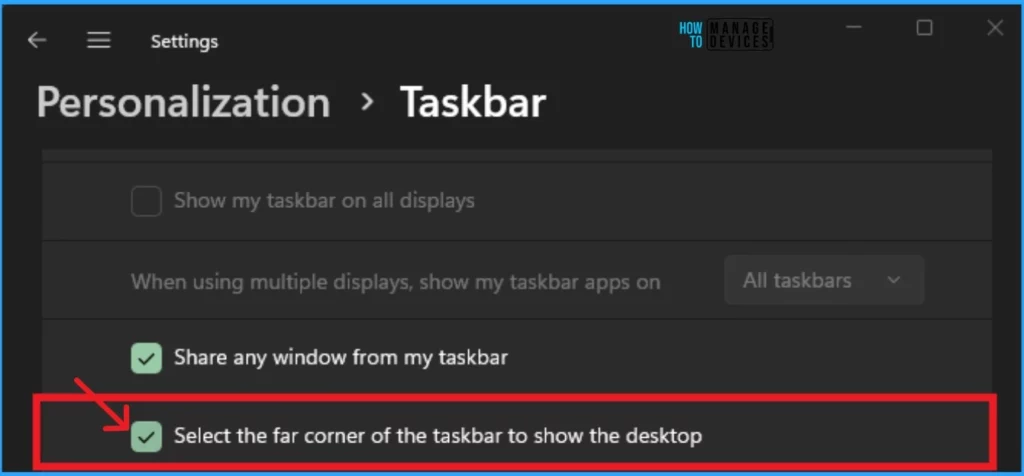
The Taskbar Behaviour options help you change the appearance of your Windows 11 Taskbar. You can even hide your Taskbar from the Taskbar Behavior window. To Enable the Show Desktop Button, follow the steps.
- Click on the checkbox near ” Select the far corner of the taskbar to show the desktop“
- After enabling this, you can see the Show Desktop icon on the right corner of the Taskbar.
2. Enable Show Desktop Button using Right-Click on the System Tray
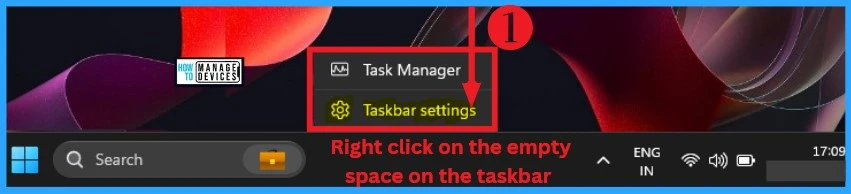
Taskbar Settings can be directly accessed without Opening the Settings Application. To do this, right-click on the empty space on the taskbar. Click on the Taskbar Settings. After opening Taskbar Settings, you can follow the steps mentioned above to enable the Show Desktop Button.
3. Enable Show Desktop Button using Shortcut
The show Desktop button can also be quickly accessed with the Keyboard Shortcut. This method does not enable the Show Desktop Button, but you can minimize desktop windows using Shortcut. As you know, the purpose of the Show Desktop button is to minimise the desktop Window. So users can quickly do this with a single click.
- Press Win +D to minimize Desktop windows.
Reasons for Disappearing Show Desktop Button on Windows 11 Taskbar
Before 2,3 months, Users cannot find the Show Desktop Button from the Taskbar. Show Desktop Button is Missing, and users can’t access this button. This issue occurred due to the Windows 11 Update, and Microsoft shifted the Copilot Button to the right corner of the Taskbar.
This is not a fault of the Copilot feature, but it is a part of the Windows update. Most of the Windows Update Microsoft changes the appearance of Windows 11 PCs. The missing Show Desktop Button is only a part of the Update.
- Windows 11 Search Widget in the Taskbar New Microsoft Experiment
- Windows 11 Start Menu Taskbar Alignment Options | How to align Center or Left
We are on WhatsApp now. To get the latest step-by-step guides, news, and updates, Join our Channel. Click here. HTMD WhatsApp.
Author
Anoop C Nair is Microsoft MVP! He is a Device Management Admin with more than 20 years of experience (calculation done in 2021) in IT. He is a Blogger, Speaker, and Local User Group HTMD Community leader. His main focus is on Device Management technologies like SCCM 2012, Current Branch, and Intune. He writes about ConfigMgr, Windows 11, Windows 10, Azure AD, Microsoft Intune, Windows 365, AVD, etc.




Discussion