






Hyper-V VM Restore and Boot from Backup
Let us learn about Hyper-V VM Restore and Boot from Backup. I have recently written about Hyper-V backup using Altaro VM backup.
Establishing a consistent backup strategy for a virtual Hyper-V environment can be complicated. VM Backup streamlines the process by enabling simple implementation of trustworthy backups and replication for Hyper-V.
You can Install, Configure, and Backup Hyper-V VMs with an Altaro VM backup using my step-by-step guide mentioned above.
This post will show how to restore a Hyper-V VM and Boot a Hyper-V VM from Backup using Altaro VM backup.

Table of Contents
Video Tutorial – Restore VM as Clone
I have explained how to restore the VM as a clone in the video tutorial below.
- How to Install Configure Backup Hyper-V VMs with Altaro VM Backup
- Hyper-V Backup Step-by-Step Installation Configuration Video Guide Altaro Backup Guide
Highlights of Hyper-V VM Restore Options
The following are the restore options available in the Altaro VM backup.
- Restore as Clone
- Restore to a Different Host
- File Level Restore
- Exchange Item Level Restore
- Boot from Backup
- Sandbox Restore
How to Restore a Hyper-V VM as Clone?
Restoring VMs as clones is a useful option for me, and it has often helped me restore VMs to their best previous configuration.
In the restore clone process, the Hyper-V VM backup will be restored to a new location and given a new name. This process will not impact the original VM and will not overwrite the original guest VM.
Restoring a clone VM will help you troubleshoot two different configurations of the VMs. The side-by-side cloned VMs will also help you identify the changes that happened on this VM.
The boot from Backup below explains a better way to check the previously known good configurations. The following steps will help you in the Hyper-V VM Restore process.
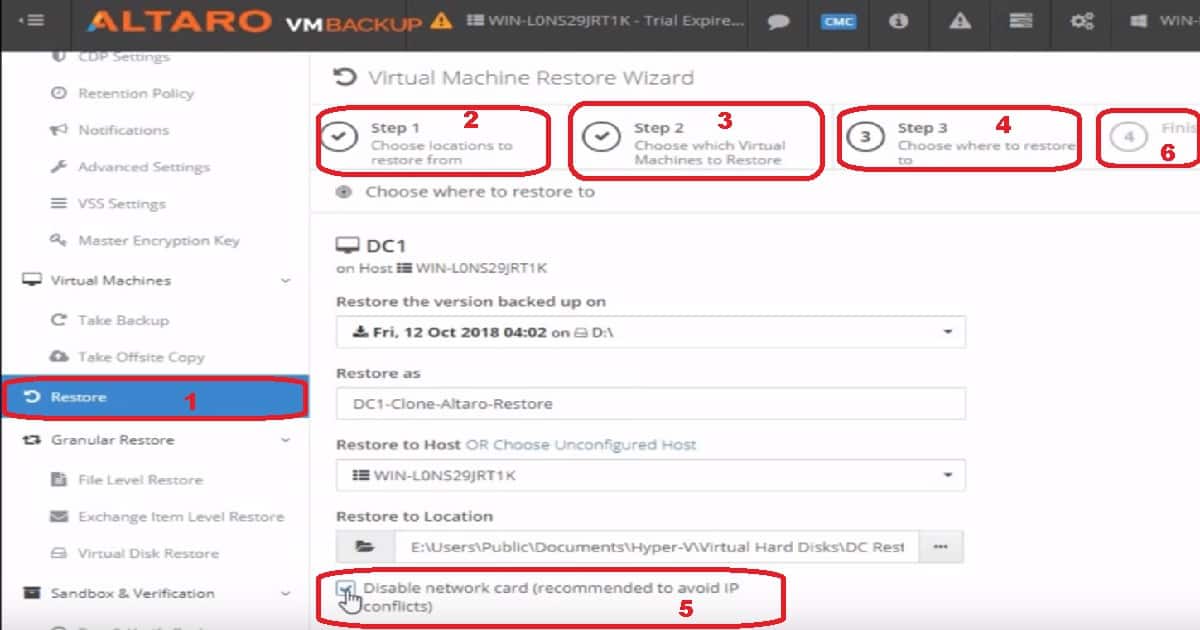
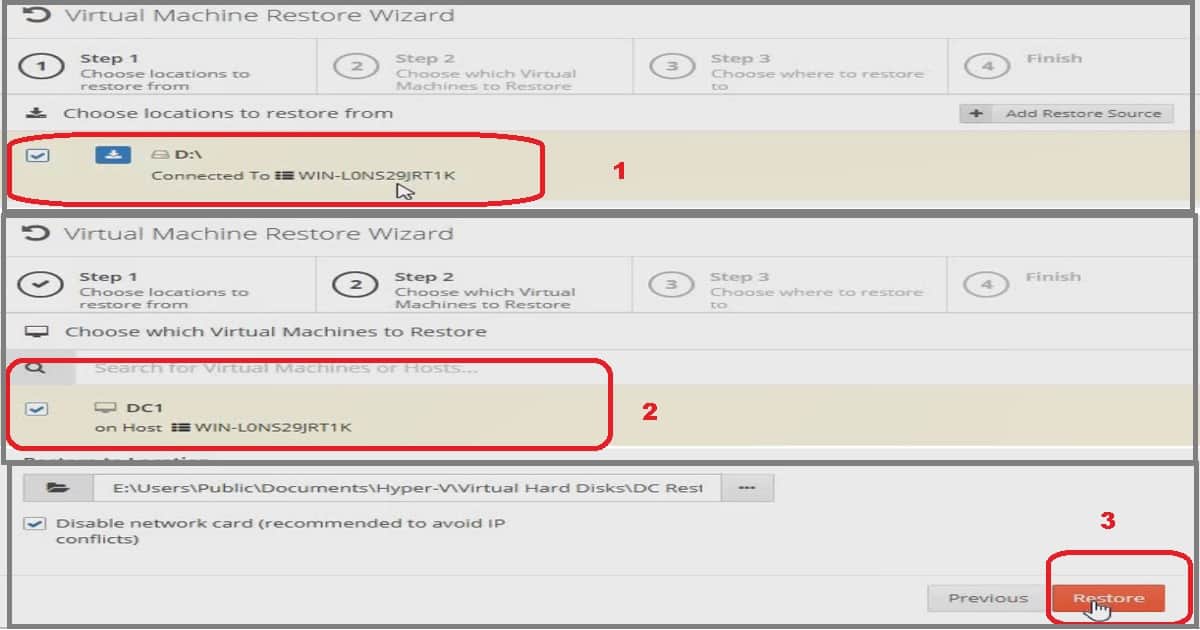
Click on the Restore button from the Altaro VM Backup console. Choose the backup location where your Altaro Hyper-V VM backup is stored. In my scenario, it had stored in an external HDD (D: Drive)
- Click on the Next button
- Select the Hyper-VM that you want to restore as a clone. I selected the DC server to restore.
- Select the location where the VM should be restored. You can select which version of backup you want to restore, the Name of the restored VM, the Hyper-V host machine to restore, and the Restore file location. I created a new folder to store all the files and HDD of the restored VM.
- You can Enable or Disable the checkbox “Disable network card (recommended to avoid IP conflicts).”
- Click on Restore from Altaro Virtual machine restore wizard to start the restore process. The restore process will take time, depending on the backup location and the size of the VMs.
How to Monitor the Hyper-V VM Restore Progress?
You can monitor the status of Hyper-V VM restore from the Altaro VM backup dashboard. You can check the fixed quality from “Active & Upcoming operations” in the dashboard.
The restore status is almost real-time; you can see the percentage of details about the Hyper-V VM restore from the dashboard.
Validate Cloned Hyper-V VM
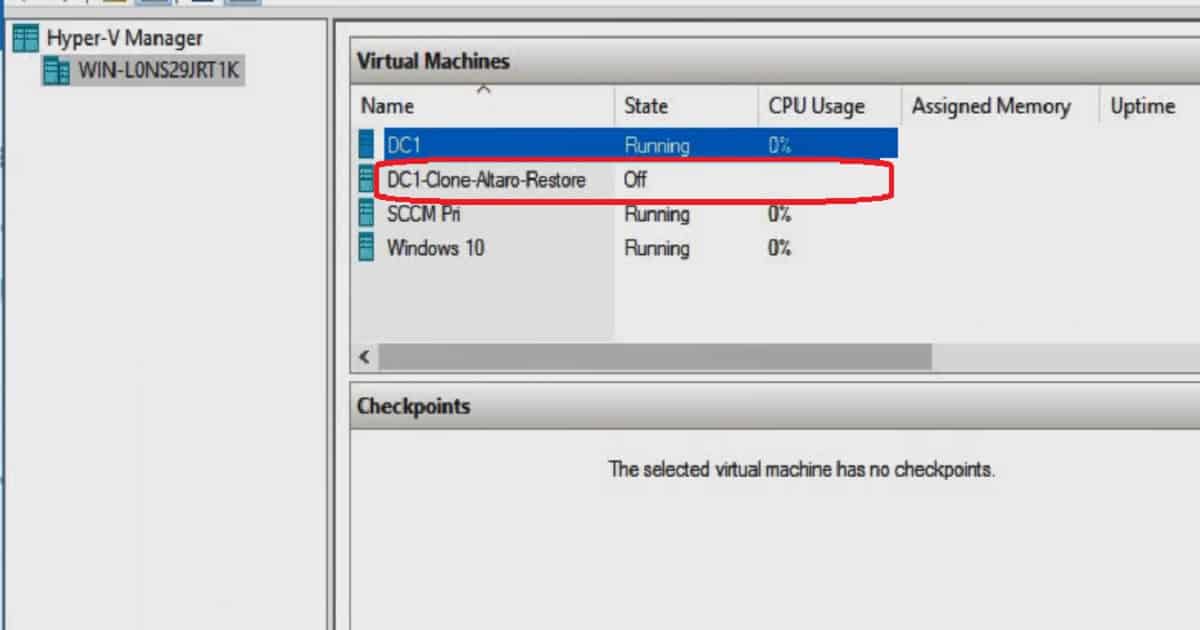
Once the restore is completed, you can log in to the Hyper-V host and start the cloned VM. As I mentioned above, this restoration process helped me troubleshoot some of the SCCM-related issues.
DC1-Cloned-Altaro-Restore is the cloned VM.
What is Boot from Backup?
The Boot from Backup is one of my favorite features of Altaro VM backup, which allows you to instantly boot any Hyper-V VM version directly from the backup location. This will help you to reduce the downtime of your critical business application.
There are two options available when Booting a VM from your Altaro VM Backups:
- Verification Mode
- Recovery Mode
What is Boot from Backup Verification Mode?
As the name suggests, this is very helpful in troubleshooting. You don’t need to waste your restore restoring the entire VM to validate the configuration.
Using the Boot from backup verification mode feature, you can instantly boot up your backed-up VMs in read-only mode. Moreover, the changes made to the booted VM will be discarded when verification is completed.
What is Boot from Backup Recovery mode?
The “Recovery mode – boot from backup” feature is one of my favorite features. If disaster strikes, the Hyper VM can be booted up instantly from the backup drive.
This boot option minimizes downtime for your critical application. At the same time, you can restore the VM to the Hyper-V host.
A simple guest VM reboot completes the recovery process and preserves any changes done while the VM is booted.
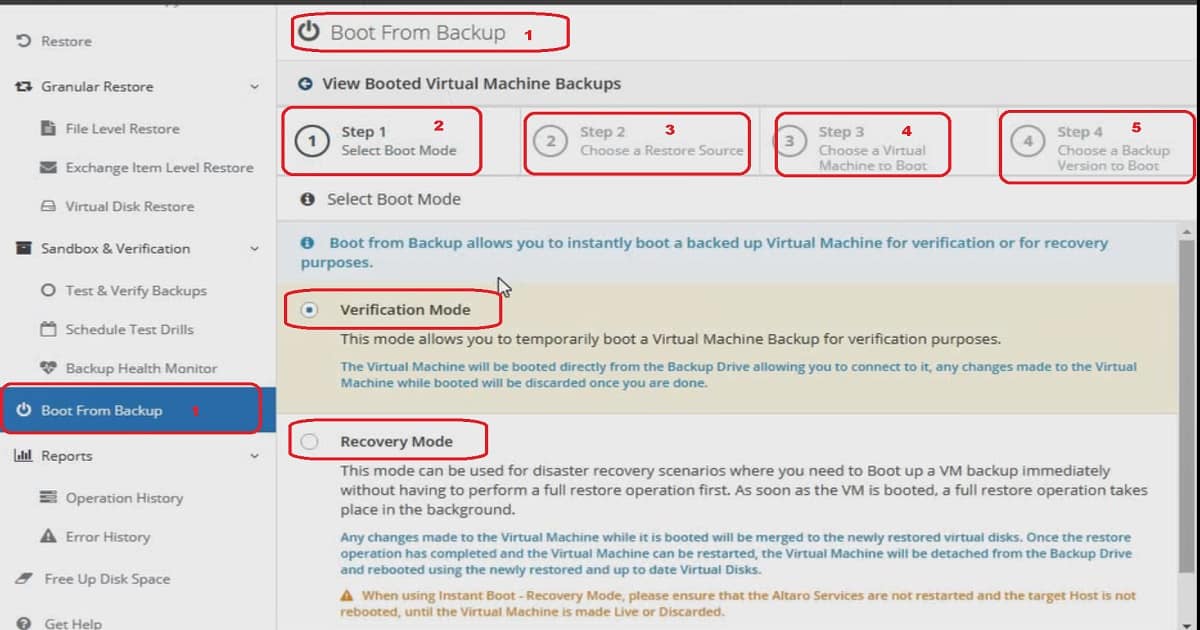
- Click on Boot from Backup
- Select Boot Mode from the Boot from the backup page. You can either select Verification or Recovery mode.
- Choose a Restore Source
- Choose a Virtual Machine to Boot
- Choose a Backup version to boot
Resource
- 101 Free Hyper-V Management & Monitoring Tools & Resources
- Download Altaro VM Backup for free
- Knowledge and Resources Centre
We are on WhatsApp. To get the latest step-by-step guides and news updates, Join our Channel. Click here –HTMD WhatsApp.
Author
Anoop C Nair is Microsoft MVP! He is a Device Management Admin with more than 20 years of experience (calculation done in 2021) in IT. He is a Blogger, Speaker, and Local User Group HTMD Community leader. His primary focus is Device Management technologies like SCCM 2012, Current Branch, and Intune. He writes about ConfigMgr, Windows 11, Windows 10, Azure AD, Microsoft Intune, Windows 365, AVD, etc.


Discussion