






Importance of Potentially Unwanted App Protection in Microsoft Edge
Hi, All. Today, we can discuss a new topic: The Importance of Potentially Unwanted App Protection in Microsoft Edge. Microsoft Edge is a well-known browser known for its speed and security. Security is an essential part of every system, browser, etc. Edge will give its users the best features.
I like this browser; it’s the best browser that keeps browsers secure. Microsoft Edge offers security features, including Microsoft Defender SmartScreen, which protects against phishing and malware. In many posts, we discussed about the Microsoft Security features.
It is time to turn to Potentially Unwanted App Protection in Microsoft Edge. I think some of you will know about this feature. The importance of Potentially Unwanted App Protection is one of the features in Microsoft Edge settings. We can say that PUA is not a virus or malware but can negatively impact your browser security.
You have to understand that this feature is needed for browsers. Using PUA protection in Microsoft Edge is part of a bigger plan to improve online safety and user experience. Potentially Unwanted Apps are very irritating and may affect the user experience in MS Edge.

- Importance to Add Name for MS Edge Browser Windows
- Best Way to Organise your Workspaces in Microsoft Edge
- New Text Prediction and other Features in MS Edge Browser
- Method to Start Close Read Aloud in Microsoft Edge
What are Potentially Unwanted Apps?
Importance of Potentially Unwanted App Protection in Microsoft Edge
Above, we discuss an overall view of Potentially Unwanted Apps (PUA). PUA is risky for your device and dangerous because it allows more harmful software to be installed on it. You know when a PUA always slows down your browser speed, shows ads, and tracks what you do online.
- Remember, it is not malware.
- Potentially, Unwanted App Protection is helpful for both individual users and organizations.
| Importance of Blocking Potentially Unwanted App |
|---|
| PUAs display annoying ads that can disrupt your browsing experience. |
| Turning on PUA protection in Edge is a good way to keep your computer safe and running. |
| PUA protection always enhances browser security. |
| By blocking PUAs, you can keep your system running smoothly and efficiently. |
| It helps you stay in control of what gets installed on your device |
| It ensures that only trusted applications are allowed, and it is free from unwanted browser interruption. |
Enable Potentially Unwanted App Protection in Microsoft Edge
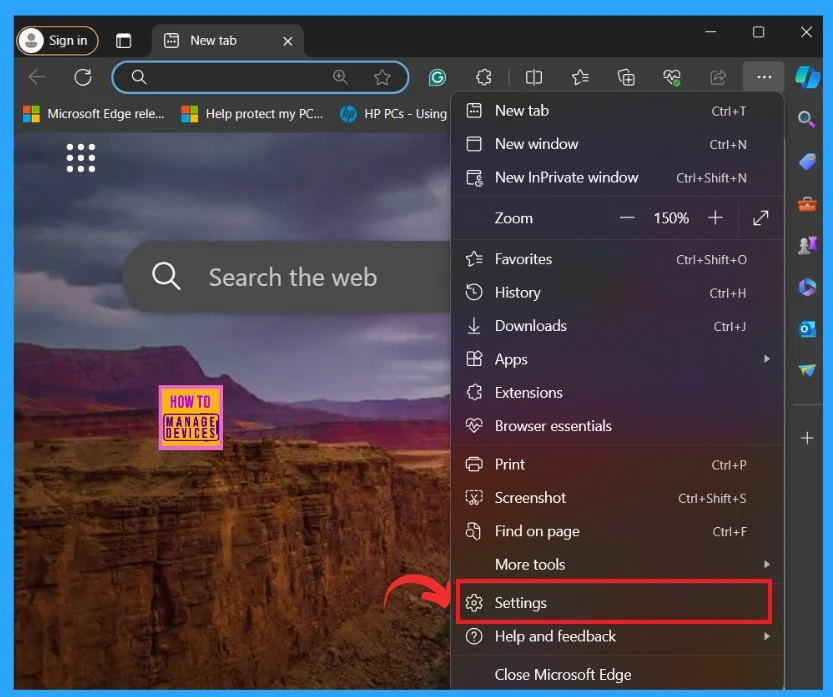
Now you know why we have to Enable this feature. Your browsers need to run fast and provide the best performance for users. So, first, we have to look into how to enable this feature in Edge settings. Open your Edge setting by clicking on the More options(…) in the right corner of MS Edge.
- Select Settings from More options.
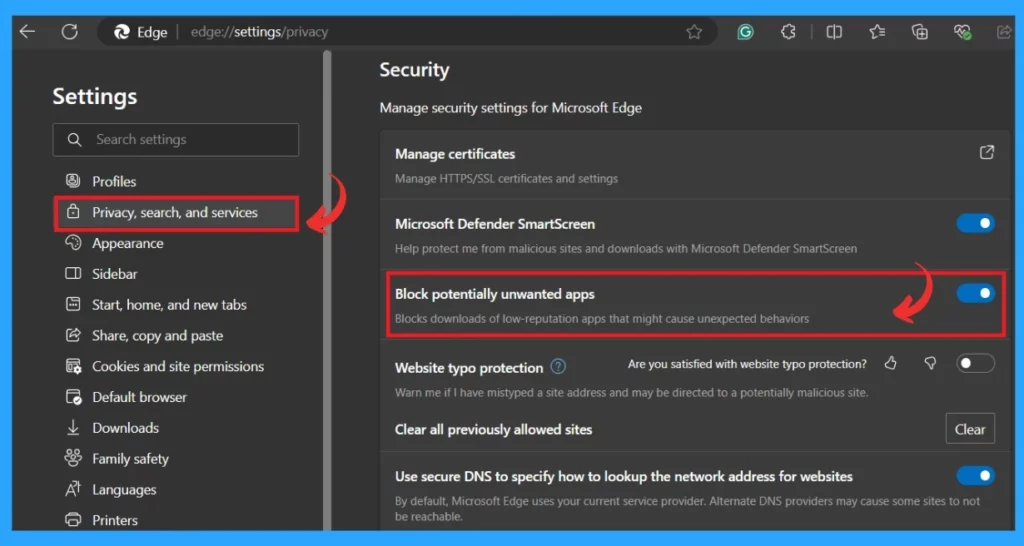
After opening the Settings page of Microsoft Edge, you must select the Privacy, Search, and Service option. You will be taken to a very long window when you click on that, so you must scroll down until you get the security options. Under the security options, you will get the option to ”Block potentially Unwanted Apps.”
- Block potentially Unwanted Apps – (Blocks downloads of low-reputation apps that might cause unexpected behaviours)
- You can enable this option by toggling the pane to the Right
- It is off by Default
- If you want to Disable it, you can easily Toggle the pane to the Left
Enable Potentially Unwanted App Protection for Edge Through the Registry
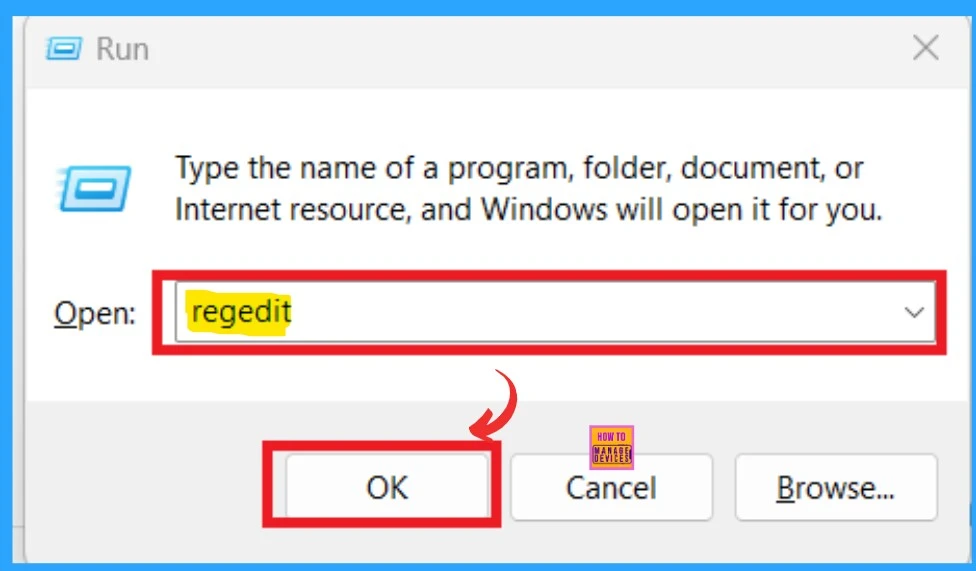
The Windows Registry database stores essential settings and options for the Windows operating system and its applications. So, the second method for Enabling the Unwanted App Protection for Ege is the Registry. First, you have to open the Registry by clicking on Win+R.
- Type regedit in the Registry Window( It will already be defaulted entered in the window)
- Click on the OK button
- Guide to Enable Efficiency Mode in Microsoft Edge using Intune
- Shared Links are Now Generally Available in Edge Version125 on Mobile
- Best Way to Organise your Workspaces in Microsoft Edge
- Enable Disable Defender SmartScreen for Microsoft Store Apps in Windows 11
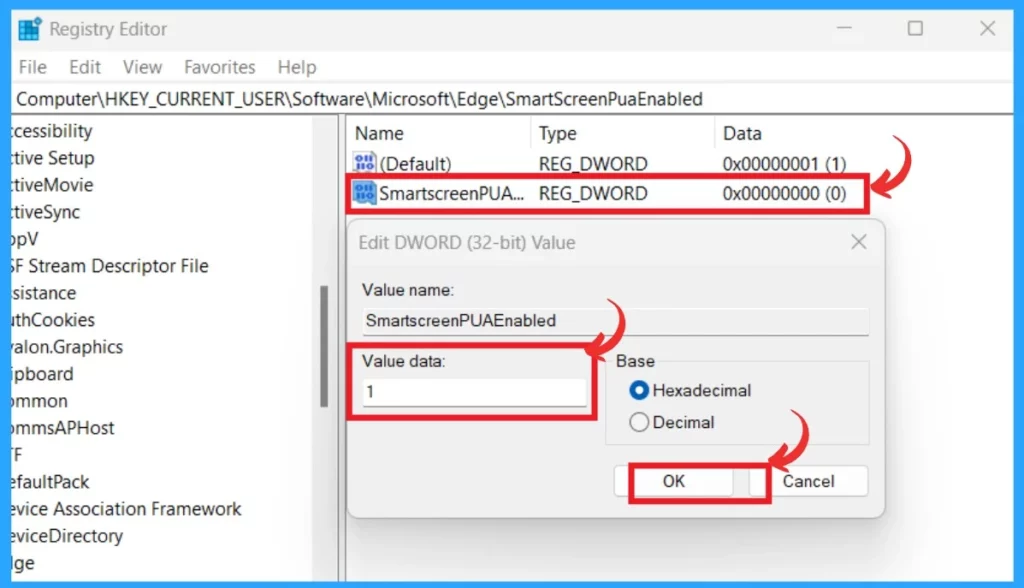
You can manage PUA protection in Microsoft Edge through the browser settings or the Windows Registry Editor. When the Registry opens, you have to navigate the appropriate key. You can copy the below path for this. If the first key does work, use the other one.
Copy this: Computer\HKEY_CURRENT_USER\Software\Microsoft\Edge
Copy this: [HKEY_LOCAL_MACHINE\SOFTWARE\Policies\Microsoft\Edge]- After entering the key
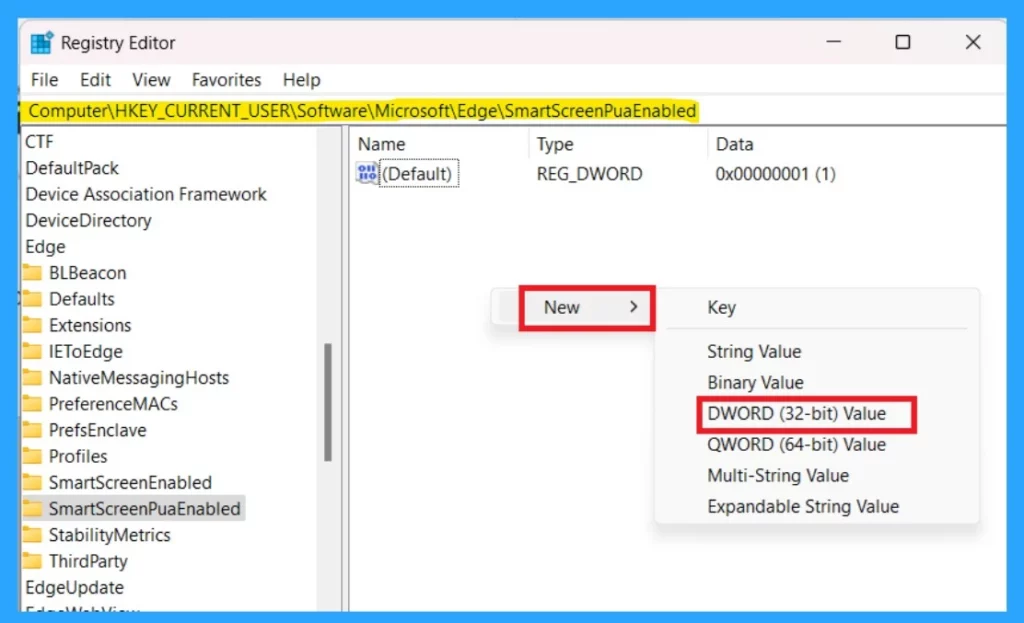
- If SmartScreenPuaEnabled is not there, right-click in the blank area, create a new DWORD (32-bit) value, name it SmartScreenPuaEnabled,
- Right-click on the right pane and select New > DWORD (32-bit) Value.
- Give the new name to the New value as SmartScreenPuaEnabled ( DWORD (32-bit) Value)
After giving the value a new name, SmartScreenPuaEnabled, double-click on it and enter the value to enable Potentially Unwanted App Protection. You can provide the value as 1 to Enable the PUA.
- Value as 0 – To Disable Potentially Unwanted App Protection in Edge
- Value as 1 – To Enable Potentially Unwanted App Protection in Edge
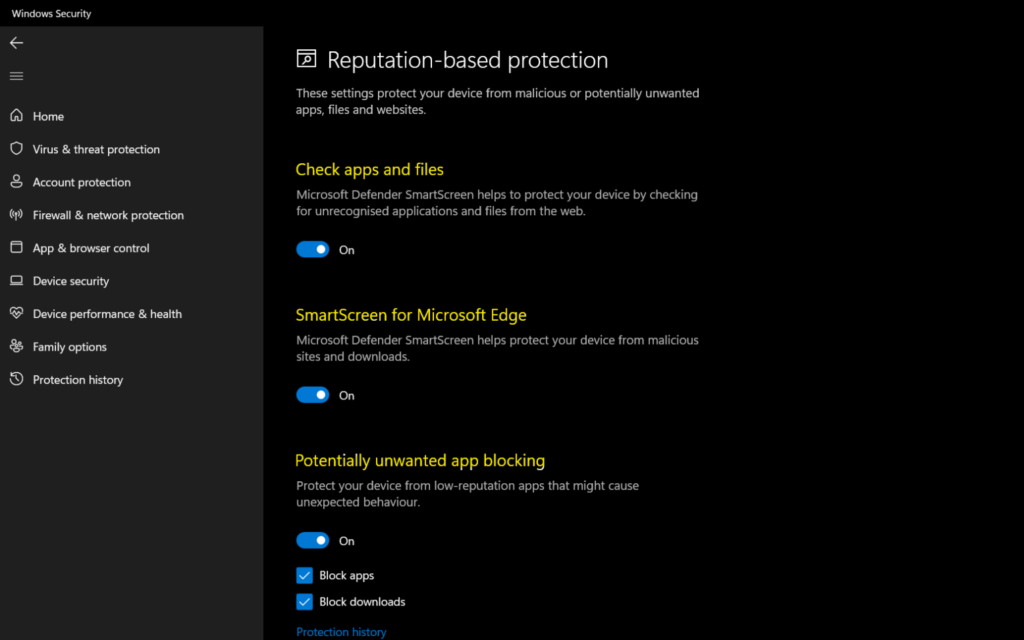
Block Potentially Unwanted Applications Through Microsoft Defender
We have a post based on Block Potentially Unwanted Applications Through Microsoft Defender. That post clearly explains how to block PUA in Windows Defender. Windows Security offers features like SmartScreen to protect against malicious files and websites.
See more for more information about blocking PUA in Windows Defender: Block Potentially Unwanted Applications in Windows | Microsoft Defender
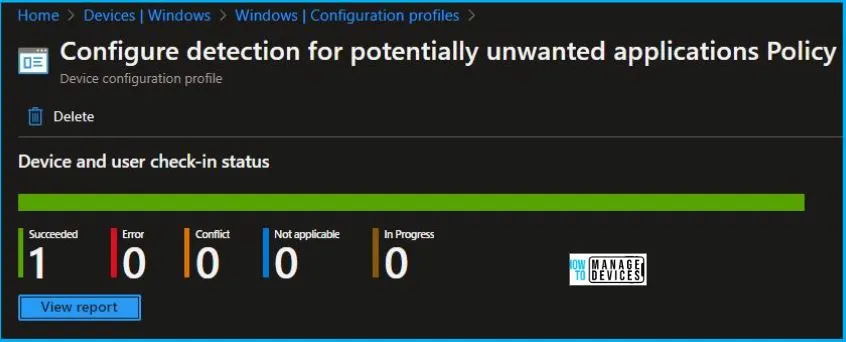
Detect Potentially Unwanted Applications using Intune
You can detect Potentially Unwanted Applications using Intune. We have a post on this topic that mentions how to enable the detection of PUA using Intune to protect the network from malware. This post provides detailed instructions for a single step.
See More: Detect Potentially Unwanted Applications using Intune
We are on WhatsApp now. To get the latest step-by-step guides, news, and updates, Join our Channel. Click here. HTMD WhatsApp.
Author
Anoop C Nair is Microsoft MVP! He is a Device Management Admin with more than 20 years of experience (calculation done in 2021) in IT. He is a Blogger, Speaker, and Local User Group HTMD Community leader. His main focus is on Device Management technologies like SCCM 2012, Current Branch, and Intune. He writes about ConfigMgr, Windows 11, Windows 10, Azure AD, Microsoft Intune, Windows 365, AVD, etc.




Discussion